

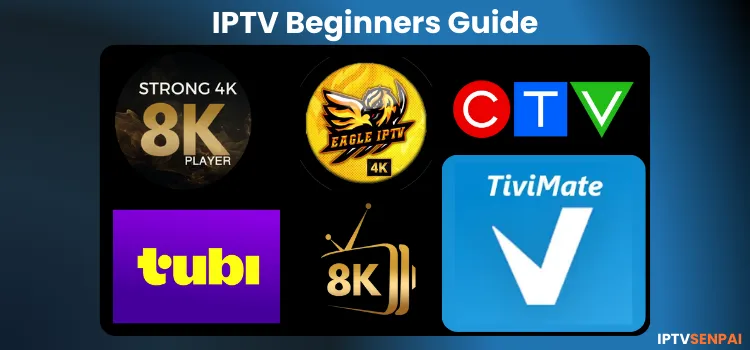
 If you’ve ever wondered why people are ditching cable for IPTV, the answer is simple: more content, more flexibility, and usually for 1/5th of the cost.
IPTV (Internet Protocol Television) streams Live TV channels, Movies, and TV shows directly over the internet instead of old-school satellite or cable lines. You need the right device, a trustworthy IPTV provider, and compatible playlist details, such as an M3U link and Xtream Codes.
Setting up IPTV can feel a little confusing at first. This guide simplifies everything, from choosing the right device to setup and safer, buffer-free streaming.
Setting up IPTV can feel a little confusing at first. This guide explains how IPTV works, its features and benefits, supported devices, setup steps, and safety tips—from choosing the right device to enjoying buffer-free streaming.
Check out our blog: Best IPTV Hacks You Need to Try in 2026
Recommended VPN for IPTV - Surfshark
Using IPTV without a VPN can put you at Big Risk! Your ISP, government and even IPTV providers can monitor your activity, throttle your speed, or block access altogether.
Plus, without encryption, your data is exposed to hackers and third parties. Take back your privacy with Surfshark!
Features:
✅ SAVE 87% + GET 3 EXTRA MONTHS FREE! ($0.06/day)
✅ Kill Switch Feature to protect you if VPN drops
✅ Lightweight app ensuring smooth performance on All IPTV Boxes
✅ Unlimited simultaneous connections (install on all household devices)
✅ 30-day risk-free money-back guarantee
✅ Strict no-logs policy, Secure & Untraceable
What Can You Watch With IPTV?
Here is a breakdown of what you can stream:
- 30K+ live TV channels: News, sports, and entertainment channels
- Unlimited movies and TV shows: Including the latest releases
- Live sports: Live events, PPV, and sports replays
- Documentaries
- Music channels: Live performances and music videos
- International content
- Specialty content: Kids’ programming and lifestyle channels
What You’ll Need Before Starting IPTV
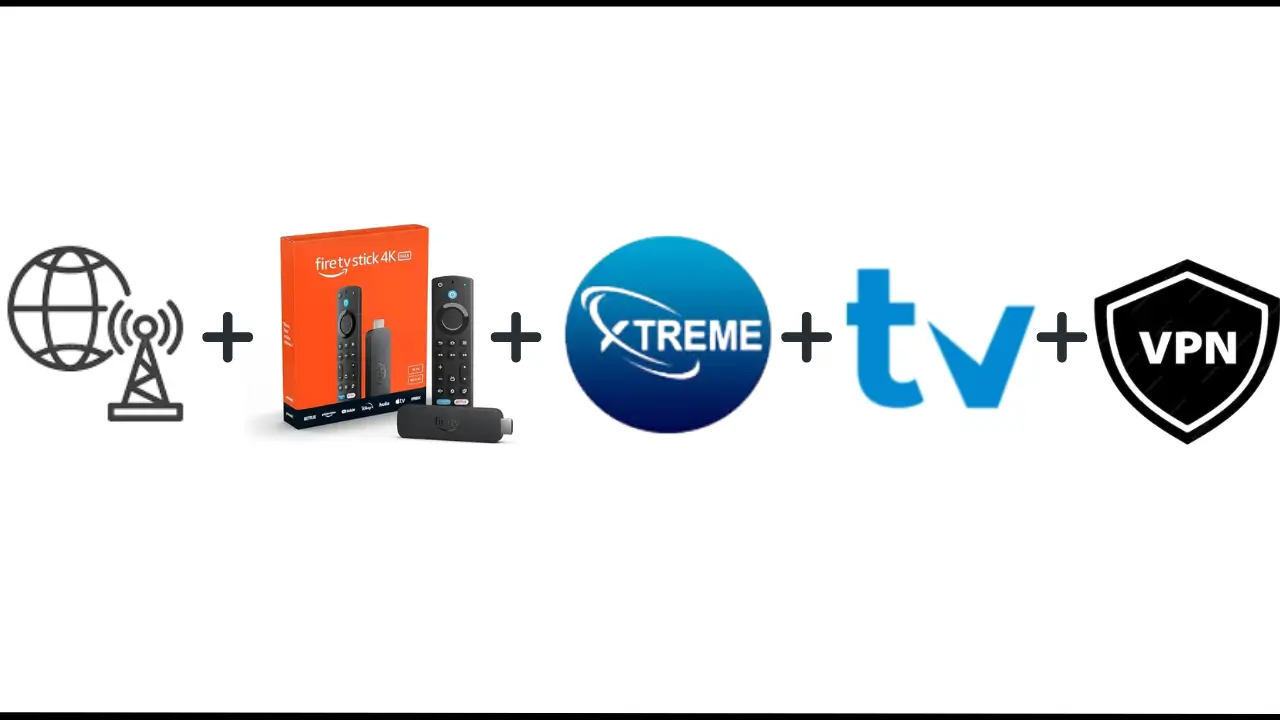
Here’s your quick checklist:
✅ Internet
✅ Streaming Device
✅ IPTV Service
✅ IPTV Player
✅ VPN
4 Steps to Set Up IPTV for Beginners
Here are the 4 steps to set up IPTV as a beginner. Follow through with each step one by one.
1. Have a Stable Internet Connection.
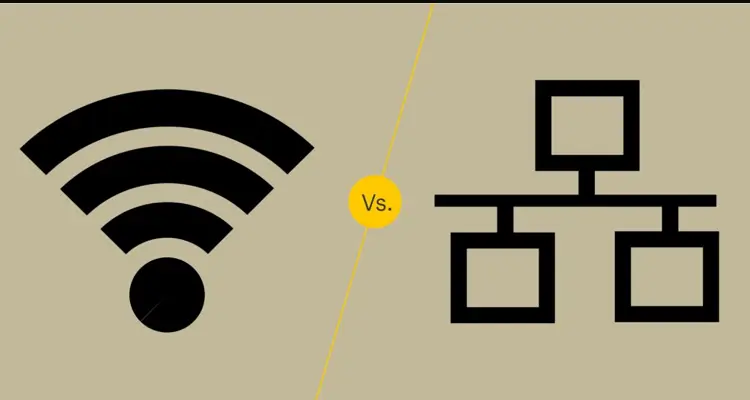
First things first: You’ll need a solid, stable internet connection. Here is what you can keep in mind for the best experience.
- Choose a wired Ethernet connection whenever possible.
- If Wi-Fi is your only option, make sure the signal is strong.
- Limit the number of devices connected to your network while streaming.
Something else often gets overlooked: ISPs throttle internet speeds, especially during peak hours. A simple and effective way to address this is to use a VPN.
Minimum Speed Requirements for Buffer-Free Streaming
| Streaming Quality | Recommended Minimum Speed |
|---|---|
| Standard Definition (SD) | At least 5 Mbps |
| High Definition (HD) | 10–15 Mbps |
| 4K Ultra HD | 25–50 Mbps or higher |
2. Choose an IPTV Device
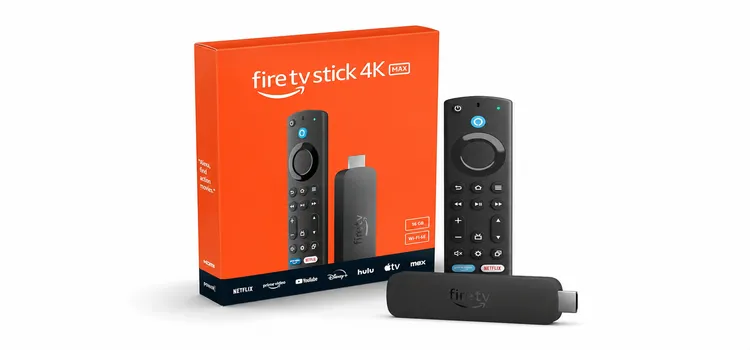
Next, you’ll need a device for streaming. Your options include:
- Streaming Stick/Box, Smart TV, Android phone/TV, iPhone, Apple TV, Laptop – Streaming experience can vary across these options.
- Also, you might have to do a bit of workarounds to set your devices up for IPTV. For instance, you might need to Jailbreak your FireStick to sideload APKs specifically made for IPTV streaming.
Here’s a breakdown of the best devices for IPTV, highlighting what each one offers and key factors to consider before purchasing:
| Device | Reasons to Buy | Reasons to Discard | Link to Buy the Devices |
|---|---|---|---|
| Amazon Fire TV Stick | – Affordable and easy setup. – Compatible with most IPTV apps. – Great for HD streaming. – Supports sideloading. – Has FireStick Mobile App. |
– Limited storage for recordings/IPTV Apps. – Amazon may restrict some unverified third-party apps. |
Buy FireStick 4K Max for $59.99 USD |
| ONN. Stream 4K Box | – Very affordable 4K streaming option. – Easy to use. – Supports most IPTV apps. – Supports sideloading. |
– Limited customization. – Not as powerful as other higher-end devices. – Officially supported in the U.S. only. – If locked, needs a workaround. – 32GB storage can still fill up with large recordings. |
Buy onn. 4K Pro Streaming Box for $59.98 USD |
| Onn. 4K Plus | – Affordable 4K Google TV device. – Includes 16GB storage and 2GB RAM. – Supports Dolby Vision and Dolby Atmos. – Supports Wi-Fi 6. – Compatible with most IPTV apps and sideloading. |
– No built-in Ethernet port. – Requires a USB-C hub for wired Ethernet. – Less powerful than the onn. 4K Pro. – Officially supported in the U.S. and Puerto Rico only. |
Buy onn. 4K Plus for $49.98 USD |
| Onn. 4K Streaming Stick | – Compact and affordable 4K device. – Includes 8GB storage and 2GB RAM. – Runs Google TV with Gemini. – Supports most IPTV apps. – Allows sideloading of third-party apps. |
– Limited 8GB storage. – No built-in Ethernet port. – Less powerful than the 4K Plus and 4K Pro. – Officially supported in the U.S. only. |
Buy onn. 4K Streaming Stick for $39.98 USD |
| NVIDIA Shield TV | – Powerful performance for 4K streaming. – Great for gaming and IPTV. – Excellent build quality. – Supports sideloading. |
– High cost. – Overkill if you’re only streaming IPTV. |
Buy NVIDIA Shield TV Pro for $199.99 USD |
| Formuler Z | – Optimized for IPTV streaming. – Supports up to 4K Ultra HD. – Preloaded with the latest MYTVOnline3 app. – Allows sideloading of third-party IPTV apps. – Reliable and stable streaming. |
– Limited app options. – Less flexible than certified Google TV devices for mainstream apps. |
Get Formuler Z11 Pro Max for $209.99 USD |
| Apple TV | – High-quality streaming. – Simple interface and easy to use. – Excellent compatibility with Apple ecosystem. |
– Expensive compared to alternatives. – Limited IPTV app selection compared with Android TV devices. |
Buy Apple TV 4K (128GB) for $249 USD |
💡My recommendation: I’d go with the Amazon FireStick 4K Max. It offers a strong balance of performance and value and handles IPTV very well.
3. Subscribe to an IPTV Service
An IPTV subscription lets you watch live television and on-demand content over the internet. Now that you have a compatible device, the next step is subscribing to the right IPTV service provider. You will have two options: verified or an unverified IPTV service.
A. What will the provider give you?
- The Content: The provider will give you access details like M3U links, Xtream Codes, or Stalker Portals (These are just the links/codes that are required to stream the content)
B. Platforms to Find IPTV Providers
So you would come across these 3 main platforms to purchase your IPTV service
- Marketplaces: Z2U, Made in China, and Alibaba
- IPTV Websites: Xtreme HD, 4K Live IPTV, Catch On IPTV, etc.
- Reddit/Discord/Telegram
💡 My recommendation: Z2U offers affordable plans, major providers, multiple payment methods, and plenty of trial options. However, verify sellers carefully and avoid relying solely on Reddit or Discord recommendations, as credibility and reliability can vary.
C. List of the best IPTV Services in 2026
| Unverified IPTV Services | Verified IPTV Services |
|---|---|
| Strong 8K | Fubo TV |
| Trex | YouTube TV |
| Mega OTT | Sling TV |
| Eagle 4K | Tubi TV |
| Dino IPTV | Philo |
D. How do you know which IPTV Service is the Best?
Only you can decide whether a service is right for you. Before subscribing, check the following:
Q1. Does it include the content and channels you want?
Q2. Is the streaming quality good enough?
Q3. Does it stream without frequent buffering or lag?
Therefore, testing services with free trials is a must to see if they meet your expectations. Make sure to verify their legitimacy to avoid IPTV scams. If you are new to IPTV or unsure of whom to choose, you can also try Free IPTV Services.
4. Install an IPTV Player and Set Up Your Playlist
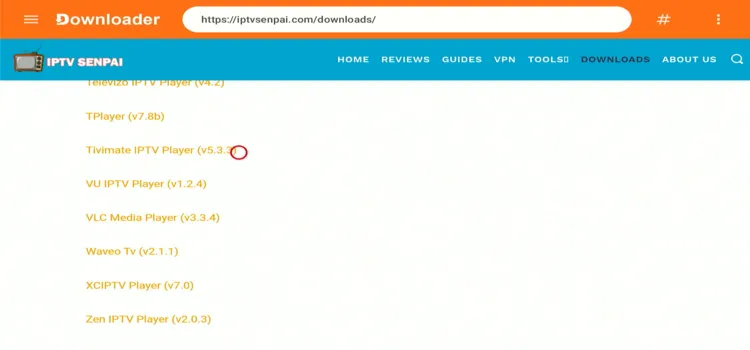
Once you have subscribed to an IPTV service, you need to select a player and enter the M3U link or Xtream Codes supplied by your provider. Without these details, your player will remain empty.
If you don’t have a subscription yet, you can also try some free IPTV services & free IPTV links:
| Best IPTV Players | 100% Free IPTV Players |
|---|---|
| TiviMate Player | IPTV Smarters Pro |
| Sparkle Player | XCIPTV |
| iMPlayer | |
| UHF (For Apple Devices Only) |
💡 My recommendation: Get TiviMate’s lifetime plan for Android devices or UHF for Apple devices. These are my top choices for their respective platforms.
How to Set Up IPTV on FireStick/Android TV Devices
The following tutorial demonstrates the process with TiviMate on FireStick. You can also follow a similar process with any of the free IPTV players.
Step 1: Install & Open the Downloader app.
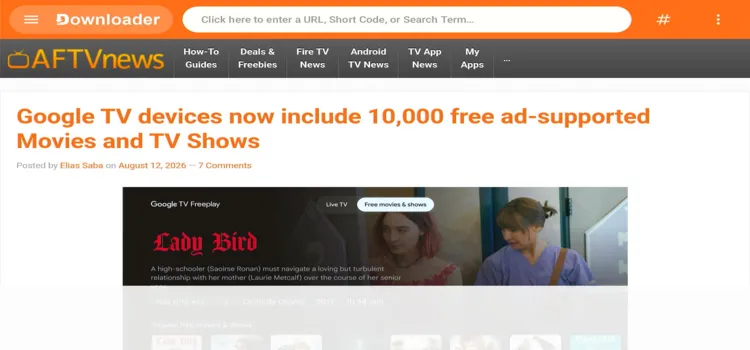
Step 2: Enter the TiviMate Downloader Code 5546232 in the search bar OR enter this URL bit.ly/43pEVWO and click Go.
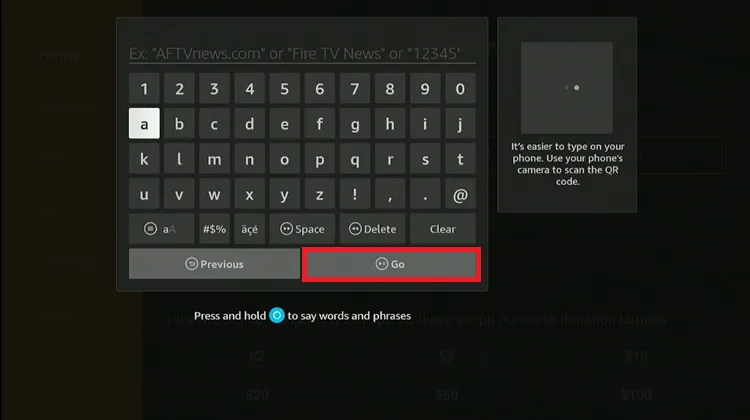
Step 3: Scroll down to the IPTV Players section, find the TiviMate app, and tap on it to proceed.
Step 4: Your APK will start downloading.
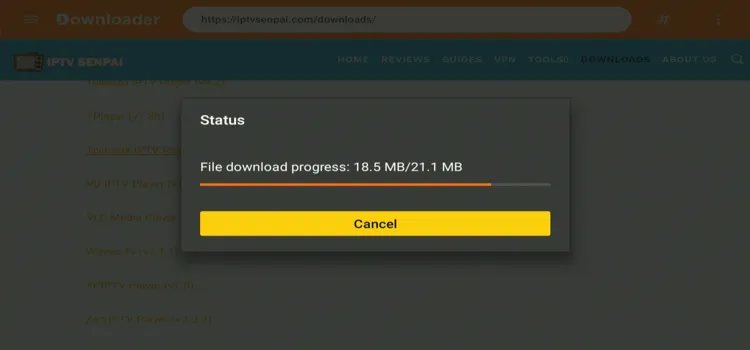
Step 5: Click Install.

Step 6: Once installed, select Done.

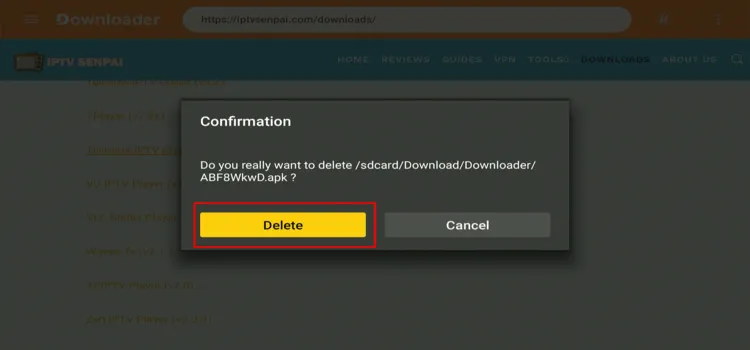
Step 7: Click Delete to remove the installation file and free up storage.
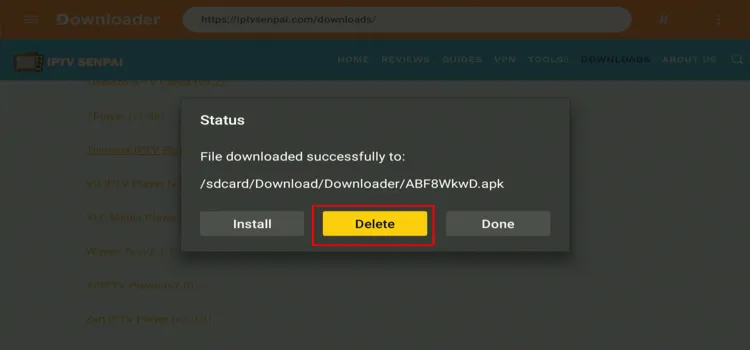
Step 8: Click Delete again to confirm.
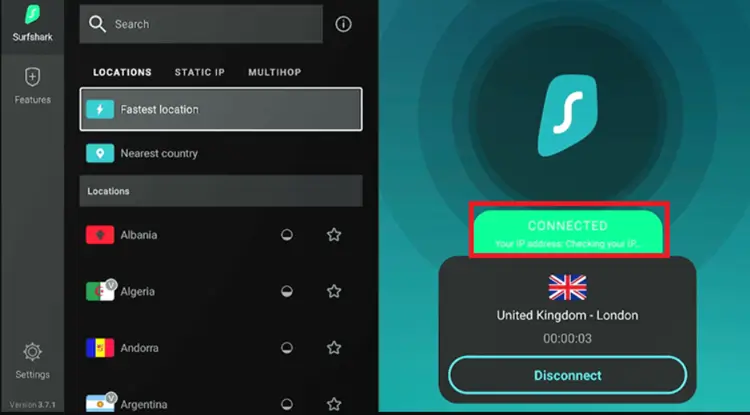
Step 9: Open the Surfshark app and connect to any Server.
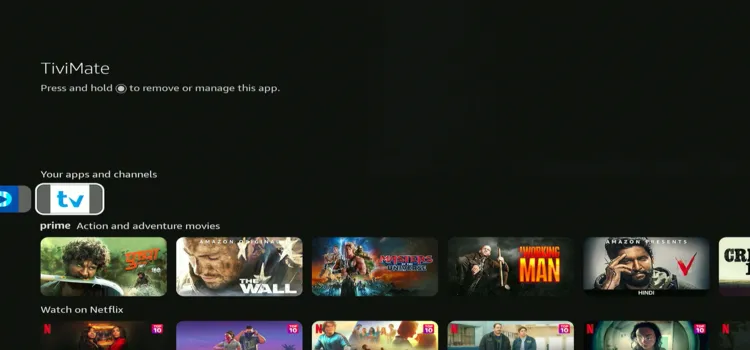
Step 10: Under Your Apps and channels, launch Tivimate.
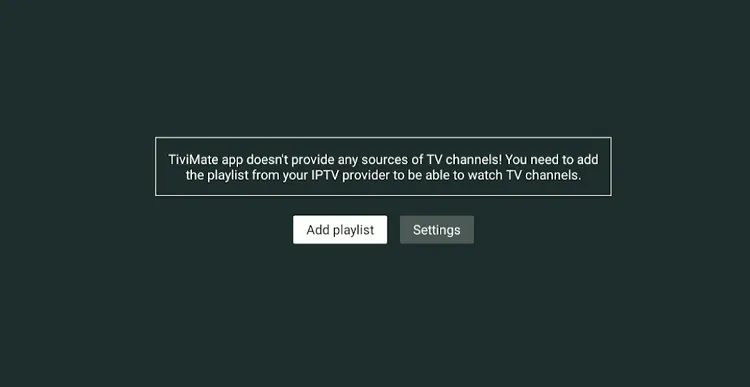
Step 11: Click Add Playlist.
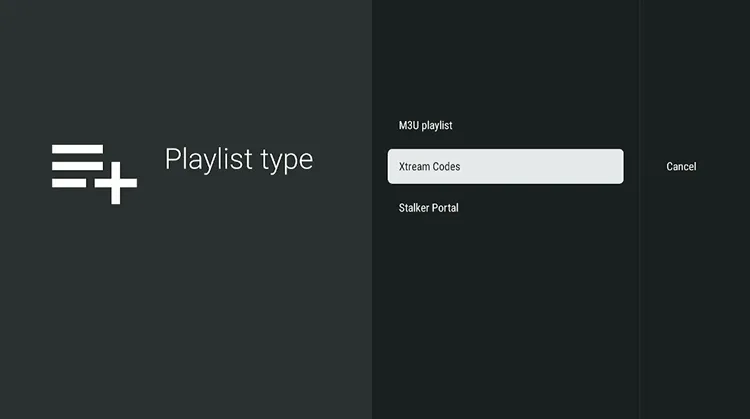
Step 12: Choose the format provided by your provider (e.g. Xtreme Codes)
Step 13: Enter the Server address, Username, and Passward.
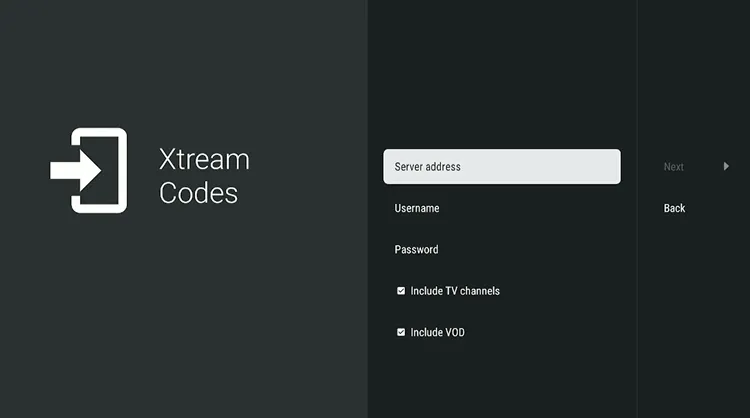
Step 14: Click Next.
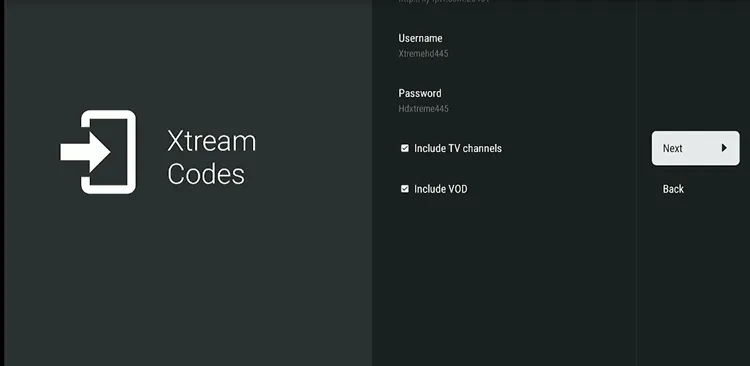
Step 15: Click Done.
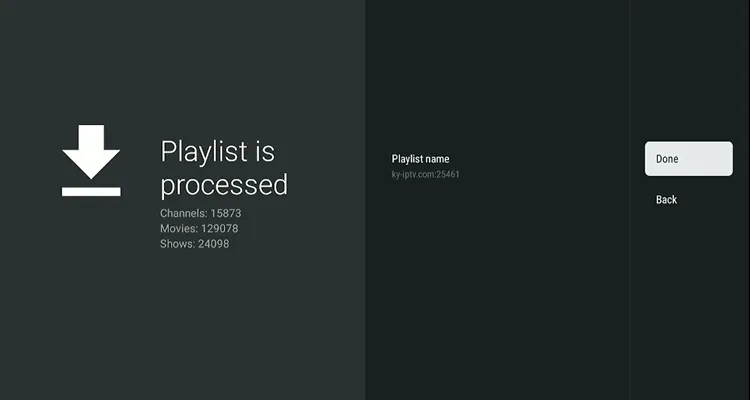
Step 16: Your IPTV has been successfully set up. Navigate and choose your favorite channel.
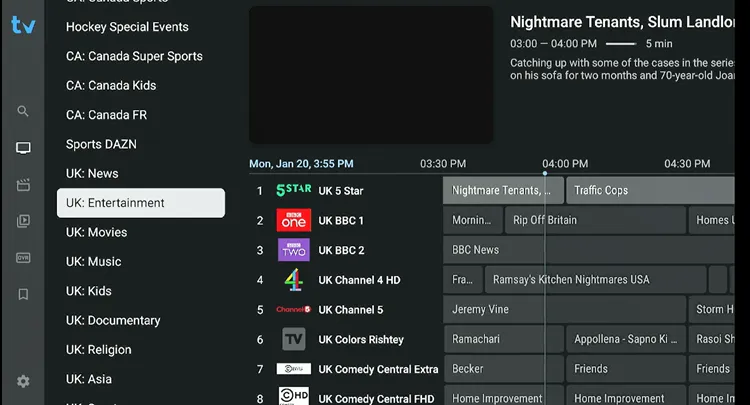
Step 17: Start Streaming!
Is IPTV Legal?
IPTV itself isn’t illegal. Major services such as YouTube TV, Sling TV, and Fubo TV are licensed and legal to use. The problems start with unverified IPTV services offering “too good to be true” packages with every sports channel, premium movies, and no geo-restrictions for the price of a coffee.
Risks of Unverified IPTV Services
– They may not own the rights to the content they provide.
– Streaming unauthorized content may break copyright laws in some countries.
– Shady providers may log your data or expose you to malware.
– A provider may disappear overnight with your subscription fee.
How to Protect Yourself
– Use verified, legal services whenever possible.
– If you test an unverified service, use a good IPTV VPN to protect your IP address and location.
– Always use an anonymous email with IPTV.
10 Most Asked IPTV Questions
1. How do I set up IPTV on FireStick?
Install a player (like TiviMate), enter your provider’s M3U or codes, and start streaming. Setup takes only a few minutes.
2. Can I watch IPTV on my phone?
Yes, IPTV works on both Android and iOS through players like IPTV Smarters or GSE Smart IPTV.
3. Where do I find trusted IPTV providers?
Marketplaces like Z2U are safer with trial options. Avoid random links on Reddit or Telegram.
4. Which IPTV apps or players are best?
TiviMate (Android) and UHF (Apple) are top choices. IPTV Smarters is good for beginners.
5. Do I need to jailbreak my device?
No, but on FireStick it helps install third-party IPTV apps (aka APKs) not found on the app store.
6. What is an M3U link?
It’s a playlist link from your IPTV provider that loads your channels into a player.
7. Do IPTV services offer free trials?
Yes, there are providers on Z2U and Alibaba that offer 24 hour trials. Always test before subscribing.
8. Will IPTV work when traveling?
Yes, but some providers geo-block their content. A VPN helps you access your IPTV service anywhere.
9. Is IPTV safe to use?
Verified IPTV is completely safe. For unverified, always use a VPN and anonymous email.
10. Do IPTV services include VOD (Video on Demand)?
Many do. Some providers offer movies, series, and replays alongside live TV.
Conclusion
Follow these 4 steps to get IPTV up and running:
Step 1 – Internet: Get a solid connection, preferably wired.
Step 2 – Verified VPN: Use Surfshark when you need additional privacy or help with ISP throttling.
Step 3 – IPTV device: Consider the FireStick 4K Max for an easy and reliable IPTV setup.
Step 4 – IPTV subscription: Use Z2U to compare providers and test a service before committing.
Step 5 – IPTV player: Install TiviMate on Android or UHF on Apple, add your playlist, and start streaming.

