


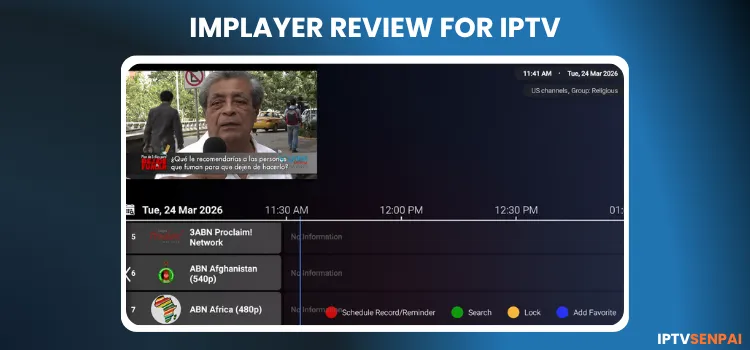
iMPlayer is a premium IPTV player supporting live TV, VOD, and catch-up content. It handles popular formats like M3U, XC API, and Stalker. As of 2026, the app is officially available on Android and Apple TV.
The free version is limited to a single playlist and Live TV only; upgrading to premium unlocks full features. Yearly plans start around $20. You can test everything via a 24-hour free trial. It worked well with one playlist on FireStick 4K Max, but occasionally crashed when handling multiple playlists.
Remember, iMPlayer does not provide its own content. You must integrate an active IPTV service. I recommend using a VPN with IPTV to avoid ISP throttling and protect your online privacy while streaming.
Recommended VPN for IPTV - Surfshark
Using IPTV without a VPN can put you at Big Risk! Your ISP, government and even IPTV providers can monitor your activity, throttle your speed, or block access altogether.
Plus, without encryption, your data is exposed to hackers and third parties. Take back your privacy with Surfshark!
Features:
✅ SAVE 87% + GET 3 EXTRA MONTHS FREE! ($0.06/day)
✅ Kill Switch Feature to protect you if VPN drops
✅ Lightweight app ensuring smooth performance on All IPTV Boxes
✅ Unlimited simultaneous connections (install on all household devices)
✅ 30-day risk-free money-back guarantee
✅ Strict no-logs policy, Secure & Untraceable
iMPlayer Features
- Price: Annual plan starting at $20
- Free Trial: 24-hour trial available
- Supported Formats: M3U, Xtream Codes (XC), Stalker Portal
- Supported Devices: FireStick, Android Phones, onn. Stream 4K Box, Google TV, and iOS.
- Key Features: Live TV/VOD, Ad-Free, multi-screen, EPG, favorites, recordings, Cloud backups
- DVR: Yes
- Remote Control support: Yes
- External Player Integration: Yes
Pros & Cons
| Pros | Cons |
|---|---|
| ✓Offers a 24-hour premium trial | —Free version is limited mainly to live TV streaming |
| ✓Supports MultiView with up to four channels | —Lifetime pricing may feel expensive compared to TiviMate |
| ✓Supports remote controls and multiple devices | —No monthly or annual subscription options |
| ✓Available on Android, FireStick, Google TV, Apple TV, and iOS | —May crash or stutter when handling multiple playlists |
| —VOD, recordings, and advanced features require Premium | |
| —Additional device activations cost $7 per device |
Is iMPlayer Free?
Yes, iMPlayer offers a free version, but it limits users to live TV streaming. You cannot stream VOD content or use advanced features like DVR without upgrading to premium.
The premium plans are yearly or lifetime subscriptions. Some users find this slightly overpriced compared to competitors like TiviMate.
How to Install & Set Up iMPlayer for IPTV Streaming
You can get iMPlayer directly on your Android Phones, Android TV, and iPhones. Since it’s not available on the Amazon App Store, FireStick users like me will need to sideload it using the Downloader app.
I tested this on my FireStick 4K Max with 4KLive IPTV, and it ran without any issues. Follow these quick steps to install the player on your FireStick.
Step 1: Install & Open the Downloader app.
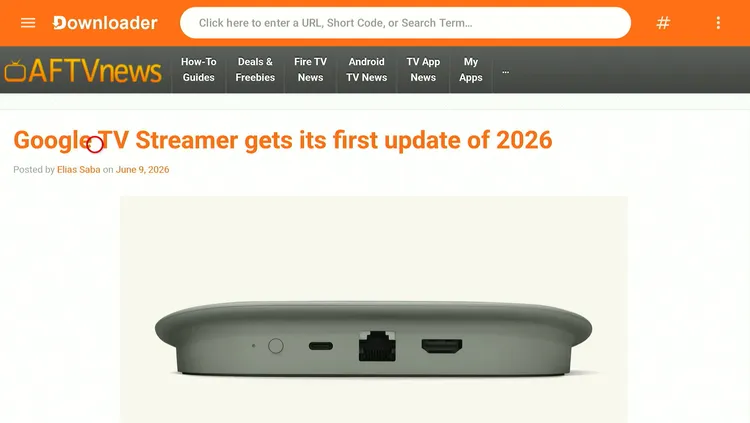
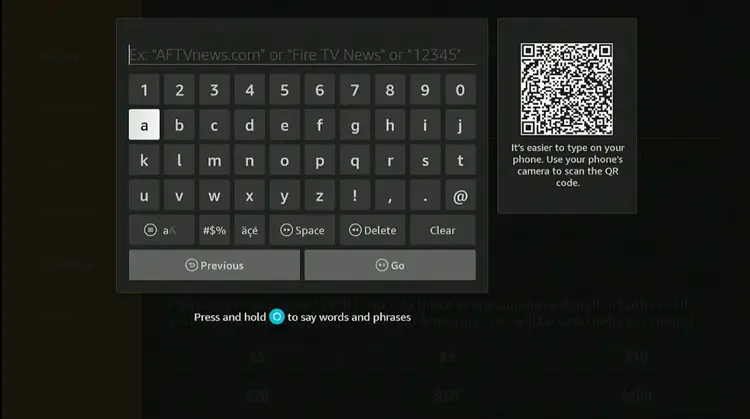
Step 2: Enter the iMPlayer APK code 5546232 in the search bar OR enter this URL bit.ly/43pEVWO and click Go.
Step 3: Scroll down to the IPTV Players section, find the iMPlayer app, and tap on it to proceed.
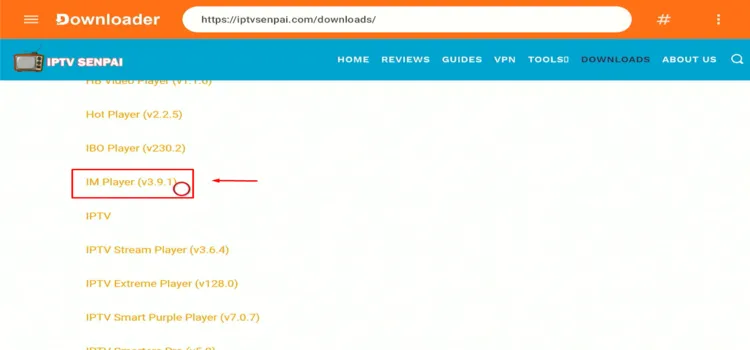
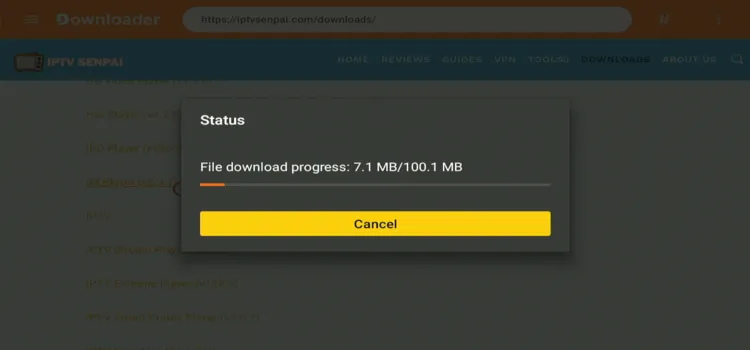
Step 4: The APK will start downloading. Wait for the APK to download.
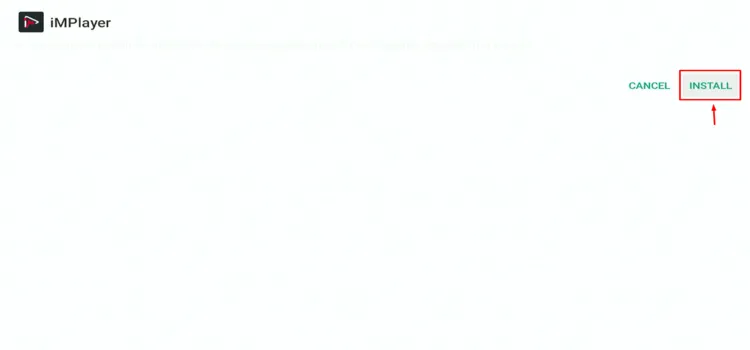
Step 5: When prompted, click Install.
Step 6: Once installed, select Done.

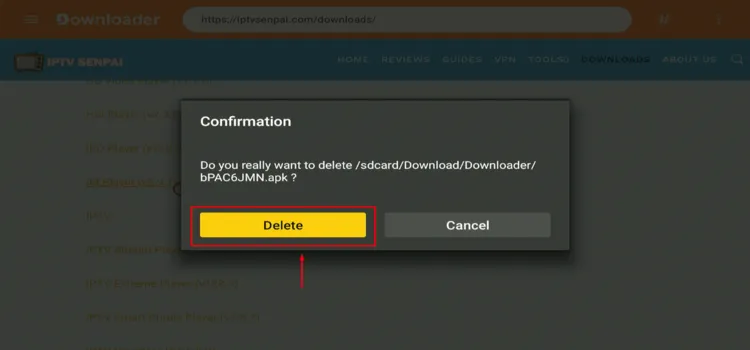
Step 7: Click Delete to remove the APK and free up space.
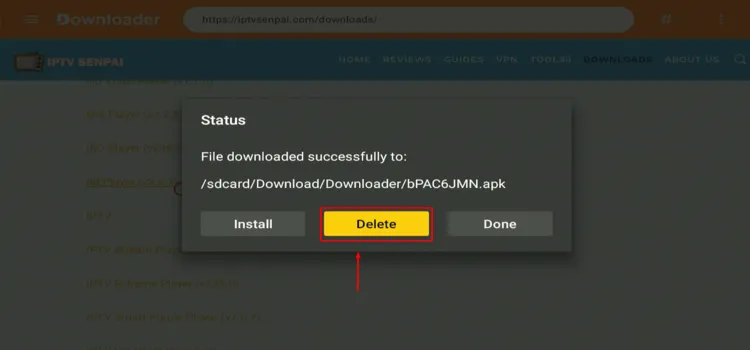
Step 8: Confirm by clicking Delete again.
How to Set Up iMPlayer for IPTV Streaming
Your newly installed player requires an active IPTV subscription or free IPTV links to stream content. Before you begin streaming, always connect to a reliable VPN. Using Surfshark secures your internet connection and easily bypasses geo-restrictions.
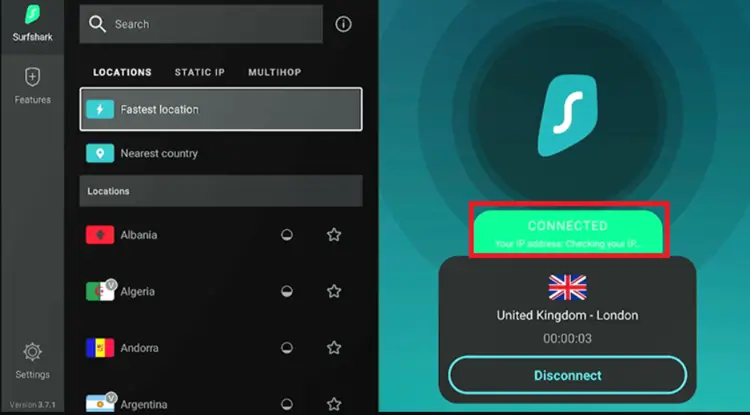
Step 1: Open Surfshark and connect to any server.
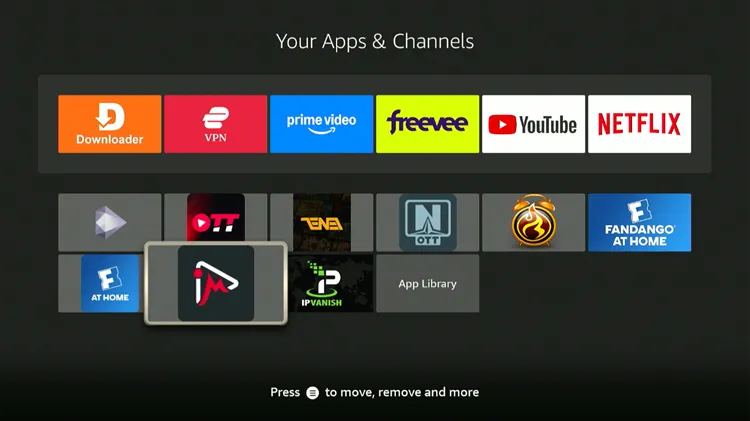
Step 2: Long-press the Home button. Under Your Apps and Channels, click iMPlayer
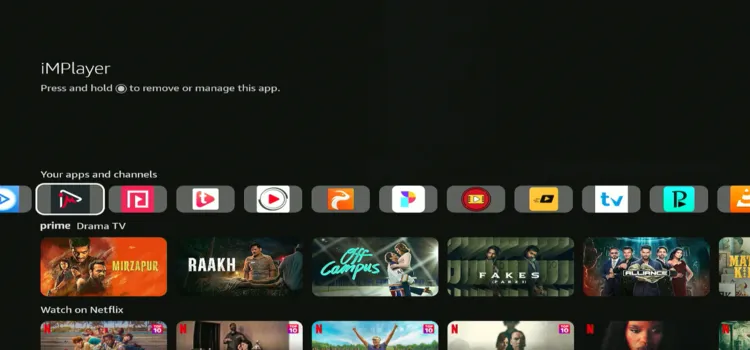
Step 3: Launch iMPlayer.
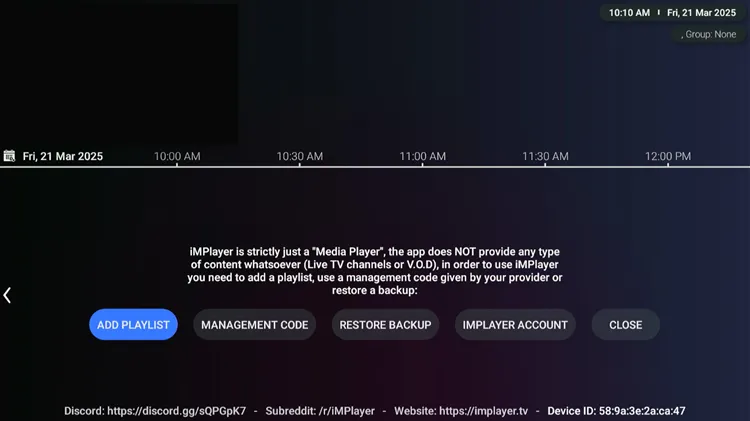
Step 4: Click Add Playlist.
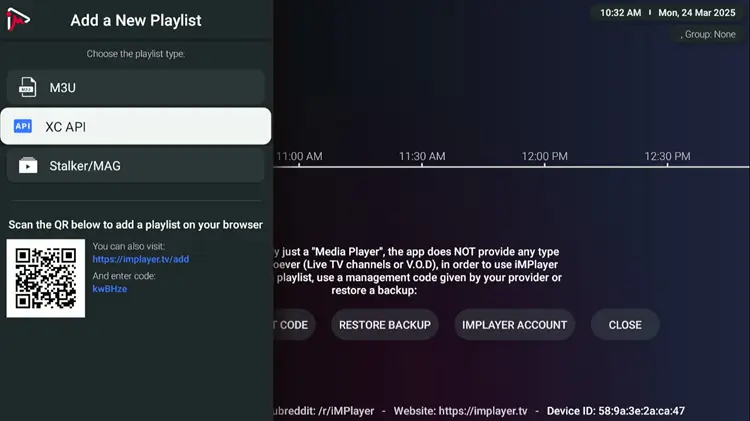
Step 5: Choose your IPTV provider’s format (I chose XC API).
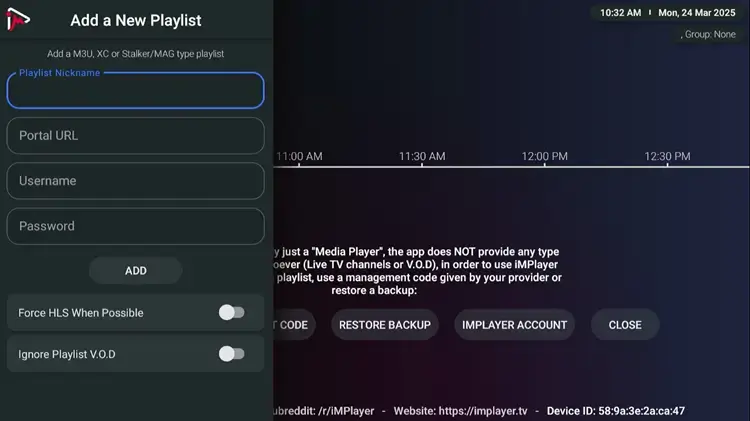
Step 6: Enter your IPTV login details, which include the Portal URL, username, and password.
Step 7: IMPlayer is set up. Select a channel of your choice.
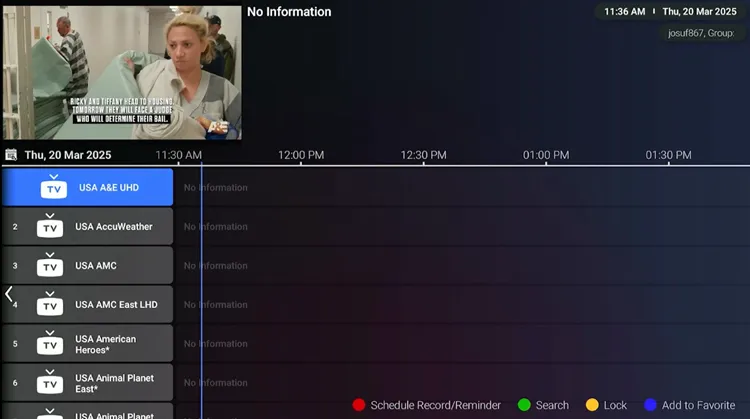
Step 8: Enjoy Streaming!
How to Get iMPlayer 24-Hour Free Trial
iMPlayer offers a 24-hour free trial to explore all premium features. You can also upgrade to Premium after the trial ends.
Step 1: Go to iMPlayer’s official website and click Sign Up.
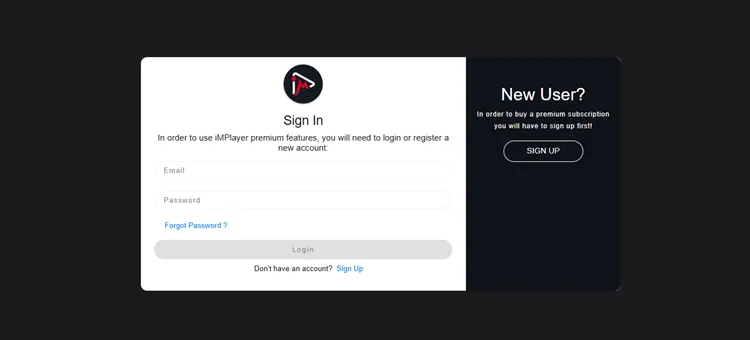
Step 2: Enter your email and password. Click Register.
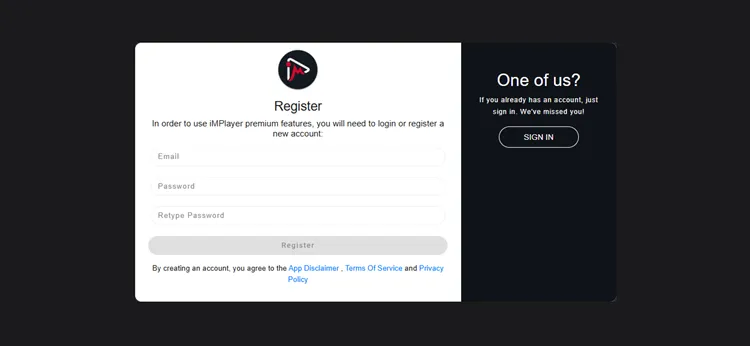
Step 3: Check your email and click the verification link.
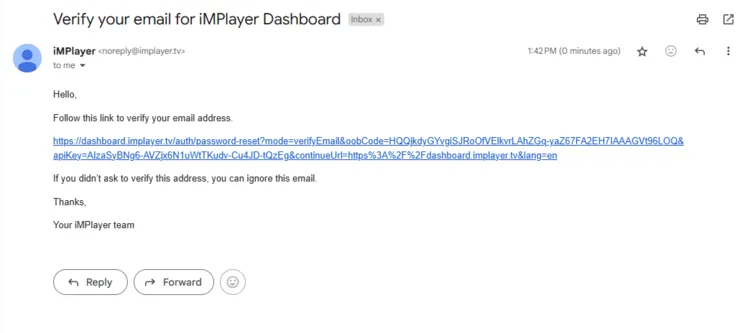
Step 4: Click Add Your First Device to link your FireStick, Android TV, or any other device to your iMPlayer account.
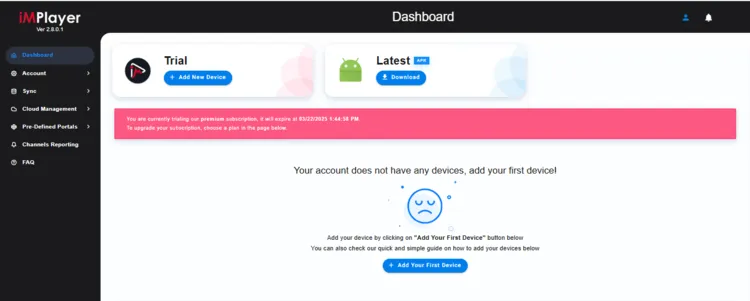
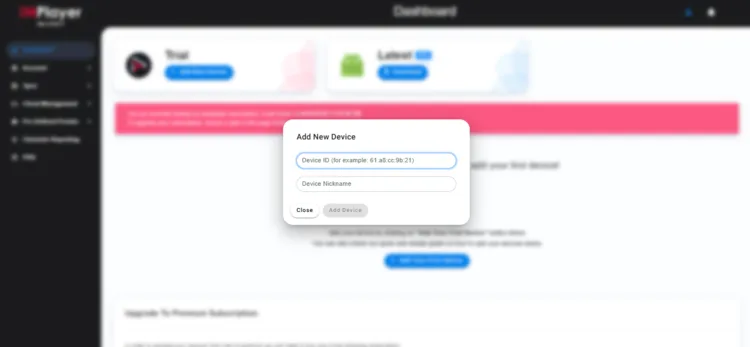
Step 5: Enter your FireStick device IP address, then click Add Device.
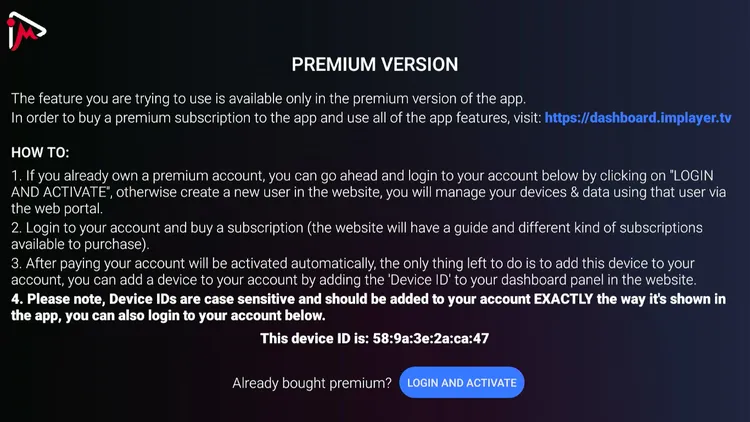
Step 6: Go back to the iMPlayer app on your device. Click Login, and then Activate.
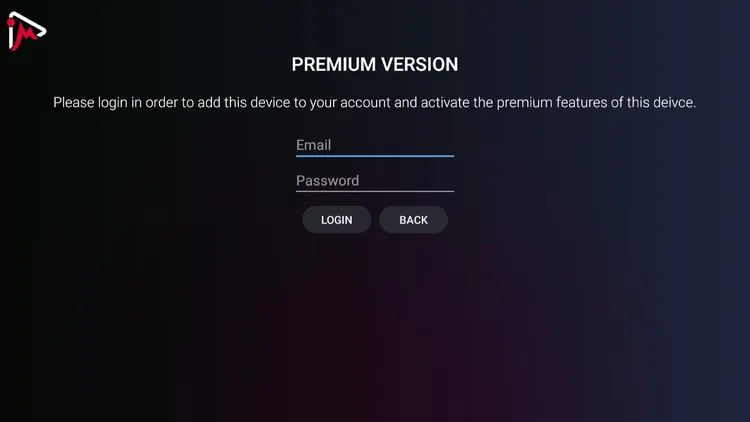
Step 7:Enter your login credentials to unlock premium features.
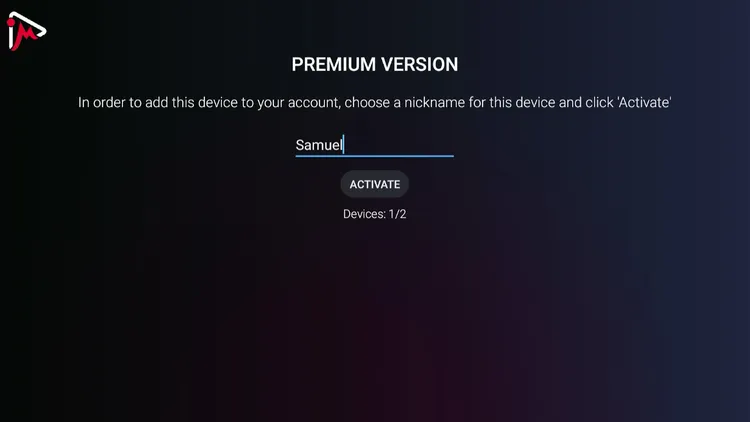
Step 8: Add a nickname for your device, then click Activate.
Is iMPlayer IPTV Safe & Legal to Use?
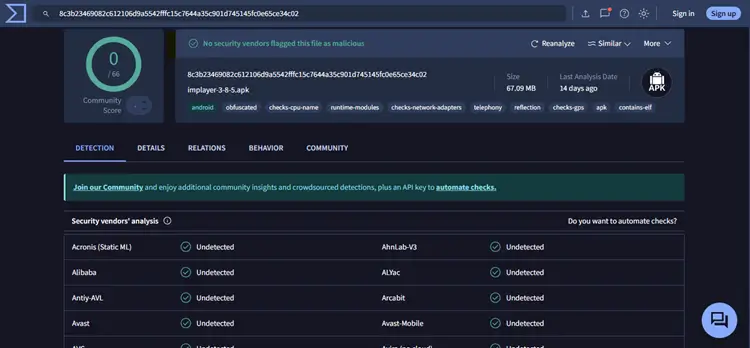
Yes, iMPlayer is safe and legal to use. However, the safety depends entirely on the IPTV service you integrate. To verify the app’s security, I ran the official iMPlayer APK through VirusTotal. The results confirmed it is completely safe and free from malware.
Unverified providers carry legal and security risks. I always advise IPTV using a verified VPN like Surfshark. It encrypts your data and hides your streaming activity from ISPs.
Top 5 IPTV Players for FireStick & Android
Check out my guide on: Best IPTV Players for Apple Devices.
IMPlayer Prices
There are annual & lifetime subscription options. However, you can try a 24-hour trial. Here is the standard breakdown of their plans for 2026:
| Plan | Price |
|---|---|
| Yearly | $20 |
| Lifetime | $35 |
1. MultiView Mode
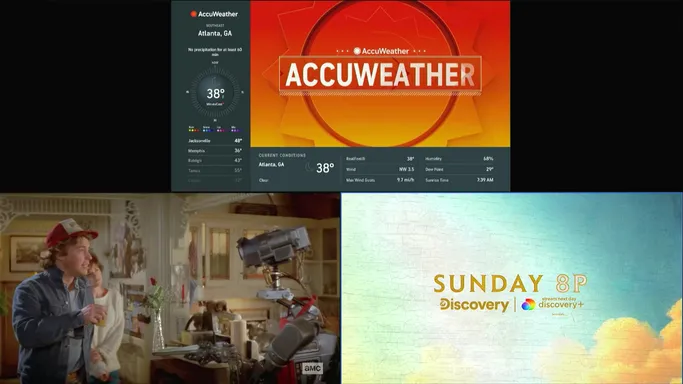
You can watch up to 4 channels at once with different layout options, such as split-screen, vertical, or horizontal view. This is perfect for sports fans or multitaskers.
2. Recordings & Reminders
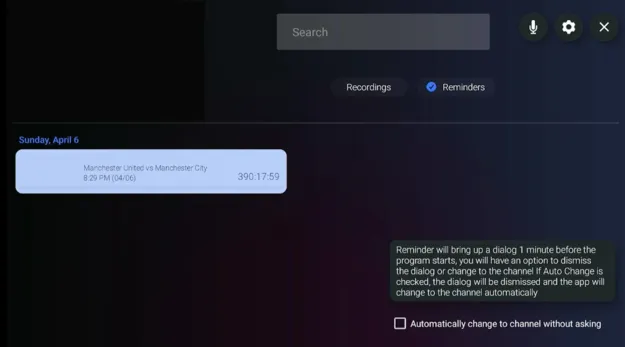 Set reminders for upcoming shows, movies, or live events so you never miss your preferred content. You can also record programs and save them for later viewing.
3. Sleep Timer
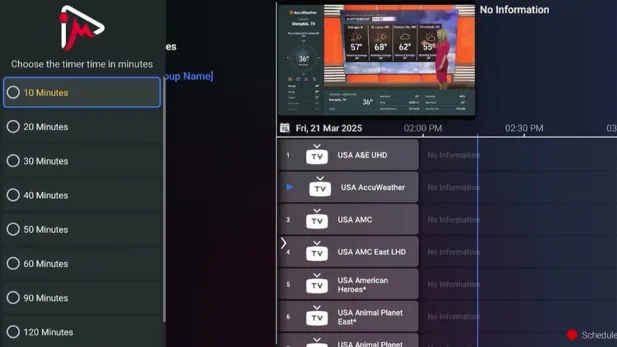
Set a sleep timer to automatically stop playback after a selected period, making it useful for bedtime streaming. It prevents channels from playing throughout the night and helps reduce unnecessary internet and device usage.
4. Sports Schedules
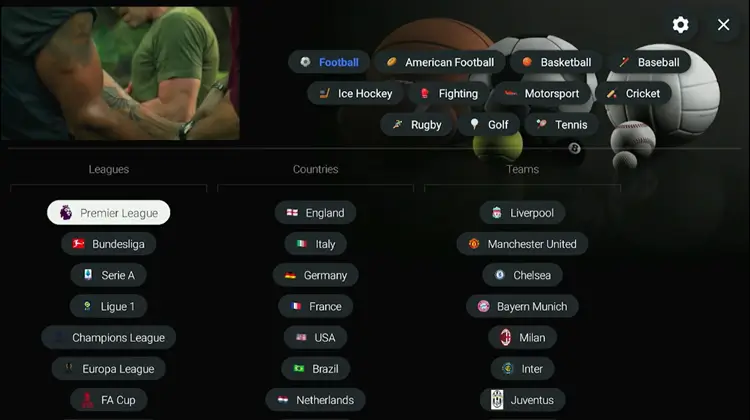
View upcoming and ongoing sports events directly through the built-in sports schedule section. You can check match times, browse events by date, and quickly open an available channel when the game begins.
5. Playlist Manager
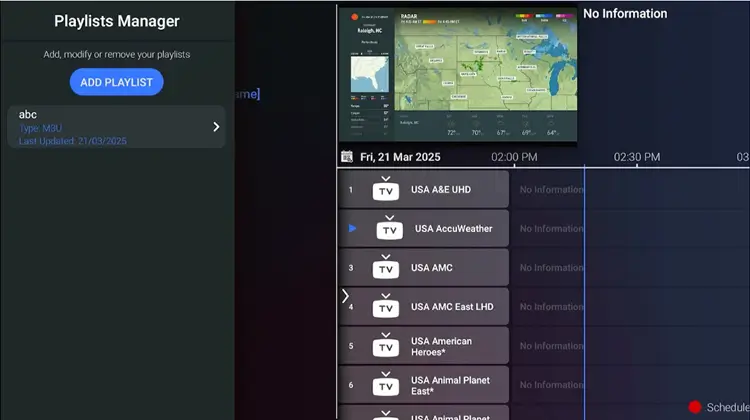
Add or manage multiple playlists or update them without restarting the app. However, while it performs well, some users report crashes and stuttering during use when they add multiple playlists.
6. Playback Controls & Screen Customization Options
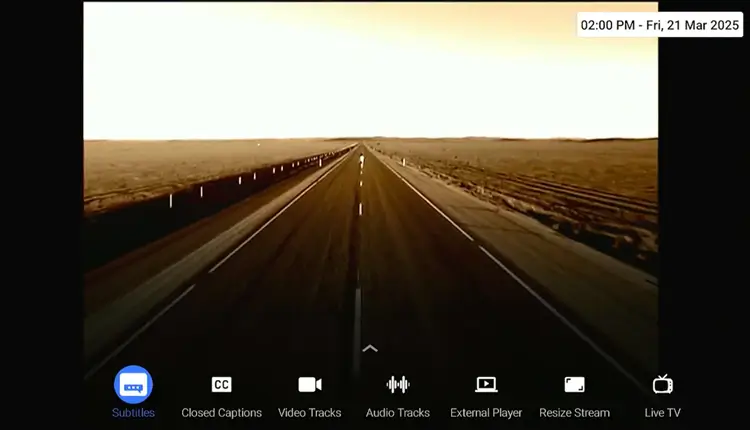
Screen Customizations include enabling subtitles, switching audio or video tracks, and resizing the stream. Everything is neatly laid out on-screen, making it super easy to adjust settings.
FAQs
1. Does iMPlayer provide IPTV channels?
No, iMPlayer is a media player. It needs a separate IPTV subscription or M3U/XC playlist to stream content.
2. How long is the iMPlayer free trial?
The free trial lasts 24 hours and gives you full access to premium features like VOD, multi-screen, and recordings.
3. How many devices can iMPlayer support?
iMPlayer supports up to 5 devices with the premium version. Additional devices can be added at $7 per device, with no limit on the number of devices.
4. Can I Use an external video player With iMPlayer?
Yes. iMPlayer supports external video player integration. This can be helpful when a channel does not play correctly through the app’s built-in player.
Wrapping Up My Review of iMPlayer
After testing iMPlayer, I think if you want a free player for live streaming only, then iMPlayer is an excellent choice. I highly recommend testing the 24-hour trial to evaluate its advanced tools and see what works best for you.
For those considering a lifetime purchase, better alternatives like TiviMate offer a superior and well-rounded experience. Your decision should depend on your specific device ecosystem.
Also, whether you’re using an unverified IPTV service or accessing geo-restricted content with iMPlayer, it’s essential to use a trusted VPN such as Surfshark for safeguarding user privacy and a buffer-free streaming experience.

