

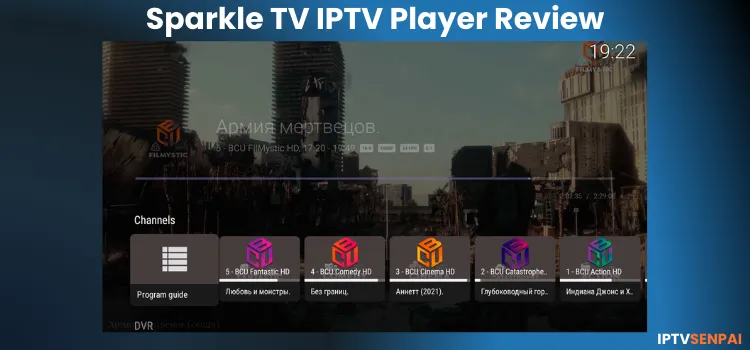
The application works seamlessly on FireStick,Android Phones/TV, and Google TV devices. Live TV is limited, but with the premium version, users unlock advanced capabilities, including live TV pausing and local DVR recording.
Remember, Sparkle TV is strictly a media player and does not host content. You need a separate IPTV service provider subscription. Using a reliable VPN is recommended for secure, geo-unrestricted streaming.
Recommended VPN for IPTV - Surfshark
Using IPTV without a VPN can put you at Big Risk! Your ISP, government and even IPTV providers can monitor your activity, throttle your speed, or block access altogether.
Plus, without encryption, your data is exposed to hackers and third parties. Take back your privacy with Surfshark!
Features:
✅ SAVE 87% + GET 3 EXTRA MONTHS FREE! ($0.06/day)
✅ Kill Switch Feature to protect you if VPN drops
✅ Lightweight app ensuring smooth performance on All IPTV Boxes
✅ Unlimited simultaneous connections (install on all household devices)
✅ 30-day risk-free money-back guarantee
✅ Strict no-logs policy, Secure & Untraceable
Quick Overview
| Feature | Details |
|---|---|
| Pricing | Free version available. Plus upgrade starts at $1.49/mo. |
| App Version | Updated to v2.3.0 (2026 release). |
| Supported Devices | Fire TV, Android TV, Android Phones, Google TV. |
| Format Support | Playlist (M3U), Xtream, HDHomeRun, Stalker, Tvheadend, Enigma2, Plex (Beta). |
Premium Features
✅ Favorites option
✅ EPG logos and programming images
✅ Built-in DVR for recording shows
✅ Video-on-Demand support
✅ Timeshift (Play/Pause live TV)
✅ Add custom channels and categories
✅ Support for multiple playlists
✅ Multi-screen viewing (Multiview)
Pros & Cons
Here’s what I like and what I don’t about Sparkle TV Player:
 Offers free version
 Free option limited to only live streaming
Is Sparkle TV Player Free?
Yes, the basic version of Sparkle TV is free. It allows live channel streaming from a single source and includes standard parental controls. However, the free version feels restricted, pushing users toward the pro upgrade.
- $1.49/month
- $7.49/year
- $19.99/lifetime
How to Install Sparkle TV on Firestick/Fire TV/Android Box
Sparkle TV is unavailable on the Amazon App Store. You must sideload it using the Downloader app on Fire OS, though it remains officially available on the Google Play Store.
These steps apply to the Fire TV Stick 4K Max and other Android devices. You can install it using the provided APK code or download link.
Step 1: Open the Downloader app.
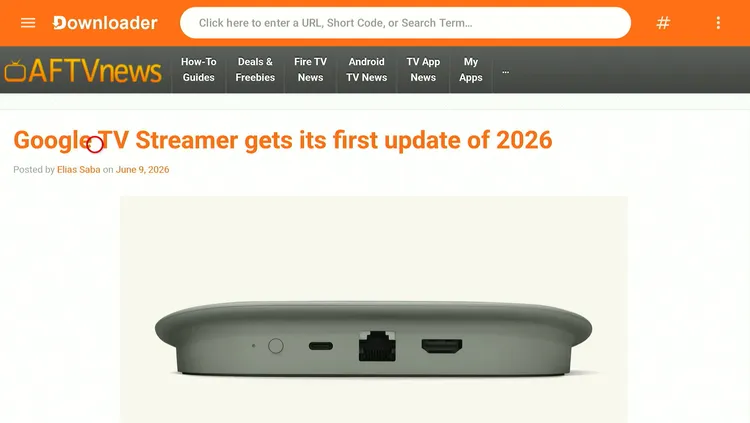
Step 2: Enter the Sparkle TV Player Downloader Code 5546232 in the search bar OR enter this URL bit.ly/43pEVWO and click Go. IPTV Downloads page will open.
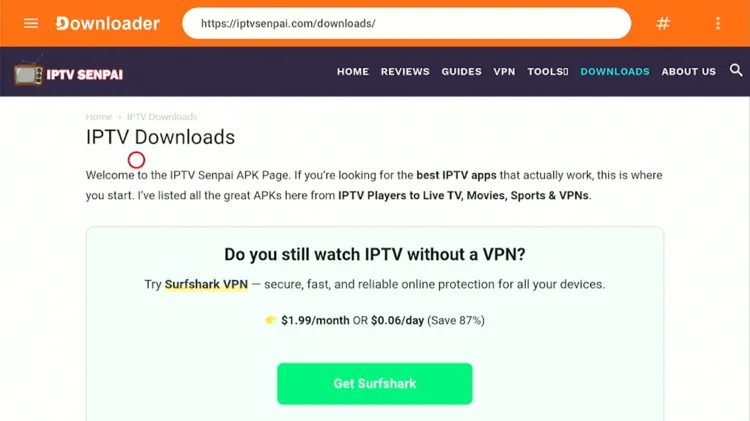
Step 3: Scroll and click Sparkle TV Player
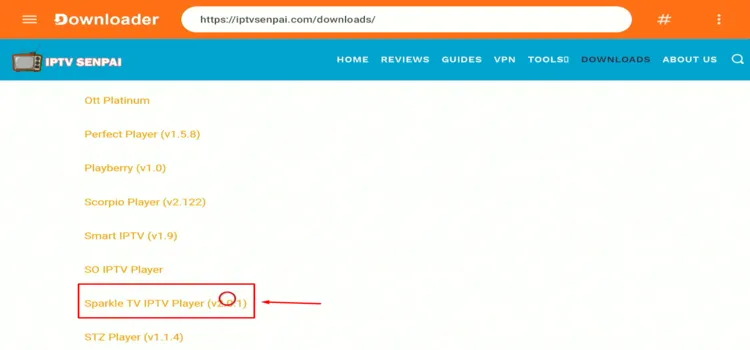
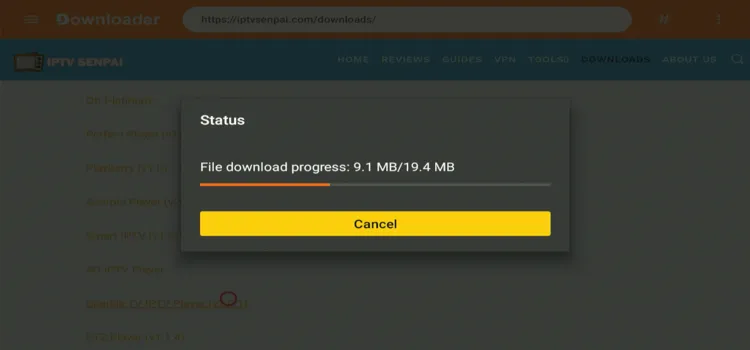
Step 4: The APK will start downloading.
Step 5: Click on Install
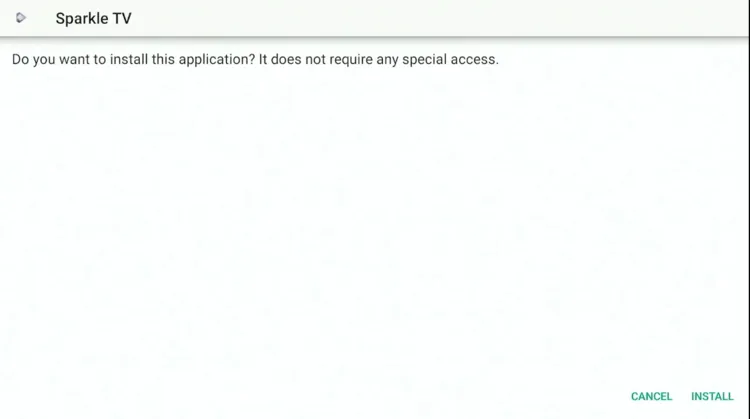 Step 6: The APK file will begin installing. Wait for the installation to complete.
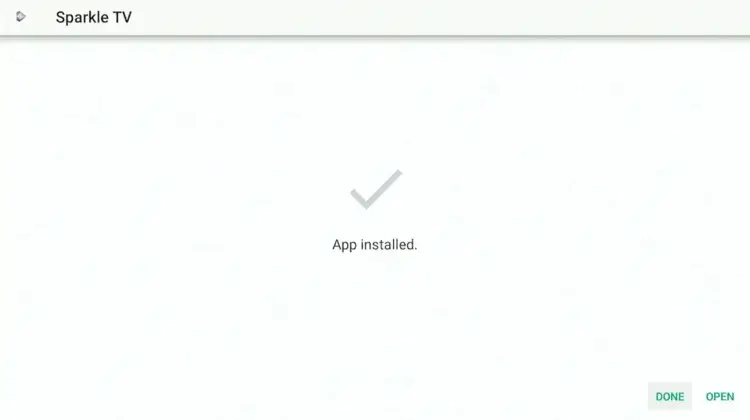
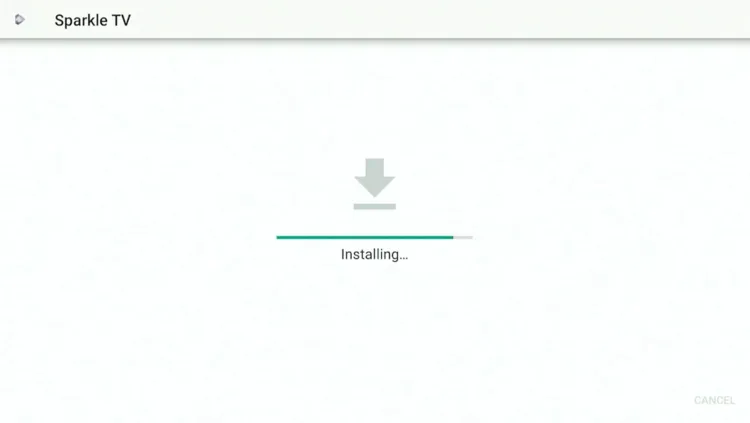 Step 7: After the installation is complete, click “Done.”
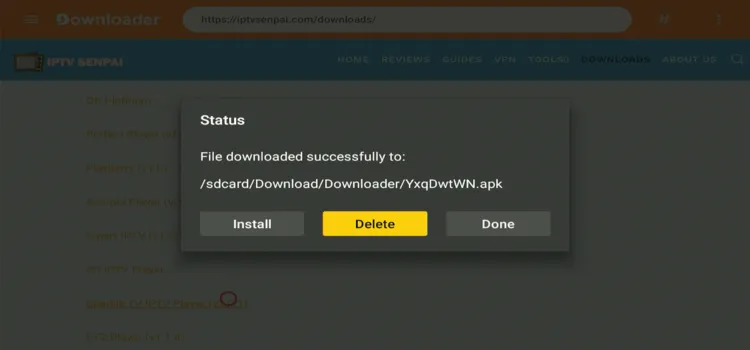
 Step 8: Click “Delete” to remove the installation file and free up storage space.
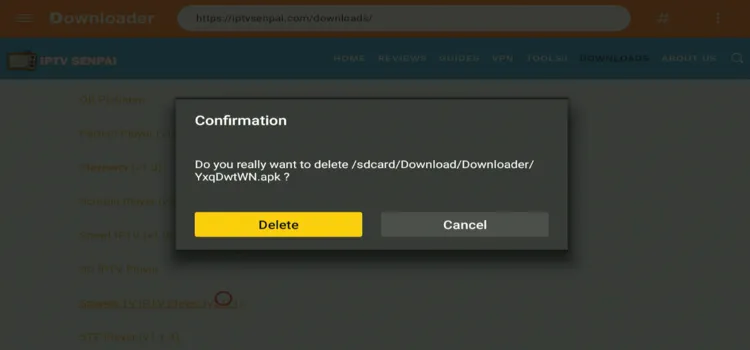
Step 8: Click “Delete” again.
Before streaming, use a premium VPN like Surfshark. This protects your privacy and unblocks geo-restricted IPTV channels.
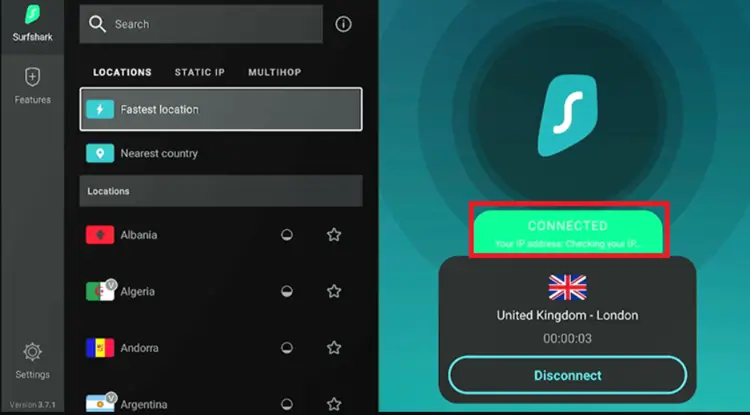
Step 9: Open the Surfshark app and connect to any server.
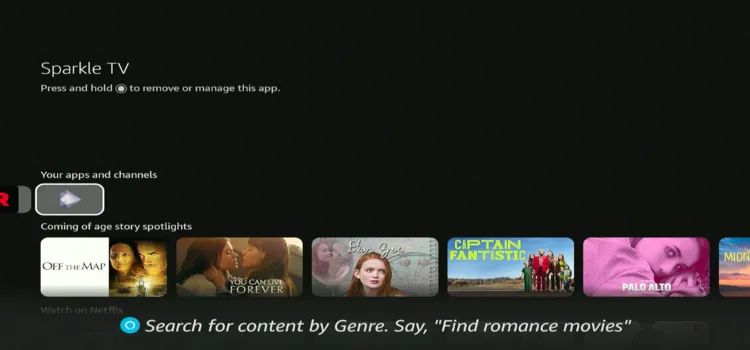
Step 10: Press Home button. Under Your apps and channels, select Sparkle Player.
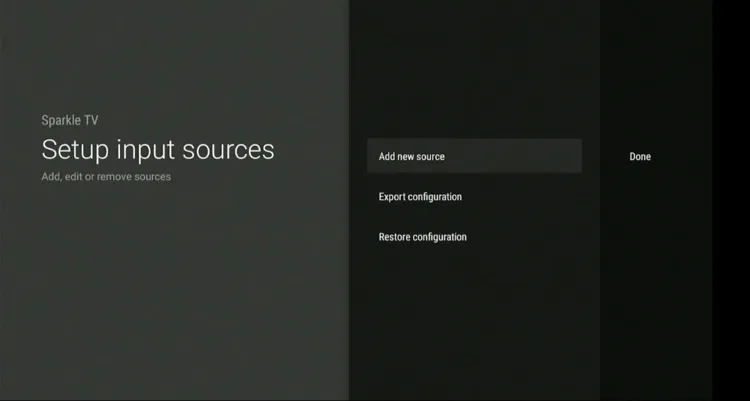
Step 11: After installation, launch the application and click Add new source.
Step 13: Select the format you want to use and click on Next. I chose the Xtream Code.
 Step 14: Enter your IPTV credentials to activate the service in Sparkle TV and click on Next.
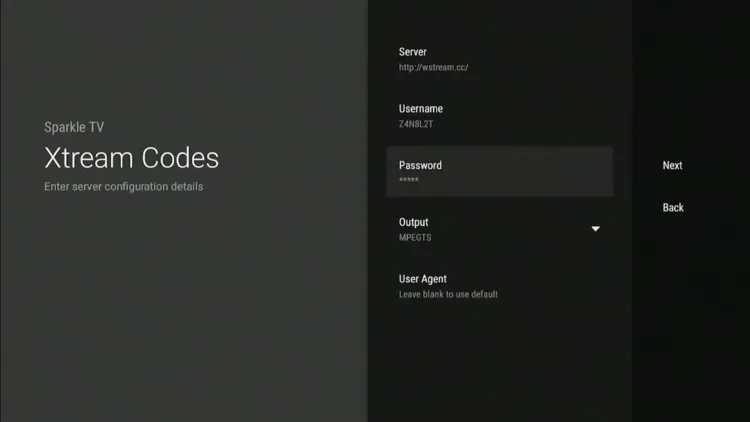 Step 15: Click Next.
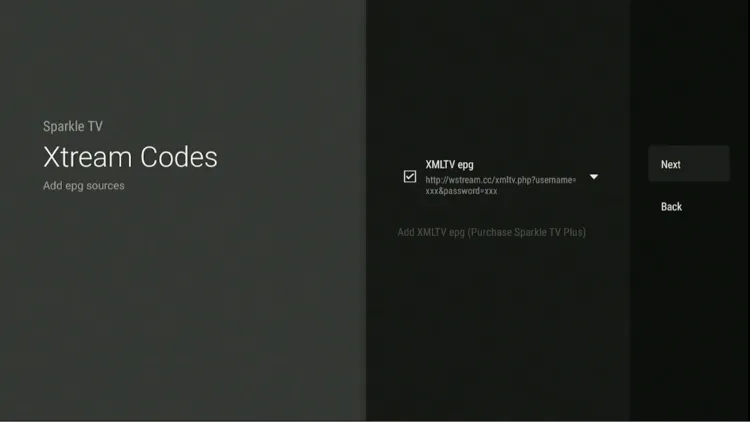
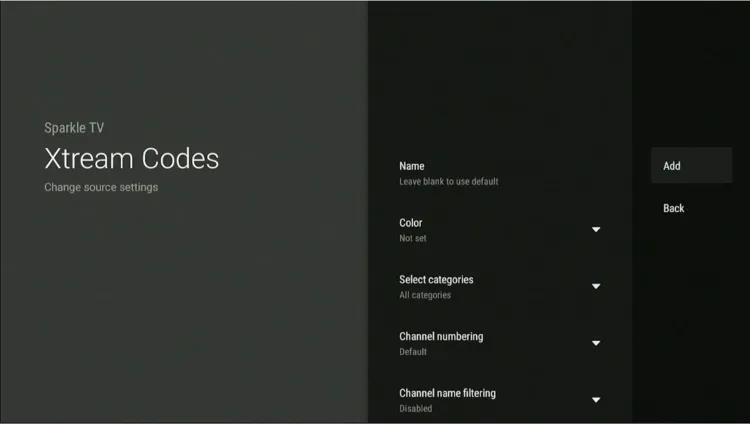
Step 16: You’ll have the option to customize the layout and features by adjusting themes, text size, and category visibility. If you prefer to keep the default settings, simply click “Add” to proceed.
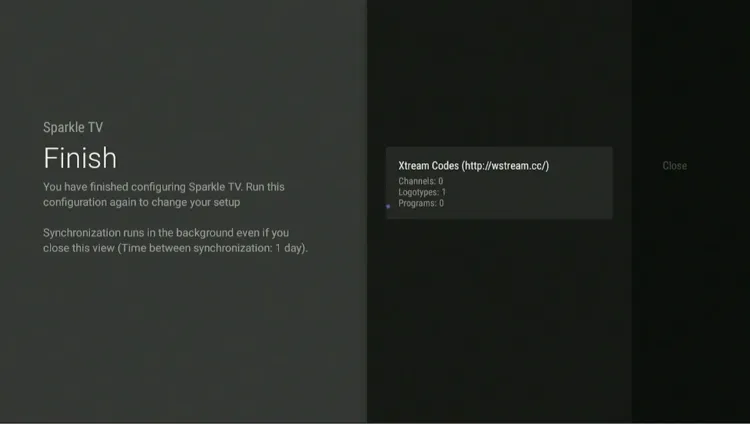
 Step 17: Now the playlist will load.
 Step 18: Access the Program Guide to browse and navigate channels easily.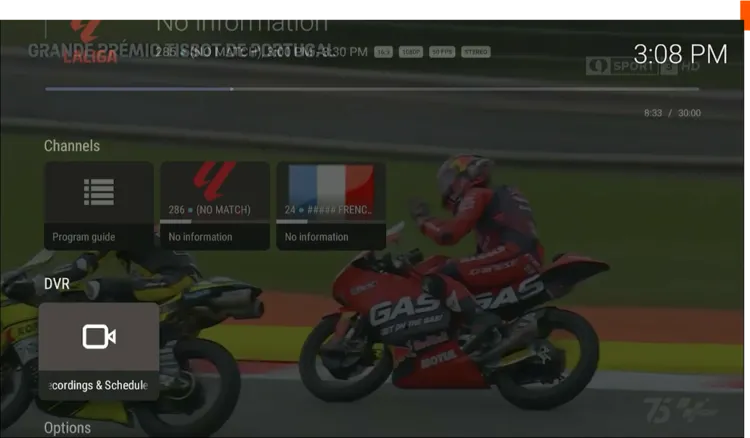
Step 19: Select your favorite channel.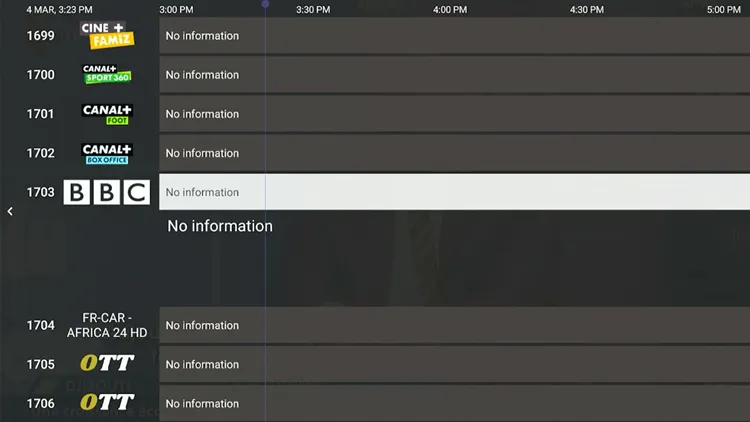
Step 20: Enjoy live streaming.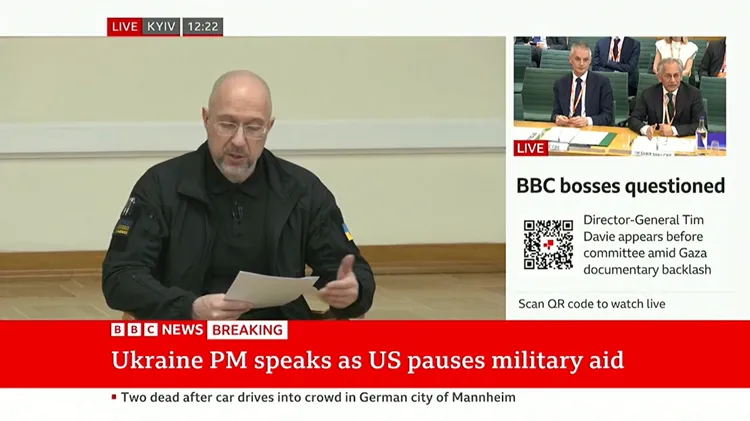
Step 1: Open the Google Play Store on your Android phone, search for Sparkle TV IPTV Player, and hit “Install” to get started.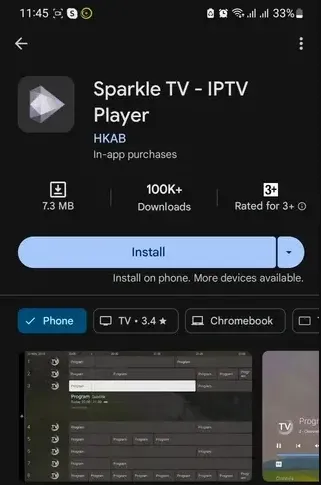
Step 2: Tap “Open” to launch the app after installation.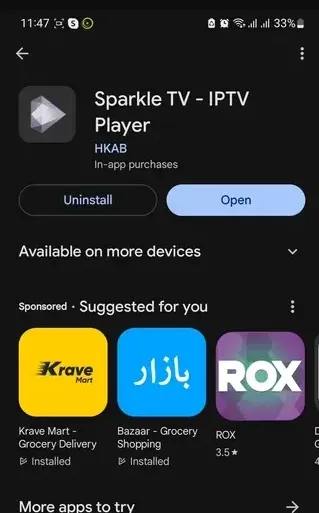
Step 3: Tap “Manage Plus” to proceed.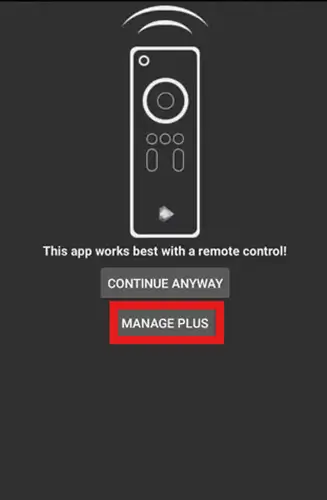

Step 5: After completing the payment, tap “Manage Account.”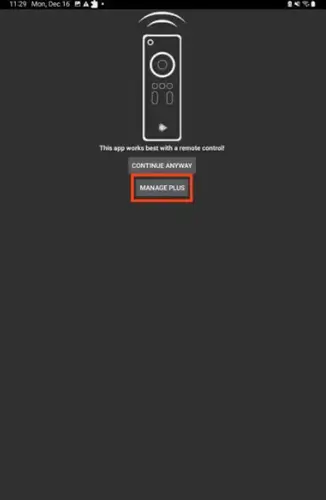
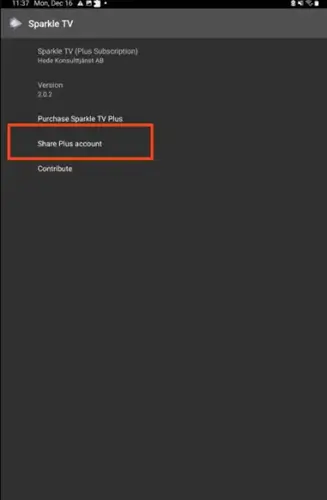
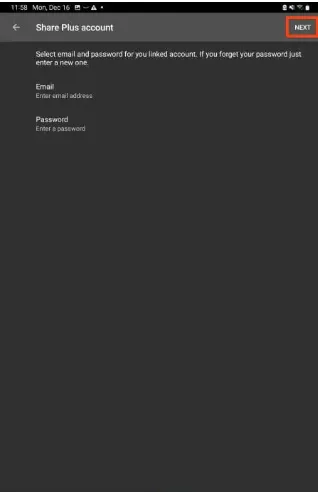
Step 8: Finally, tap “Done” to complete the setup.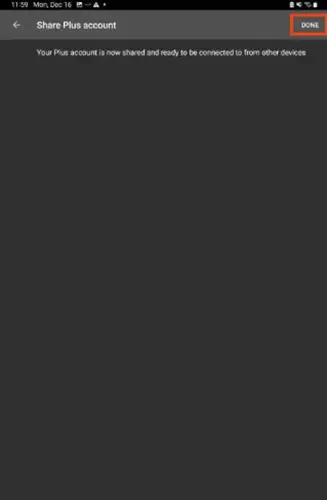
Step 9: Go back to your device and launch the Sparkle TV IPTV Player and click on “Settings.”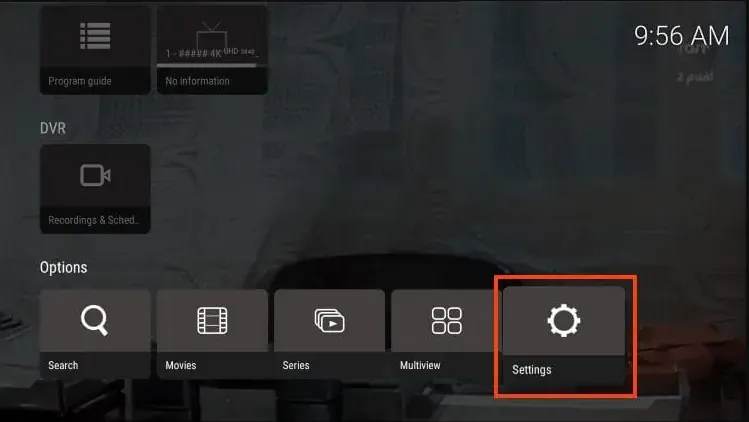
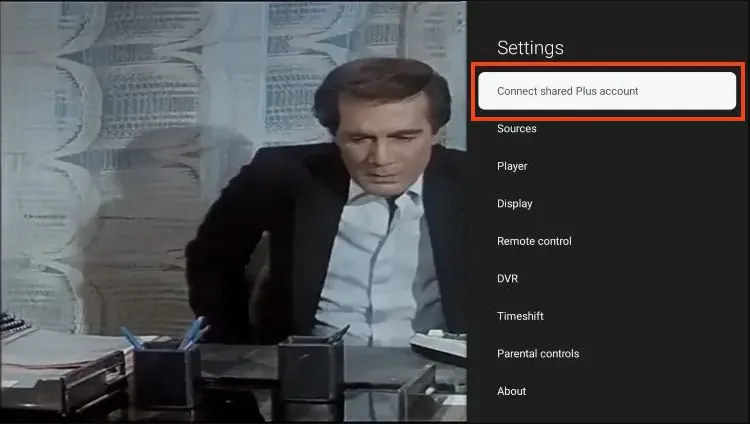
Step 11: Tap “Next”.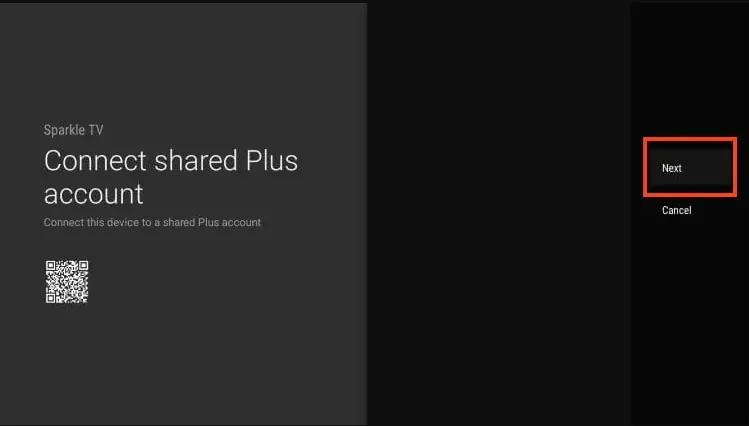
Step 12: Enter your credentials and click “Next” again to sync your Plus account with the Sparkle TV IPTV Player app on FireStick.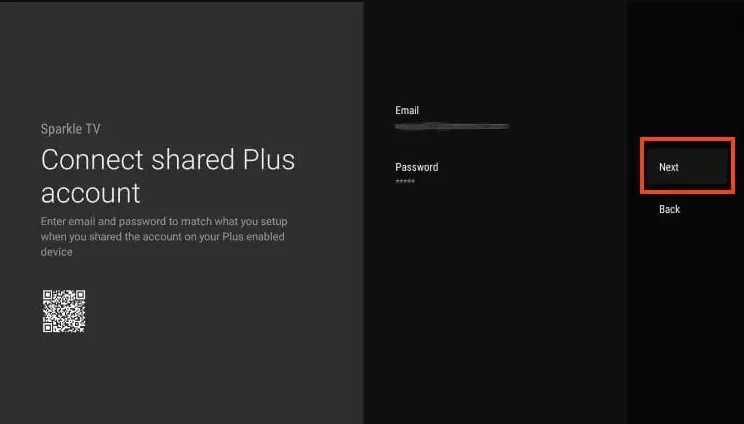
Is Sparkle TV IPTV Player Safe & Legal to Use?
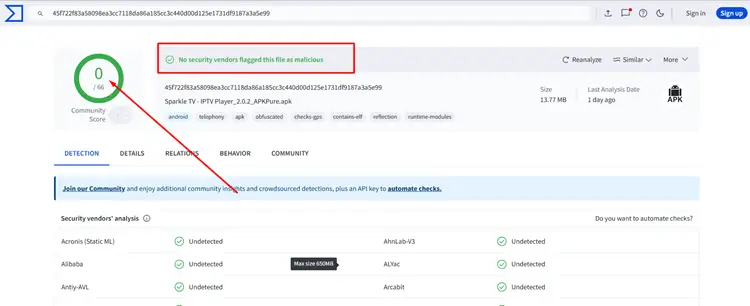 Yes, Sparkle TV Player itself is a safe and legal app to use, but it all depends on the IPTV service you use. So if you’re streaming any unverified content, a VPN can be very helpful as it will hide your identity and keep you anonymous online. I recommend using Surfshark
Also, I scanned the Sparkle TV APK with VirusTotal and found no bugs or malware (as shown in the screenshot above), confirming that the APK is completely safe to install on your device.
Sparkle TV IPTV Player Features
1. Parental Controls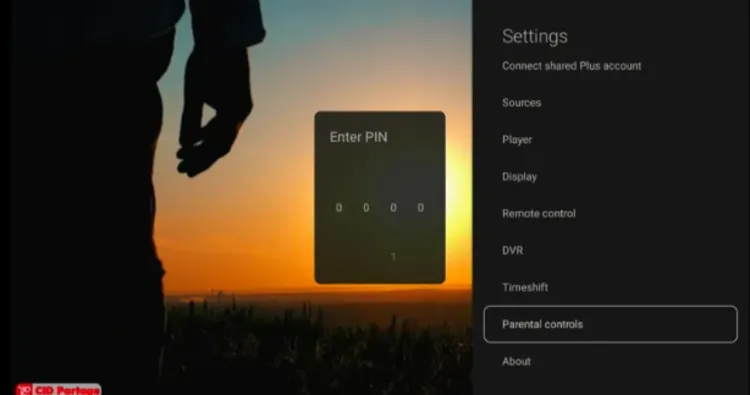

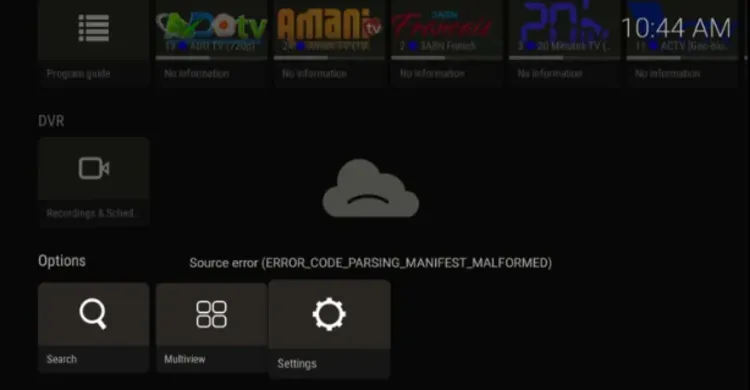 Watch multiple channels simultaneously on a single screen. This split-screen feature requires the Sparkle Plus premium upgrade.
Sparkle TV Player Alternatives
Looking for Sparkle TV Player alternatives? Here are some top IPTV players to try.
FAQs
1. Is Sparkle TV free?
Yes, Sparkle TV offers a free version with basic live-streaming options. However, the premium Sparkle TV Plus version provides additional features such as DVR, timeshift, etc.
2. How can I install Sparkle TV?
You can install Sparkle TV from the Google Play Store on Android devices or sideload it on Firestick and other platforms.
3. Can I use Sparkle TV on multiple devices?
Yes, Sparkle TV Plus allows users to sync their accounts across multiple devices by sharing their subscription credentials.
4. Does Sparkle TV provide IPTV channels?
No, Sparkle TV does not host or provide any IPTV channels. You need to add your own IPTV service to access content.
5. Can I install Sparkle TV Player on Apple Devices?
No, Sparkle TV Player is not available on the Apple App Store, so it cannot be installed on iOS devices like iPhones and iPads. It is primarily designed for Android-based devices like FireStick and Android Devices.
My Experience with Sparkle TV Player
I tested Sparkle TV on my FireTV Stick to see if it rivaled TiviMate. The initial setup was seamless, and the highly customizable interface proved beneficial. However, navigation occasionally felt sluggish, which detracted from the overall user experience.
The free tier comfortably handles basic live TV viewing. Upgrading to Sparkle TV Plus is highly recommended if you rely heavily on scheduled recording and timeshift tools. Its DVR functionality performed exceptionally well during tests.
While TiviMate Premium offers a smoother, faster UI, Sparkle TV is arguably superior for reliable DVR recording. Try the free version first to determine which player best suits your daily streaming needs.

