


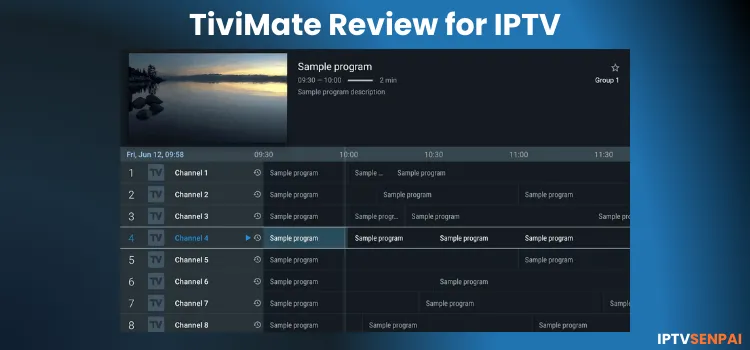
TiviMate IPTV Player remains the undisputed king for anyone looking to bring a true TV experience to an Android TV or Amazon FireStick because it is fast, has tons of features, and is easy to navigate. It’s made for big screens and is hands down the best IPTV player for Android TV/ FireStick, etc.
What makes it different is the interface. The layout feels like a real TV guide – it’s fast, customizable, and easy to use with a remote. The free version is very limited, but the Premium plan unlocks everything like recording, multi-screen, and more. It’s worth every dollar.
Since you’re loading your own IPTV content (which is mostly unofficial sources), it’s smart to use a VPN for IPTV to avoid any tracking or geo-blocks and even combat IPTV buffering.
Recommended VPN for IPTV - Surfshark
Using IPTV without a VPN can put you at Big Risk! Your ISP, government and even IPTV providers can monitor your activity, throttle your speed, or block access altogether.
Plus, without encryption, your data is exposed to hackers and third parties. Take back your privacy with Surfshark!
Features:
✅ SAVE 87% + GET 3 EXTRA MONTHS FREE! ($0.06/day)
✅ Kill Switch Feature to protect you if VPN drops
✅ Lightweight app ensuring smooth performance on All IPTV Boxes
✅ Unlimited simultaneous connections (install on all household devices)
✅ 30-day risk-free money-back guarantee
✅ Strict no-logs policy, Secure & Untraceable
Best TiviMate Settings for IPTV [Detailed Video]
TiviMate Features
The table highlights the components and details below for Tivimate Player
| Component | Details |
|---|---|
| Pricing | Free & Premium: $9.99/year or $33.99 lifetime (covers 5 devices) |
| IPTV Formats | M3U playlist URLs, Xtream Codes API, and Stalker Portal |
| Device Compatibility | Android TV, Amazon Fire TV/FireStick, NVIDIA Shield, Onn 4K Streamers |
| Mobile & iOS Support | Not optimized for Android phones/tablets; Not supported on iOS/Apple TV |
| Core features | Live TV Streams, Multi-screen view, Live recording, Catch-up TV, EPG support, Parental PIN locking |
Is TiviMate Free?
Yes, TiviMate offers a free trial and a free version as well, but free version allows you to add one playlist and stream live TV content only, and does not support VOD streaming or other advanced features for a complete experience.
The premium plan, at just $9.99/year or $33.99 lifetime, is absolutely worth it. It unlocks multi-screen, advanced EPG, playlist customization, and an absolute next-level experience.
Pros & Cons
| Pros | Cons |
|---|---|
| ✓Clean and intuitive interface | —Only available on Android (no iOS support) |
| ✓Supports multiple playlists | —Premium needed for full features |
| ✓Advanced EPG (TV guide) support | —Recording can sometimes buffer or fail |
| ✓Recording feature | —Setup may confuse new users |
| ✓Customizable layout and channel groups | —Only Live TV streaming on free version |
| ✓Regular app updates | —App crashes on Android Phones |
How to Install TiviMate on Android TV, FireStick & Onn 4K.
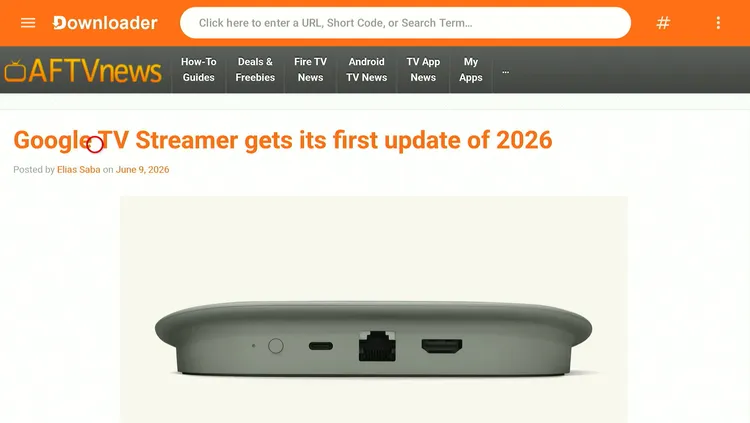
Step 1: Install & Open the Downloader app.
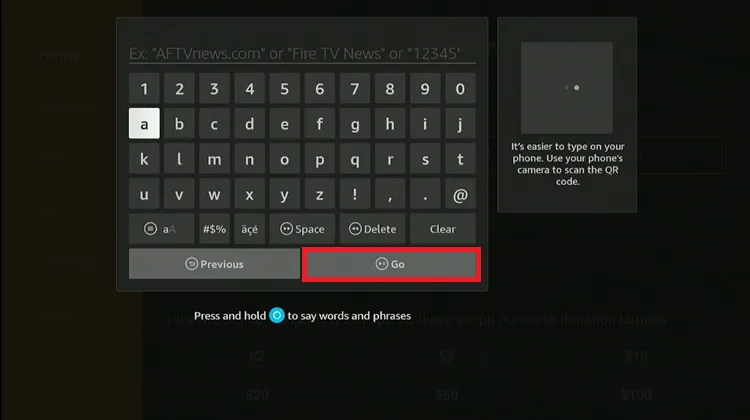
Step 2: Enter the TiviMate Downloader Code 5546232 in the search bar OR enter this URL bit.ly/43pEVWO and click Go.
Step 3: Scroll down to the IPTV Players section, find the TiviMate app, and tap on it to proceed.
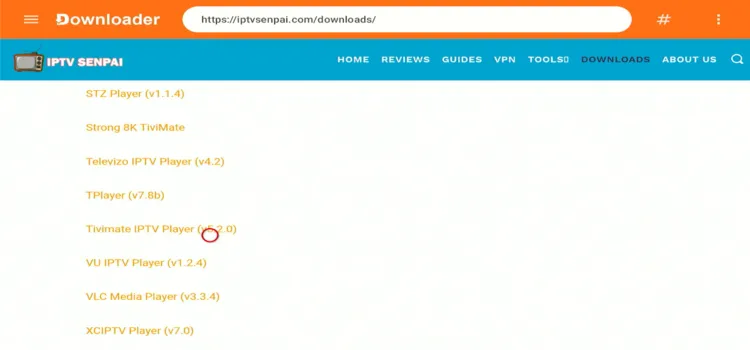
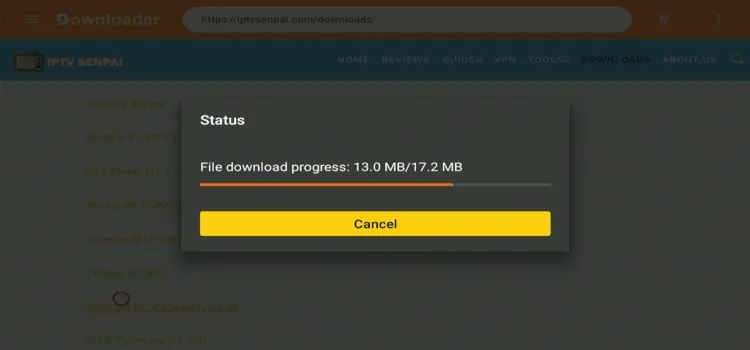
Step 4: Wait for the APK file to download.
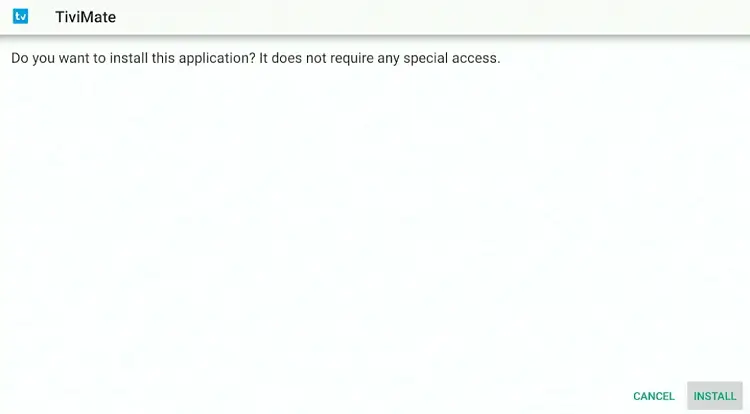
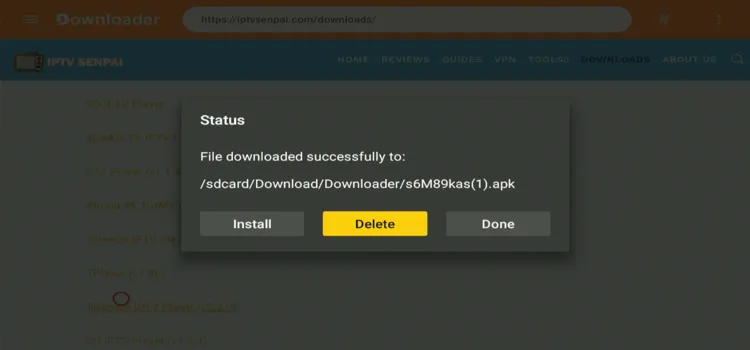
Step 5: Click Install.
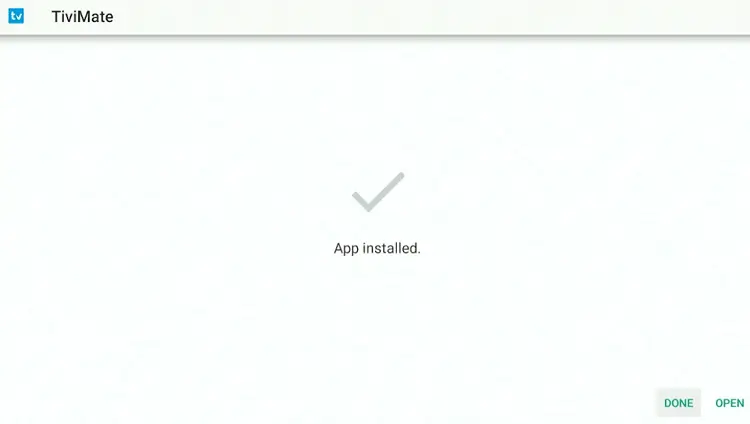
Step 6: Once installed, select Done.
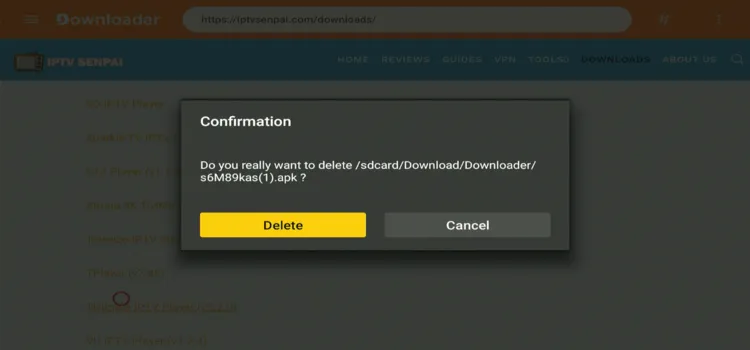
Step 7: Click Delete to remove the installation file and free up storage.
Step 8: Click Delete again to confirm.
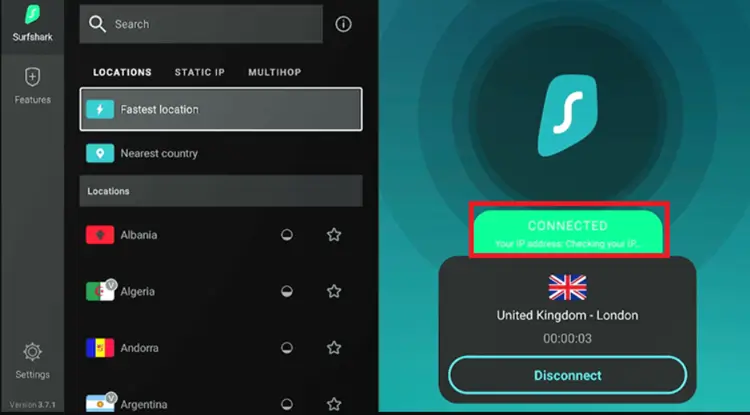
2. Connect to VPN & Set Up Your Player
Step 1: Open the Surfshark app and connect to any Server.
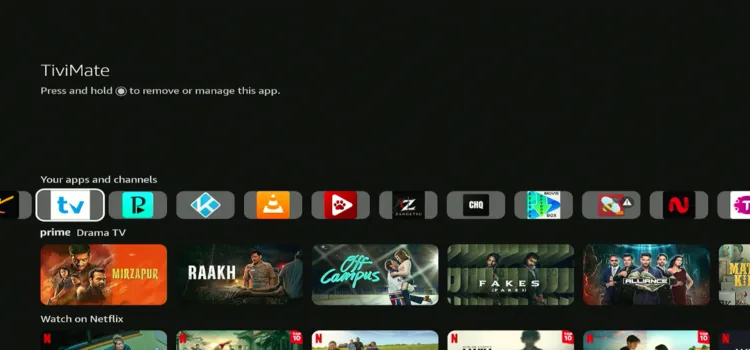
Step 2: Long-press the Home button. Under Your Apps and Channels, click Tivimate Player
Step 3: Click Add Playlist.
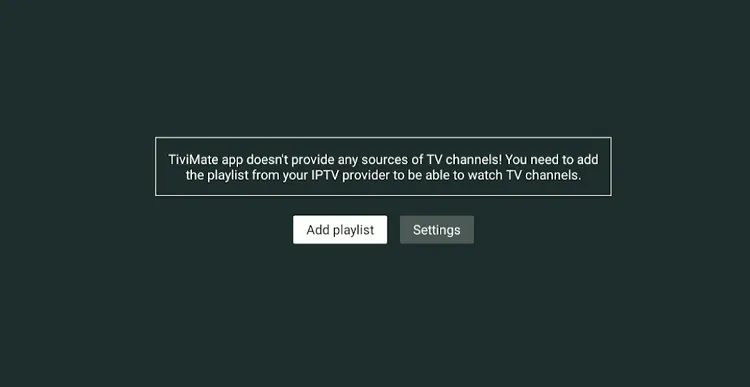
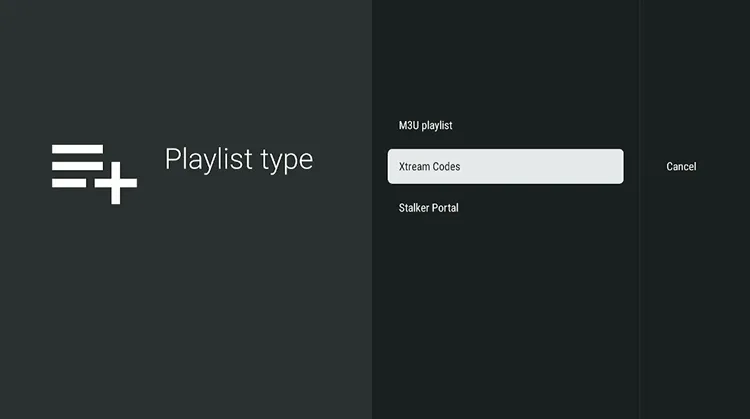
Step 4: Choose the format provided by your provider (e.g. Xtreme Codes)
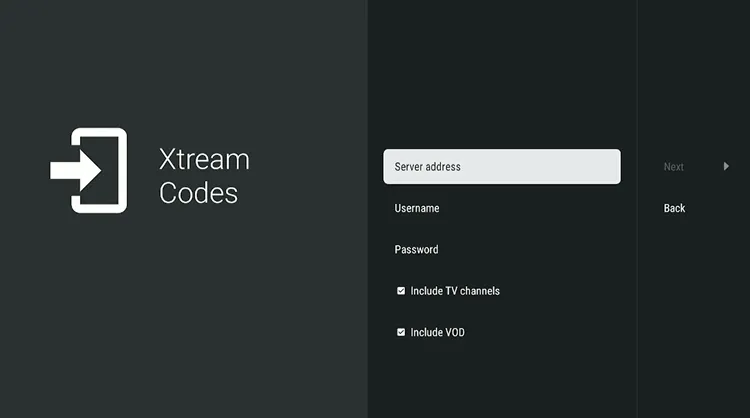
Step 5: Enter the Server address, Username, and Password.
Step 6: Click Next.
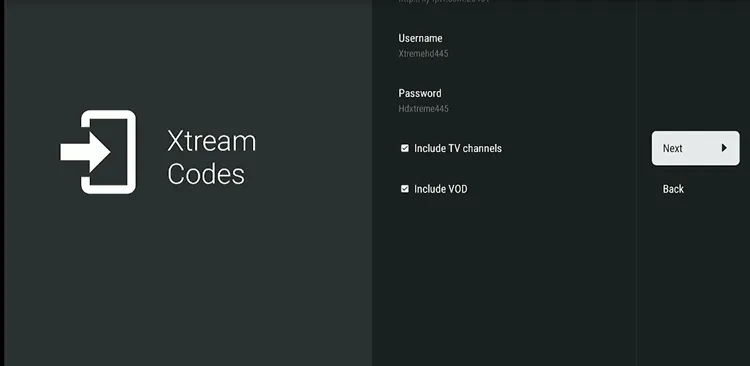
Step 7: Click Done.
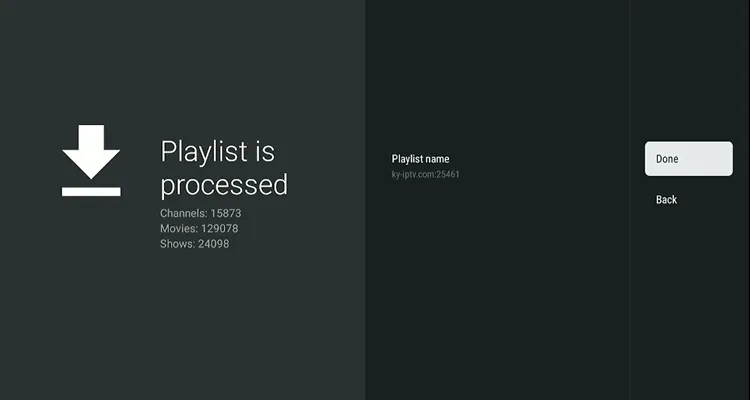
Step 8: IPTV is set up. Navigate and choose your favorite channel.
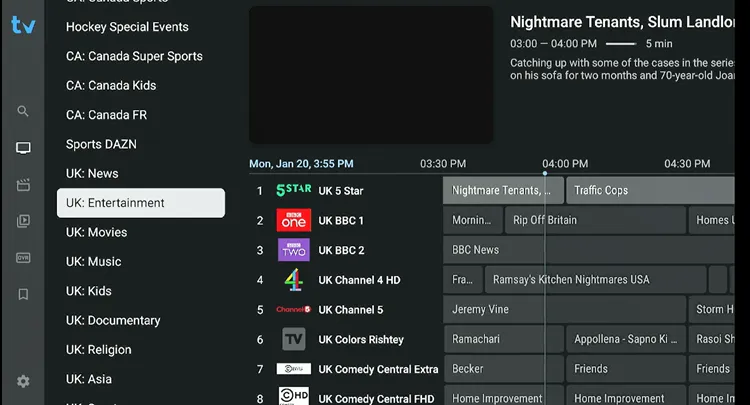
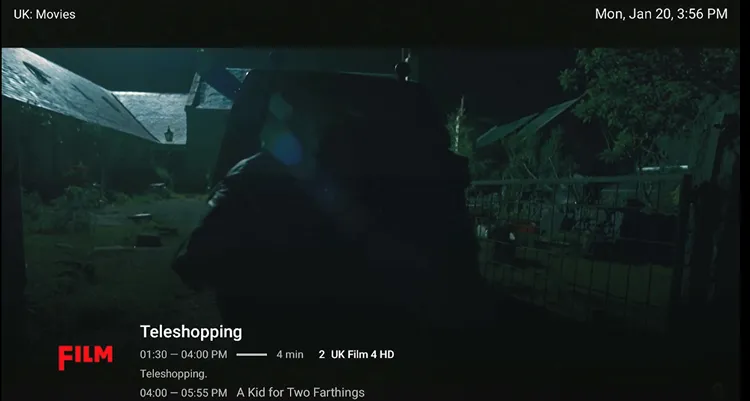
Step 9: Start Streaming!
How to Buy a TiviMate Subscription
Step 1: Open the “Google Play Store” on your Mobile and type “TiviMate Companion” in the search box.
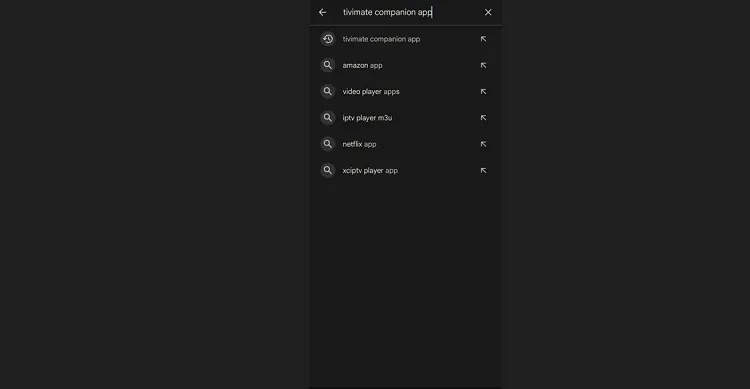
Step 2: Select the “TiviMate Companion” app from the list and click “Install”.
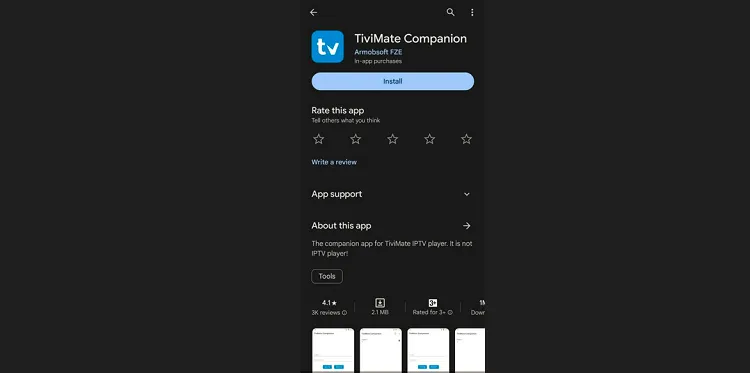
Step 3: Once the installation process ends, open the app and click “Sign Up”.
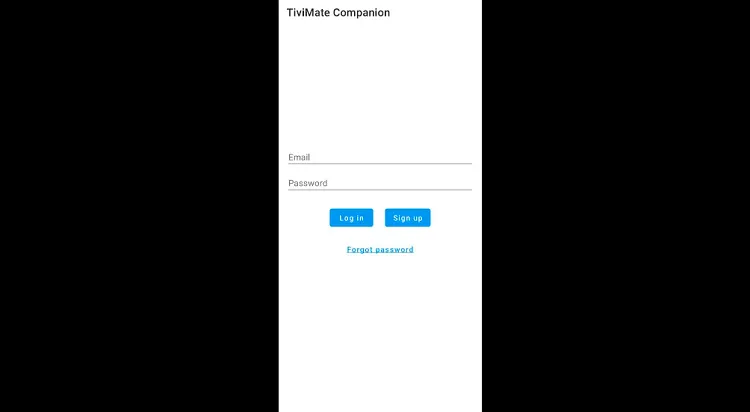
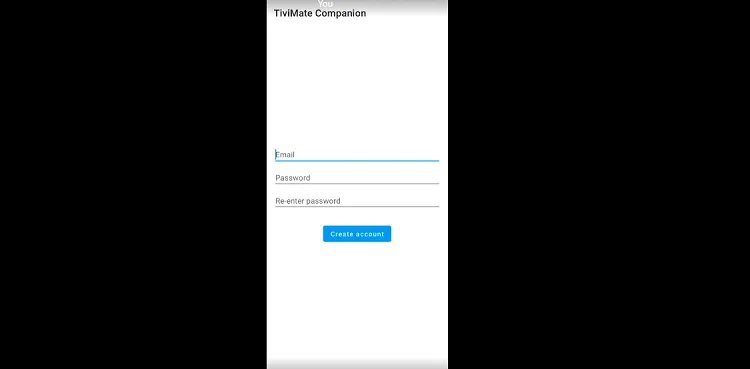
Step 4: Fill in the given fields.
Step 5: Now subscribe to the desired package and follow the instructions to complete the payment process.
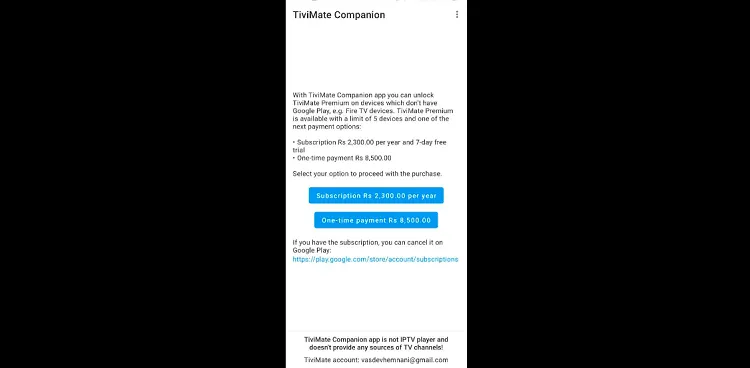
Step 6: Open TiviMate on your Fire TV Stick 4K Max, long-press the Select button on the remote, and go to Unlock Premium after creating your account.
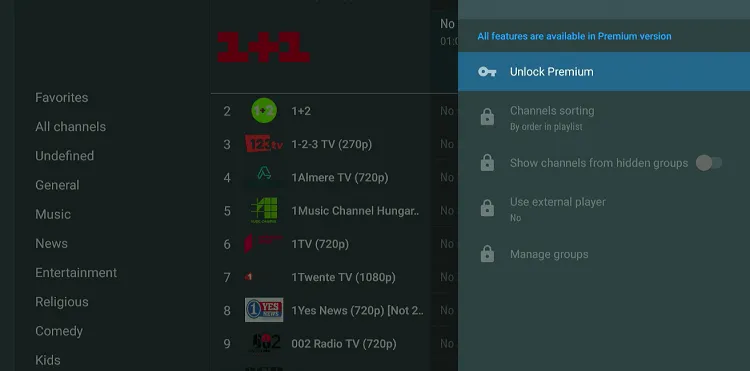
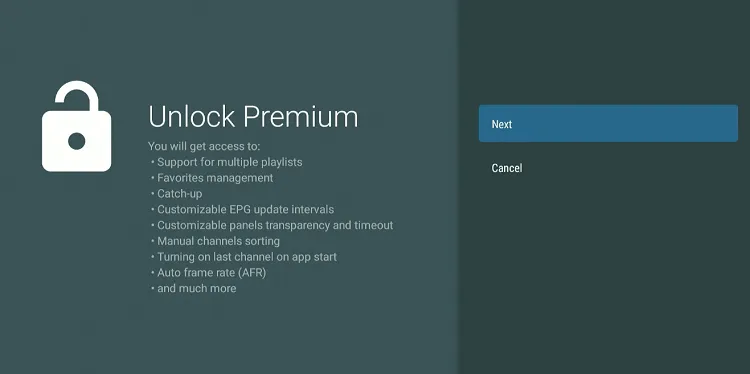
Step 7: Press “Next”.
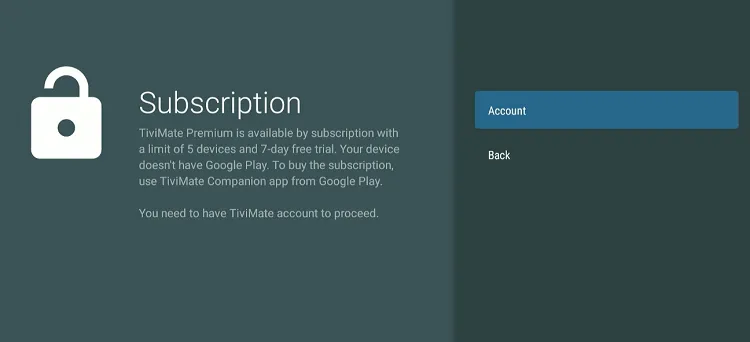
Step 8: Tap the “Account” icon.
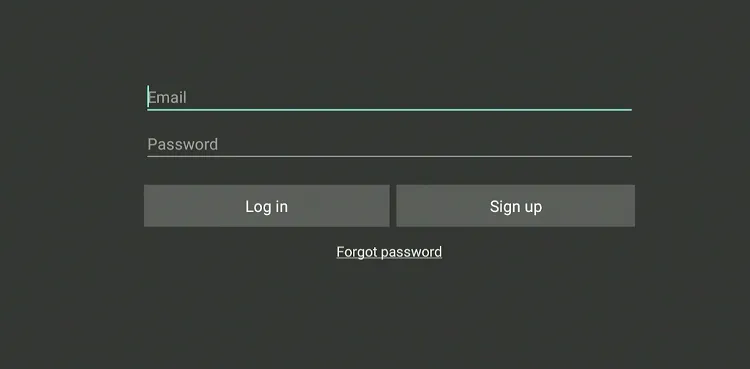
Step 9: Enter the credentials you used while signing up on the “TiviMate Compansion” app and click “Log In”.
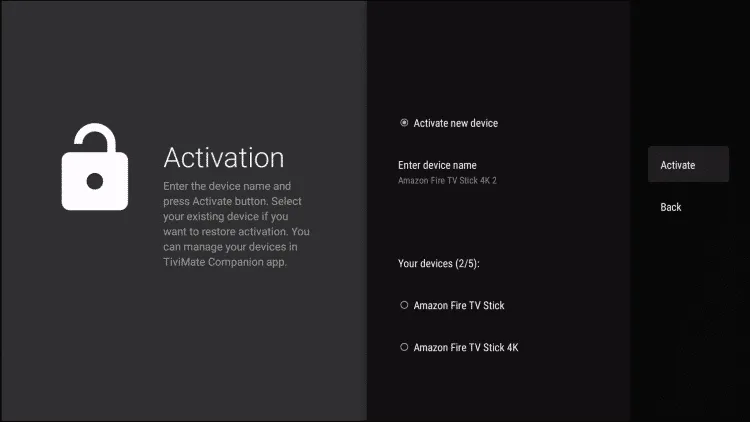
Step 10: Enter the “Device Name” and click the “Activate” button.
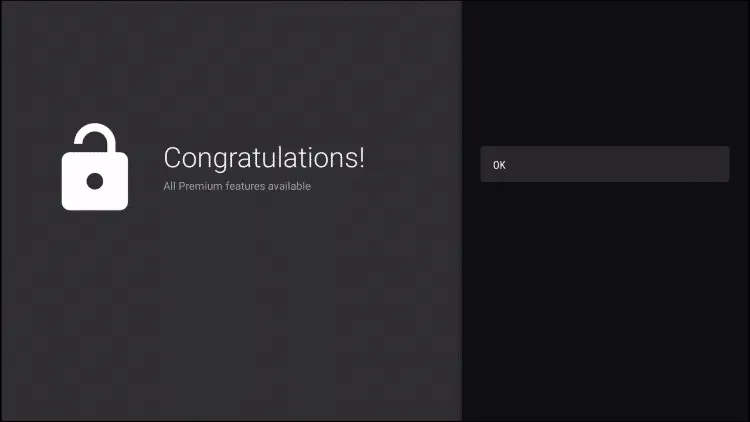
Step 11: Click “OK” to complete the process.
TiviMate Best Features
Let’s quickly explore what TiviMate Premium brings to IPTV. All the features listed below are part of the Premium subscription only. I am using a Fire TV Stick to demonstrate its features here.
1. Add Favorites
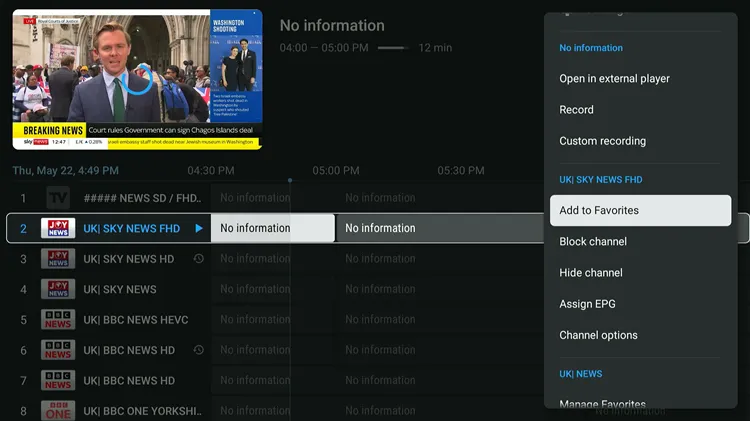
Select the channel, “long-press” the select button on the FireStick remote, and then tap “Add to Favorites“. You can later go and only see the channels in the favourites list.
2. External Player Integration
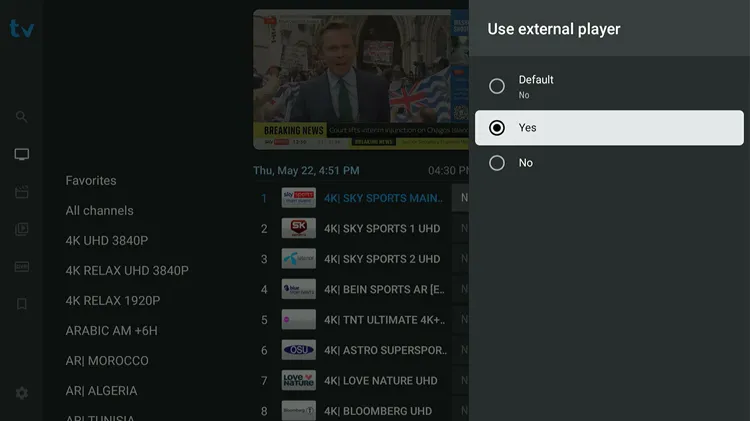
To use an External Player with TiviMate, select All Channels > Use External Player > Yes.
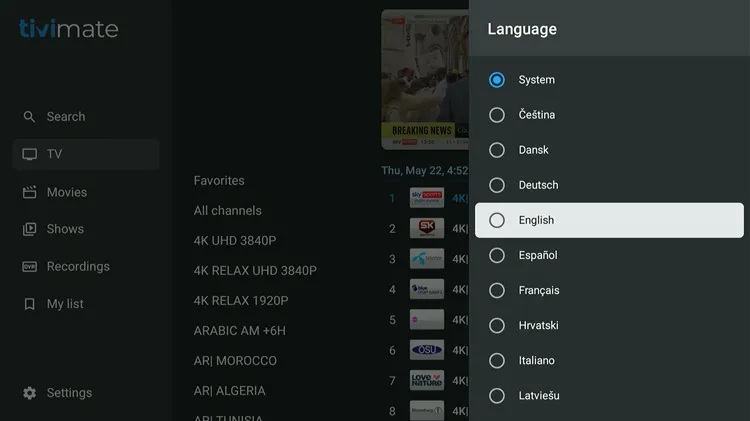
3. Change App Language
Go to Settings > Appearance > Languages.
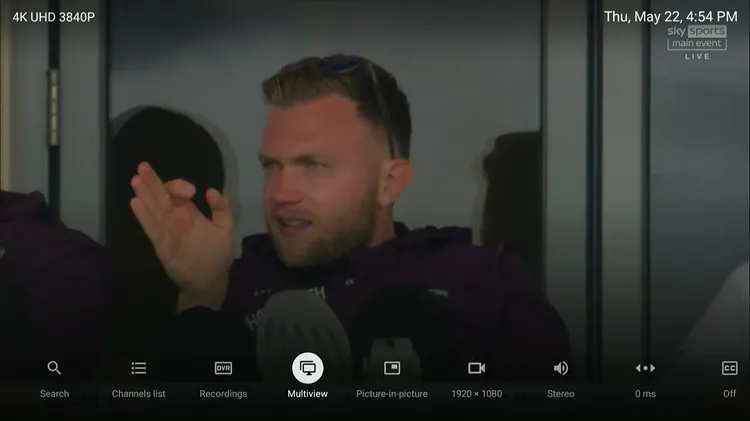
4. Multiview
TiviMate lets you see Multiple Channels at once. “Play a channel” and then select “multiview”. However, you will only be able to do this if you have multiple connections.
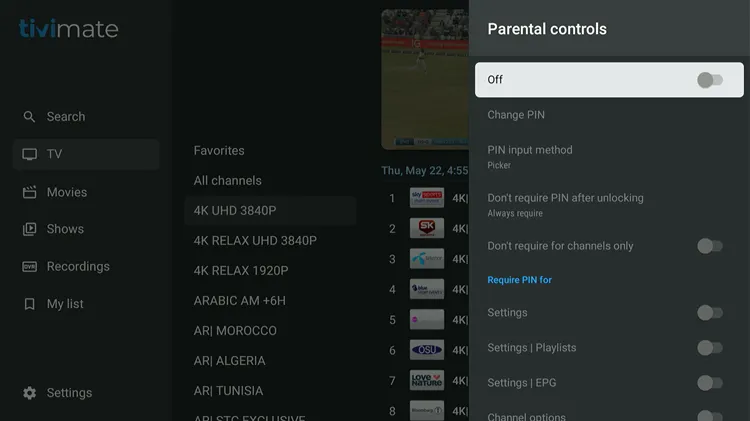
5. Parental Control
Go to Settings > Parental Controls. You can turn on the feature and set a PIN for certain settings/Categories.
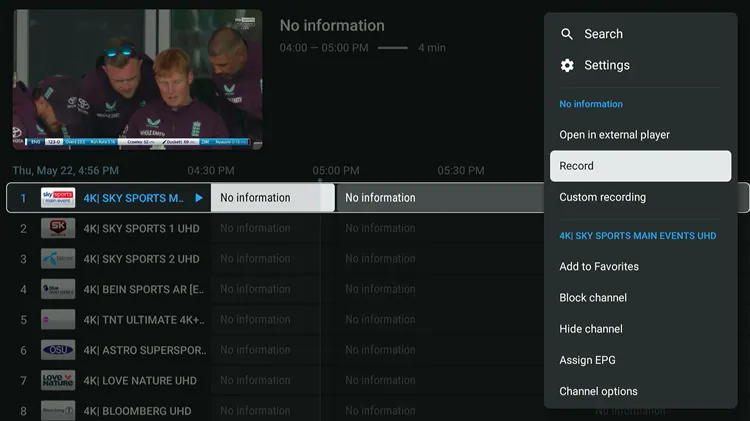
6. Recording
Long-press Select on a channel and tap Record. Make sure your device has sufficient storage space. Schedule weekly recordings and watch another channel if you have multiple playlists. To play an active recording, open it with VLC using the Select button.
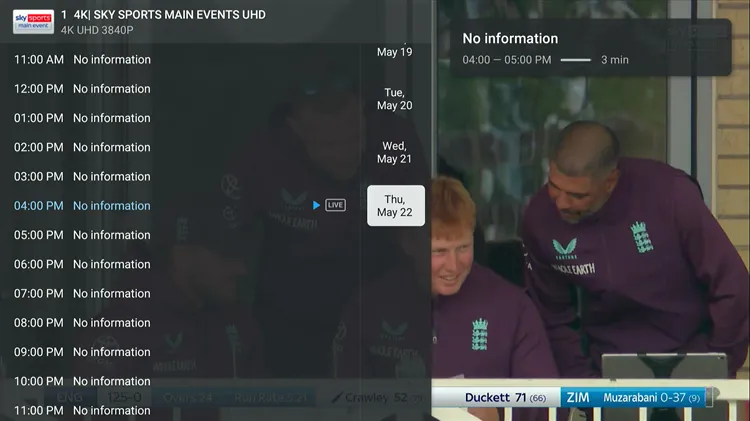
7. Catch up
Open the Channel > Press the Menu button > Left Button > Right Button. Dates will show up. However, Catchup depends on your Provider.
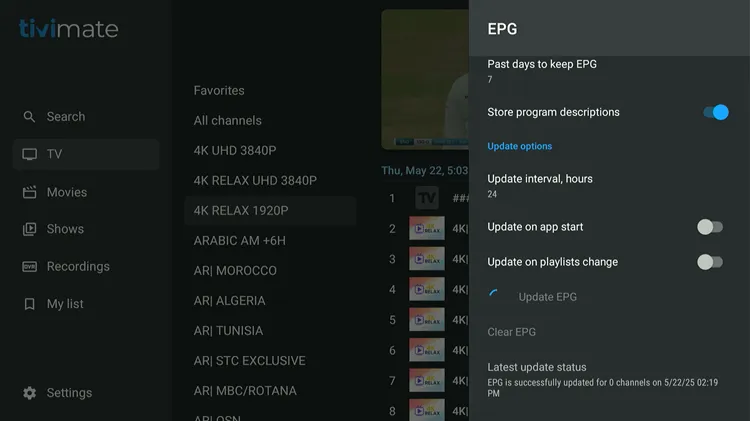
8. Updating EPG
Go to TiviMate Settings > EPG > Update EPG manually. Make sure your provider includes a working EPG URL.
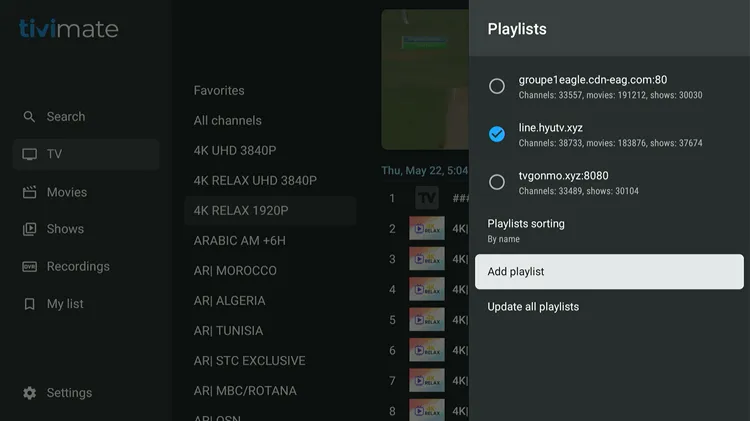
9. Adding Multiple Playlists
You can add multiple Playlists from different providers. Go to Settings > Playlists > Add Playlist.
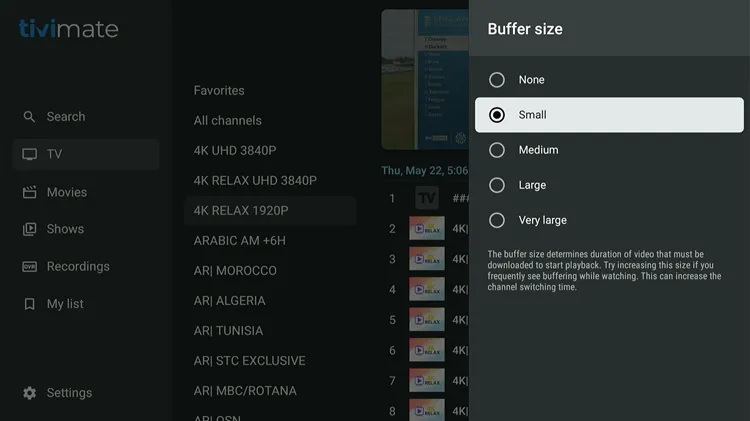
10. Change Buffer Size
Buffer size determines the duration of video that must be downloaded to start playback. Try increasing the buffer size if you see frequent IPTV buffering while switching channels. Go to Settings > Playback > Buffer Size.
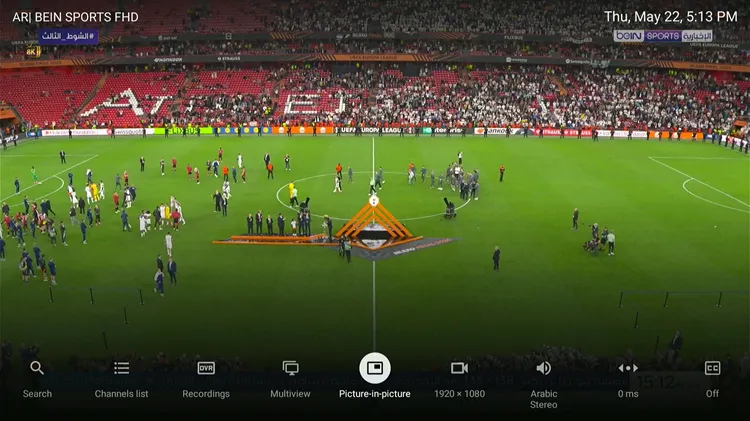
11. Picture-in-Picture Mode
For PIP Mode, “Play a channel” > Press Menu button > down button > select “Picture in Picture”.
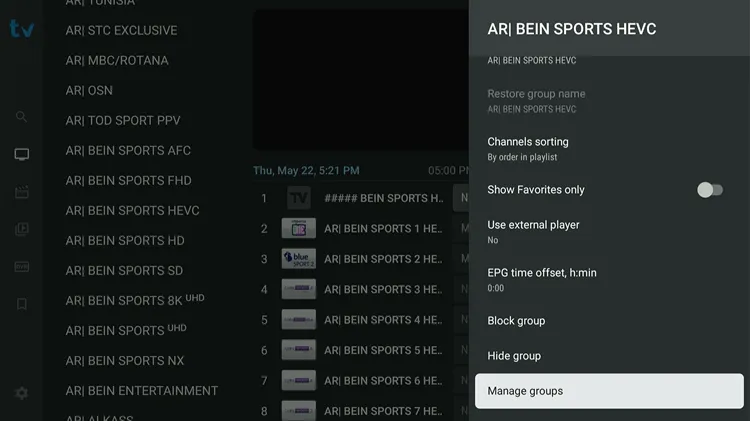
12. Customise/Manage Categories
Long-press the category you want to customize, and you will see a list of customization options there.
13. Explore other options
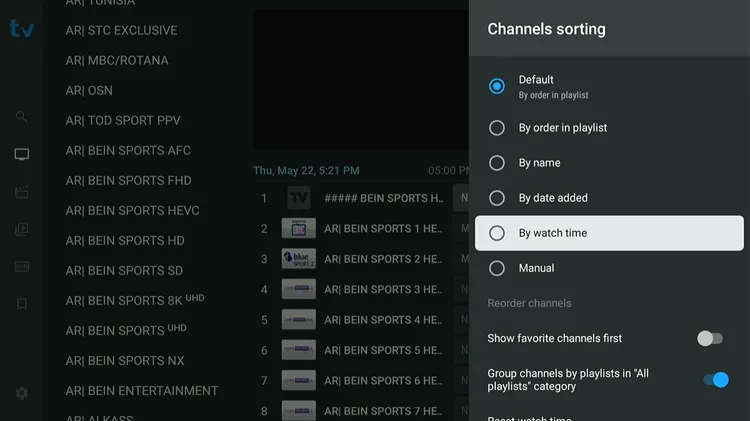
Tivimate has other options to explore
– Show Favorites Only
– Use an External Player for the category
– EPG Time Offset
– Hide Group
– Channel Sorting
– Block Groups (Set Parental Control for the Category)
– Manage Groups
TiviMate Alternatives for IPTV
Here are some of the alternatives IPTV players that you can try.
Supported Devices
TiviMate is optimized for big screens and TV devices and often does not function properly on phones or tablets. If you’re using an iPhone, Mac, or Apple TV, you’ll need to look into IPTV players built for iOS/Mac/Apple TV instead.
- Fire TV Stick
- NVIDIA Shield
- onn. Stream 4K Box
- MiTV Box
FAQs
1. Does TiviMate provide channels?
No, TiviMate is an IPTV player and does not offer any channels. You need to add your own IPTV playlist or subscription using M3U, Xtream Codes, or Stalker Portal.
2. My playlist isn’t loading. What should I do?
Make sure that your M3U or Xtream Codes URL is correct and active. Also, verify that your internet connection is stable.
3. Why can’t I use TiviMate on my Android phone or tablet?
TiviMate is optimized for Android TV and FireStick devices. Phones and tablets often face crashes and performance issues.
Conclusion
TiviMate is the best IPTV player available today. Its smooth performance, clean interface, and powerful features make IPTV feel like traditional cable, or even better. The $33.99 lifetime subscription is a great deal, covering 5 devices with tools like multi-view and recording.
I confidently recommend TiviMate as a must-have for anyone serious about IPTV. Grab the lifetime subscription and enjoy a top-quality streaming experience without ongoing fees.

