

The player does not provide content. You must subscribe to an IPTV provider separately to get playlists or login credentials. Many IPTV streams are unverified or geo-restricted, so using a reliable VPN is highly recommended to protect your digital privacy and prevent ISP throttling
Recommended VPN for IPTV - Surfshark
Using IPTV without a VPN can put you at Big Risk! Your ISP, government and even IPTV providers can monitor your activity, throttle your speed, or block access altogether.
Plus, without encryption, your data is exposed to hackers and third parties. Take back your privacy with Surfshark!
Features:
✅ SAVE 87% + GET 3 EXTRA MONTHS FREE! ($0.06/day)
✅ Kill Switch Feature to protect you if VPN drops
✅ Lightweight app ensuring smooth performance on All IPTV Boxes
✅ Unlimited simultaneous connections (install on all household devices)
✅ 30-day risk-free money-back guarantee
✅ Strict no-logs policy, Secure & Untraceable
How to Install OTT Navigator [Video Tutorial]
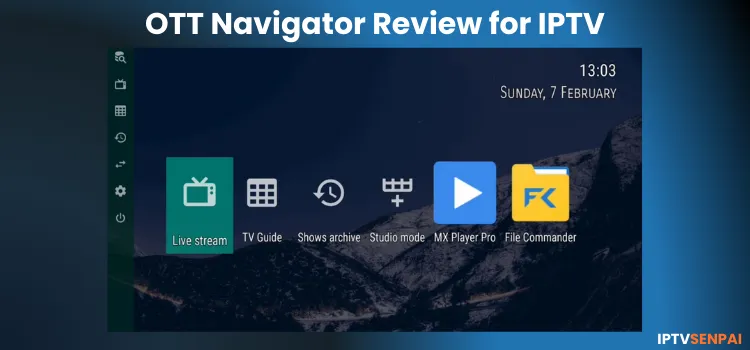
Quick Overview of OTT Navigator
Here is a quick overview of what OTT Navigator offers:
- Pricing: Free | Premium starts at $0.99/month
- User Interface: Intuitive with extensive visual and layout customization.
- Compatibility with Devices: Fire TV, Android TV, Android Phones, Google TV
- IPTV Formats Supported: Xtream Codes API, M3U Playlists, Mac Portal, Stalker Portal.
- Electronic Program Guide (EPG) Integration: Yes.
- Parental Controls: Yes
- External Player Integration: Yes
- Multi-Screen: Not Available
Pricing Plans
The base app is completely free to use. The free tier offers excellent features, including basic visual customization, EPG integration, and external player support.
– Monthly Plan: ~$0.99/month
– Lifetime Plan: ~$19.99 (pricing may vary slightly by region)
⭐ Should you upgrade? For most users, the free version is more than enough. If you are willing to pay for a premium IPTV player, you might find better overall value and features (like multi-screen and recording) in alternatives like TiviMate.
Pros & Cons
How to Install OTT Navigator
Step 1: Open the Downloader app.
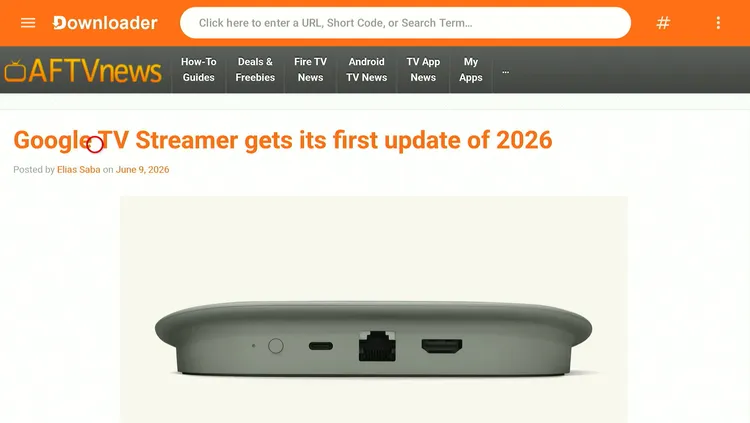
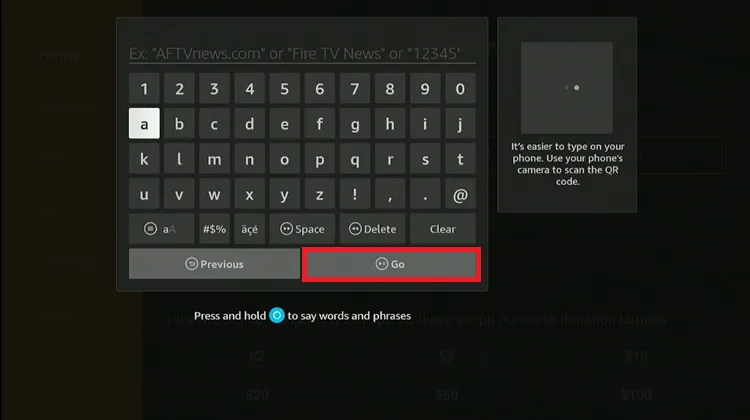
Step 2: Enter the OTT Navigator downloader code 5546232 in the search bar OR enter this URL bit.ly/43pEVWO and click Go.
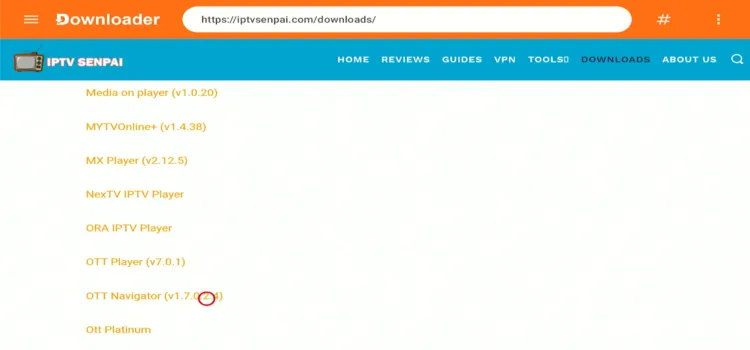
Step 3: Scroll down to the IPTV Players section, find the ‘OTT Navigator app’, and tap on it to proceed.
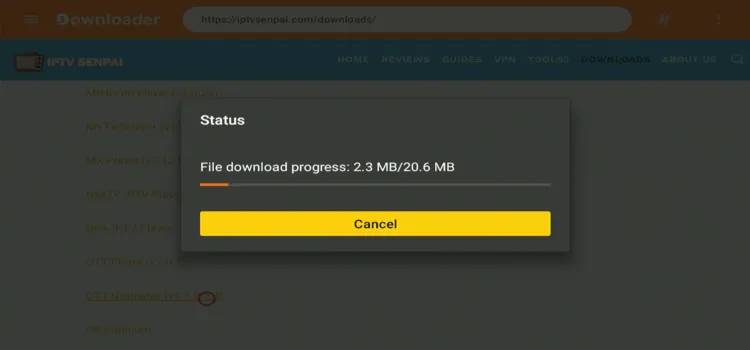
Step 4: The app will start downloading.
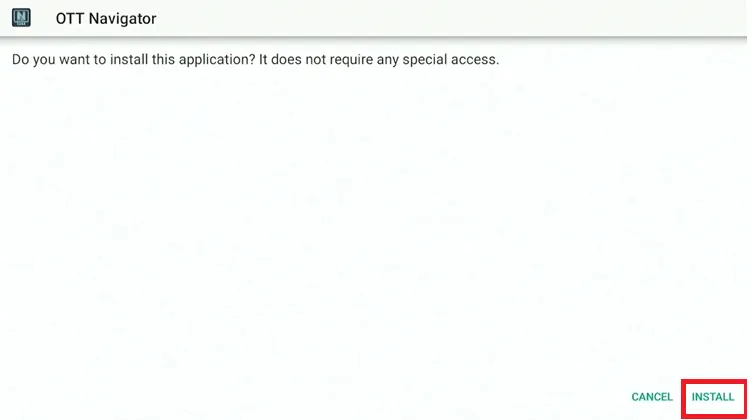
Step 5: Click on Install.
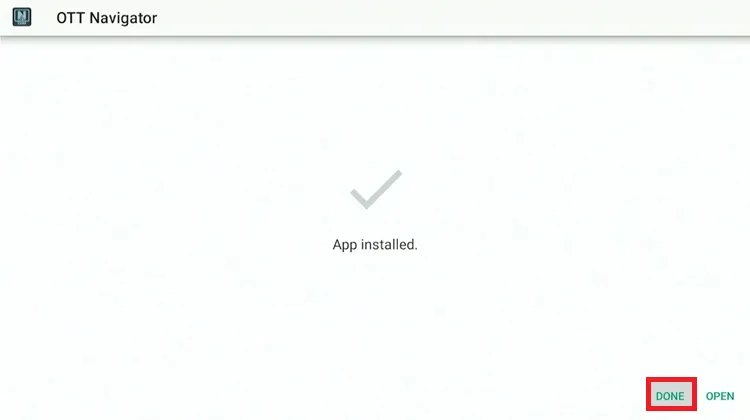
Step 6: After the installation is complete, click “Done.”
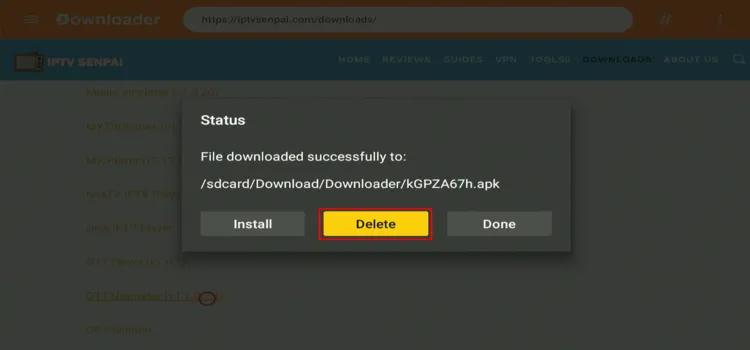
Step 7: Click “Delete” to remove the installation file and free up storage space.
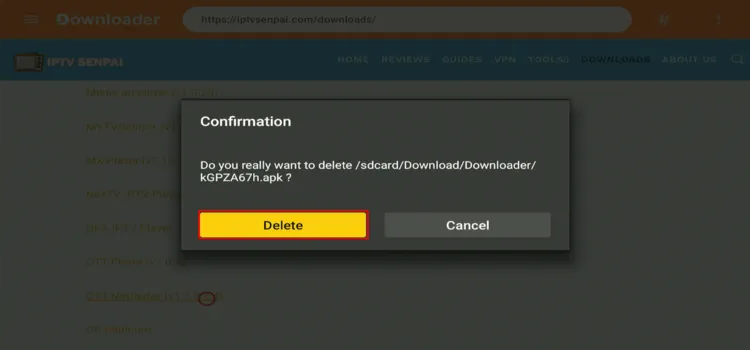
Step 8: Click “Delete” again.
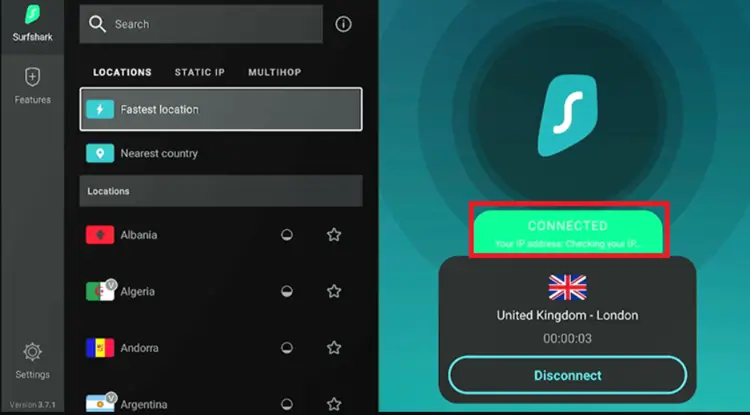
Step 9: Open the Surfshark App and connect to any server.
Step 10: Long-press the Home button and choose Apps from the menu.
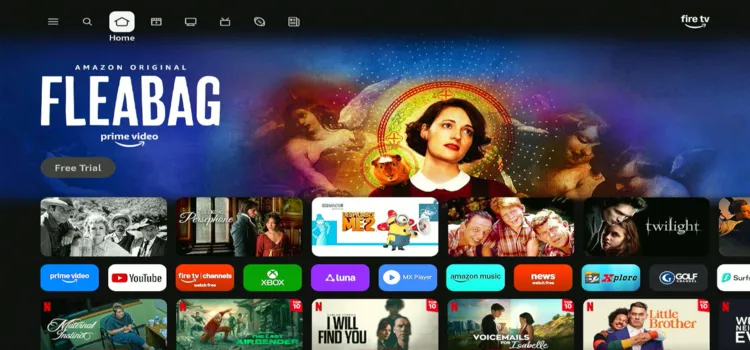
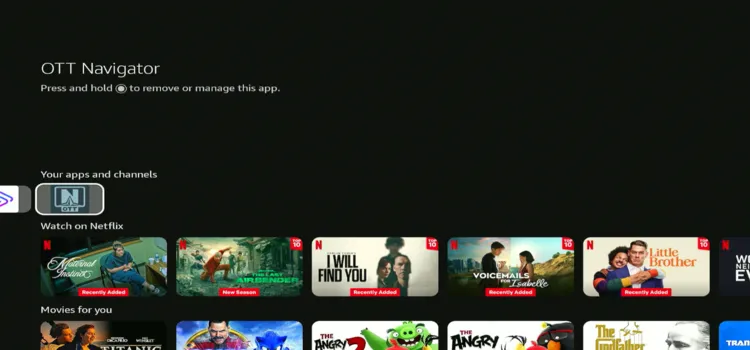
Step 11: Under Your Apps and Channels, select OTT Navigator app to launch the player.
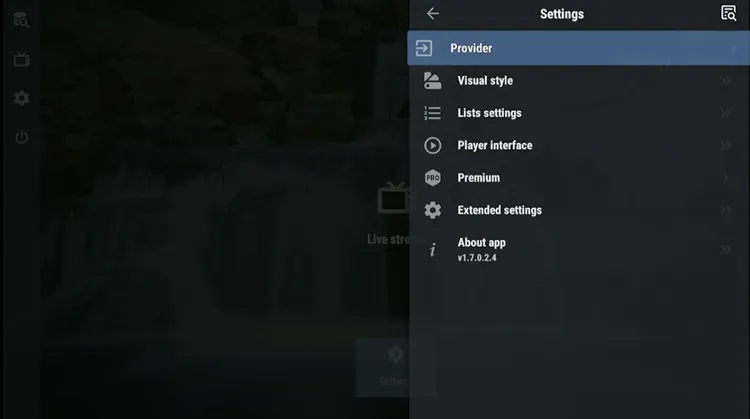
Step 12: Open the app and click on the “Provider”.
Step 13: Choose the format you have received from your service provider. I chose Xtream Code.
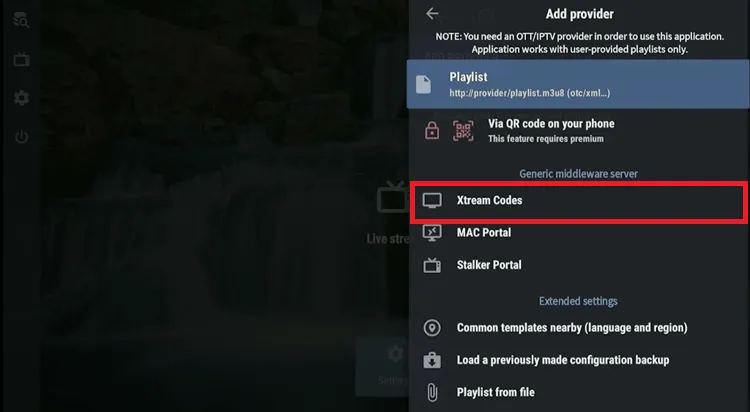
Step 14: Enter the ‘Xtream Codes’ including the URL, username, and password.
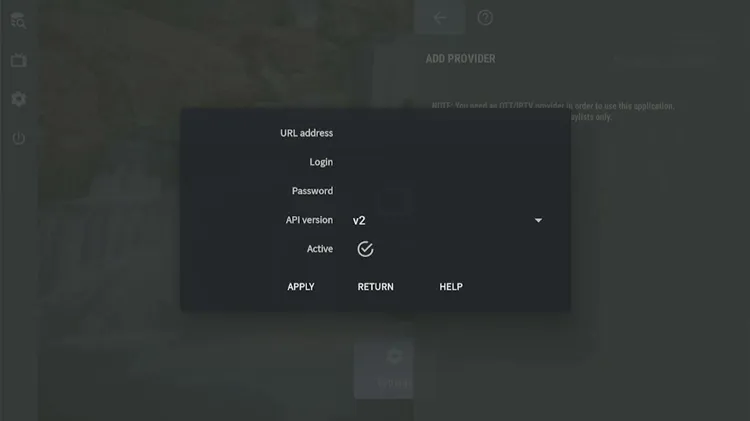
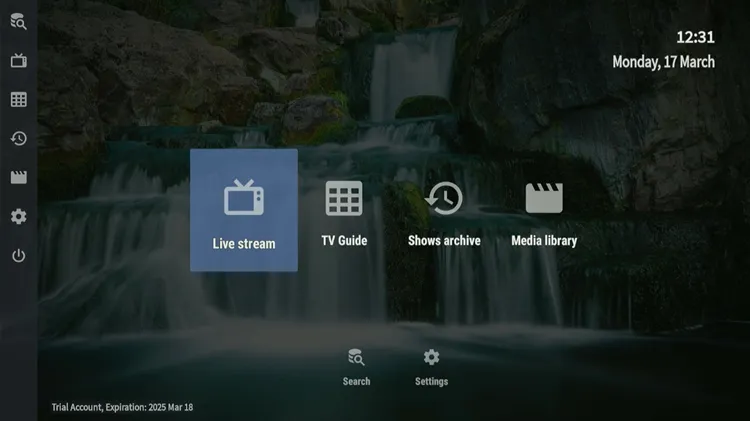
Step 16: Select what you want to watch.
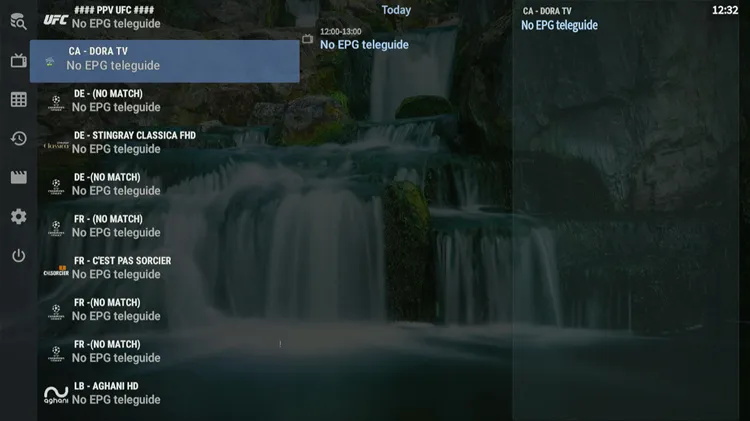
Step 17: Enjoy streaming.

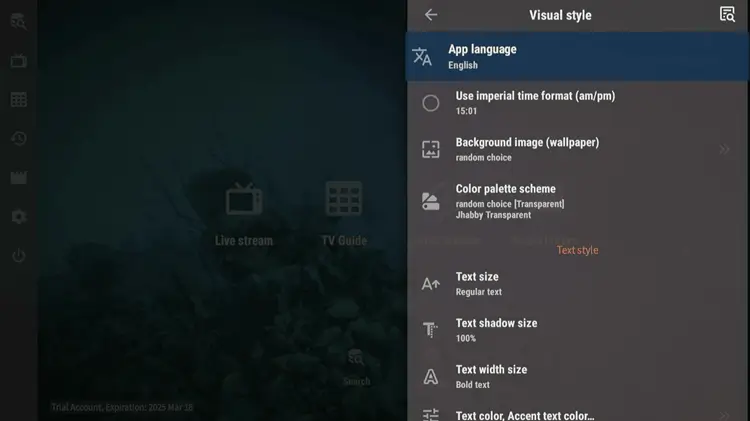
1. Visual Style
The Visual Style settings allow you to personalize the app by customizing its language, time format, background, color scheme, and text options.
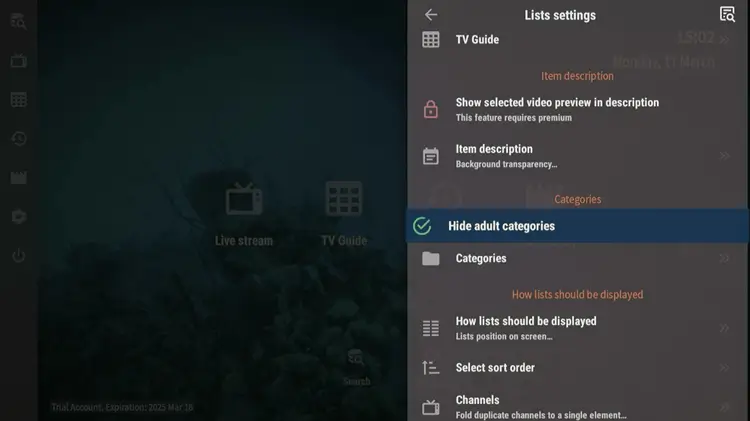
2. List Settings
In the list settings, you can categorize, hide adult content, adjust list display, and sort options for a personalized experience.
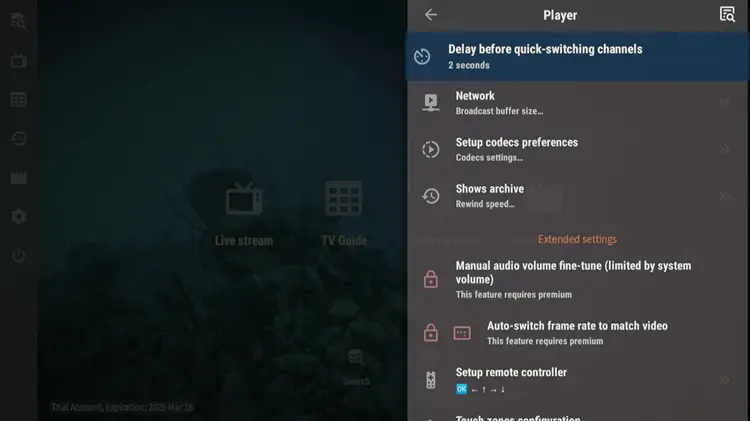
3. Player Settings
The app provides customizable player settings, allowing you to adjust channels, the delay between switching channels, and rewind options. Premium features include volume fine-tuning, auto-switching, and remote control configuration.
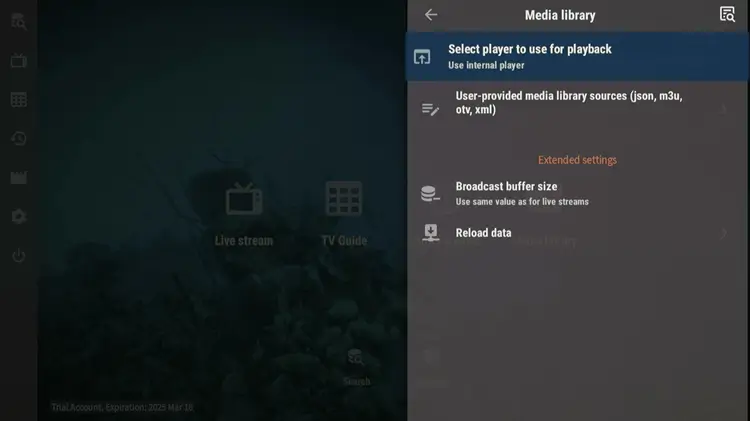
4. Media Library
The media library allows you to choose the desired player for playback, and adjust the broadcast buffer size. You can also reload data for updated content.
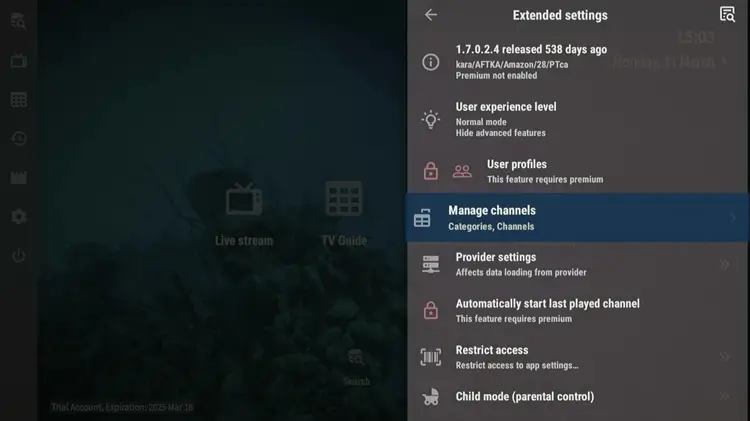
5. Extended Settings
You can also easily manage channels in categories. Premium users can also set the app to automatically start the last channel, adjust providers settings and restrict access.
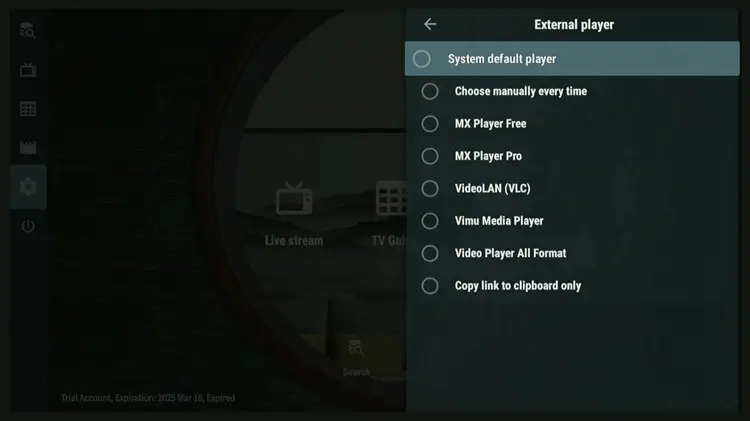
5. External Player
The app also features special settings for the VOD section, allowing you to integrate external players like MX Player, VLC, and more. You can either manually select a player or set a default player.
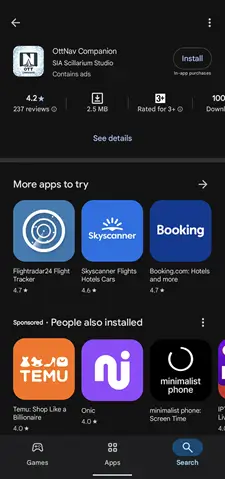
You can subscribe to the premium version with the OTTNav Companion app, available on the Google Play Store. You cannot buy it directly inside the TV app. Instead, you need to use an Android smartphone.
Step 1: Open the Google Play Store, search for OTTNav Companion Player, and hit ‘Install’ to get started.
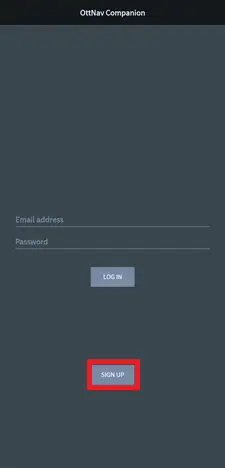
Step 2: Click the Sign-Up button to create your account.
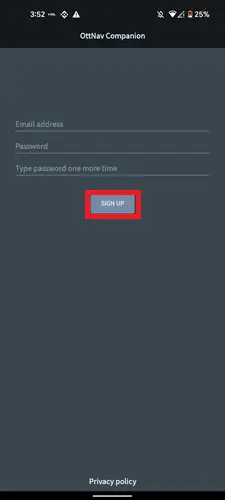
Step 3: Enter Your Email and Password and Click Signup
Step 4: Click the Plus Icon
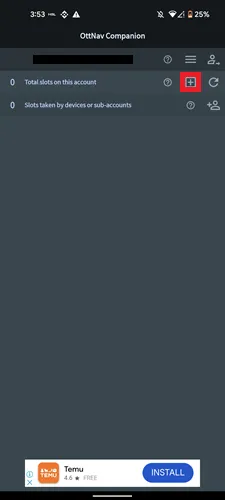
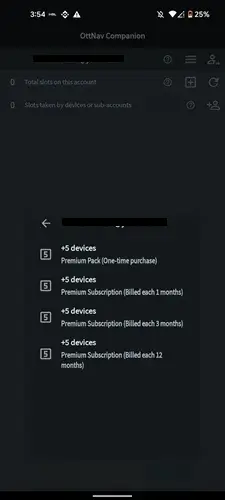
Step 5: Select the subscription plan that fits your needs
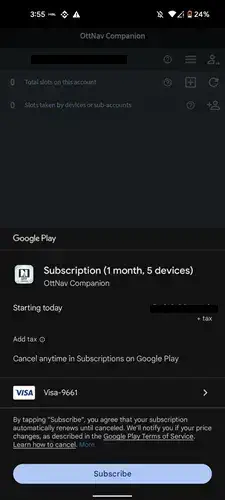
Step 6: Select the Payment method, click the Subscribe button then enter your payment information.
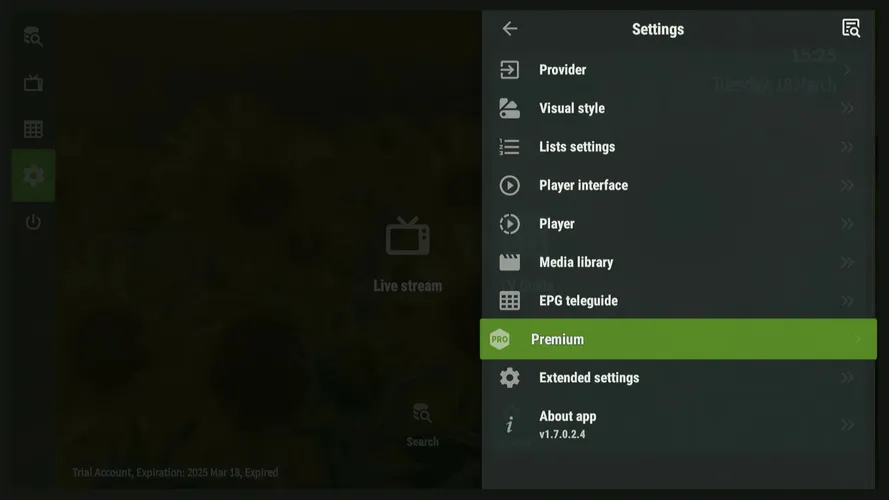
Step 7: Open the OTT Navigator app on your Firestick, go to the Settings section, and then click on Premium.
Step 8: Choose Log in
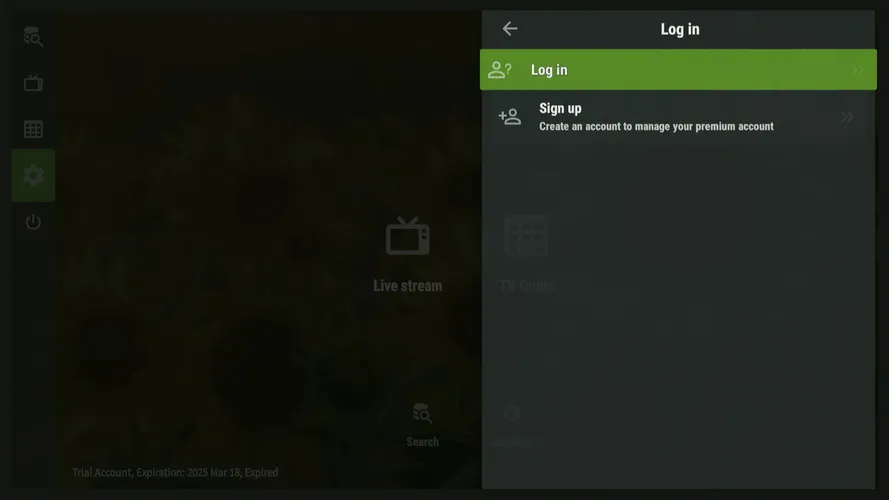
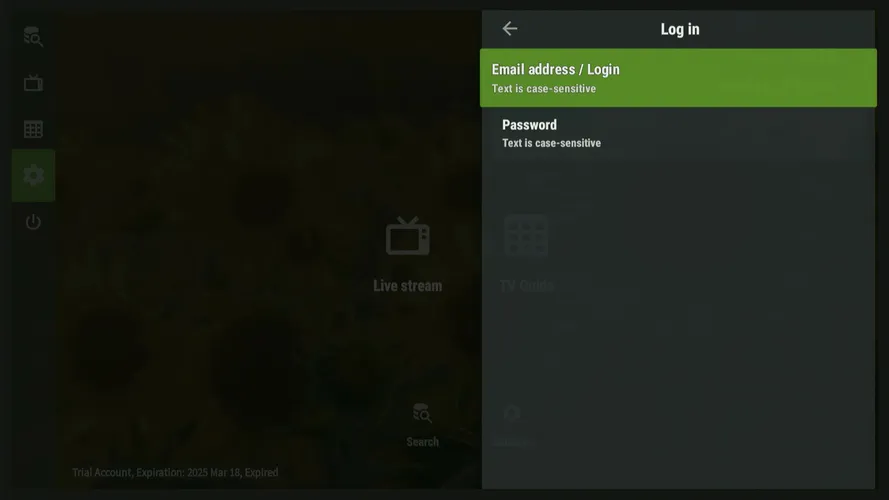
Step 9: Enter your login ID and password and you are done.
FAQs
How can I access the premium features in OTT Navigator?
OTT Navigator doesn’t offer a direct subscription option. To access premium features, you’ll need to purchase the subscription through the OTTNav Companion app on the Google Play Store.
How does the External Player option work in OTT Navigator?
The External Player option lets you choose a player manually each time or set a default player for automatic use.
How to subscribe to OTT Navigator Premium if you don’t have an Android Phone?
If you don’t have an Android phone, you can access this using Bluestacks on a Windows PC.
My Take on OTT Navigator!
The premium upgrade added useful features like PIP mode and multiple device support, etc. However, it lacks a few options like DVR and multi-screen options, which are available in other premium players at a similar price.
💡 My advice: Stick to the free version. If you want a paid experience, your money is better spent on TiviMate. Always use a strong VPN like Surfshark to keep your streaming secure.

