

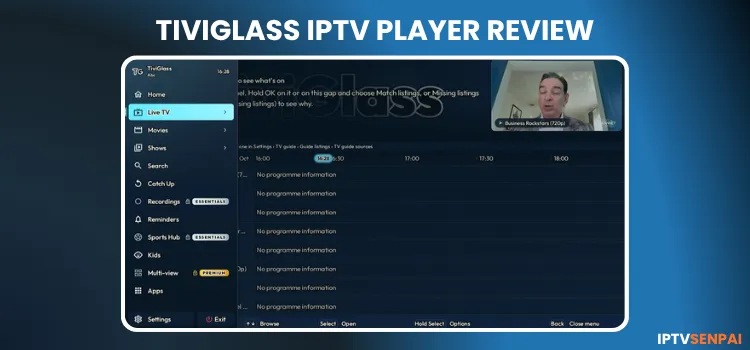
TiviGlass is a modern IPTV player compatible with Amazon FireStick, Android TV, Google TV, and Nvidia Shield. It supports multiple playlist formats, including Xtream Codes, M3U playlists, and Stalker/Ministra portals, allowing users to stream live TV, movies, and TV series from their IPTV providers.
The player features a dark-themed interface, with the free version offering useful features such as EPG, catch-up TV, favourites, and parental controls. However, TiviGlass does not provide TV channels, playlists, or subscriptions.
A trusted VPN like Surfshark encrypts your IPTV traffic and masks your IP address, protecting your online privacy and potentially reducing ISP throttling.
Recommended VPN for IPTV - Surfshark
Using IPTV without a VPN can put you at Big Risk! Your ISP, government and even IPTV providers can monitor your activity, throttle your speed, or block access altogether.
Plus, without encryption, your data is exposed to hackers and third parties. Take back your privacy with Surfshark!
Features:
✅ SAVE 87% + GET 3 EXTRA MONTHS FREE! ($0.06/day)
✅ Kill Switch Feature to protect you if VPN drops
✅ Lightweight app ensuring smooth performance on All IPTV Boxes
✅ Unlimited simultaneous connections (install on all household devices)
✅ 30-day risk-free money-back guarantee
✅ Strict no-logs policy, Secure & Untraceable
Is TiviGlass IPTV Player Free?
Yes, TiviGlass IPTV Player is free to download and use, with an optional Essentials and Premium upgrade. You can try the premium feature for 7 days with no card required. Once the trial ends, you can keep using the free features without buying a subscription.
| Plan | Price | Key Features |
|---|---|---|
| Free | Free | Live TV, full EPG and catch-up, movies, shows and multiple playlists, parental controls and app updates. |
| Essentials | £25 | Recordings and Series Links, Sports Hub and reminders, advanced playback controls. |
| Premium (Annual) | £19.99 | Every Essentials feature included, plus cloud sync and scheduled backup, multi-view, filters, and themes. |
| Premium (Lifetime) | £39.99 |
Key Features
Here are the key features available in TiviGlass IPTV Player.
- Minimum OS: Android 6.0 or Fire OS 6
- Playlist Support: Xtream Codes, M3U/M3U8, and Stalker/Ministra
- Electronic Program Guide (EPG): Yes
- Parental Controls: Yes (PIN protection and profiles)
- Recording: Yes
- Catch-Up TV: Yes
- Multi-view: Yes (up to 4 channels)
- Subtitles: Yes
- Advanced Playback: Yes
- Cloud Sync & Backup: Yes
- External Player: Yes
- Compatible Devices: FireStick, Fire TV, Android TV, Google TV, Nvidia Shield, Android phones, and tablets
Pros and Cons
| Pros | Cons |
|---|---|
| Ad-Free | Decent interface with room for improvement |
| Supports M3U, Xtream Codes, and Stalker portals | No built-in TV channels or content |
| Clean, remote-friendly interface | Recording, sports hub, Multi-view, cloud sync requires a paid plan |
| Supports multiple playlists and profiles | Not compatible with Vega OS |
| Supports recording and Sports Hub | |
| Multi-view supports up to 4 channels | |
| Supports multiple playlists and profiles |
How to Install TiviGlass IPTV Player on FireStick/Android TV
TiviGlass IPTV Player is not available on the Google Play Store. You need to sideload its APK using the Downloader app. It supports Android TV, Smart TV, and FireStick. Follow the steps below for FireStick 4K Max.
Step 1: Launch the Downloader app.
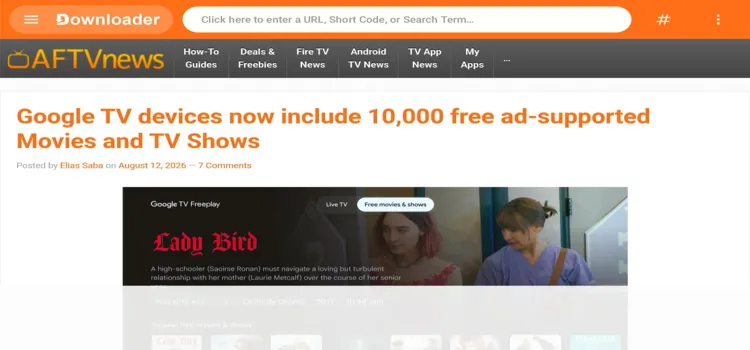
Step 2: Enter the TiviGlass IPTV Player downloader code 5546232 in the search bar OR enter this URL bit.ly/43pEVWO and click Go.
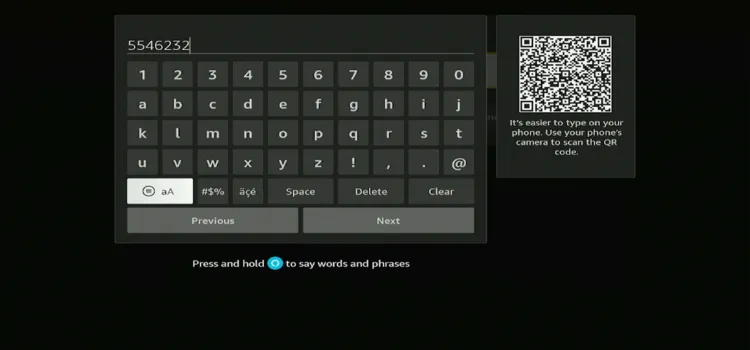 Step 3: Scroll down to the IPTV Players section, find the TiviGlass IPTV Player, and tap on it to proceed.
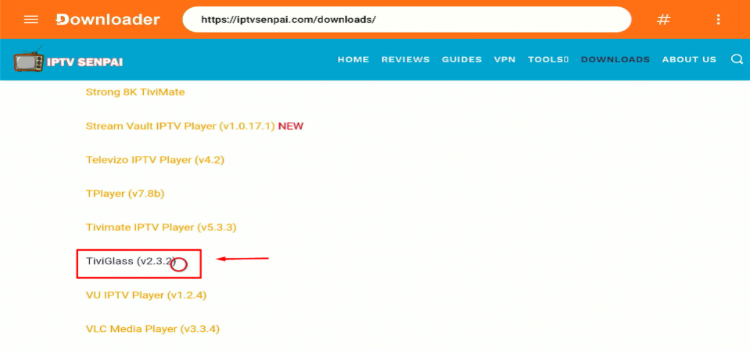
Step 4: A MediaFire page will open. Click Download.
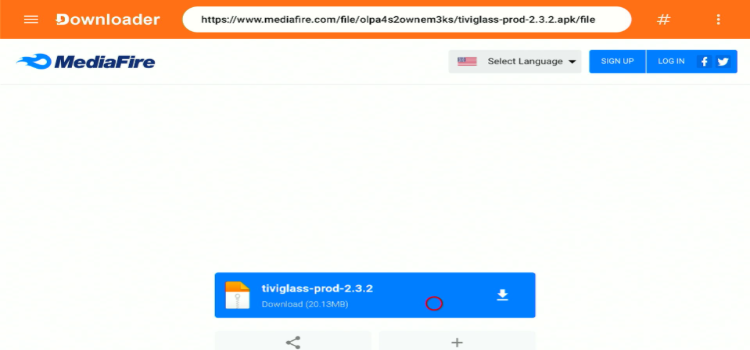
Step 5: Your APK file will start downloading.
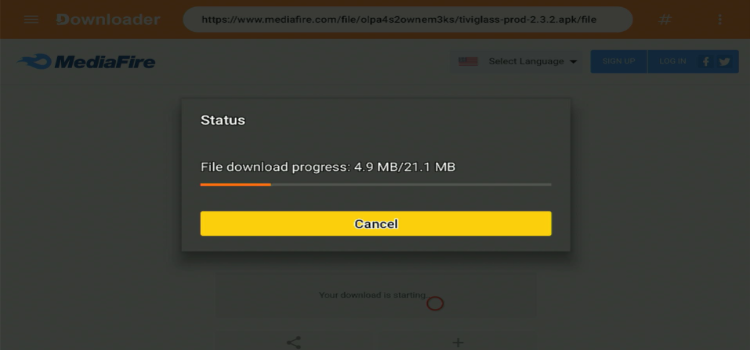
Step 6: Click Install.
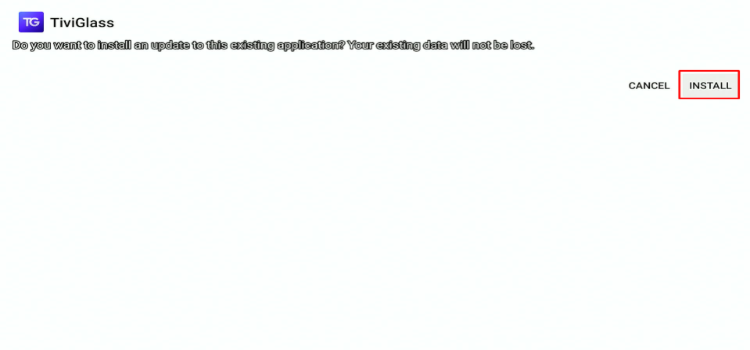
Step 7: Click Done.
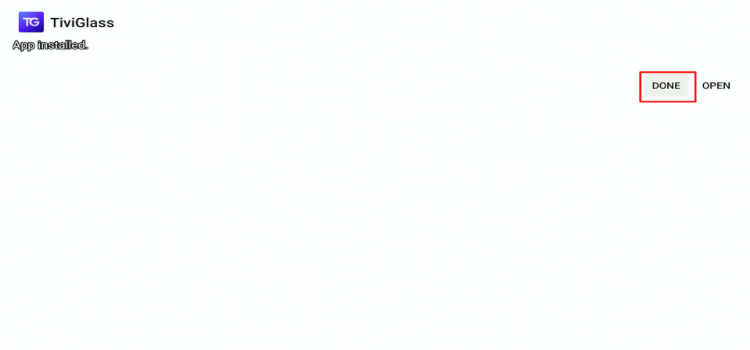
Step 8: Click Delete.
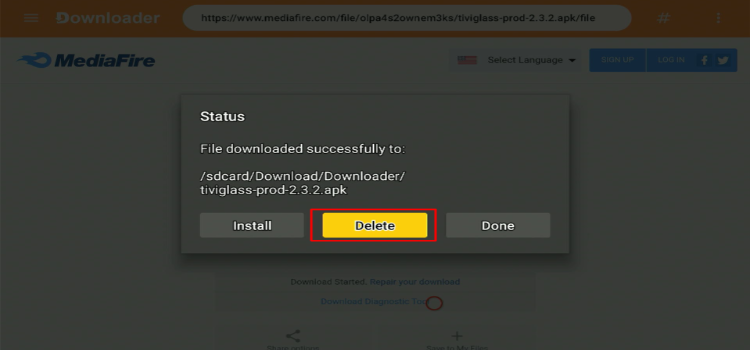
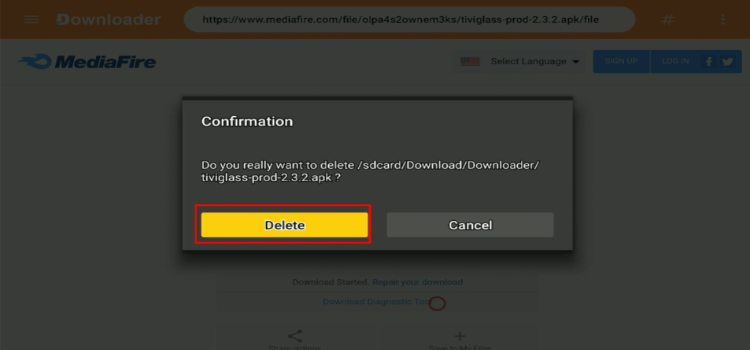
Step 9: A confirmation window will open. Click Delete Again.
How to Set Up TiviGlass IPTV Player
Protecting your privacy is essential when using unverified IPTV services. Always use a trusted VPN, such as Surfshark, to encrypt your connection, help reduce ISP throttling, and access content that may be restricted in your region.
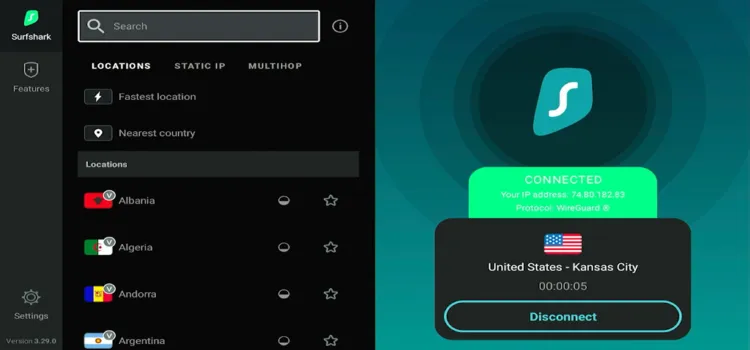
Step 1: Open your Surfshark app and connect to any server.
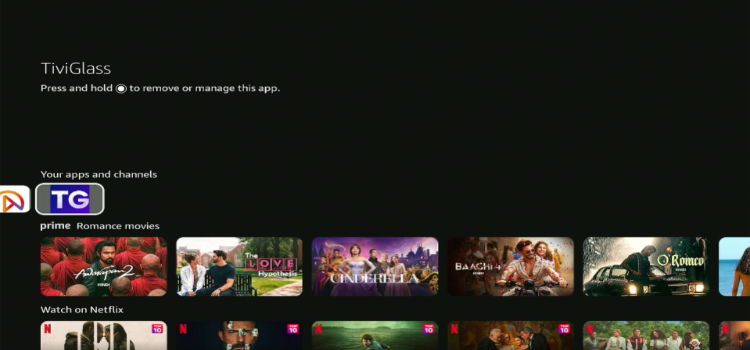
Step 2: Launch TiviGlass IPTV Player.
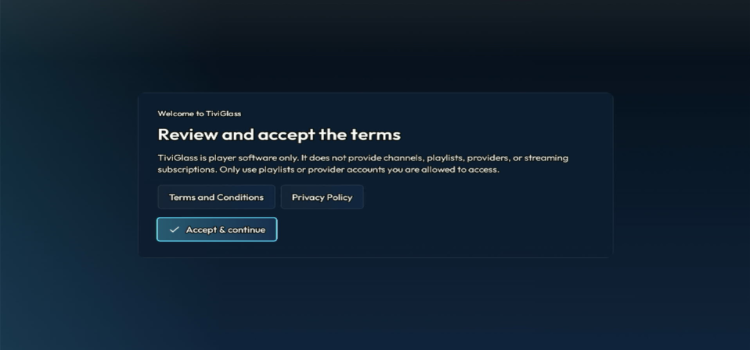
Step 3: Click Accept & Continue.
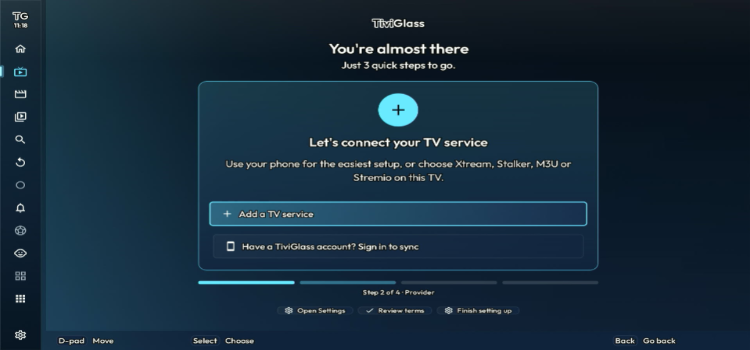
Step 4: Add a TV Source.
Step 5: Click M3U Playlist.
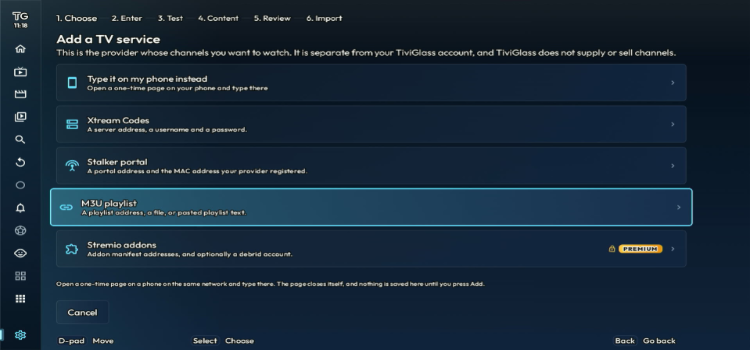
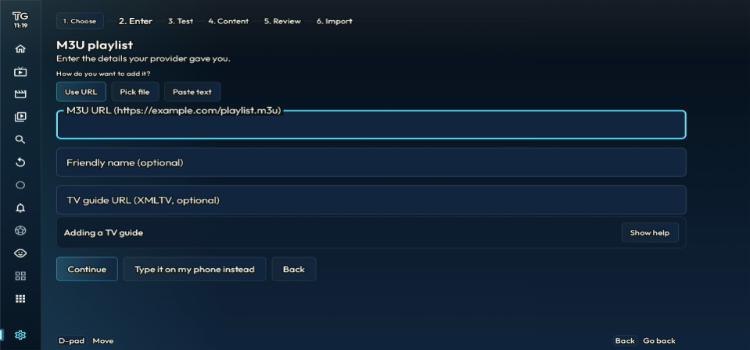
Step 6: Enter the M3U Playlist. Click Continue.
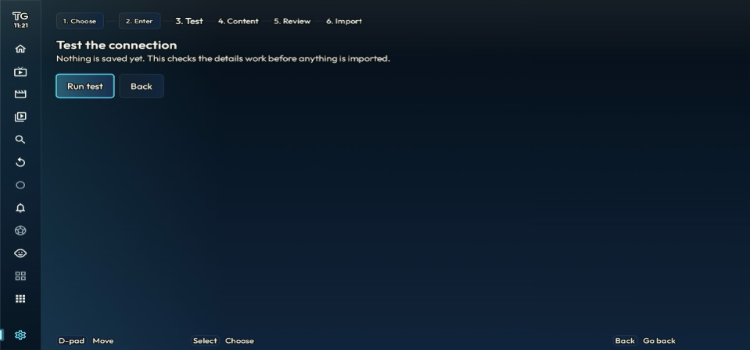
Step 7: Click Run test.
Step 8: Click Continue to test the connection.
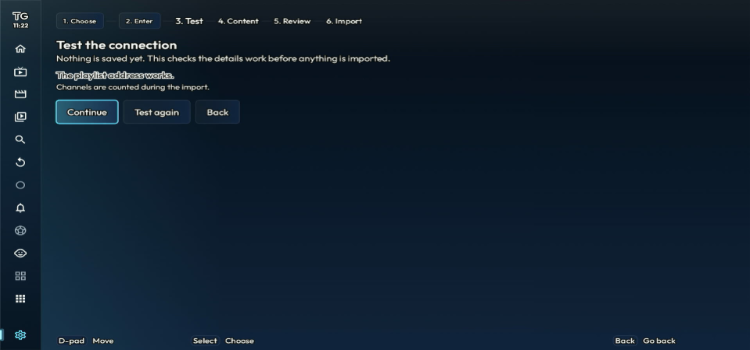
Step 9: Click Continue.
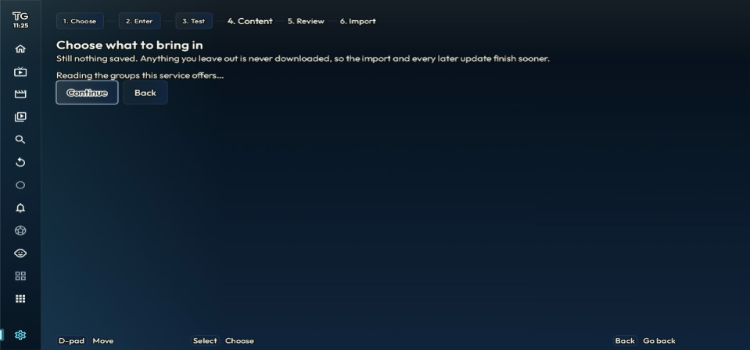
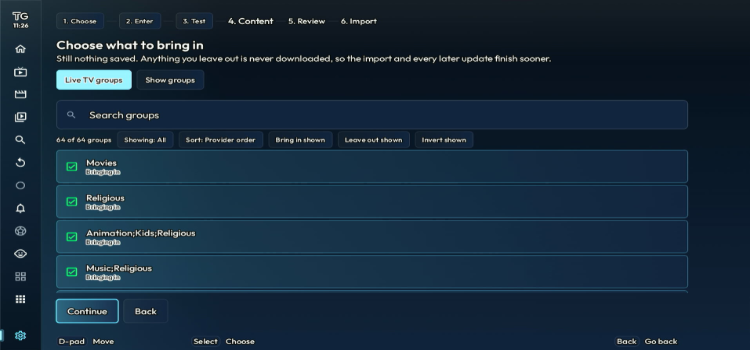
Step 10: Click Continue after selecting the categories you want to import.
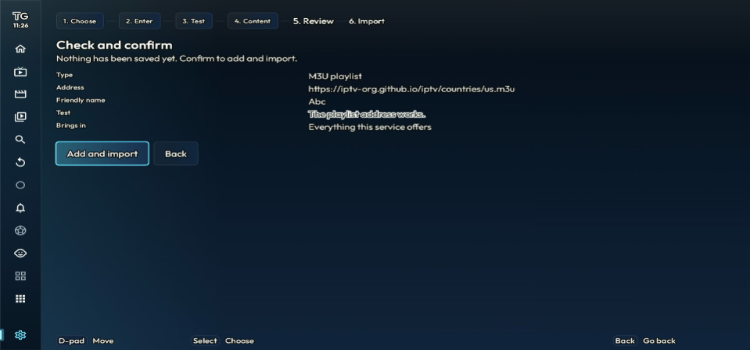
Step 11: Click Add and import.
Step 12: Click Done.
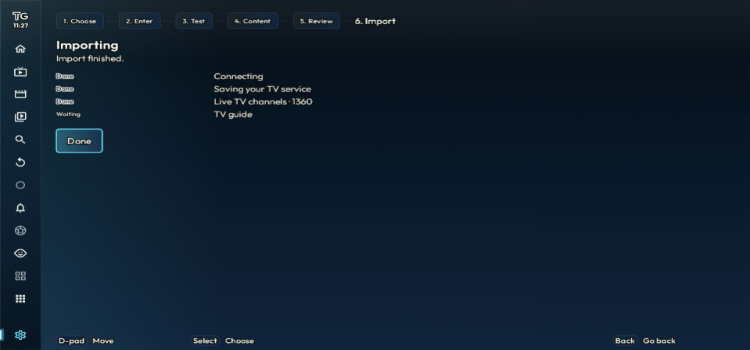
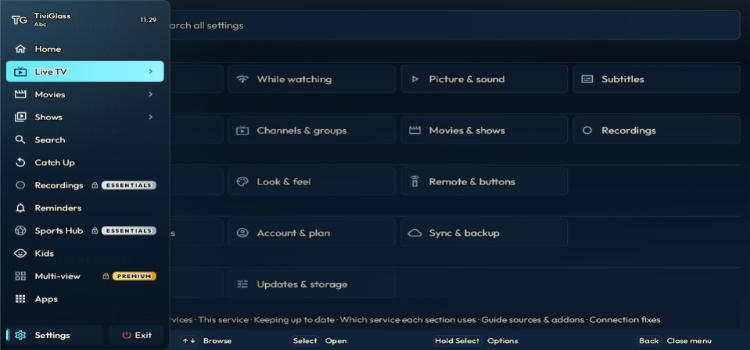
Step 13: Your playlist has been successfully set up. Click Live TV.
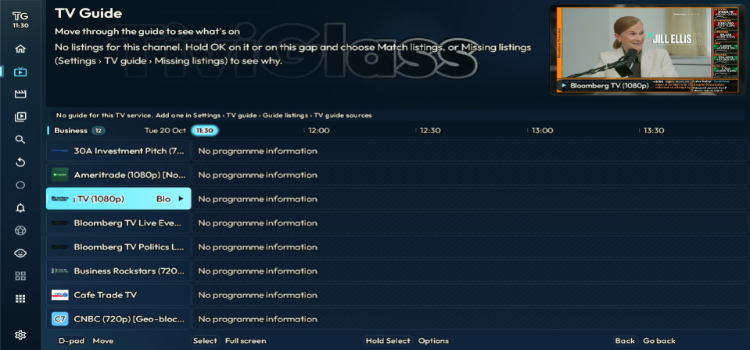
Step 14: Select a channel of your choice.
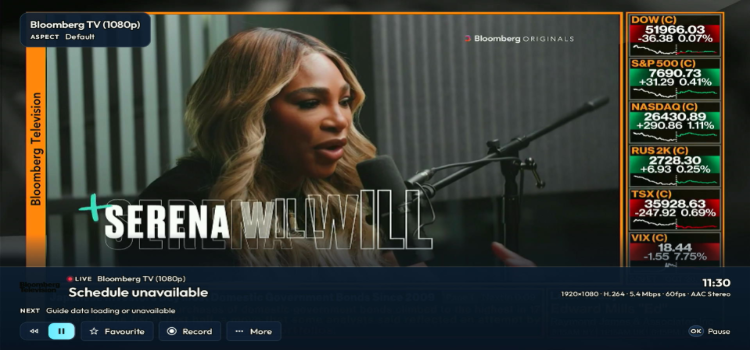
Step 15: Enjoy Streaming!
TiviGlass IPTV Player Features
TiviGlass offers several features for managing live TV, movies, series, and IPTV playlists. Some are included in the free version, while other features require Free or Premium options.
1. Multi-View
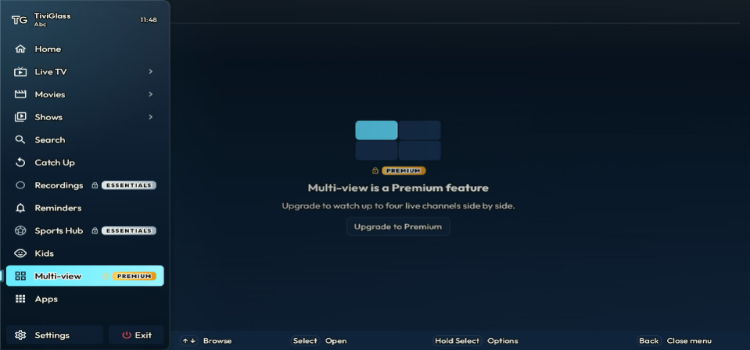
Multi-view lets you watch up to 4 channels side by side on one screen. It is a Premium feature, so it stays locked on the Free and Essentials plans.
2. Sports Hub
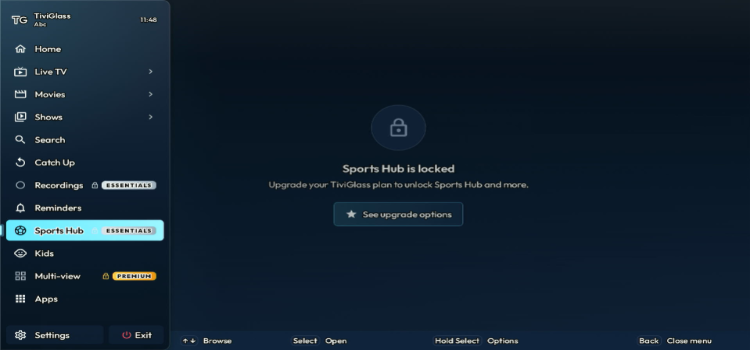
Sports Hub works as a live sports radar built from your TV guide, with fixtures and reminders. It is included with Essentials and Premium, and it shows what is airing on your channels.
3. Recording
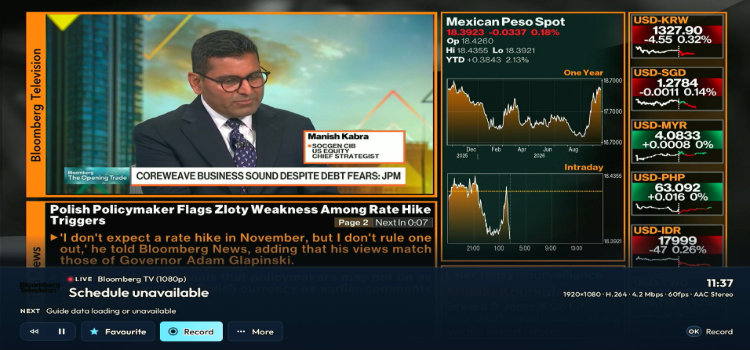
The Record button sits in the player bar, so you can capture a live channel without leaving the stream. Recording and Series Links are part of Essentials and Premium plan.
4. Catch-Up TV
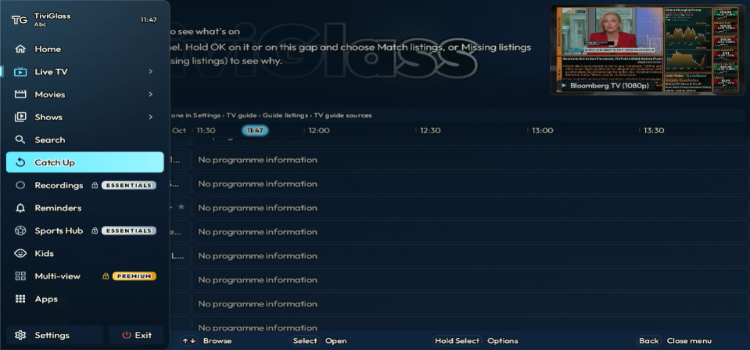
The Catch Up TV section lets you replay programmes that already aired, straight from the TV guide. Availability and replay duration depend on whether your IPTV provider supports catch-up.
5. Search
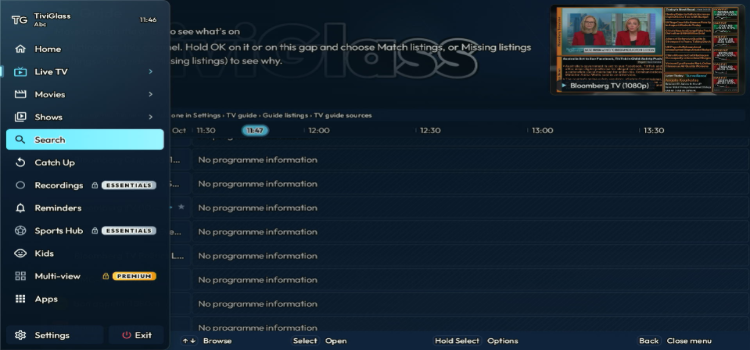
The Search section lets you look across your live channels, movies, and shows from a single screen. It is free on every plan and saves you from scrolling through large playlists.
6. Reminders
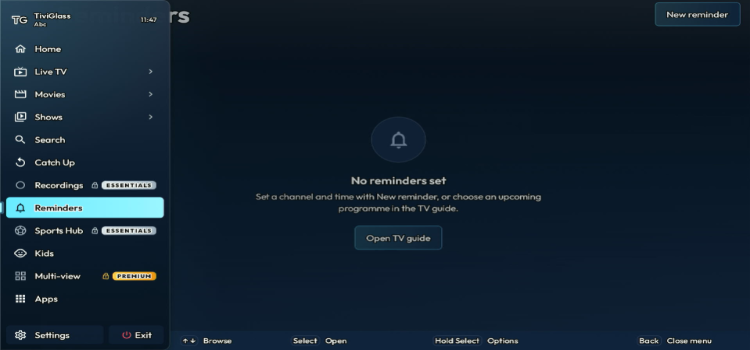
Reminders alert you when a programme is about to start. You can set one with New reminder by choosing a channel and time, or by picking an upcoming programme in the TV guide.
7. Favourites
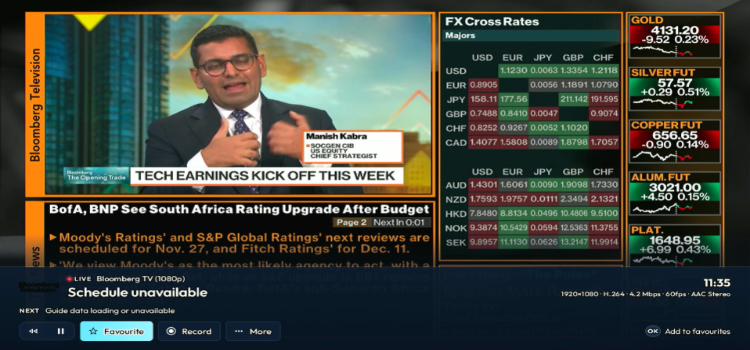
The player bar inclThe player bar includes a Favourite button, and pressing OK adds the current channel to your favourites. Saved channels get their own dedicated category, which keeps your most-watched channels easy to reach.
8. Parental Controls and Profiles
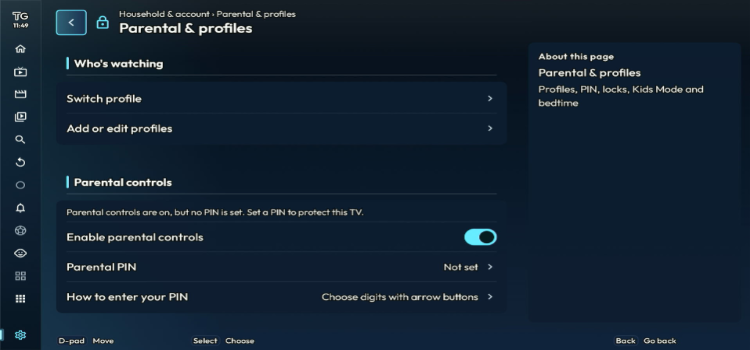
The Parental & Profiles page lets you switch profiles, edit them, enable parental controls, and set a PIN. You enter the PIN by choosing digits with the arrow buttons, which works well with a TV remote.
9. Subtitles
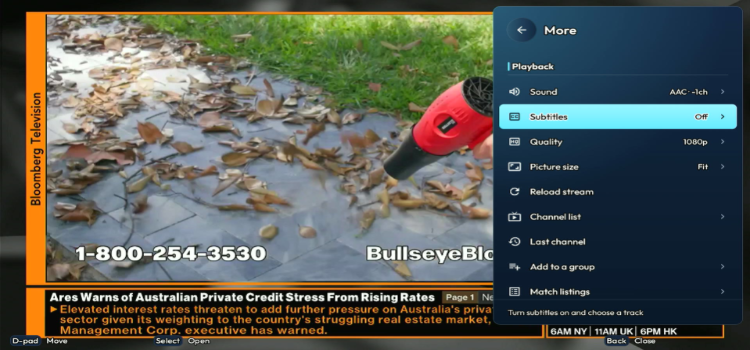
The Subtitles option in the More menu lets you turn subtitles on and choose a track. This helps when a channel carries multiple subtitle languages or when you watch without sound.
10. Quality
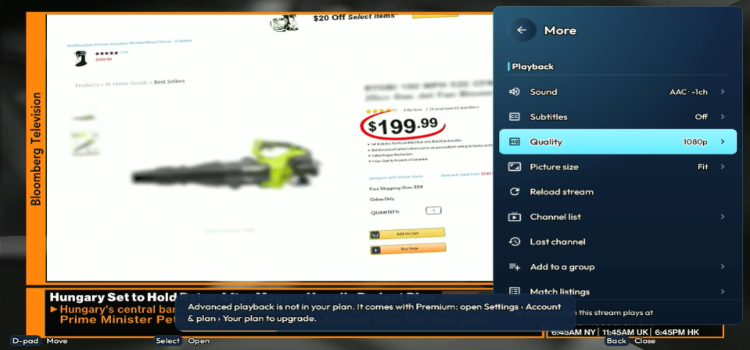
The Quality option caps the resolution a stream plays at, which is useful on slower connections. It belongs to Advanced playback, so it needs the Essentials or Premium plan.
11. Picture Size
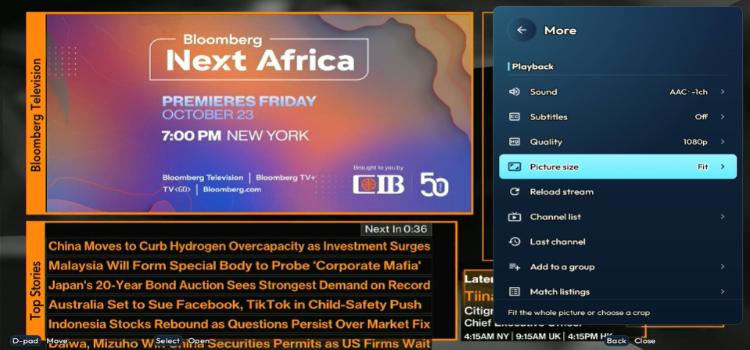
Picture size lets you fit the whole picture or choose a crop. The default is Fit, and the other options help when a channel shows black bars or an odd aspect ratio.
12. Stream Facts
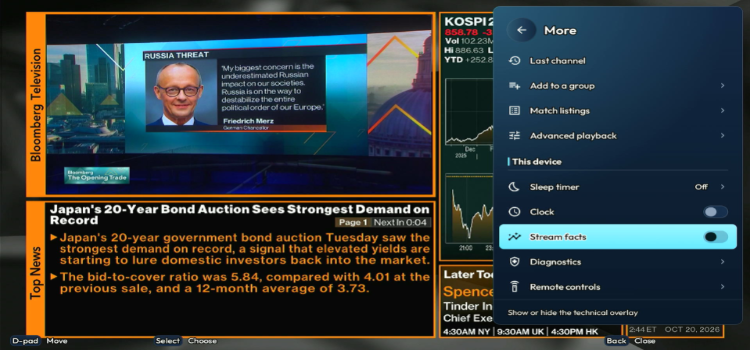
Stream Facts toggles a technical overlay on the player. It displays details such as resolution, codec, bitrate, frame rate, and audio format, which helps when you are troubleshooting buffering.
13. Sleep Timer
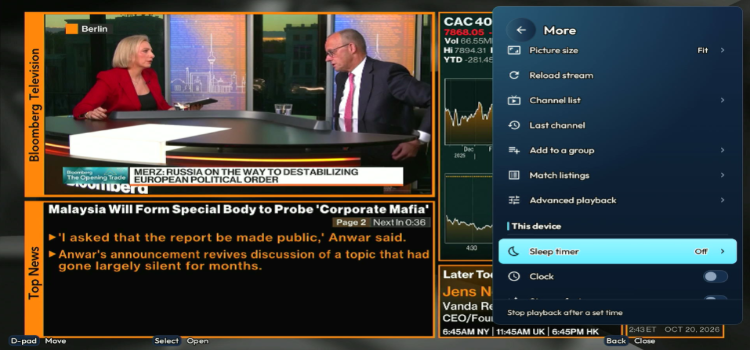
The Sleep Timer stops playback after a set time, so you can fall asleep without leaving the TV running all night. It sits under the This device section of the More menu and is off by default.
14. Clock
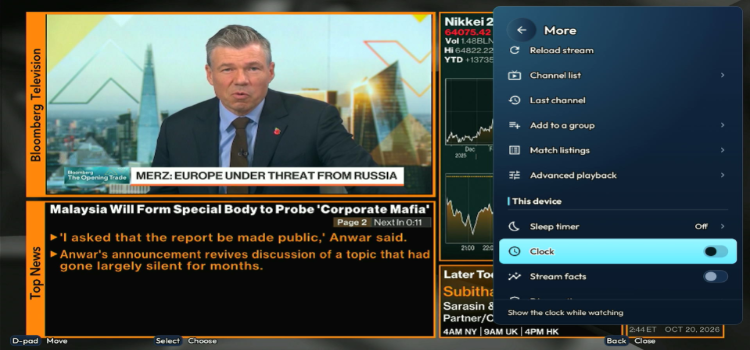
The Clock toggle shows the current time on screen while you watch. It is a small touch, but it helps when you are following a live schedule.
15. Apps
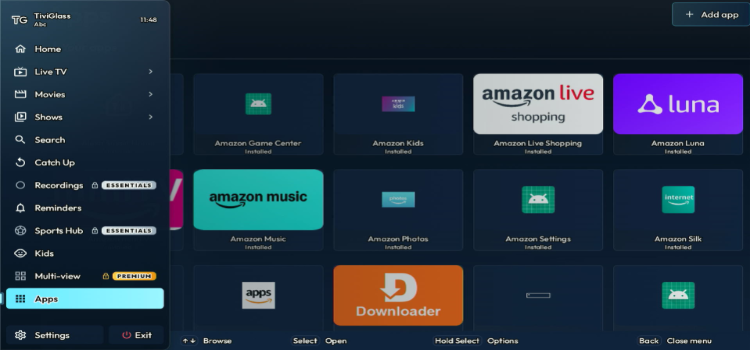
The Apps section lists the apps installed on your device and includes an Add app button. This lets you open other apps from inside TiviGlass without going back to your device home screen.
Is TiviGlass IPTV Player Safe and Legal to Use?
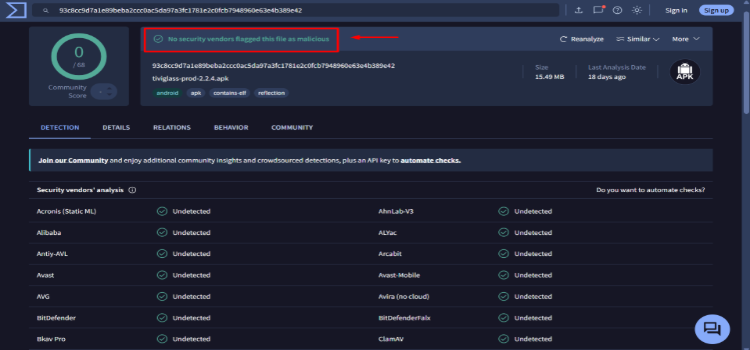
TiviGlass IPTV Player (v2.3.4) returned a clean VirusTotal result, with no security risks or malicious threats detected. Based on this scan, the tested APK appears safe to install and use.
However, the legality of streaming depends on the content source you use. A trusted VPN like Surfshark encrypts your internet traffic and helps keep your streaming activity private from your ISP.
TiviGlass IPTV Player Alternatives
If TiviGlass does not meet your requirements, consider these IPTV player alternatives:
FAQs
1. Is TiviGlass IPTV Player completely free?
Yes. TiviGlass offers a free core player with live TV, EPG, movies, shows, and catch-up. Recording, multi-view, and other advanced features require a paid plan.
2. What IPTV playlists does TiviGlass support?
TiviGlass supports M3U/M3U8 playlists, Xtream Codes, and Stalker/Ministra portals. It also supports XMLTV guide data.
3. Can I install TiviGlass on FireStick?
Yes. TiviGlass supports compatible Android-based FireStick devices running Fire OS 6 or newer. It does not support Vega OS devices through the Android APK.
4. Is TiviGlass available on Samsung and LG Smart TVs?
TiviGlass officially supports Android-based devices. Native Samsung Tizen and LG webOS apps are not listed among its supported platforms.
Conclusion: Is TiviGlass IPTV Player Worth Using?
TiviGlass IPTV Player is a strong option for users who want a clean, remote-friendly interface, support for various formats such as M3U, Xtream Codes, and Stalker/Ministra playlists. Its free version includes EPG, catch-up TV, favourites, and parental controls, etc.
The paid plans are mainly worthwhile for users who want recording, Sports Hub, reminders, advanced playback, and multi-view for up to four channels. However, these features are locked behind Essentials or Premium options. You can use premium features for 7 days.
When using TiviGlass IPTV Player with an unverified provider, connect to Surfshark first. It encrypts your connection, hides your streaming activity from your ISP, and helps bypass geo-restrictions while traveling.
Rating: ⭐⭐⭐⭐ (4.2/5). Feature-rich IPTV player with a capable free tier, but its best tools require a paid plan.

