


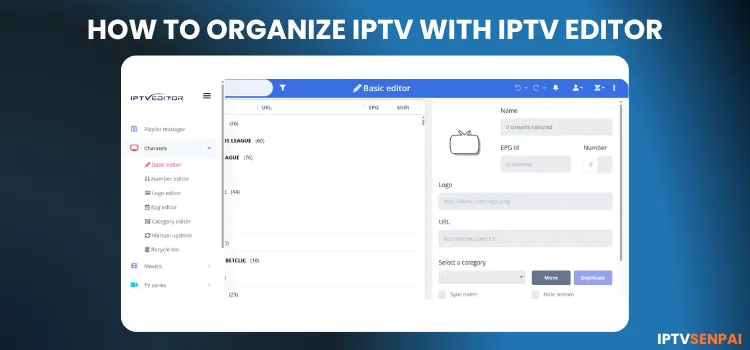
Are you tired of chaotic channels, missing EPGs, and random logos? IPTV Editor is the ultimate tool for organizing your streaming setup in 2026. It transforms cluttered playlists into clean, fully customized viewing experiences. IPTV Editor offers a 7-day free trial.
IPTV Editor does not provide content, an active IPTV subscription is required. Once connected, it grants complete control over category management, EPG pairing, and logo customization for a flawless interface.
In this guide, I’ll walk you through everything from setup to advanced tricks. You must enter your email ID and have an IPTV subscription beforehand to set up EPG on the IPTV Editor.
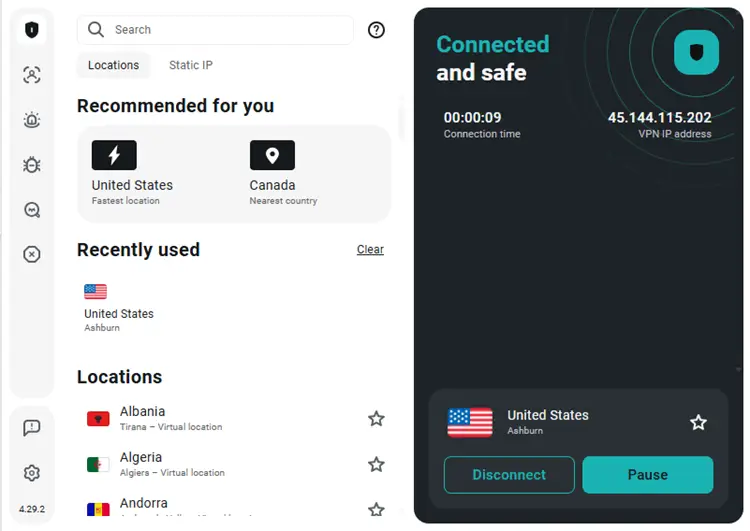
Using unofficial IPTV services and third-party EPG sources exposes your data. A premium VPN encrypts your connection, prevents ISP throttling, and protects users’ privacy. Surfshark is my #1 pick.
Recommended VPN for IPTV - Surfshark
Using IPTV without a VPN can put you at Big Risk! Your ISP, government and even IPTV providers can monitor your activity, throttle your speed, or block access altogether.
Plus, without encryption, your data is exposed to hackers and third parties. Take back your privacy with Surfshark!
Features:
✅ SAVE 87% + GET 3 EXTRA MONTHS FREE! ($0.06/day)
✅ Kill Switch Feature to protect you if VPN drops
✅ Lightweight app ensuring smooth performance on All IPTV Boxes
✅ Unlimited simultaneous connections (install on all household devices)
✅ 30-day risk-free money-back guarantee
✅ Strict no-logs policy, Secure & Untraceable
Key Features
Here are its primary features for 2026:
✅ Automatic EPG matching for live TV channels.
✅ Powerful, cloud-based M3U playlist editor.
✅ Automatic channel logo detection and assignment.
✅ Rename, reorder, filter, and organize channels and categories.
✅ Automatic playlist updates to sync changes from your IPTV provider.
✅ Generates clean M3U, Xtream API, and EPG URLs.
✅ Compatible with major IPTV players and streaming devices.
✅ Backup and restore options for playlist configurations.
How to Set Up EPG with IPTVEditor
This step-by-step tutorial explains how to configure EPG using TiviMate Player on FireStick 4K Max. I am using WorthyStream IPTV as an example.
1. Sign Up/Get a Free Trial
Step 1: Go to the IPTVEditor website and click on Purchase Now.
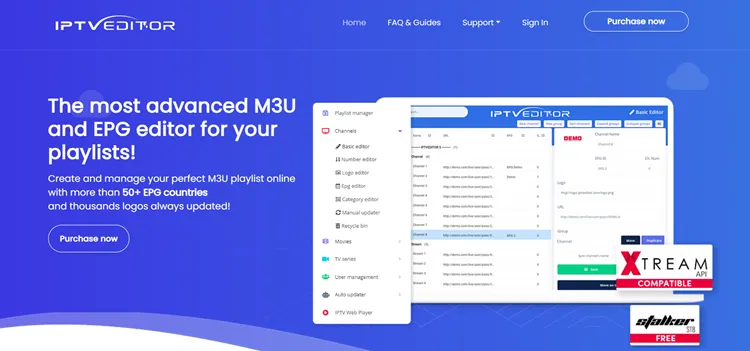
Step 2: Select a Free trial/Plan of your choice. Click Try Now or Purchase Now.
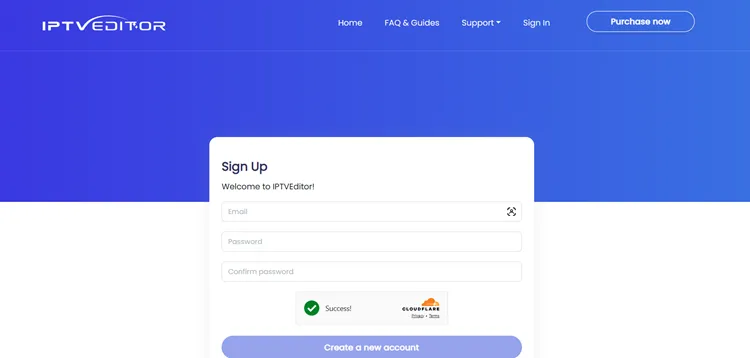
Step 3: Enter your email and password. Click a new account.
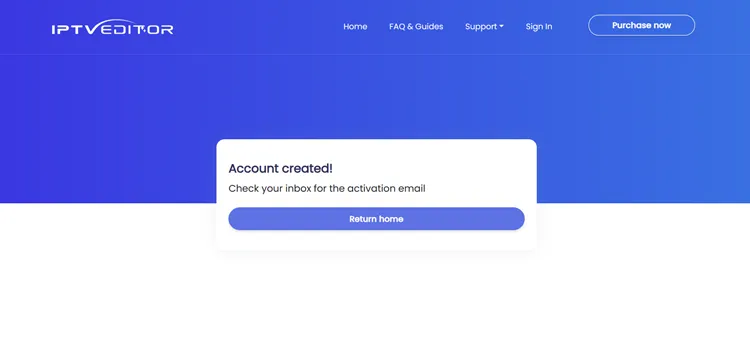
Step 4: Your account will be created. Click Return home.
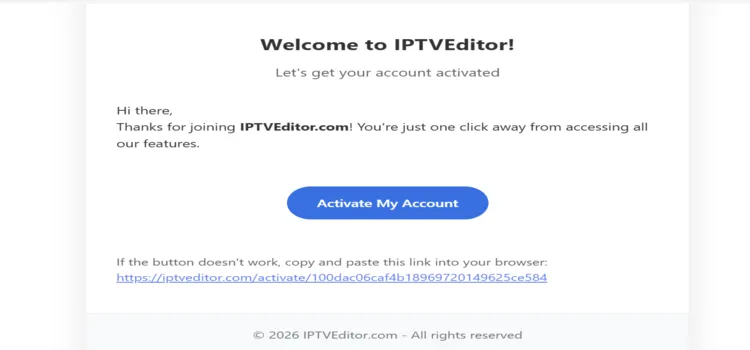
Step 5: You will receive a link in your email. Click Activate My Account.
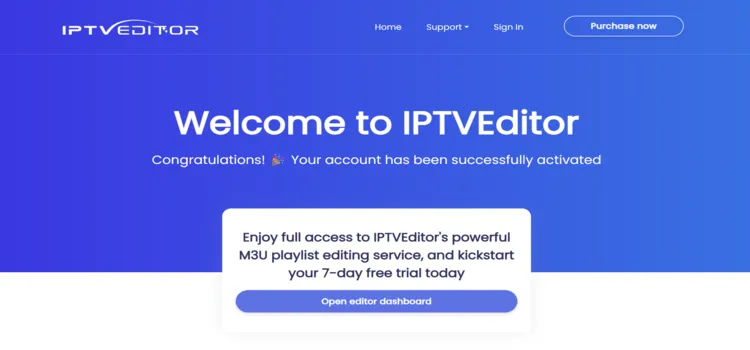
Step 6: You will be directed to the homepage. Click Open editor dashboard.
Step 7: Click New Playlist.
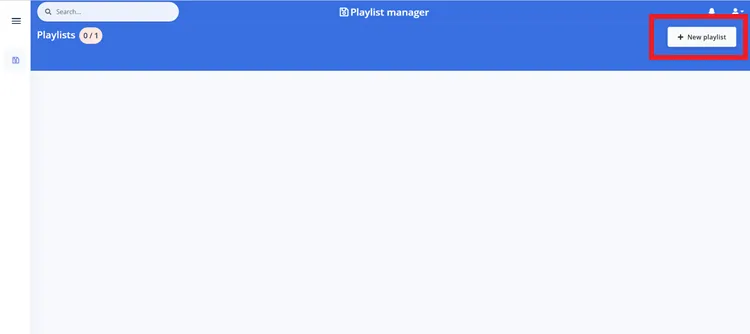
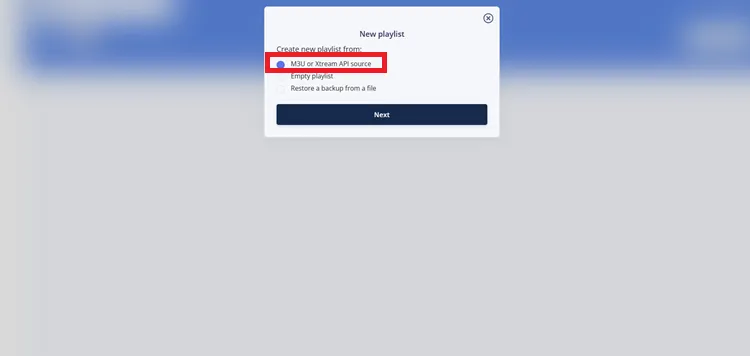
Step 8: Select M3U OR Xtreme API Source. Click Next.
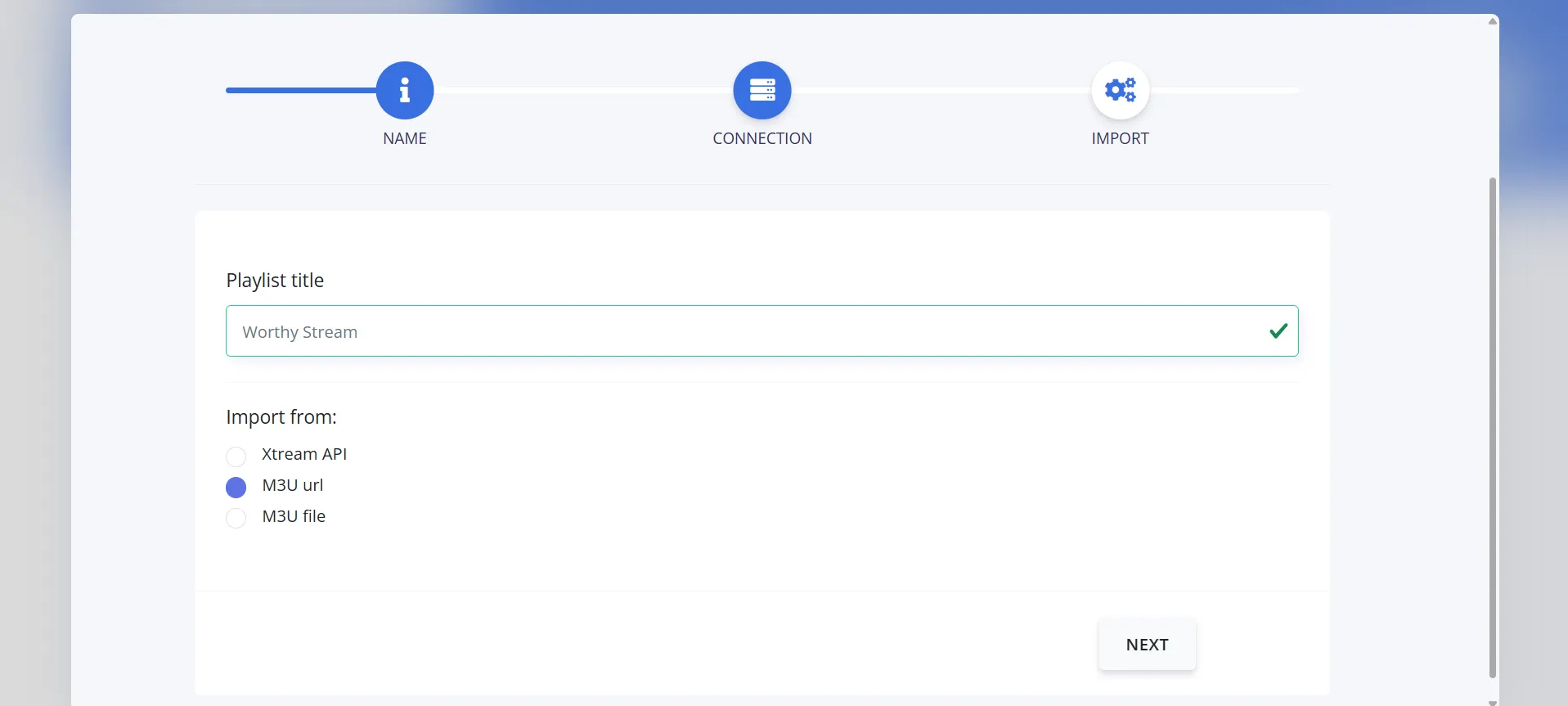
Step 9: Enter a Playlist Title in the Name tab. Select any one format, and click Next.
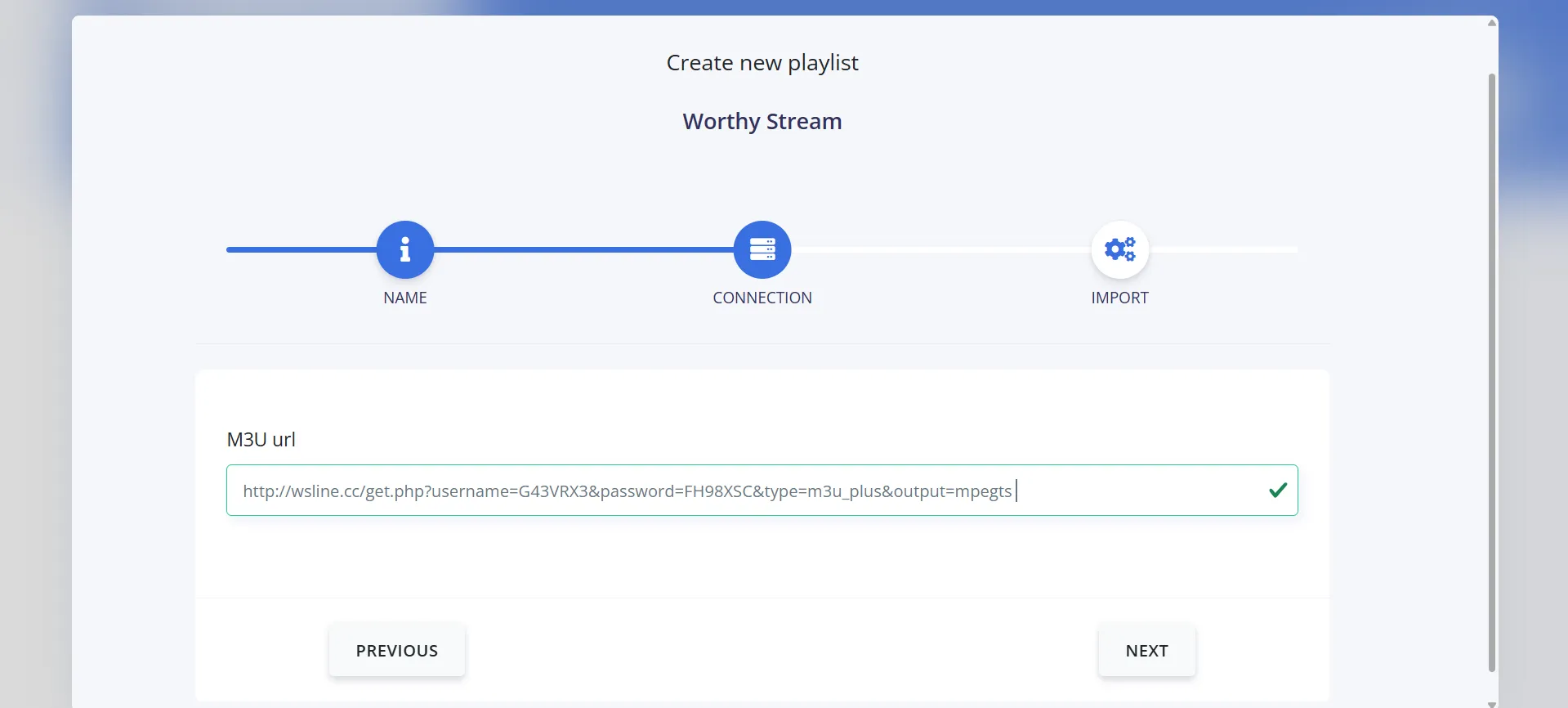
Step 10: I chose M3U URL. Click Next.
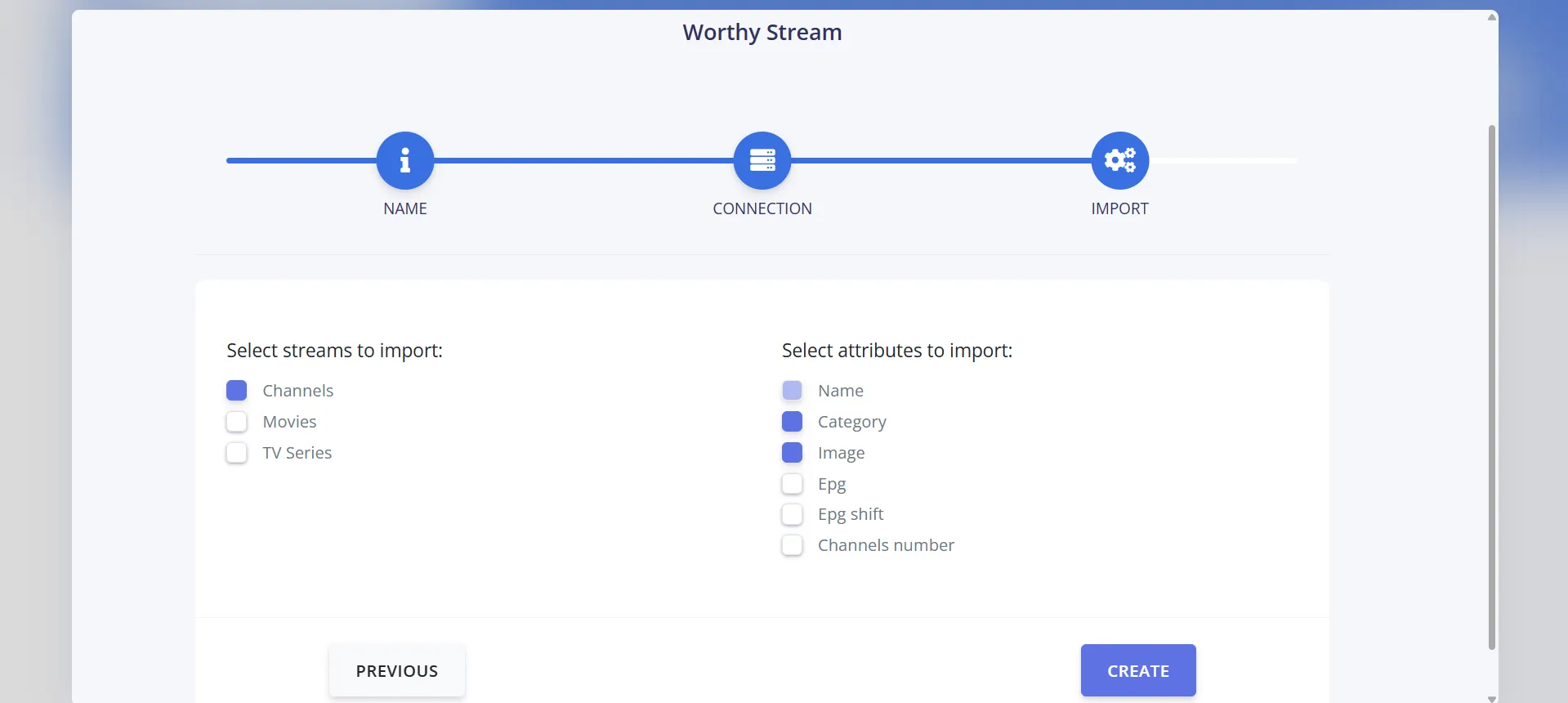
Step 11: Choose the content (Channels, Movies, TV Series) and the attributes (name, category, logo, EPG, etc.) you want to import. Click Create.
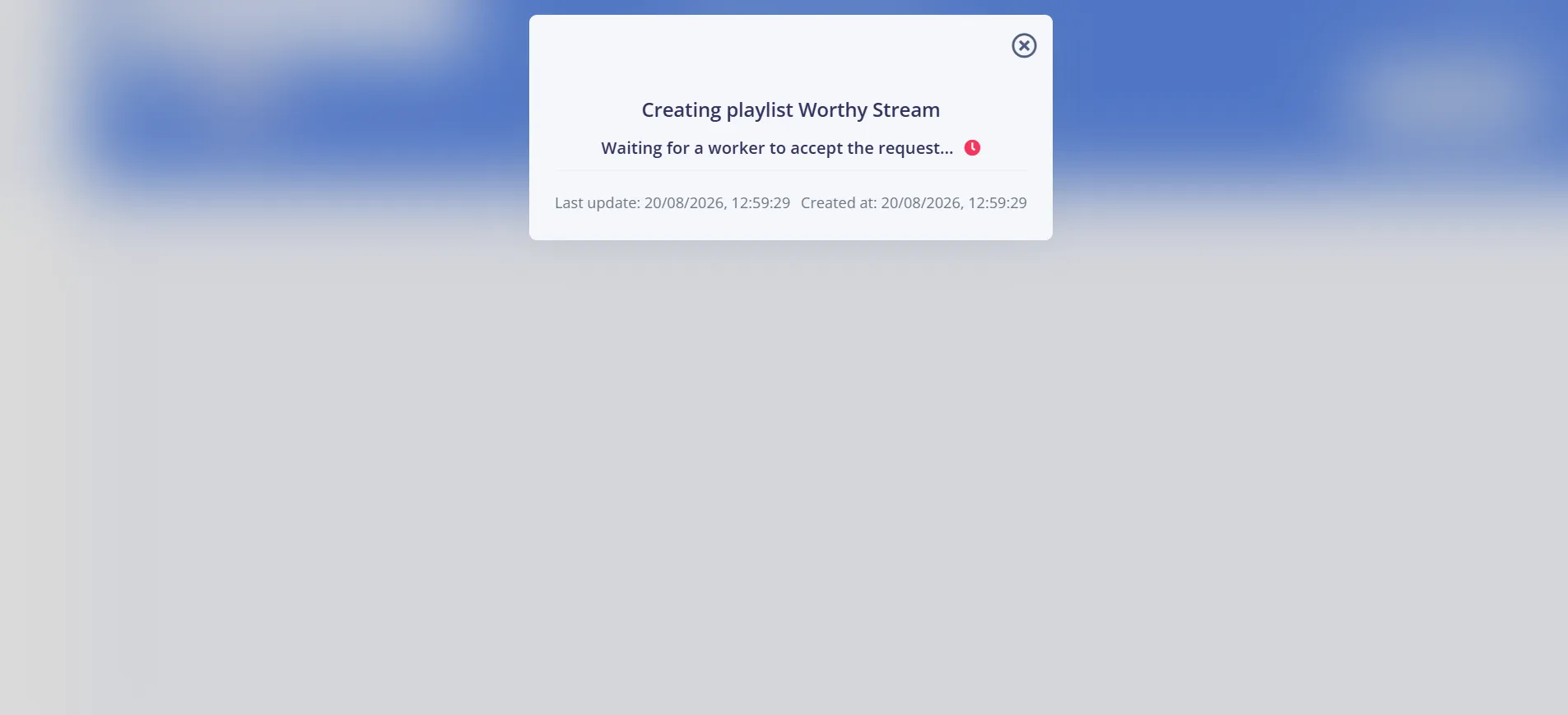
Step 12: Wait for your playlist to be created.
Step 13: Select the categories you want to import.
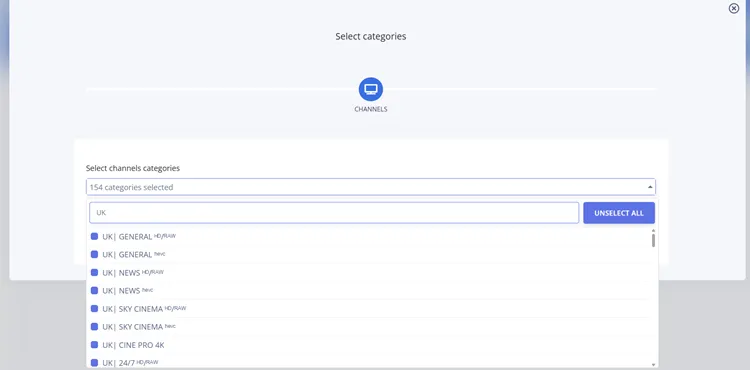
Note: Unselected content is moved to the recycle bin, while duplicate movies or series with the same name or URL are skipped automatically. If your plan’s content limit is exceeded, extra items will not be imported, and you can contact support to upgrade your plan.
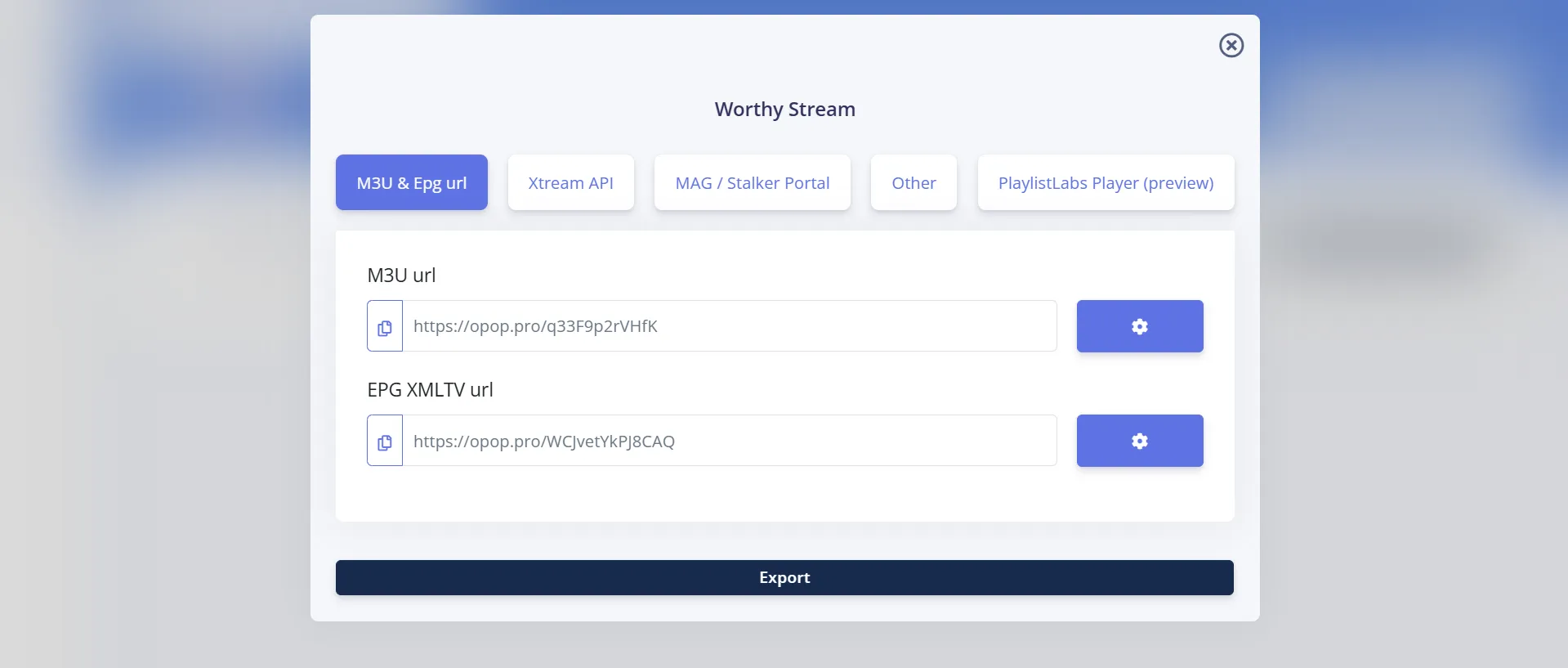
Step 14: After importing, your playlist will show up in the Playlist Manager. Click the 4th icon to get your Playlist info i.e., M3U URL, EPG URL, Xtream API or Stalker details.
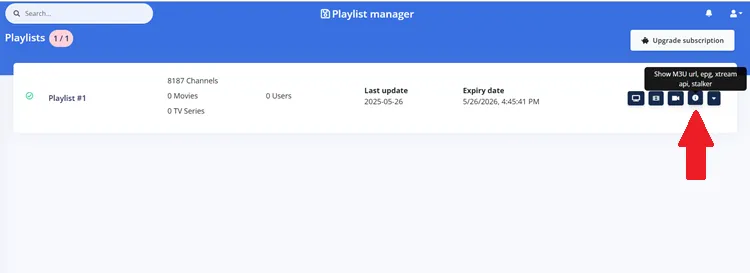
Step 15: Note down the M3U URL and EPG URL.
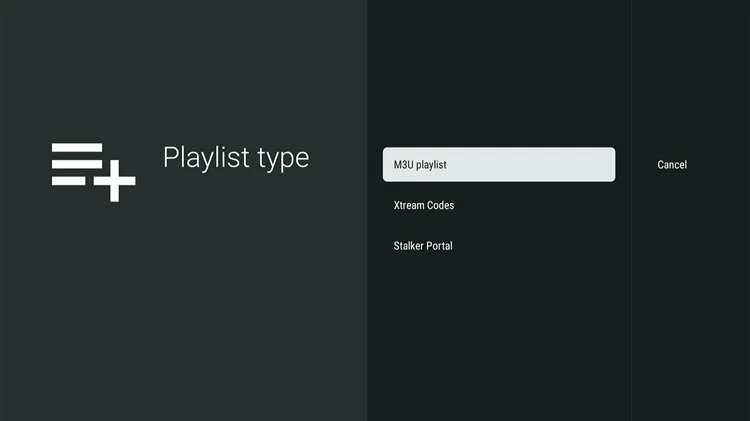
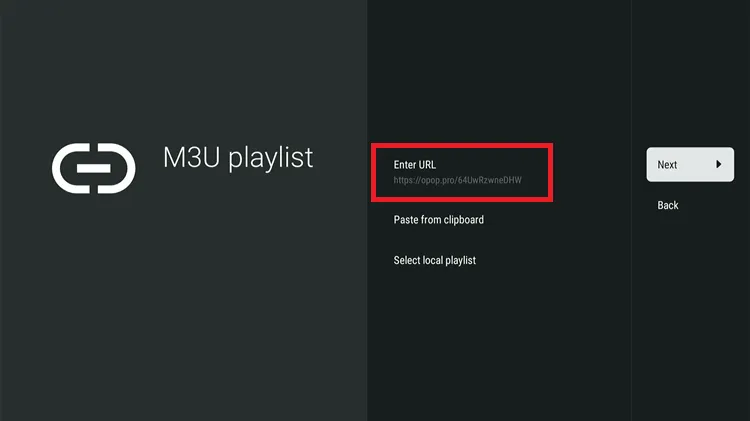
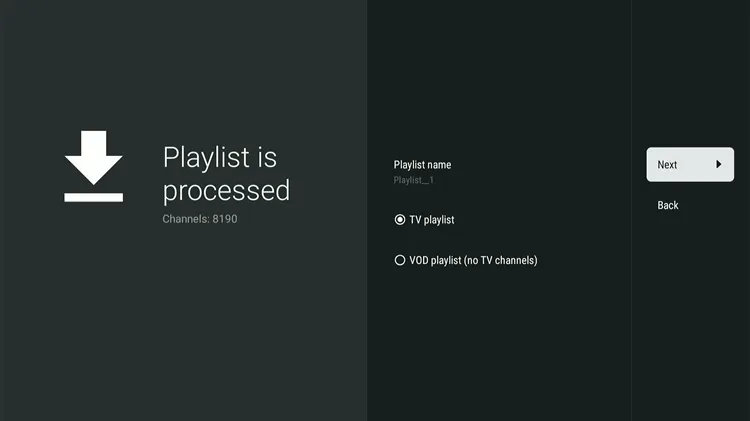
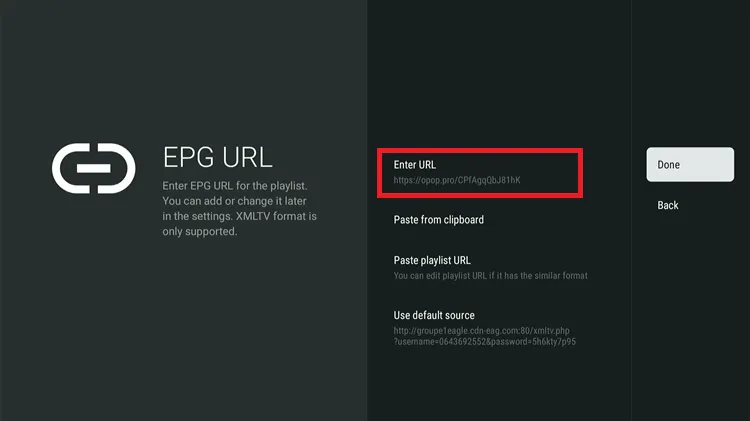
Step 6: Your playlist will be successfully added to the player.
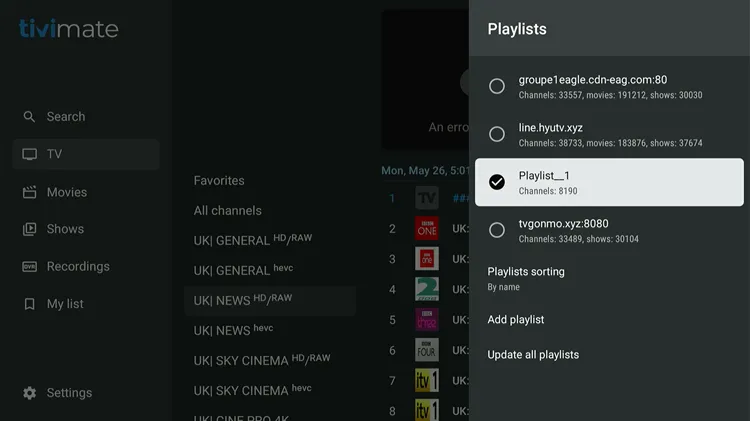
3. Assigning EPG in IPTV Editor
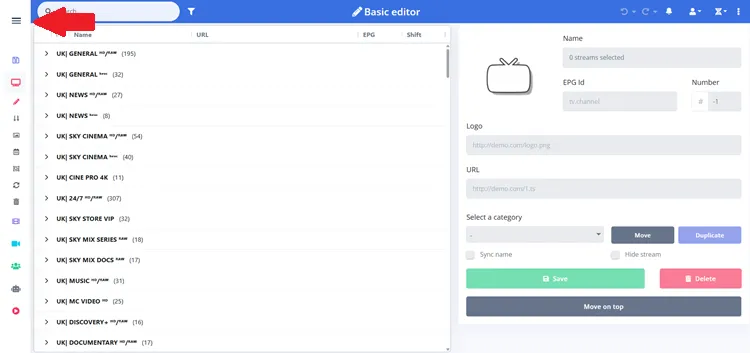
Step 1: Head back to the Playlist Manager dashboard, point at TV icon and click Load Channels.
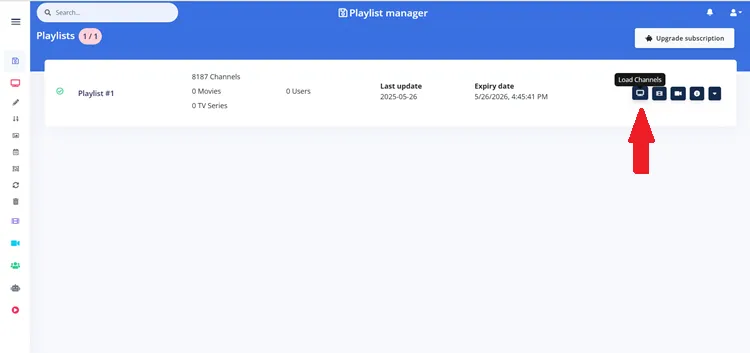
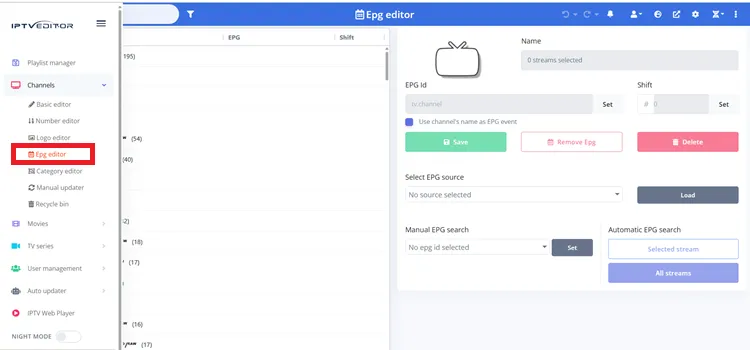
Step 3: Choose EPG Editor
Step 4: Select the EPG Countries.
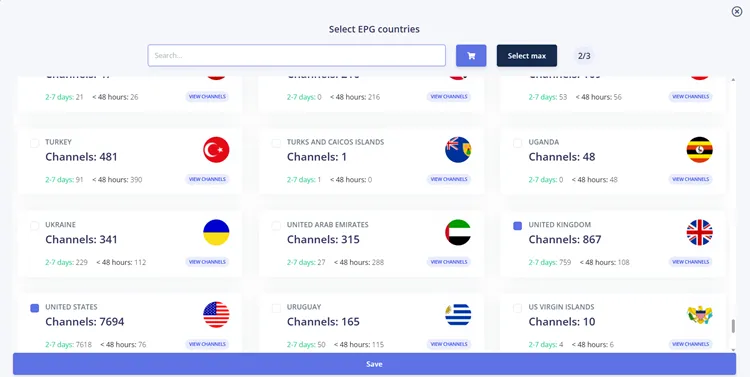
Note: You can only select a limited number of countries based on your chosen plan.
Step 5: Select the EPG source (country), load it, and then run Automatic EPG Search. You can apply it to all streams or just selected ones. Click Load and then All Streams.
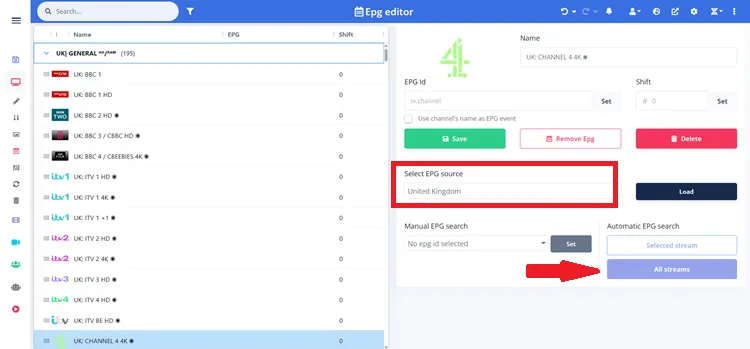
Step 6: Choose the Categories for Automatic EPG Search.
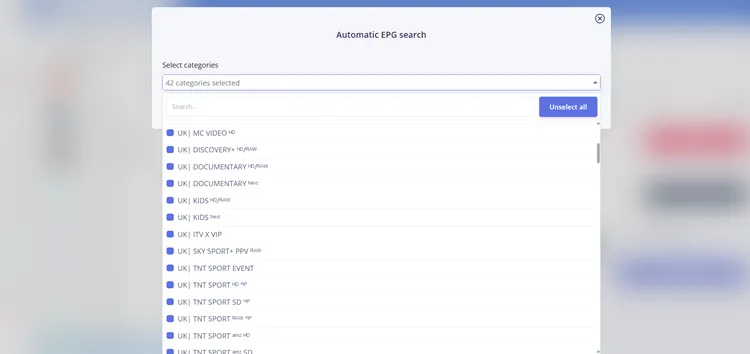
Step 7: Automatic EPG search will begin.
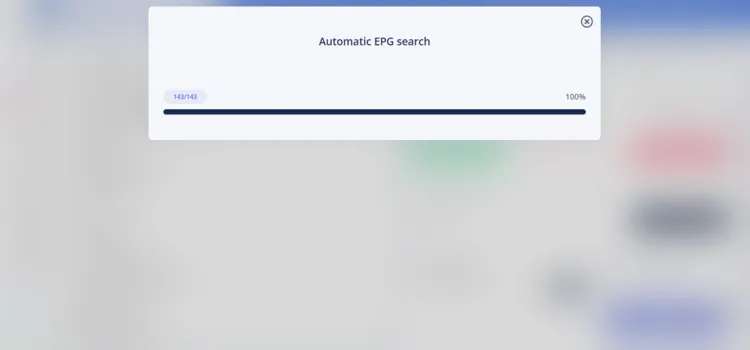
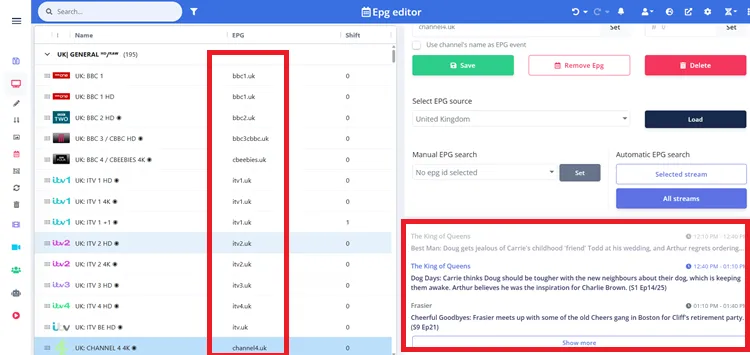
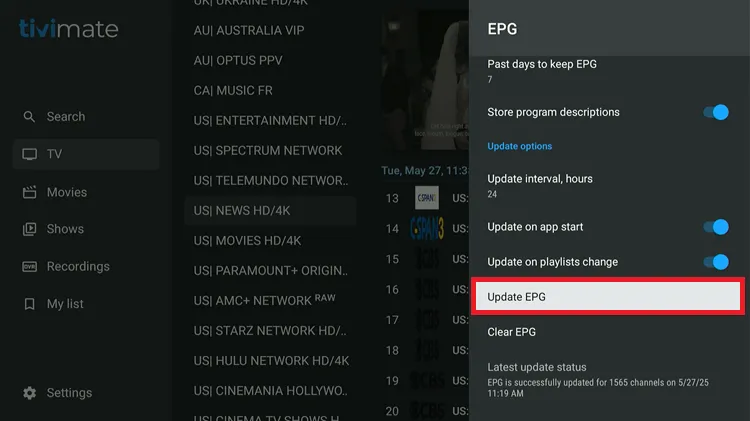
Step 10: Your EPG should now be successfully assigned and synced.
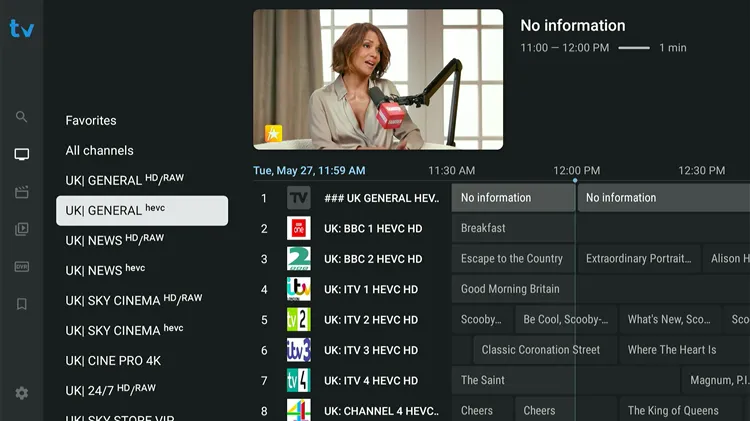
Key Customization Features
Take full control of your playlist with these powerful built-in editor modules.
1. Basic Editor
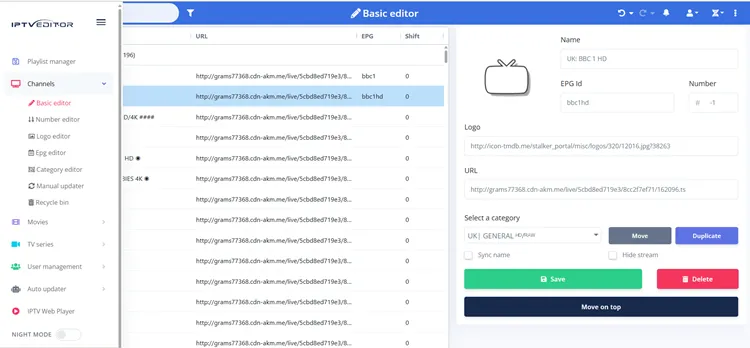
The Basic Editor is your hub for primary playlist management.
- Move, rename, or delete categories
- Add or remove channels manually
- Spot and clean up duplicates
- Hide or delete unwanted content
- Clone playlists before big changes
- EPG Pairing: Select channel → Sync Name → Save
- Dummy EPG Fill-in: Use “Use channel’s name as EPG event” in EPG Editor
2. Number Editor
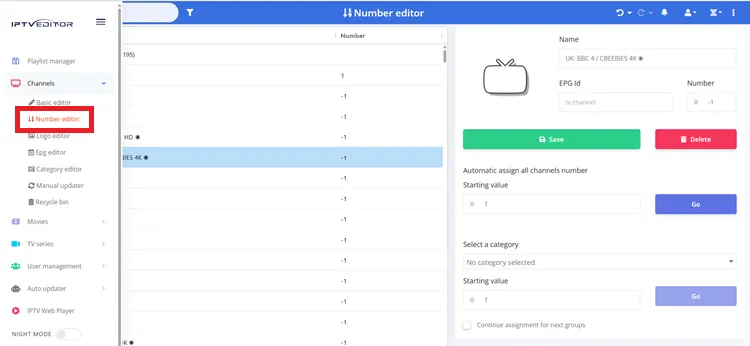
The Number Editor in IPTVEditor helps bring order to channel lists.
- Reset or renumber channels from the “More options” menu
- Organize channels in a cleaner, logical order
- View creation and last update dates for each channel
- Helps with proper channel sequencing in IPTV players
3. Logo Editor
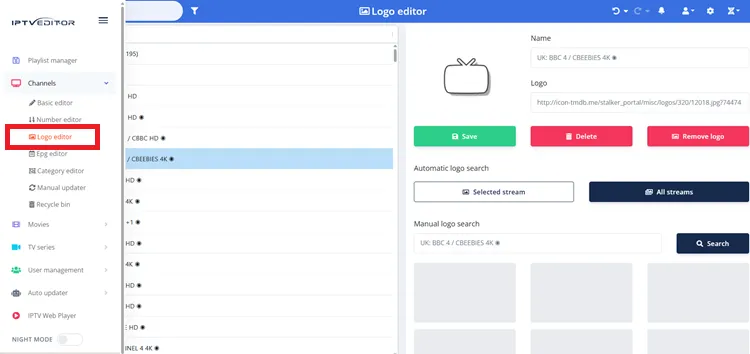
Visually upgrade your TV guide by fixing missing channel icons.
- Auto-update channels and assign logos from the database or online search.
- Manually look up logos for individual streams.
- Copy an image link (from Google/Wikipedia), paste it into the logo URL field.
- View only channels missing logos to focus your effort.
Tip: Some logos may not display in IPTVEditor due to browser limitations, but they often appear fine in TiviMate Player, so test first.
4. Category Editor
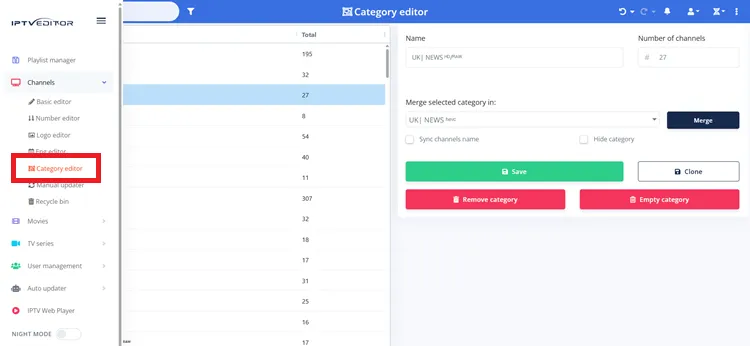
Here’s what the Category Editor does.
- Manage categories by removing, renaming, merging, or creating new ones.
- Update renamed categories in Sync Custom Categories to keep Auto Updater working correctly.
- Move or duplicate channels into custom categories as needed.
- Remove unused Movies/TV Shows categories to keep VOD organized.
- Avoid changing VOD prefixes, as this may cause update issues.
- Use drag-and-drop to manually sort categories and streams.
- Keep custom VOD changes minimal if your provider has unreliable updates.
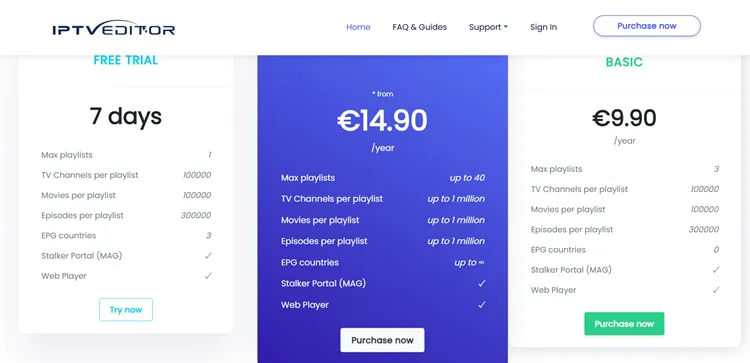
Pricing Plans
Below are the latest verified pricing tiers and features for IPTV Editor accounts.
| Plan | Price | Playlist Limit | EPG Countries | Managed Users | Key Features |
|---|---|---|---|---|---|
| Free Trial | Free | 1 | 3 | 3 | 7-day trial, Stalker Portal & Web Player support |
| Basic | €9.90/year | 3 | 0 | 3 | Core features, external EPG support |
| Advanced | €14.90/year | 40 | 3 | 50 | Full features, expanded EPG access, user management |
FAQs
1. How long is playlist data stored?
Playlists are stored for 5 months. If a playlist is not accessed after this period, it may be removed.
2. What does the Auto Updater do?
The Auto Updater keeps your playlist current by automatically syncing new channels, removing deleted ones, and updating metadata like EPG IDs and stream names.
3. What is the Advanced Editor?
The Advanced Editor provides tools for bulk editing, including automatic name optimization, search and replace, removing duplicates, and adjusting stream formats.
4. How do I manage multiple users?
The built-in User Management Panel lets you assign unique IPTV credentials for different households or reseller clients, keeping playlists completely separated.
Conclusion
IPTVEditor remains a must-have tool in 2026 for anyone serious about managing their streaming setup. It transforms messy provider playlists into highly organized, visually appealing guides with perfectly synced EPG data and logos.
While new users might experience a slight learning curve, the absolute control over channel sequencing and category management makes it entirely worthwhile. The advanced filtering and auto-updating features save countless hours of manual editing.
Take advantage of their 7-day free trial to test the features risk-free. Just remember to pair your viewing with a reliable VPN like Surfshark to ensure complete digital privacy and prevent unwanted ISP throttling.

