


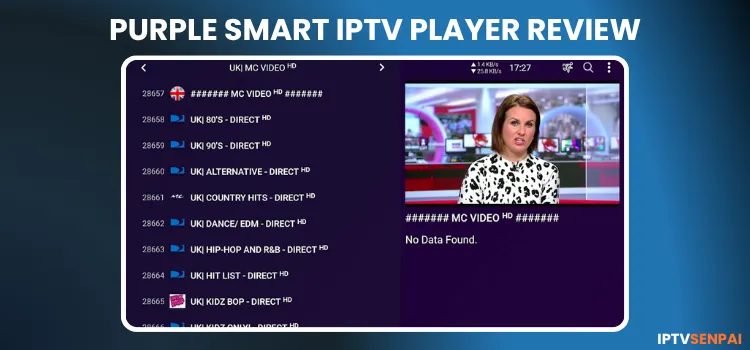
Purple Smart IPTV player is a free IPTV player for streaming live TV, movies, and TV series. However, the player suffers from significant lag and performance issues compared to other free players like IPTV Smarters Pro or XCIPTV.
It is legal to use the Purple Smart IPTV player, but streaming unverified playlists isn’t. So, pair it with a premium VPN such as Surfshark to protect your identity and prevent ISP throttling during streaming.
Recommended VPN for IPTV - Surfshark
Using IPTV without a VPN can put you at Big Risk! Your ISP, government and even IPTV providers can monitor your activity, throttle your speed, or block access altogether.
Plus, without encryption, your data is exposed to hackers and third parties. Take back your privacy with Surfshark!
Features:
✅ SAVE 87% + GET 3 EXTRA MONTHS FREE! ($0.06/day)
✅ Kill Switch Feature to protect you if VPN drops
✅ Lightweight app ensuring smooth performance on All IPTV Boxes
✅ Unlimited simultaneous connections (install on all household devices)
✅ 30-day risk-free money-back guarantee
✅ Strict no-logs policy, Secure & Untraceable
Purple Smart IPTV Player Setup Video
Purple Smart IPTV Player Features
- Pricing: Free
- Supported Formats: Xtream Codes, custom URL
- Device Compatibility: Android TV, Amazon FireStick 4K, Android TV Boxes, Android Smartphones and Tablets, Samsung Smart TVs, LG Smart TVs.
- Multi-Screen: Yes
- Parental Control: Yes
- Electronic Program Guide (EPG): Yes
- Catch-Up TV: Yes
- Subtitles: No
- Favorites: No
Pros & Cons
| Pros | Cons |
|---|---|
| No hidden subscriptions. | Slow response times. |
| Supports multi-screen, parental controls & catch-up TV. | VOD content fails to play. |
| Offers 11 UI themes and 16 interface languages. | Full-screen mode for Live TV does not work. |
| Works on many devices. | No Favorites list or subtitles. |
| Includes auto-start on bootup and daily data auto-updates. |
How to Watch IPTV on Purple Smart IPTV Player
Purple Smart IPTV Player is available on multiple devices. Use a Downloader app to download the APK. I am installing and testing the player on the Firestick.
Step 1: Open the Downloader app on your Firestick.
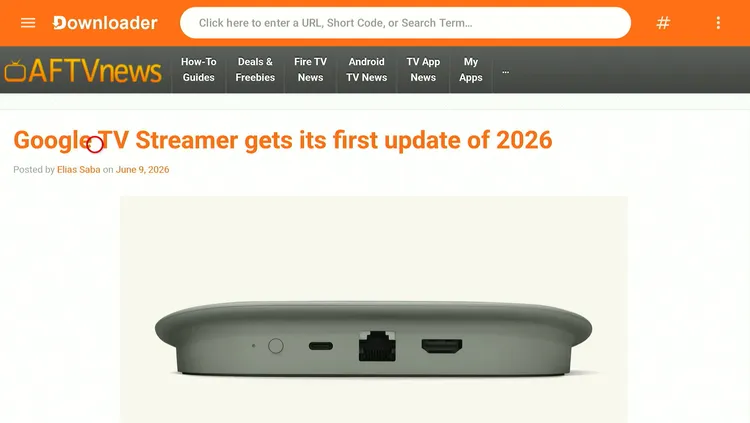
Step 2: Enter the Purple Smart IPTV Player Downloader Code 5546232 in the search bar OR enter this URL bit.ly/43pEVWO and click Go. IPTV Downloads page will open.
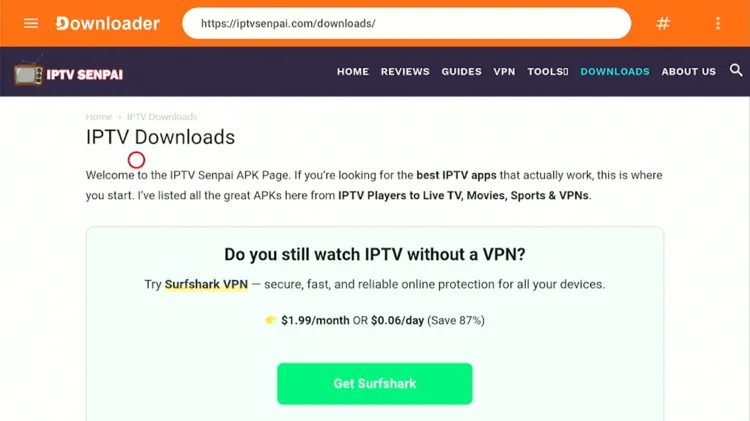
Step 3: Scroll down to the IPTV Players section, select Purple Smart IPTV Player, and click it to continue.
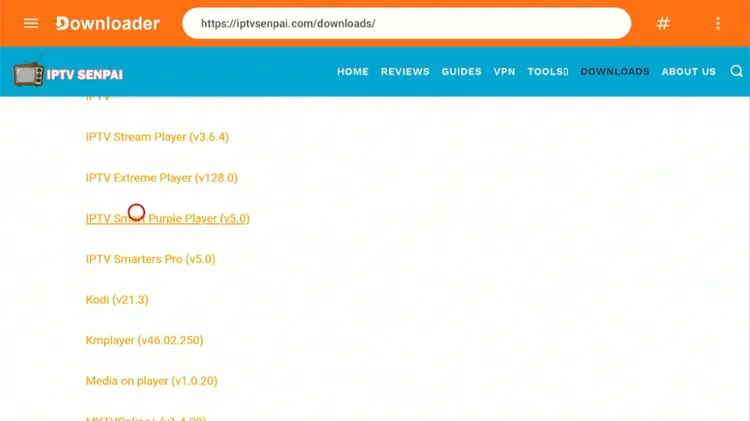
Step 4: A new window will open. Click on the download button. Your APK file will start downloading.
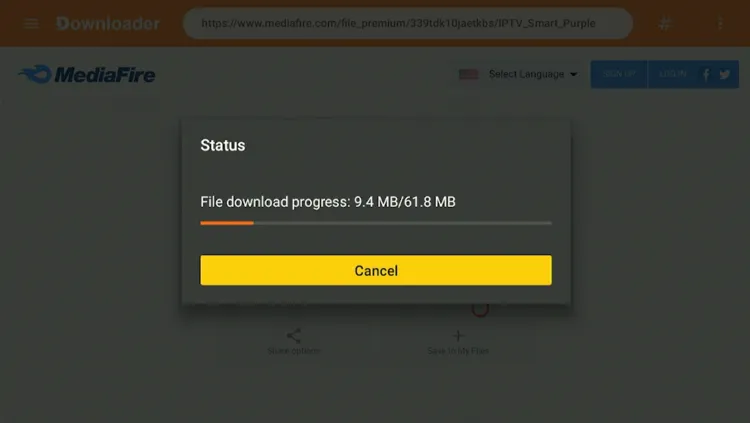
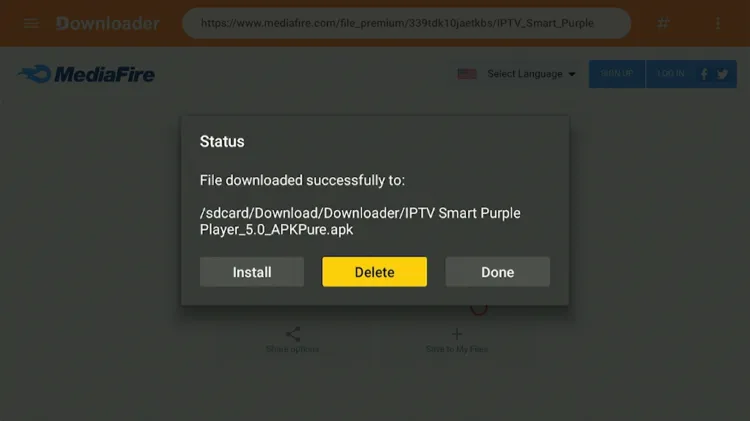
Step 5: Click Install.

Step 6: Once installed, select Done.

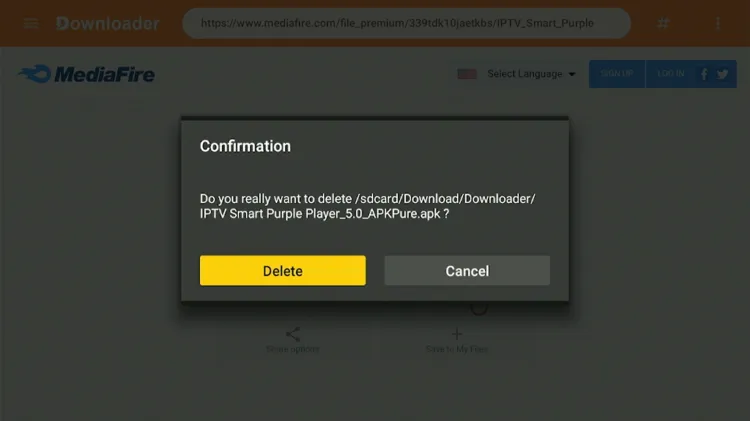
Step 7: Click Delete APK.
Step 8: A confirmation window will open. Click Delete.
Step 9: Now, open the Surfshark app and connect to any Server.
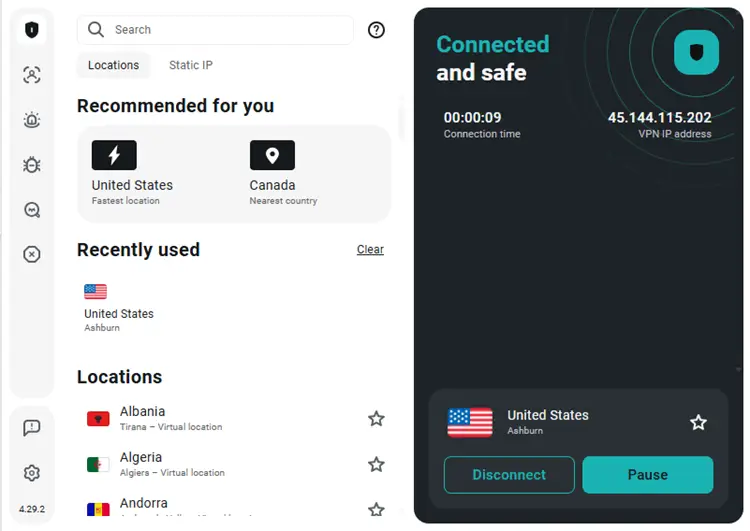
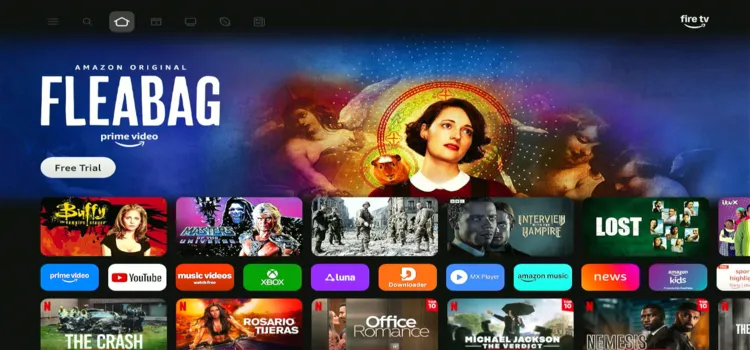
Step 10: Press the home button, and your interface will be displayed.
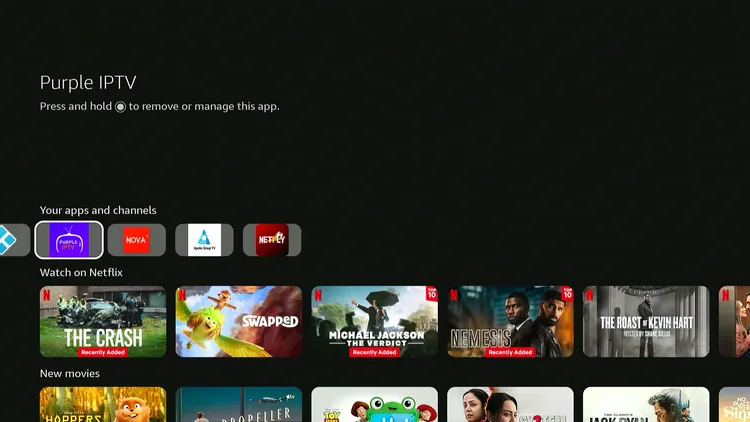
Step 11: Scroll down to choose Purple Smart IPTV under your apps and channels.
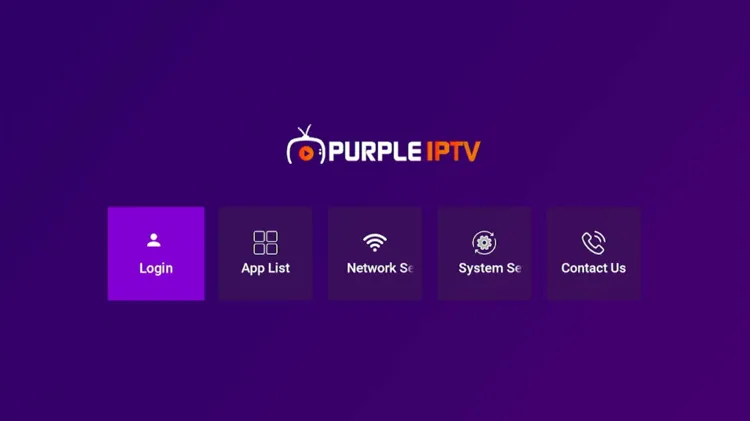
Step 12: Click on the Login button.
Step 13: Click on Skip.
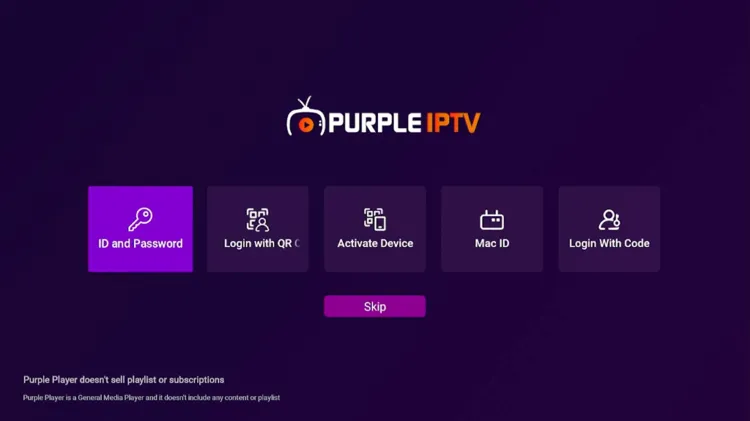
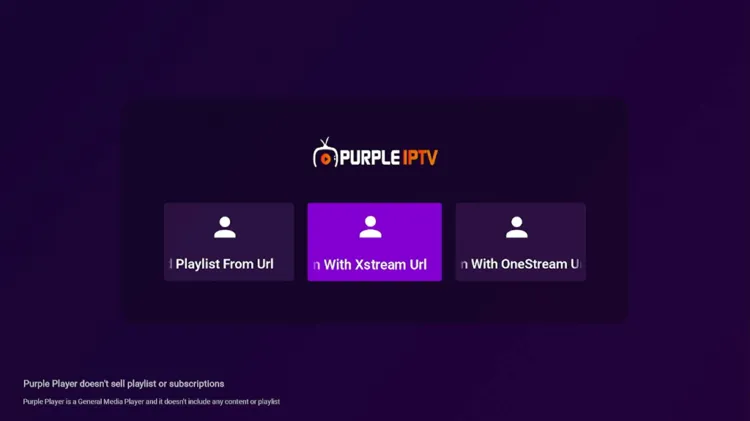
Step 14: Select Login with Xtream Codes.
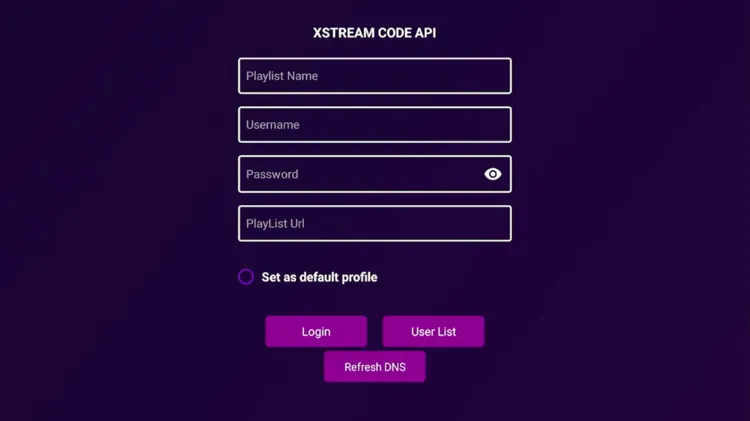
Step 15: Enter username, password, and Playlist URL. Click Login.
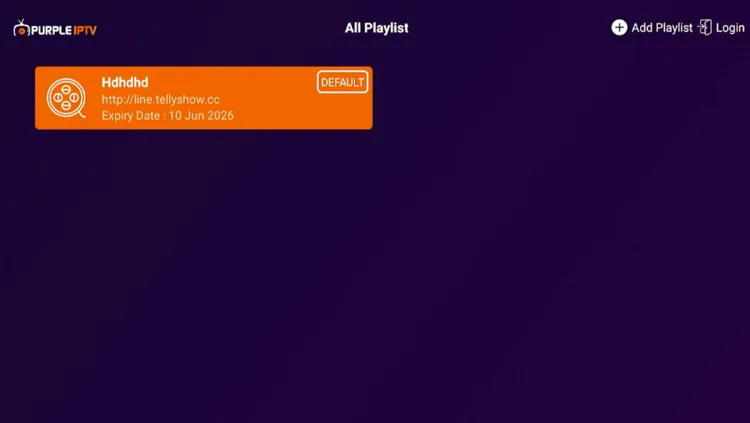
Step 16: Your playlist will be uploaded. Click on your playlist.
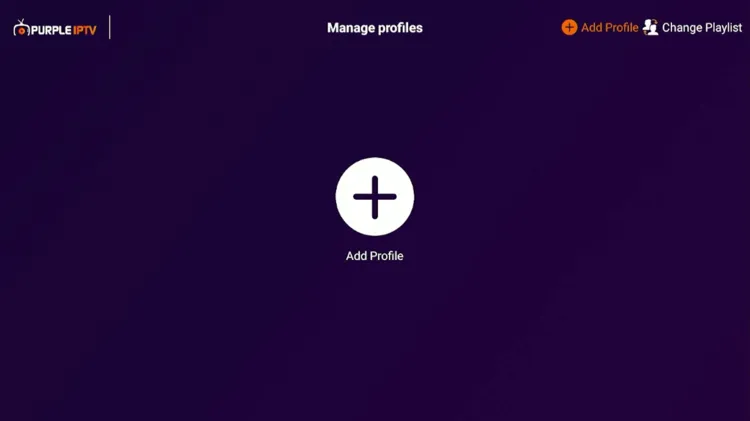
Step 17: Click on Add Profile.
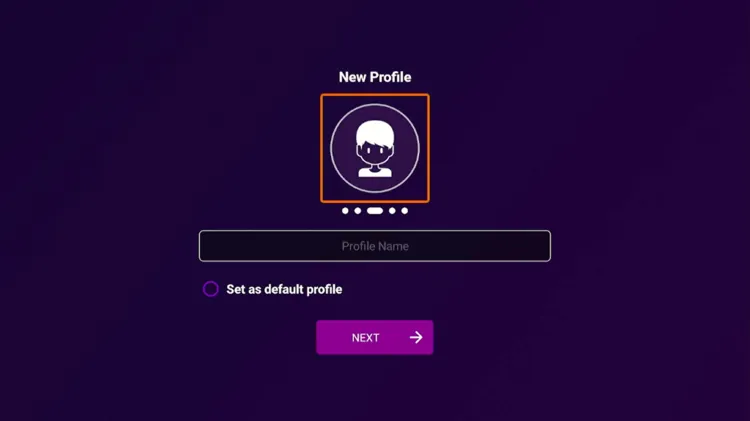
Step 18: Enter your Profile Name.
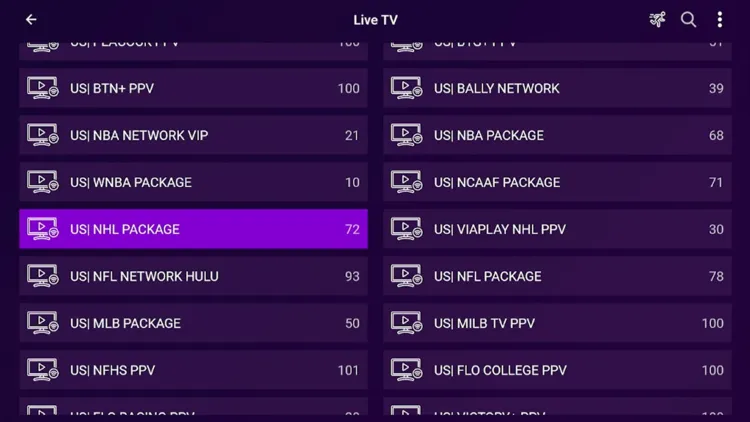
Step 19: Your player has been successfully loaded.
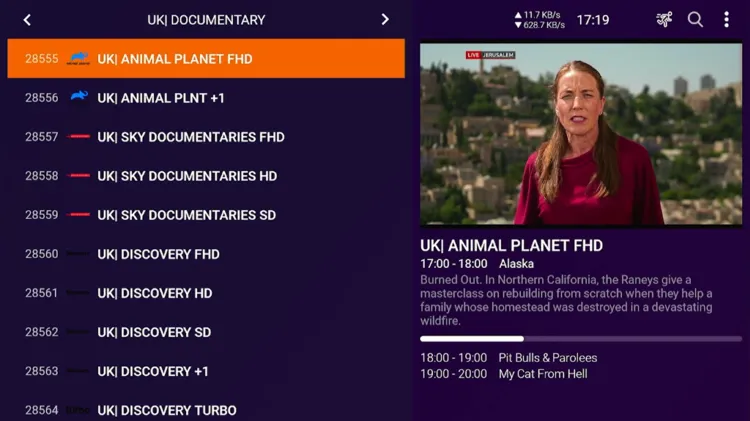
Step 20: Enjoy streaming!
What I Did NOT Like About Purple Smart IPTV Player
-
Severe lag, constant buffering, and slow navigation.
-
Non-functional full-screen mode.
-
Missing subtitle support and “Favourites” list functionality.
-
VOD Content frequently fails to load.
Purple Smart IPTV Player Features
Here are all the key features available in the Purple Smart IPTV Player:
1. Time Format
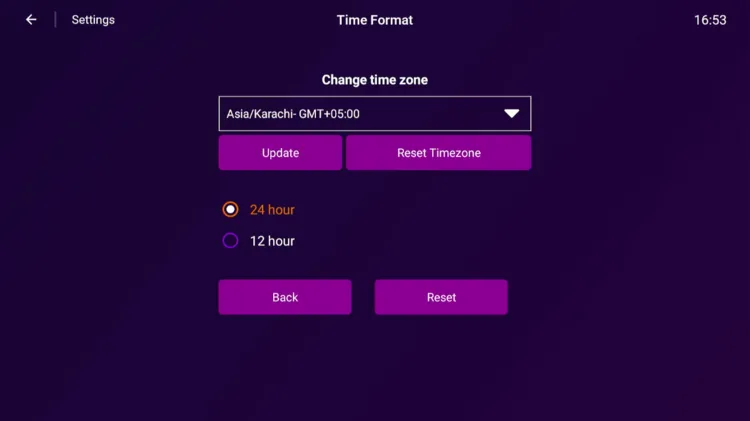
Purple Smart IPTV Player lets you set the correct timezone from a dropdown list of global regions. You can also toggle between 12-hour and 24-hour clock displays to match your local preference.
2. App Themes
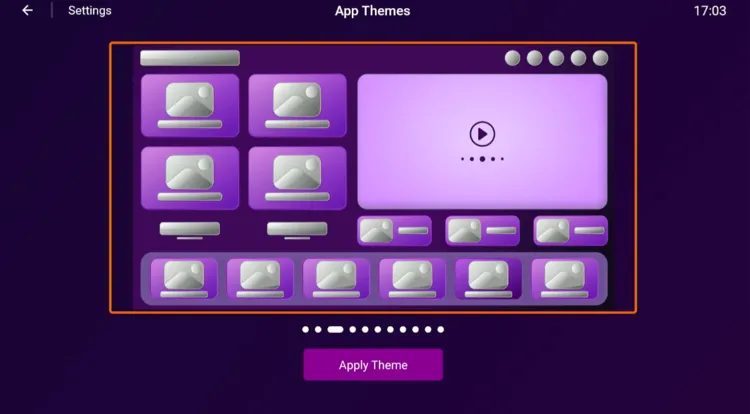
The app includes 11 different UI themes to customize the home screen layout. Options range from grid-style to list-based designs. Select your preferred theme and tap Apply Theme to activate it.
3. Stream Format
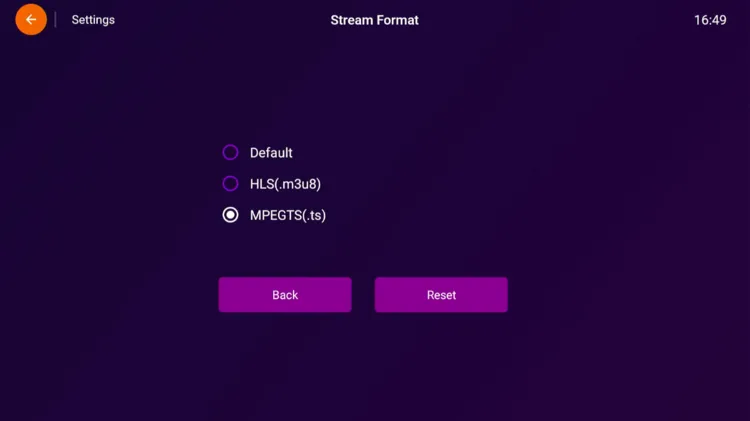
Users can manually set the stream format to Default, HLS (.m3u8), or MPEGTS (.ts). This setting applies globally across all playlists.
4. Radio Channels
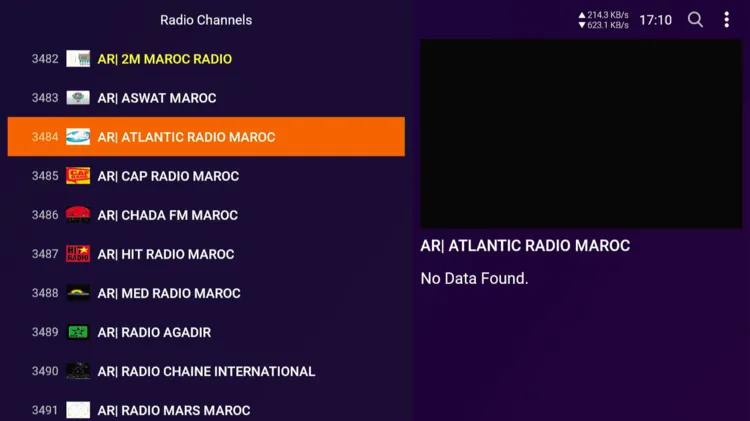
Purple Smart IPTV Player includes a dedicated Radio Channels section. Stations are organized by region and category, with a split-screen layout.
5. Change Language
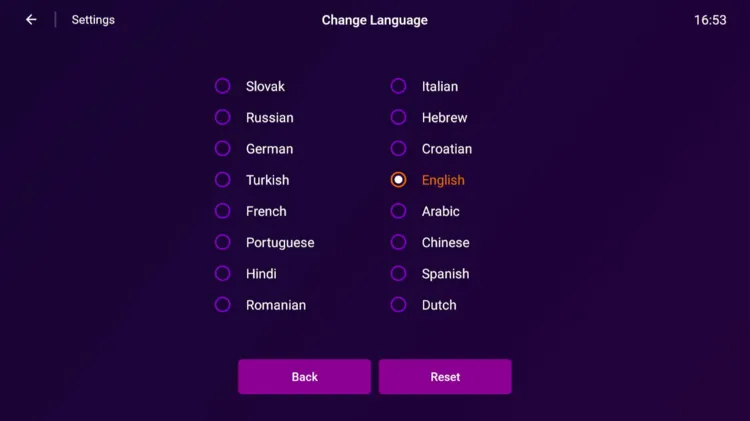
The app supports 16 interface languages. This includes: English, Arabic, Hindi, Chinese, Spanish, French, German, Turkish, Russian, Portuguese, Romanian, Croatian, Hebrew, Italian, Slovak, and Dutch.
6. Multi-Screen Layout
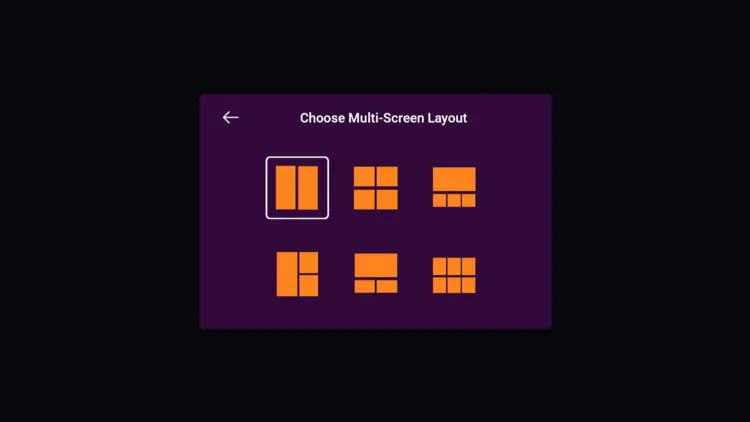
6 multi-screen layout options are available. Some of these include side-by-side split, 2×2 equal grid, etc. Each layout can be selected with a single tap from the layout picker.
7. Parental Control
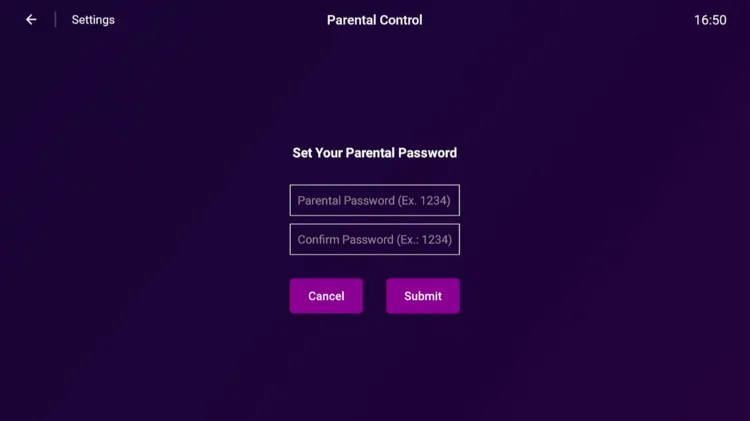
Parental controls are protected by a password, which can be used to safeguard children from restricted channels or categories.
8. Catch-Up TV
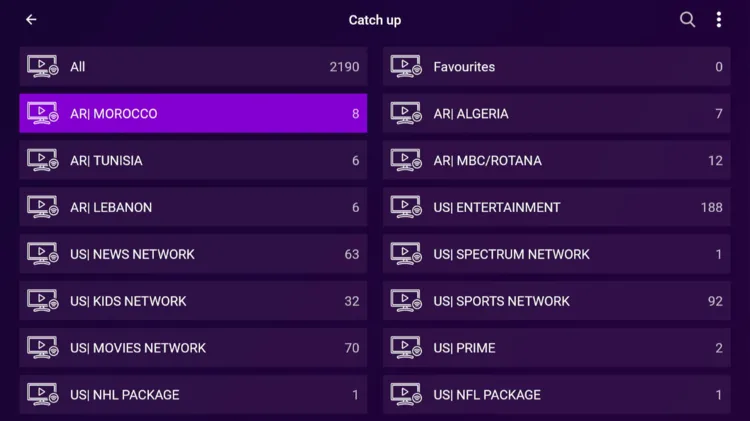
The Catch-Up TV section organizes replay content by region and network category. Availability depends on whether your provider supports catch-up services or not.
9. General Settings
Auto Start
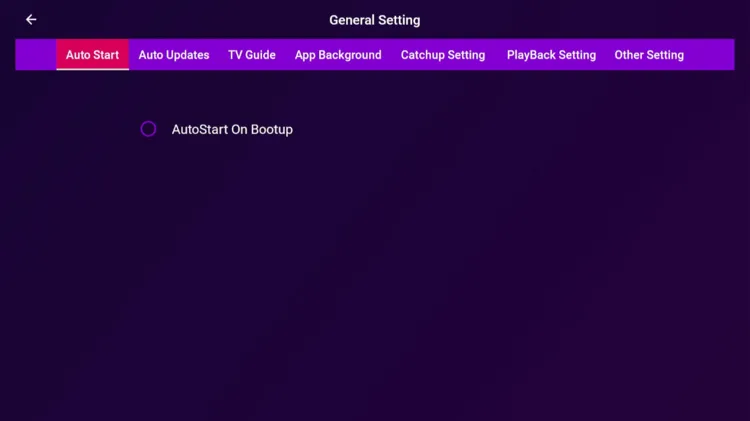
Purple Smart IPTV Player includes an AutoStart on Bootup option. When enabled, the app launches automatically every time the device powers on.
Auto Updates
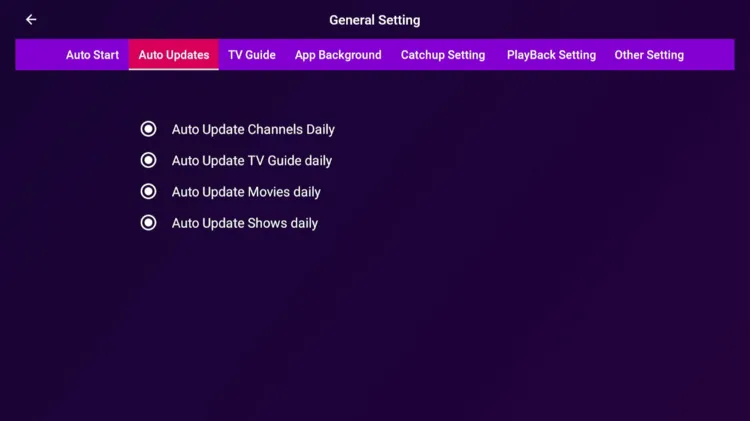
Four daily auto-update toggles are available by default. It includes: Channels, TV Guide, Movies, and Shows. This keeps your playlist and EPG data up to date without requiring manual refreshes. Each update category can be disabled individually based on your preferences.
TV Guide
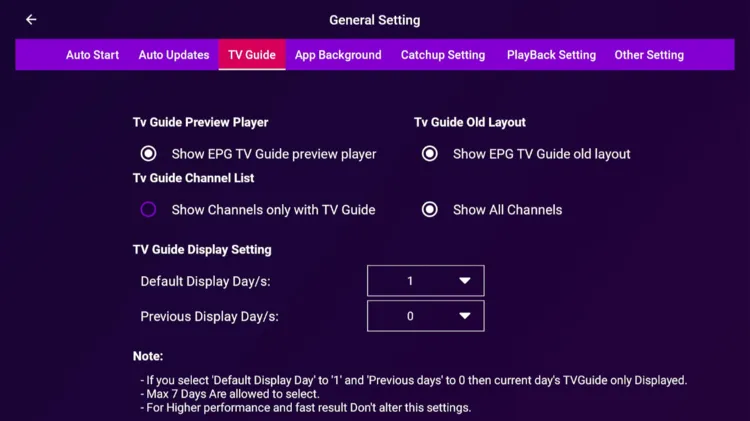
This tab controls EPG display. Available options include: TV guide preview player, switching to the classic layout, filtering channel listings, and selecting the number of days under TV Guide Display Settings.
Note: You can view up to 7 days of EPG data, along with program schedules from the previous day.
Catchup Setting
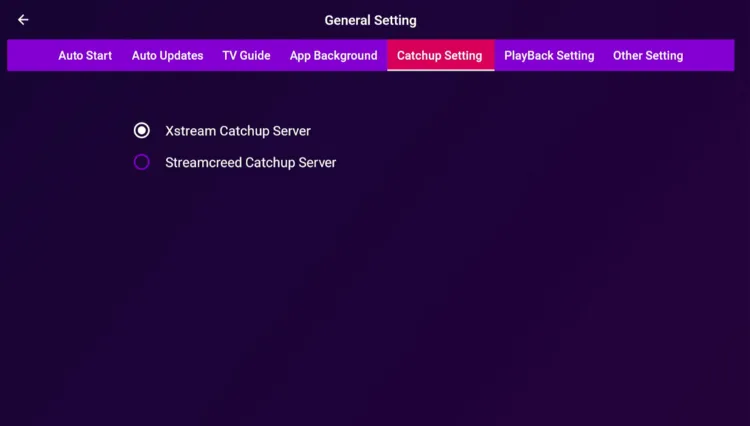
Users can choose between 2 catch-up server types: Xstream Catchup Server and Streamcreed Catchup Server. Xstream is selected by default and works with most standard Xtream Codes IPTV providers.
Playback Setting
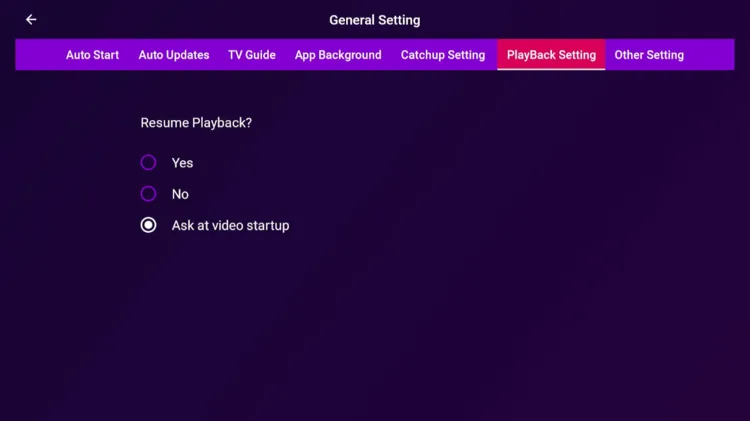
The Resume Playback option controls what happens when you reopen a previously watched video. 3 modes are available: always resume, never resume, or ask at video startup. The default is set to Ask at video startup, giving you manual control each time.
-
Other Settings
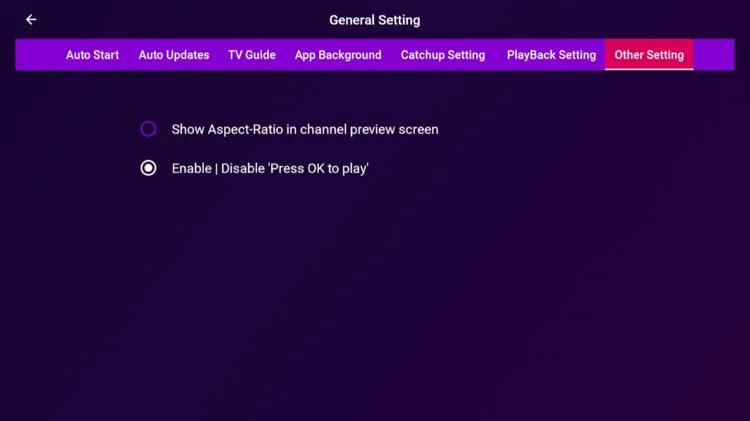
Two additional toggles are found under Other Settings. The first shows the aspect ratio in the channel preview screen. The second enables or disables the “Press OK to play” confirmation step before a stream launches, which is enabled by default.
Purple Smart IPTV Player Alternatives
FAQs
1. Is Purple Smart IPTV Player Free?
Yes, Purple Smart IPTV Player is completely free. There is no paid subscription or premium plan. Its features include EPG, Catch-Up TV, multi-screen, parental controls, themes, etc.
2. What is the default format used for streaming playlists in this app?
The app uses the Xtream Codes format by default, though you can manually toggle global stream settings to HLS (.m3u8) or MPEGTS (.ts).
3. Can I set the app to open automatically when I turn on my device?
Yes, you can enable the “AutoStart on Bootup” option in the general settings to launch the player immediately whenever your device powers on.
4. Can I watch multiple channels at the same time on this player?
Yes, the app features 6 multi-screen layout options, including side-by-side split screens and a 2×2 equal grid display.
Conclusion
Purple Smart IPTV Player looks good on the outside with an attractive website, but its performance did not match the feature list. The app lagged heavily with constant buffering and loading, with slow response times that made basic navigation very frustrating.
Full-screen mode for Live TV did not work, and the Favourites and subtitle support were unavailable. Its VOD content also failed to play.
This player isn’t suitable for daily use, and I wouldn’t recommend it to anyone. Until these issues are resolved, there are better free alternatives out there. The most popular ones are IPTV Smarters Pro and Tivimate Player.

