

IPTV lets you stream live TV, movies, and on-demand content beyond traditional cable. Android phones and tablets are practical options for streaming live TV, movies, and on-demand content, with touchscreen-friendly apps, flexible installation options, and casting support.
This guide covers compatible IPTV players, installation, playlist setup, and common streaming fixes. Your experience depends on your device, connection, and streaming source. Remember, IPTV players do not include channels; you need an authorized playlist or a service with its own app.
A VPN encrypts your connection and helps keep streaming activity private from your ISP. It may also help access subscriptions while traveling, subject to regional restrictions and service terms. Surfshark is my #1 pick.
Recommended VPN for IPTV - Surfshark
Using IPTV without a VPN can put you at Big Risk! Your ISP, government and even IPTV providers can monitor your activity, throttle your speed, or block access altogether.
Plus, without encryption, your data is exposed to hackers and third parties. Take back your privacy with Surfshark!
Features:
✅ SAVE 87% + GET 3 EXTRA MONTHS FREE! ($0.06/day)
✅ Kill Switch Feature to protect you if VPN drops
✅ Lightweight app ensuring smooth performance on All IPTV Boxes
✅ Unlimited simultaneous connections (install on all household devices)
✅ 30-day risk-free money-back guarantee
✅ Strict no-logs policy, Secure & Untraceable
Are Android Phones and Tablets Good for IPTV?
Yes. Android smartphones and tablets are among the best portable devices for IPTV streaming in 2026. They deliver high performance, flexible app installation, and smooth playback for live sports, movies, and TV shows.
Whether you download from the Google Play Store or sideload APKs using the Downloader app, Android gives you total control over your viewing experience.
IPTV Setup Checklist for Android Phones
Here’s everything you’ll need to set up and enjoy IPTV streaming on your Phone:
- Compatible Android device: Check the app’s installation requirements on your phone or tablet.
- IPTV player: Choose an app that supports mobile controls and your provider’s login format.
- IPTV Subscription: Obtain an authorised playlist or compatible account from your provider.
- Internet Connection: Use reliable Wi-Fi or mobile data with sufficient allowance.
- EPG details, if supplied: Electronic programme guide displays schedules and programme information.
- Secure VPN: Check out the Best VPNs for IPTV
Using a service’s own app? Follow its sign-in process instead. A subscription does not automatically include an M3U playlist or permission to use third-party players.
Pros and Cons
| Pros | Cons |
|---|---|
| ✓Portable viewing at home or while travelling. | —Requires a stable internet connection. |
| ✓Touchscreen controls simplify typing and searching. | —Long streaming sessions drain the battery. |
| ✓Choice of IPTV players and official streaming apps. | —Streaming over mobile data can consume your allowance quickly. |
| ✓Compatible players offer customizable playlists and EPG settings. | —Phone screens can feel small for extended viewing. |
| ✓Easy installation and setup with supported apps. | —TV-focused players may be awkward to navigate on touchscreens. |
| ✓Casting to a TV is available with compatible apps, streams, and receivers. | —App availability and compatibility vary by device and region. |
| ✓Some devices support external storage through microSD or USB. | —Extended viewing can cause device heating and holding discomfort. |
Why Android Phones Give You the Best IPTV Streaming
Here are four reasons Android phones are a practical choice for IPTV streaming:
1. Google Play Store
Android offers direct access to official IPTV player apps like IPTV Smarters Pro and XCIPTV through the Google Play Store. You can easily download, update, and manage IPTV apps through verified services.
2. APK Sideloading & Third-Party Support
One of the biggest advantages of using an Android phone for IPTV is the ability to install APK files from outside the Google Play Store. Android allows you to download and install third-party APKs, unlike iPhones.
3. Screen Mirroring & Casting
Android phones support casting streams to larger screens instantly using Chromecast, Samsung Smart View, or Miracast & DLNA. This converts your mobile phone into a portable IPTV media center for big-screen viewing.
4. External Storage & USB OTG Support
If your Android phone has limited internal storage, use a microSD card or OTG USB drive to store IPTV recordings, downloads, playlists, and video files where supported. You can also transfer files between devices to free up space.
How to Set Up IPTV on an Android Phone or Tablet
Always use a reliable VPN before configuring your IPTV provider to encrypt traffic and protect personal connection data from ISP monitoring. Here’s a step‑by‑step guide to downloading and using IPTV on an Android phone with IPTV Smarters Pro.
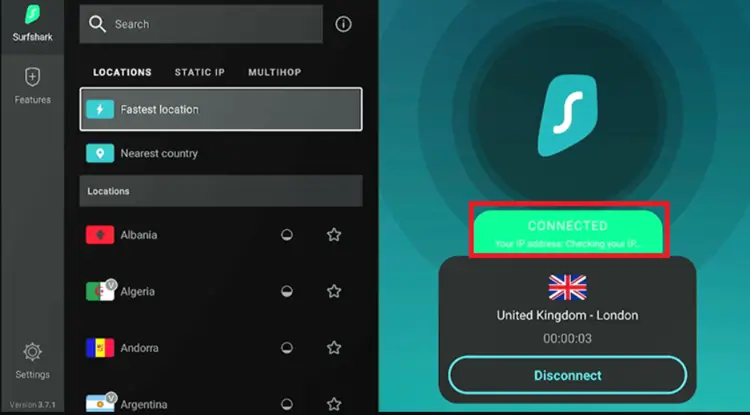
Step 1: Open the Surfshark app and connect to any server.
Step 2: Click on ‘IPTV Smarters Pro‘ and Choose Install.
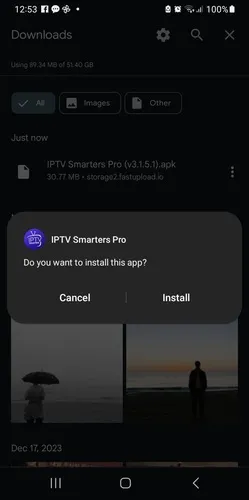
Step 3: Wait for the installation to complete.
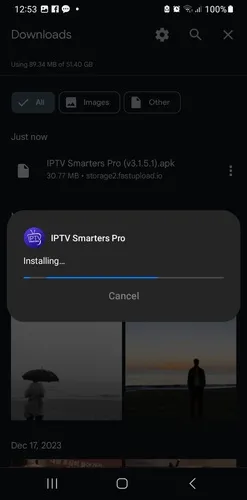
Step 4: Click Open.
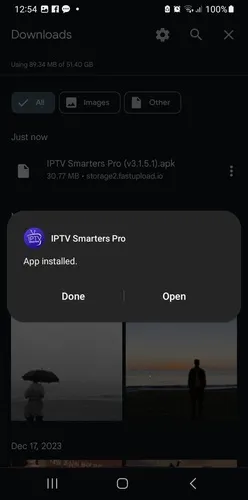
Step 5: Select Mobile and click Save
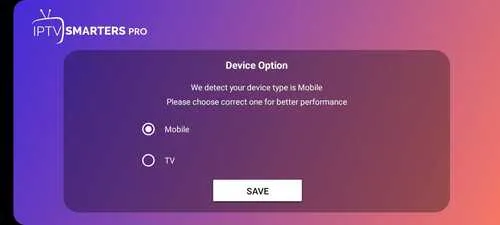
Step 6: Click Close
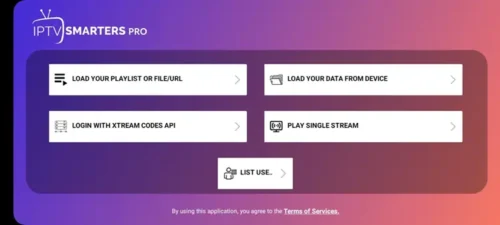
Step 7: Choose M3U Link/File or Xtreme Codes.
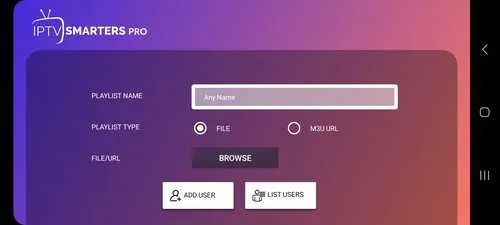
Step 8: Enter the Playlist Name, choose M3U/URL provided by the service provider. Click Add User.
Best IPTV Players for Android Phones and Tablets
When it comes to picking the right IPTV player for your Android phone or tablet, it’s all about finding what fits your viewing habits best. Choose according to your playlist format, guide requirements, and playback preferences.
1. IPTV Smarters Pro
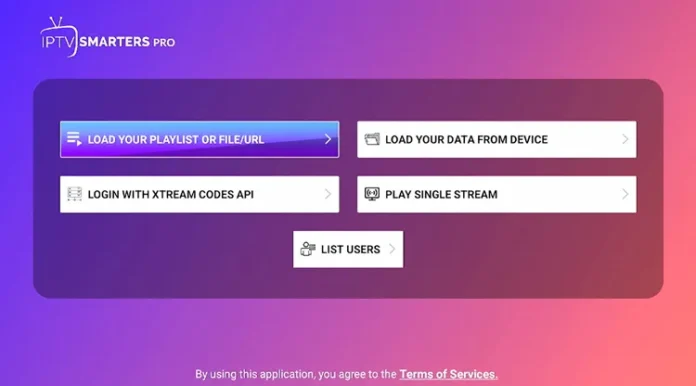
IPTV Smarters Pro is a popular free IPTV app for users who want to manage playlists and personal media in one app. Its current Google Play listing confirms support for M3U playlists and Xtream Codes API, offering a user-friendly interface and EPG support.
Features & Options:
- Playlist support: Import supported M3U and Xtream Codes sources.
- Local and remote media: Play files from your device or supported online sources.
- Playback settings: Adjust the available options to suit your device.
IPTV Smarters Player Downloader Code: Enter 5546232 [Find it under the IPTV Players section].
2. XCIPTV
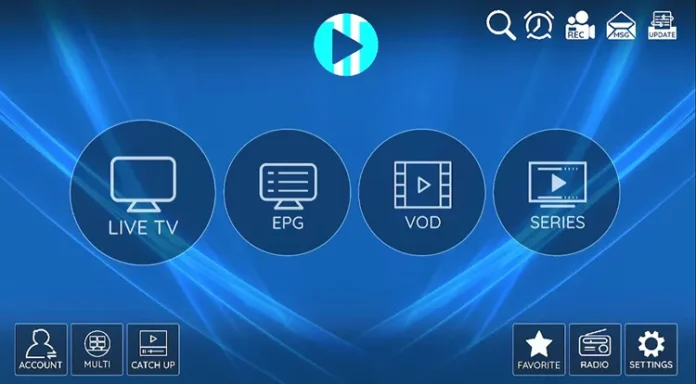
XCIPTV is worth considering if you want a programme guide, catch-up support, and recording options. Its developer lists compatibility with Android phones, tablets, and Android TV. The app includes ExoPlayer and VLC, giving it two built-in playback engines.
Features & Options:
- EPG: Browse programme schedules.
- Catch-up: Replay programmes when your provider supplies them.
- Favourites: Save channels, movies, and series.
- Recording: Schedule recordings to supported internal or external storage.
- Backup and restore: Preserve supported app settings.
XCIPTV Downloader Code: Enter 5546232 [Find it under the IPTV Players section].
3. GSE Smart IPTV
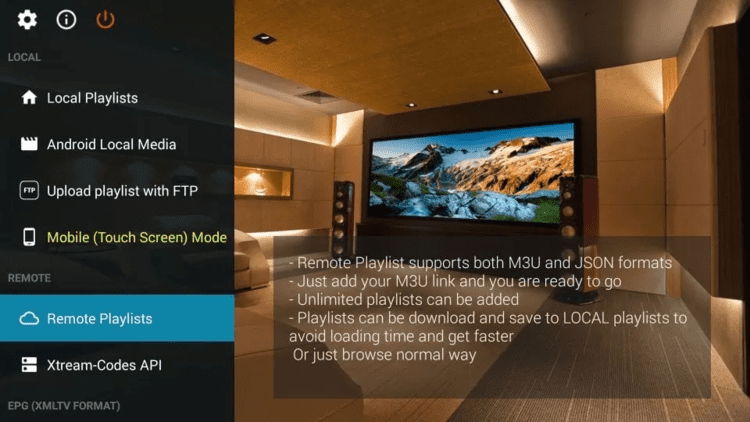
GSE Smart IPTV Pro suits users who want playlist controls, subtitle options, and Chromecast support. Its official Android listing includes Xtream Codes API, M3U input, and XSPF. It offers an easy setup and various customization options.
Features & Options:
- Playlist input: Supports M3U content and Xtream-compatible accounts.
- EPG: Accepts local and remote XMLTV sources.
- Chromecast: Cast supported streams to compatible receivers.
- Subtitles: Supports embedded subtitles and external SRT files.
- Parental controls: Restrict access within the player.
4. Televizo
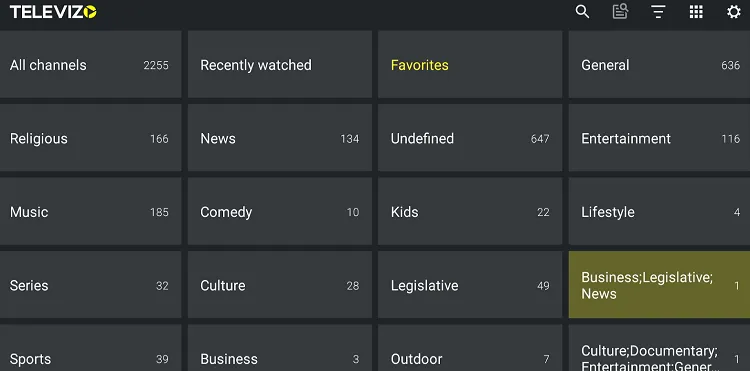
Televizo is my starting suggestion for users who want playlist browsing, a TV guide, and straightforward channel organisation. Its official listing supports phones, tablets, and TVs.
Features & Options:
- Multiple playlists: Keep more than one content source.
- EPG and catch-up: View schedules and available programme archives.
- Search and favourites: Find and save channels.
- Track selection: Choose available audio tracks and subtitles.
- Chromecast: Send compatible streams to a supported receiver.
GSE Smart IPTV Downloader Code: Enter 5546232 [Find it under the IPTV Players section].
5. OTT Navigator
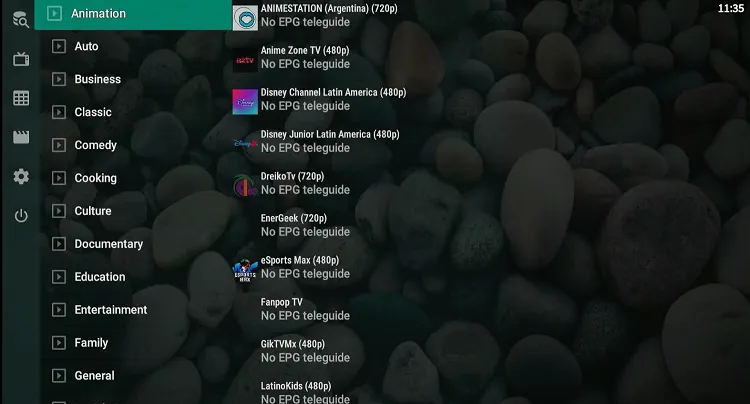
OTT Navigator is a strong pick if you want deep customisation over how your playlist and EPG are displayed. Its official listing confirms support for M3U playlists, Xtream Codes, and Stalker/Mac Portal, with a free tier and optional premium upgrade.
Features & Options:
- Playlist support: Import M3U, Xtream Codes, and Stalker/Mac Portal sources.
- EPG: Full program guide with real-time updates and smart channel sorting.
- Multi-View: Watch several channels at once (premium feature).
- Favourites & history: Quickly return to recent or saved content.
- Custom layouts: Rearrange channel lists, colors, and guide display.
- Backup and restore: Preserve supported app settings across devices.
OTT Navigator Downloader Code: Enter 5546232 [Find it under the IPTV Players section].
6. Perfect Player

Perfect Player suits users who want a simple, lightweight player without a heavy interface. Its listing confirms support for M3U, Xtream Codes, and XMLTV/JTV EPG, and it runs well on older or lower-powered phones.
Features & Options:
- Playlist support: Load M3U/M3U8 links or Xtream Codes credentials.
- EPG: Accepts XMLTV and JTV guide formats.
- Favourites: Mark and quickly access preferred channels.
- Channel lock: Restrict access to selected channels.
- Playback engines: Switch between libVLC and ExoPlayer for smoother streams.
- Multi-language interface: Available in English, Portuguese, Russian, Spanish, and more.
Perfect Player Downloader Code: Enter 5546232 [Find it under the IPTV Players section].
Troubleshooting Common IPTV Issues on Android Phones/Tablets
Troubleshooting common IPTV issues on Android devices revolves around specific challenges related to the platform’s hardware and software configurations. Here are some Android-related issues with IPTV players and their solutions.
| Issue | Description | Solution |
|---|---|---|
| App Compatibility Issues | Some IPTV apps may not work on certain Android devices. | – Sideload the latest APK version. – Find a compatible APK for your device. |
| Limited Device Performance | Older devices may lag or buffer when streaming HD content. | – Lower stream resolution in app settings. – Upgrade to a newer device if needed. |
| Overheating During Streaming | Extended streaming can cause devices to overheat. | – Ensure proper ventilation. – Use a lighter phone case. – Take breaks during long sessions. |
| Limit Background Apps | Background apps consume resources, slowing IPTV performance. | – Close unnecessary apps. – Disable background activity in settings. |
| Storage Limitations | IPTV apps and cached data can quickly fill storage. | – Clear the IPTV app’s cache regularly. – Manage storage to free up space. – Use an SD card if needed. |
Do You Need a VPN While Streaming IPTV on Android?
If you download or install IPTV player apps from the Google Play Store, then you don’t need a VPN. However, a secure VPN such as Surfshark is highly recommended for IPTV players. It encrypts your connection, protects privacy on public Wi-Fi, and reduces ISP throttling and regional restrictions.
Alternative Devices for IPTV Streaming
If you prefer watching on larger screens, explore these compatible IPTV streaming devices:
- IPTV on Fire TV Stick
- IPTV on Onn. Streaming Box
- IPTV on Nvidia
- IPTV on Laptop
- IPTV on Mi TV Stick
FAQs
1. Does TiviMate work on an Android Phone?
TiviMate works on Android phones, but it’s designed for Android TV, so navigation may not be as smooth. For a better mobile experience, try IPTV Smarters Pro or OTT Navigator.
2. How do I set up IPTV on my Android device?
Download an IPTV player like IPTV Smarters Pro from the Play Store. Open the app, enter your provider’s Xtream Codes API or M3U link, and load your channel playlist.
3. Do I need a VPN for IPTV on Android?
While not mandatory, using a VPN is recommended to enhance your privacy, bypass geographical restrictions, and prevent ISP throttling, especially when accessing international content.
4. Can I cast IPTV from my Android phone to my Smart TV?
Yes, you can cast streams using built-in Chromecast, Samsung Smart View, or DLNA screen mirroring supported by most modern Android IPTV apps.
Conclusion
Android phones and tablets are practical IPTV devices for portable viewing. Start with a mobile-compatible player and the device you already own. A tablet is the more comfortable choice when screen size matters.
I would start with Televizo for playlist browsing or consider XCIPTV when recording and playback options matter. IPTV Smarters Pro and GSE Smart IPTV are alternatives when their supported formats and controls better match your setup.
However, since some IPTV services pull content from unverified sources or are geo-restricted, using a VPN like Surfshark is essential to protect your privacy and unlock restricted content.

