
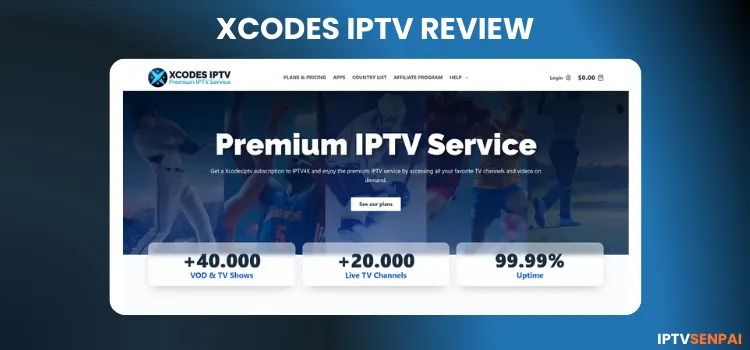
XCodes IPTV service is 2+ years old service. This service features a lineup of over 41,000+ movies, 7,000+ TV series, and 30,000+ live TV channels.
Before subscribing to a service, users can try a 24-hour free trial. The content offered by this service is mostly from North America, Europe, and the Middle East, especially from the United States. It offers streaming resolution from HD, FHD, UHD, and 4K.
It is recommended to use a premium VPN for unverified IPTV services. Surfshark is my #1 pick. That’s because it keeps streaming private, prevents data tracking, and ISP throttling.
Recommended VPN for IPTV - Surfshark
Using IPTV without a VPN can put you at Big Risk! Your ISP, government and even IPTV providers can monitor your activity, throttle your speed, or block access altogether.
Plus, without encryption, your data is exposed to hackers and third parties. Take back your privacy with Surfshark!
Features:
✅ SAVE 87% + GET 3 EXTRA MONTHS FREE! ($0.06/day)
✅ Kill Switch Feature to protect you if VPN drops
✅ Lightweight app ensuring smooth performance on All IPTV Boxes
✅ Unlimited simultaneous connections (install on all household devices)
✅ 30-day risk-free money-back guarantee
✅ Strict no-logs policy, Secure & Untraceable
Official Website of XCodes IPTV
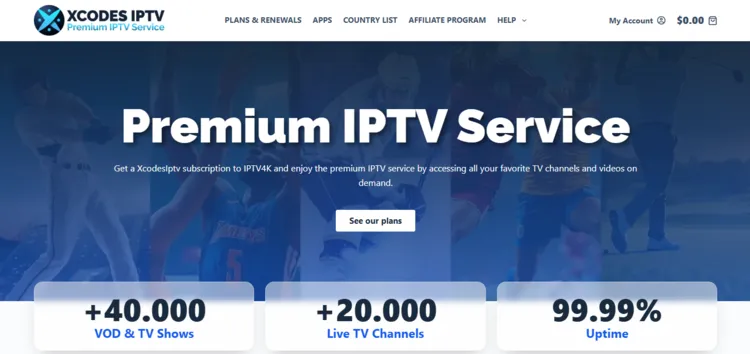
In order to avoid falling victim to clones, imitations, or websites with similar names, verify the authenticity of the XCodes IPTV by cross-checking the URL and verifying the website layout with a screenshot shared above. This keeps your data and payment secure.
To remain compliant with regulatory standards, I can’t share the URL. But you can manually visit xcodesiptv.com to explore their services and features they offer.
Does XCodes IPTV offer a free trial?
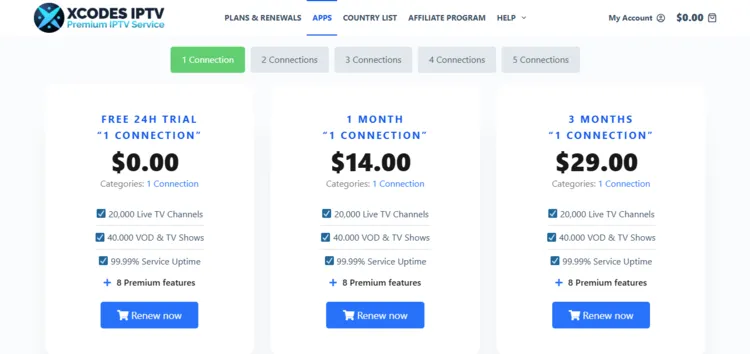
Yes, a 24-hour free trial is available for XCodes IPTV. To claim it, go to the official site. Then click on Apps on the website’s top bar. Choose Free 24h Trial – 1 Connection to get started. You will recieve free trial within minutes.
XCodes IPTV Features
- Trial: 24-Hour Free Trial.
- Subscriptions: Starts at $14.00.
- Connections: Up to 5 devices, depending on subscription plans.
- Live Channels: Over 30,000+ live channels.
- PPV: Yes.
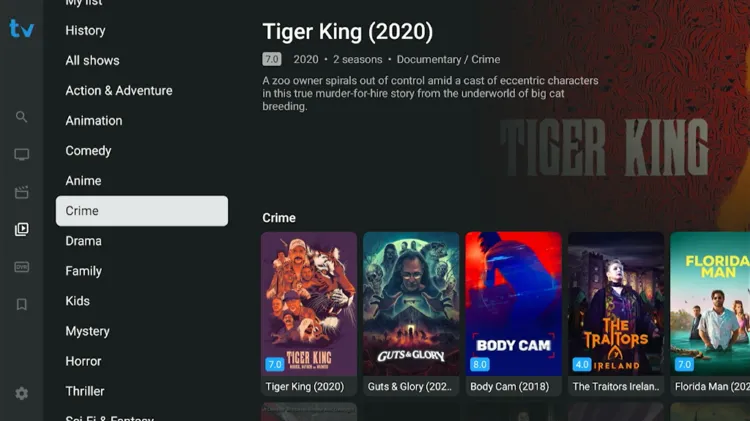
- VOD Content: 41,000+ movies and 7,000+ series.
- Streaming Quality: HD, FHD, UHD, and 4K.
- Payment Methods: Credit Card/Debit Card, Cryptocurrency
- Compatible Players: Tivimate Player, IPTV Smarters Pro, GSE Smart IPTV.
- Compatible Devices: Android TV, Android Phones, tablets, iOS devices, Smart TV, MAG, Fire Stick, Apple TV, NVIDIA Shield, Formuler.
- Customer Support: Somewhat Responsive (Email).
Pros & Cons
| Pros | Cons |
|---|---|
| Large catalogue of live TV channels | Support is only limited through email |
| Free trial recieved within minutes | Movie library has less extensive content and is less organized than some of its competitors. |
| Supports high resolution streaming (HD, UHD, FHD and 4K) | EPG data is mostly limited to the U.S, U.K and Canada |
| 7 days money back guarantee if th eusers are not satisfied with the service |
How to Get XCodes IPTV
Follow the instructions to set up XCodes IPTV on your Fire TV Stick.
1. Sign Up for a Subscription Plan.
Step 1: Enter the URL xcodesiptv.com. Go to the Apps section. Choose Free 24h Trial – 1 Connection by clicking on Renew Now.
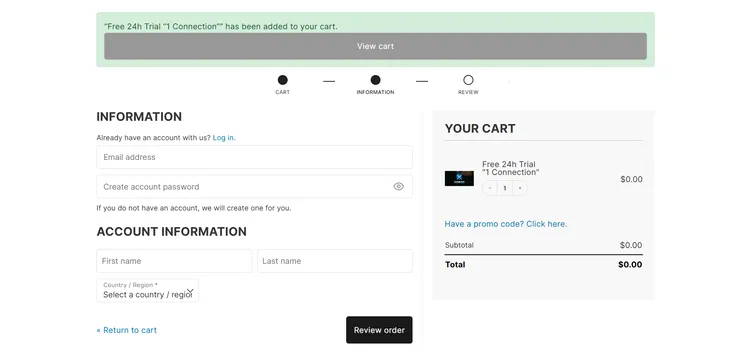
Step 2: A new window will open where you have to enter Account Information. Click on Review Order (this button is displayed for free trial) or Continue to Payment (this button is displayed for subscription plans)
Step 3: A Payment Option will be displayed featuring Pay by Credit Card or Pay by Crypto. Then click on Complete Order. (This is a free trial. It doesn’t display payment options.
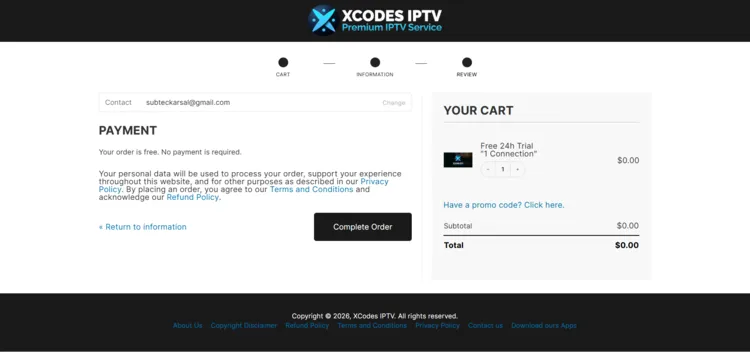
Step 4: You will receive a free trial within minutes. The service provider will send you the M3U URL and Xtreme Codes to your Gmail.
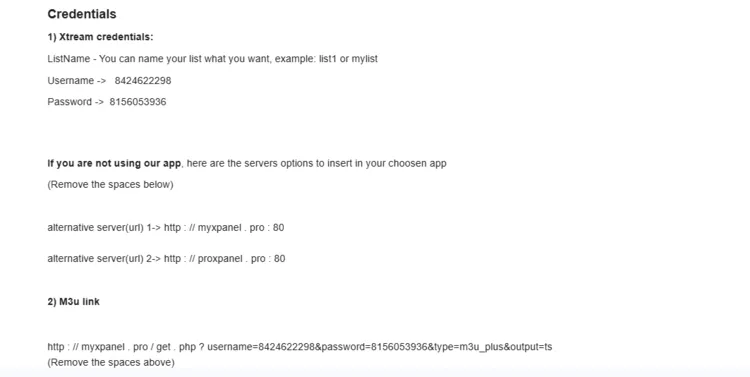
Note: This same procedure repeats if you buy any subscription plans.
2. Connect to VPN & Enter the Login Details on the Player.
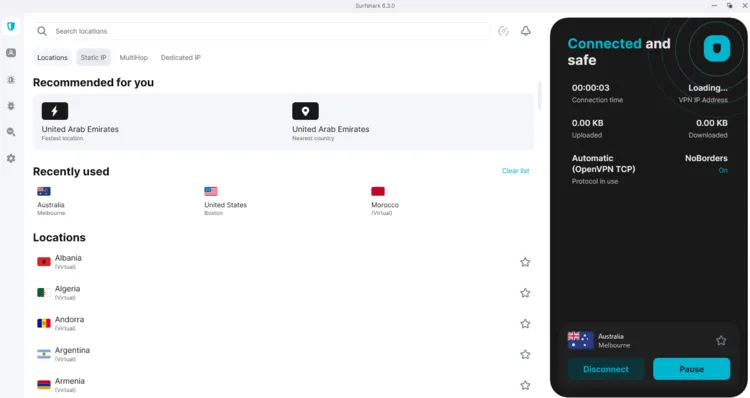
Step 1: Open the Surfshark app and connect to Melbourne- Australia server.
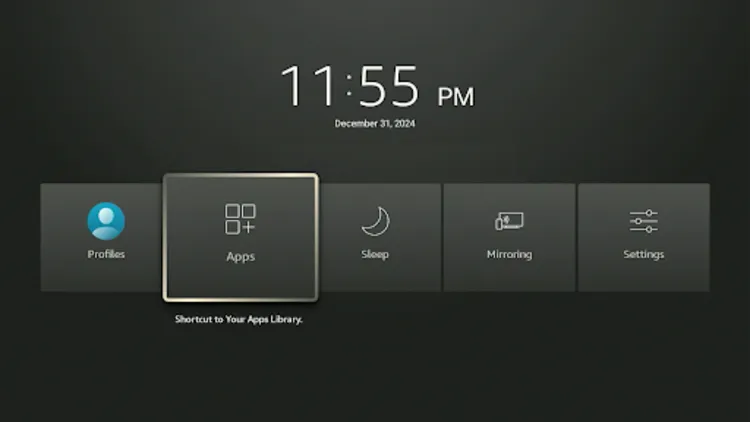
Step 2: Turn on your Fire TV Stick and long-press the Home button. Click Apps.
Step 3: Click in Tivimate Player
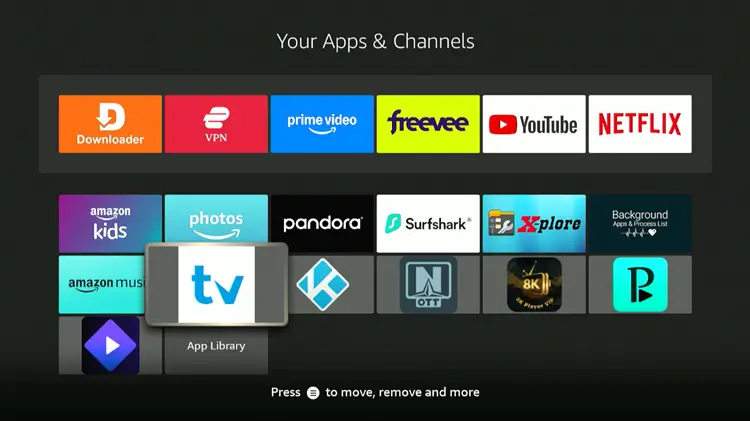
Step 4: Click Add Playlist
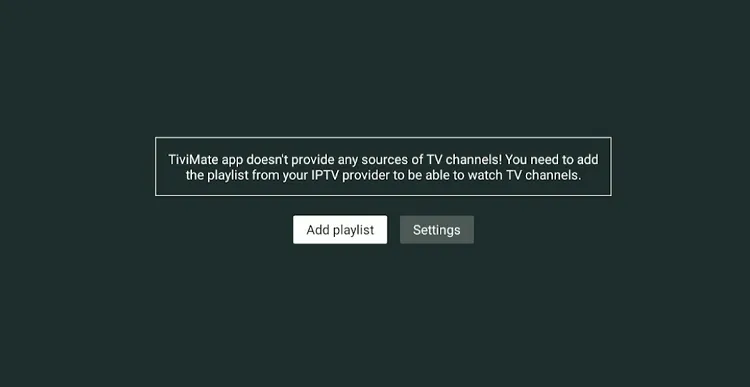
Step 5: Select XtreamCodes.
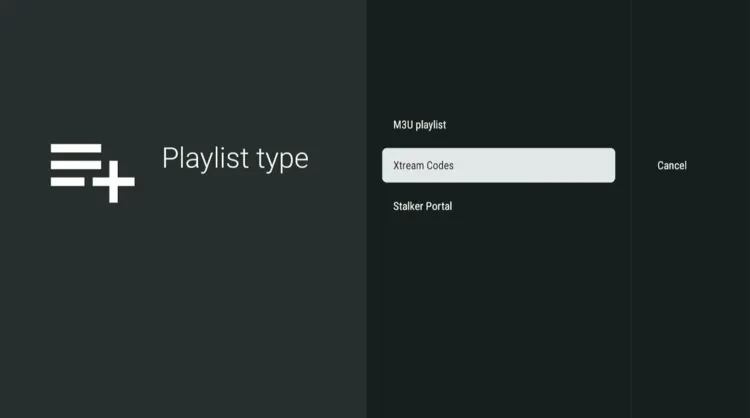
Step 6: Enter the Server address, Username, and Password.
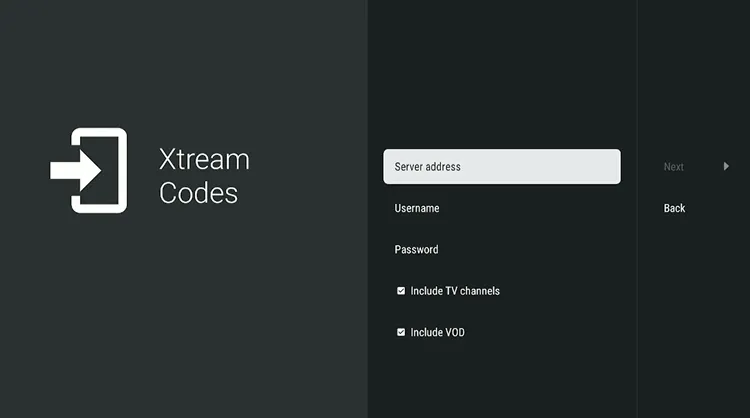
Step 7: Click Next. Playlist will be updated. Click Done.
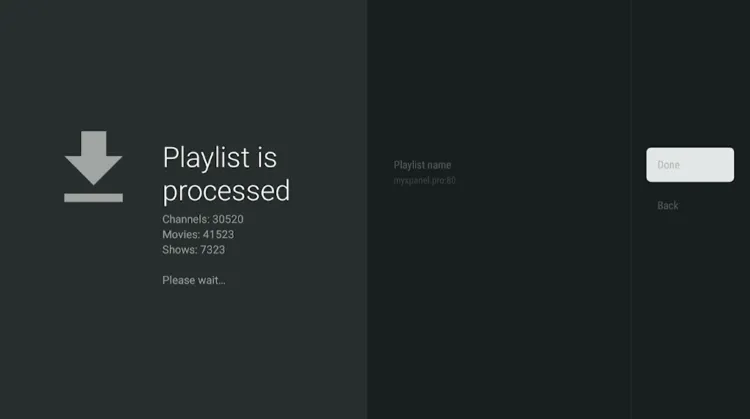
Step 8: XCodes IPTV has been successfully installed.
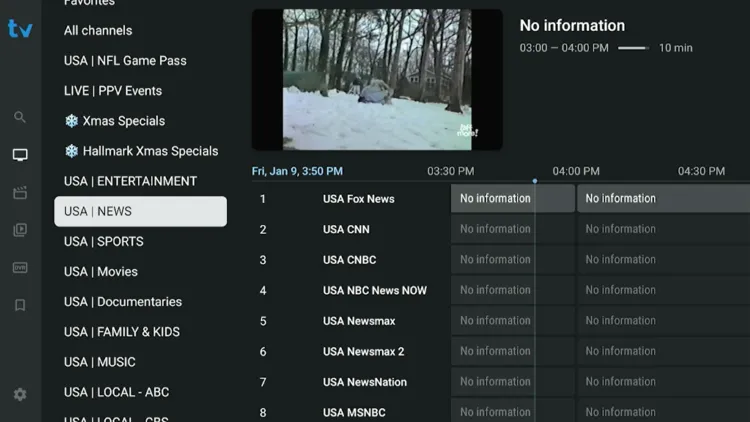
Step 9: Enjoy streaming!

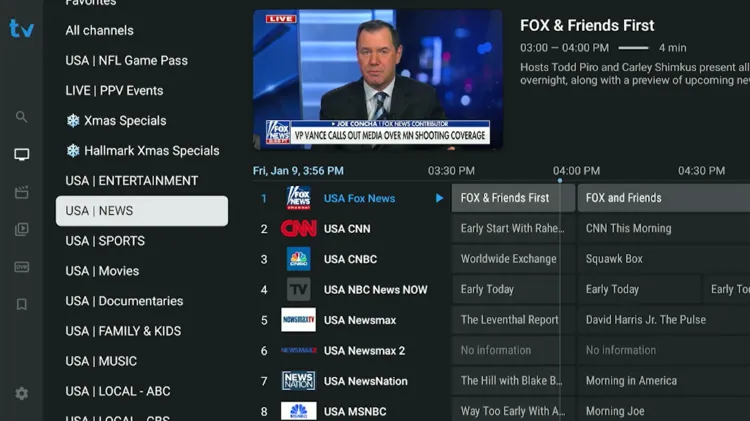
XCodes IPTV offers a large lineup of 30,000+ live TV channels from all over the world than other IPTV services out there. It covers diverse genres such as news, sports, and entertainment categories.
Streaming performance was decent, but not without its flaws. It had buffering issues. These disruptions were due to server overload, internet speed, or geo-restrictions. To prevent these issues, use a verified VPN. No VPN beats Surfshark.
2. Live Sports
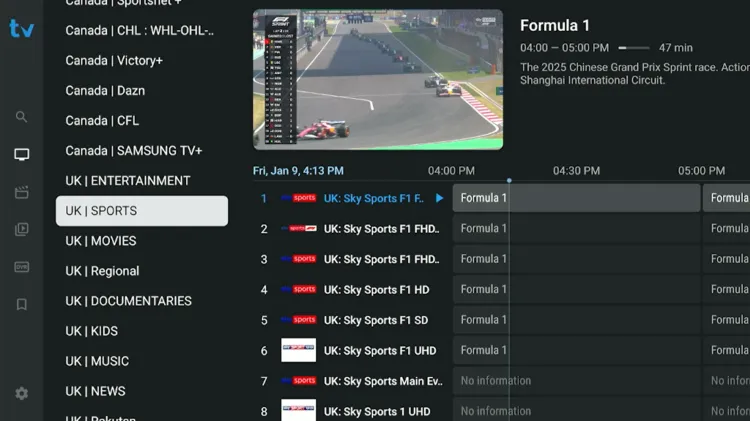
XCodes TV is a decent choice for sports enthusiasts, offering a variety of live sports to satisfy different types of fans. It consists of sports coverage of soccer, football, baseball, racing, etc, mostly in English and Arabic.
Their channel lineup features some of the top sports broadcasters in the world, such as Bein Sports, Sky Sports, ESPN, etc.
3. VOD
How much does XCodes IPTV cost?
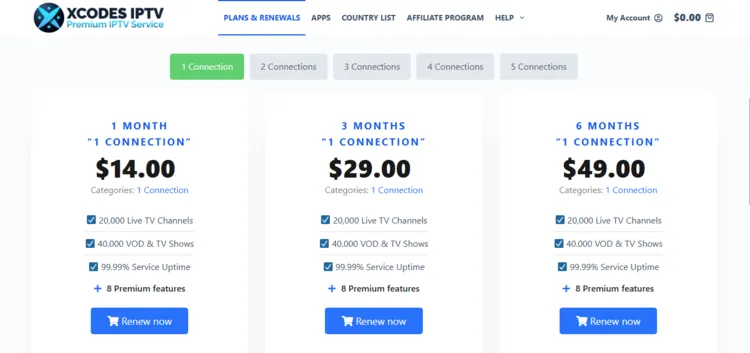
XCodes IPTV features 5 subscription plans, offering up to 5 connections. Each subscription includes total access to live TV, VOD content, and PPV Events.
The service includes a 24-hour free trial. Payments are handled through Credit Card/Debit Card and Cryptocurrency.
Here are the pricing plans:
Is XCodes IPTV Legal and Safe to use?
XCodes IPTV is an unverified IPTV service. Governments are cracking down on unregulated streams in several countries, so it’s important to approach the service with caution.
For a safer and more secure streaming experience, it is advised to use a premium VPN such as Surfshark. A VPN masks the IP address, prevents online tracking, and ISP throttling from third parties.
How is XCodes IPTV’s Customer Support?