


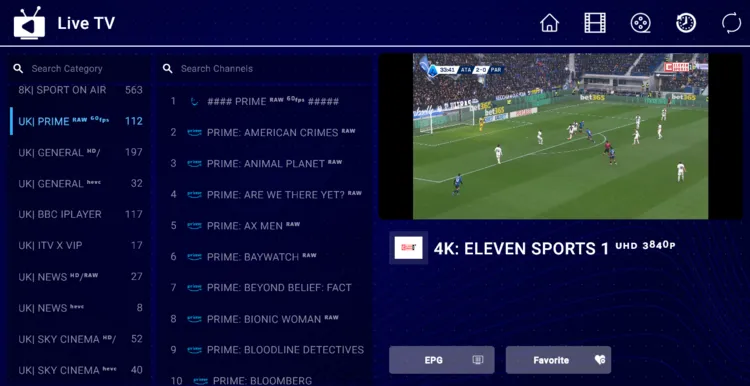
Most people think IPTV is limited to Fire TV and Android TVs. But using a Windows PC/laptop is another way to stream.
I’ll show you how to stream IPTV on your Windows laptop/PC without slow Android emulators like BlueStacks. I’ll break it down step by step for setting up two popular IPTV Players for a Windows Laptop.
But before that, you’ll need a subscription to an IPTV service to get the content. But, in case you don’t have a subscription, you can also check out the link to free M3U Links in the blog.
Also, since you’re probably using a Wi-Fi network, your IP address is exposed to both your ISP and network admins. A verified IPTV VPN will keep things private and secure.
Recommended VPN for IPTV - Surfshark
Using IPTV without a VPN can put you at Big Risk! Your ISP, government and even IPTV providers can monitor your activity, throttle your speed, or block access altogether.
Plus, without encryption, your data is exposed to hackers and third parties. Take back your privacy with Surfshark!
Features:
✅ SAVE 87% + GET 3 EXTRA MONTHS FREE! ($0.06/day)
✅ Kill Switch Feature to protect you if VPN drops
✅ Lightweight app ensuring smooth performance on All IPTV Boxes
✅ Unlimited simultaneous connections (install on all household devices)
✅ 30-day risk-free money-back guarantee
✅ Strict no-logs policy, Secure & Untraceable
1. How to Watch IPTV on a Laptop with IPTV Stream Player
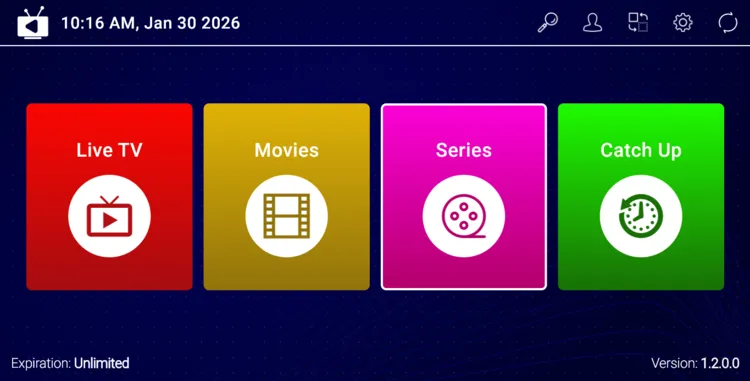
IPTV Stream Player is a simple IPTV player that supports M3U playlists. It allows you to stream content on your PC. It is a freemium player that offers a 7-day free trial.
Here is how you can install and stream IPTV on your Laptop with IPTV Stream Player:
Step 1: Open your web browser and go to the official IPTV Stream Player page, and click on Download.
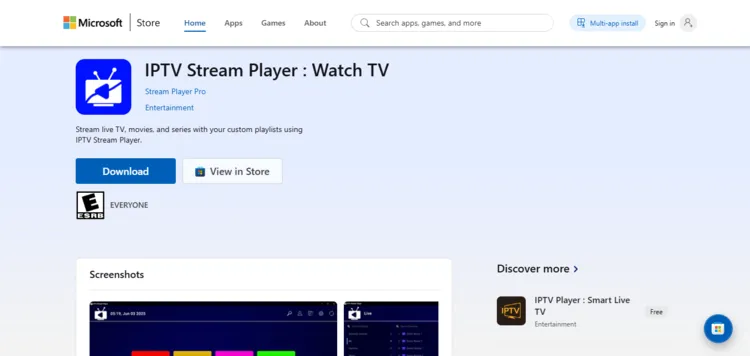
Step 2: Your installer will be saved in Downloads folder. Click on the file.
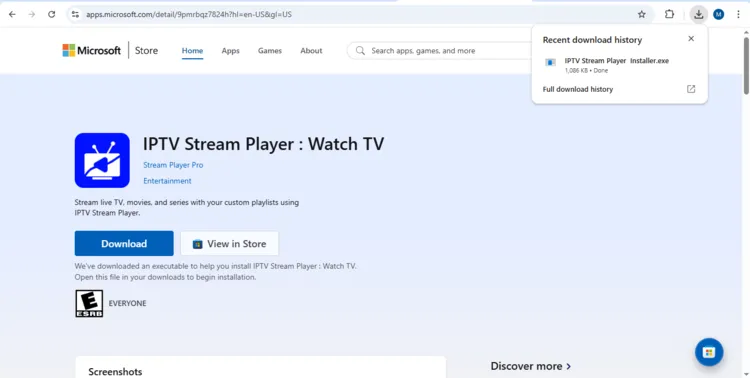
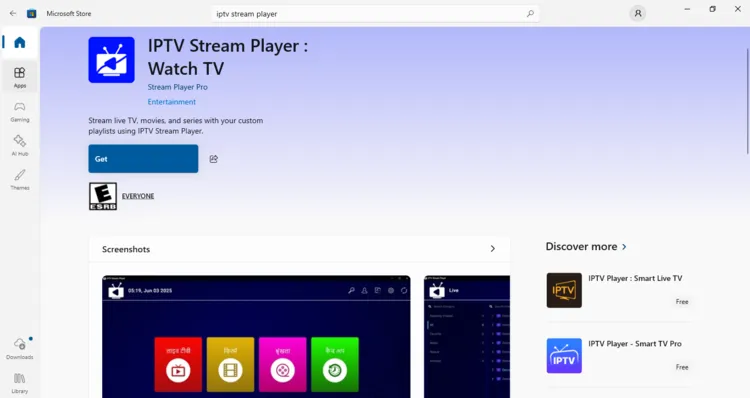
Step 3: This will redirect you to the Microsoft Store. Click on Get to download.
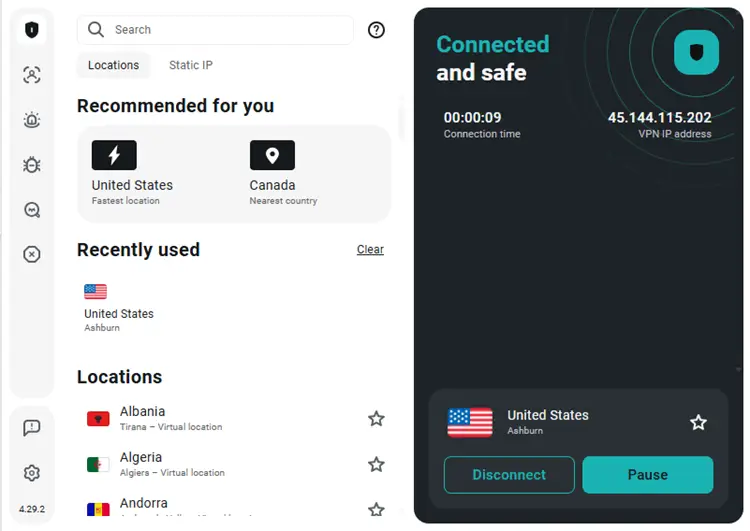
Step 4: After installation, click on Surfshark and select any server.
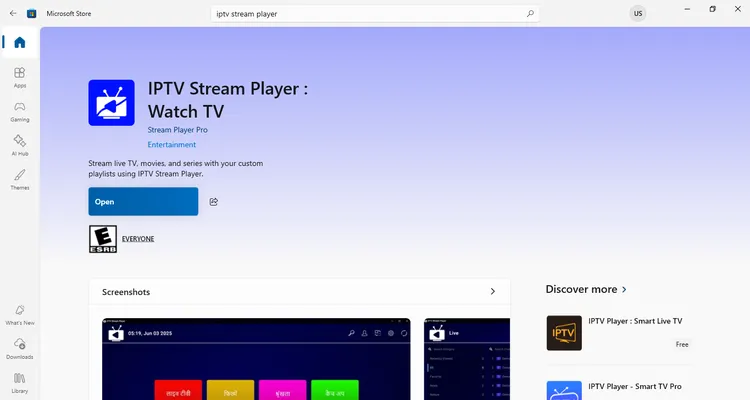
Step 5: Click Open to launch IPTV Stream Player app.
Step 6: Click on the Continue button.
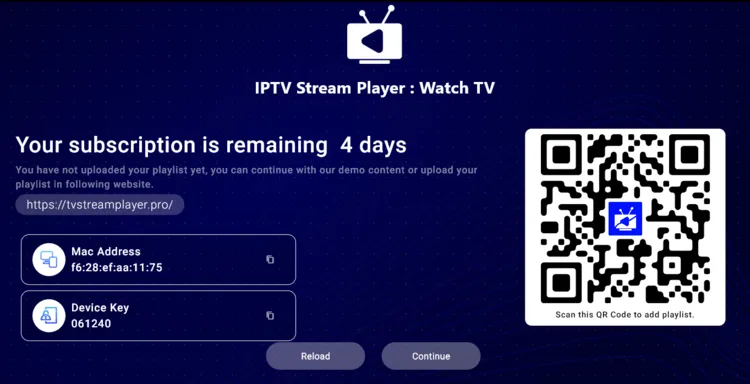
Step 7: Click on the Settings button in the top bar.
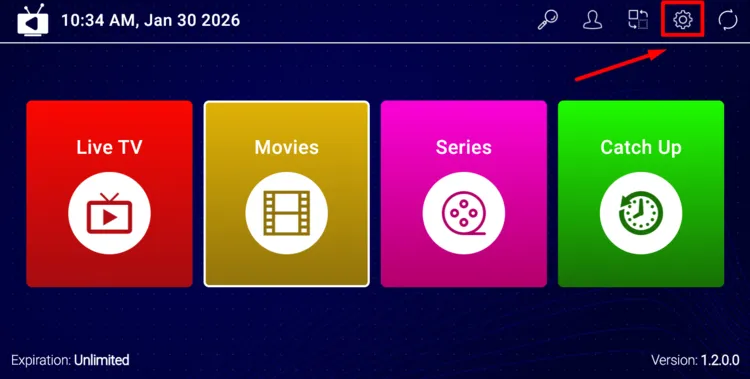
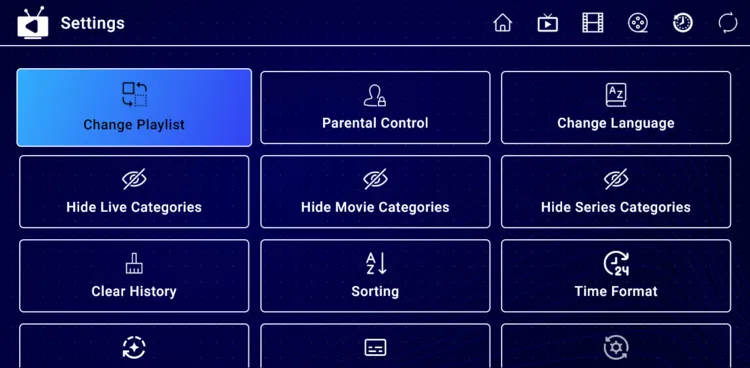
Step 8: Choose Change Playlist.
Step 9: Click on Add Playlist.
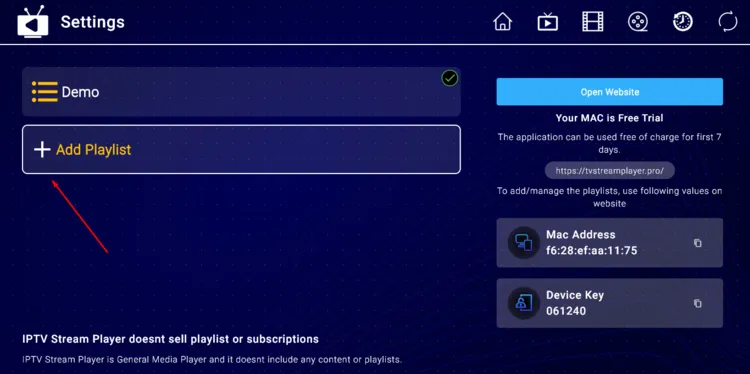
Step 10: Enter your M3U URL provided by the service provider. If you don’t have an M3U URL, you can try out some free M3U links.

Step 11: Once the playlist is added, you can browse live TV and VOD content and start streaming directly.
2. How to Watch IPTV on Windows Laptop with IPTV Smarters Pro
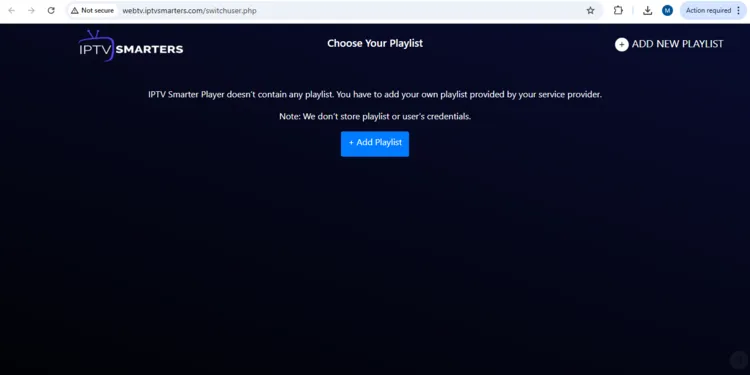
IPTV Smarters Pro is a fantastic IPTV player that has advanced features such as multiple playlists, EPG (Electronic Program Guide) support, Catch-Up TV, subtitles, etc. This player works best on Android. It doesn’t have a Windows application. Instead, it has a web page.
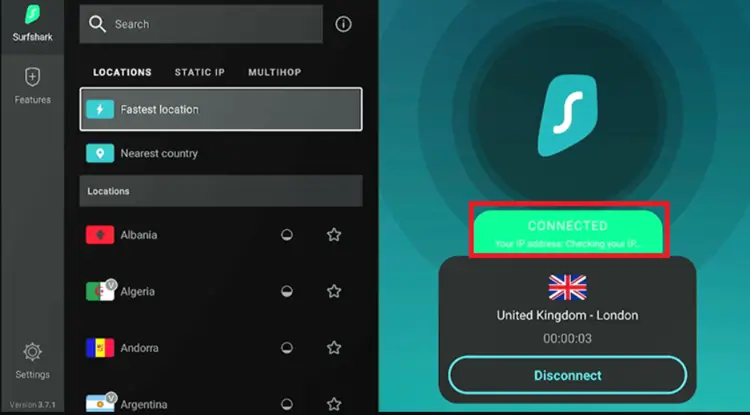
Step 1: First, open Surfshark and select any server.
Step 2: Then, go to the IPTV Smarters Pro Web page.
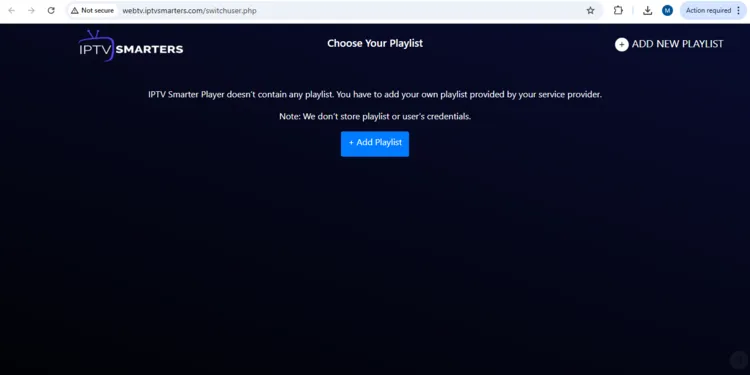
Step 3: Click on Add Playlist.
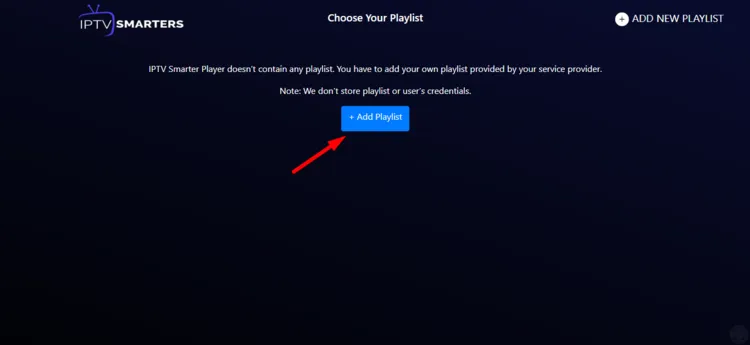
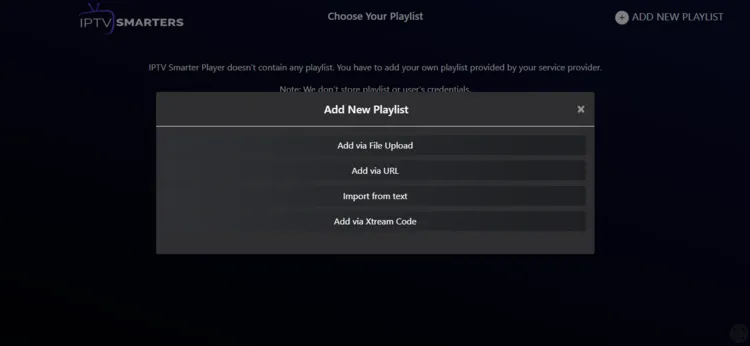
Step 4: A pop-up window will appear on the screen. Click on Add via URL or Add via Xtream Code.
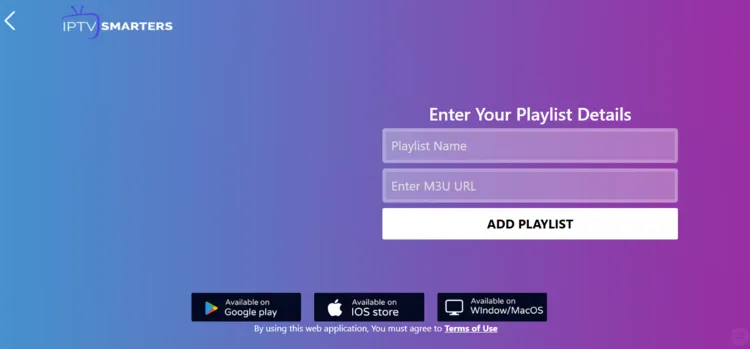
Step 5: After clicking on Add via URL, enter M3U URL provided by the service provider.
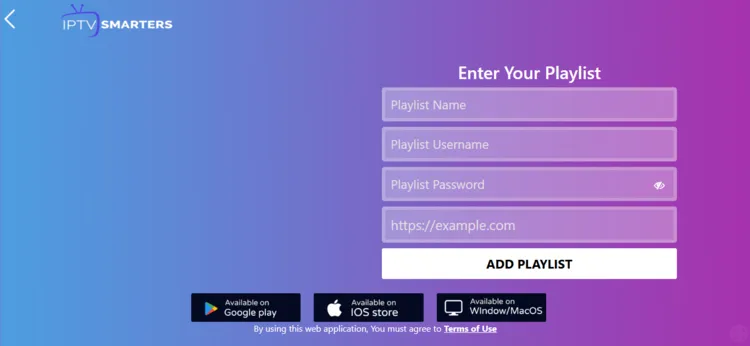
Step 6: Or click on Add via Xtream Code and enter Playlist Name, Playlist Username, Playlist Password, and the server address provided by the service provider.
Step 7: You can now browse VOD content and live TV channels.
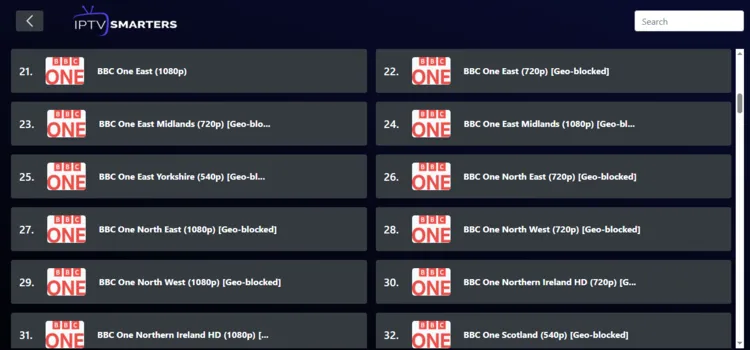
Step 8: Enjoy Streaming!

Pros and Cons of Watching IPTV on Windows?
| Pros | Cons |
|---|---|
| PC's are faster than smartphones | Not Portable: Windows devices are less portable compared to smartphones/tablets/smart TV. |
| Easy to record shows directly to your Hard Drive without the need for external USBs. | Compatibility: Most IPTV players are not compatible with Windows |
| Multitasking: Watch IPTV while working on other tasks. | |
| Easy to navigate due to large screen |
FAQ’s
1. What internet speed is required?
A stable internet connection is required, with a minimum of 10 Mbps for smooth streaming.
2. Can I use same IPTV subscription on my Fire TV Stick and PC simultaneously?
This depends on your subscription plan. Most basic plans allow only one connection at a time. If you attempt to stream on two devices at the same time, the other might not work. Check if your provider offers a ‘Multiple Connections’ option.
Final Verdict
Streaming IPTV on a Windows PC/laptop is a great option for those who prefer multitasking and faster channel change than other IPTV devices.
No matter what device you opt for, always keep Surfshark running in the background to keep your desktop private and buffer-free. It is an effective way to prevent ISP throttling, safeguard privacy, and secure your internet connection on Wi-Fi networks.

