

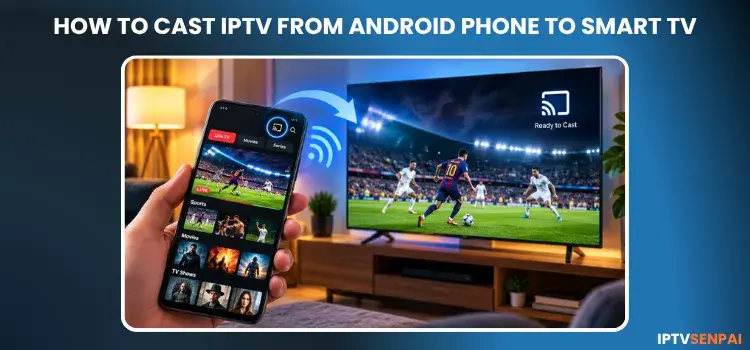
Want to watch IPTV on a bigger screen without installing an IPTV player on your TV? Screen mirroring lets you cast IPTV from your Android phone to a smart TV. This lets you enjoy live TV, sports, movies, and TV shows directly on your television.
In this guide, I will explain how to cast IPTV to a smart TV from Android devices, what you need to get started, and how to fix common casting problems.
A verified VPN such as Surfshark enhances your privacy by encrypting internet traffic and hiding your IP address. This protects your privacy and prevents ISP throttling while streaming.
Recommended VPN for IPTV - Surfshark
Using IPTV without a VPN can put you at Big Risk! Your ISP, government and even IPTV providers can monitor your activity, throttle your speed, or block access altogether.
Plus, without encryption, your data is exposed to hackers and third parties. Take back your privacy with Surfshark!
Features:
✅ SAVE 87% + GET 3 EXTRA MONTHS FREE! ($0.06/day)
✅ Kill Switch Feature to protect you if VPN drops
✅ Lightweight app ensuring smooth performance on All IPTV Boxes
✅ Unlimited simultaneous connections (install on all household devices)
✅ 30-day risk-free money-back guarantee
✅ Strict no-logs policy, Secure & Untraceable
What Do You Need to Cast IPTV to a Smart TV?
First, check whether your TV supports Google Cast or screen mirroring. You’ll also need an IPTV player with a working playlist or subscription.
Here are the basic requirements:
- Smart TV: Google TV, Android TV.
- Casting Device: Android phone, Smart TV, Amazon FireStick.
- Internet Connection: A stable connection for streaming IPTV, with both devices on the same Wi-Fi network.
- IPTV Player: A compatible IPTV app with an active IPTV subscription.
📲 How to Cast IPTV from an Android Phone to a Android TV/FireStick?
You can watch IPTV channels, movies, and TV shows on your Smart TV by casting content from your Android phone using the built-in screen mirroring feature.
In this guide, I’ll show you how to cast IPTV from your Android phone to a Smart TV, both directly and using a FireStick.
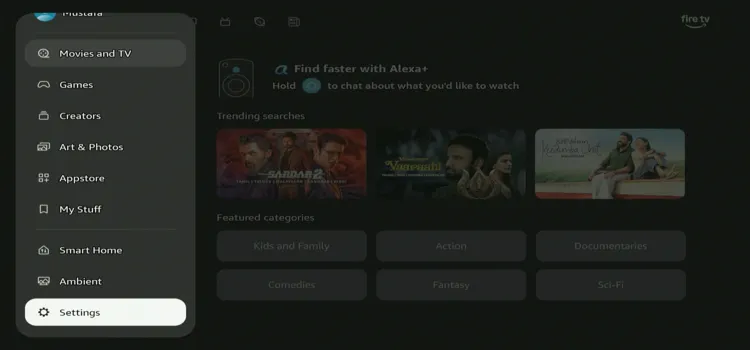
Step 1: Press the Home button on your FireStick remote and click Menu.
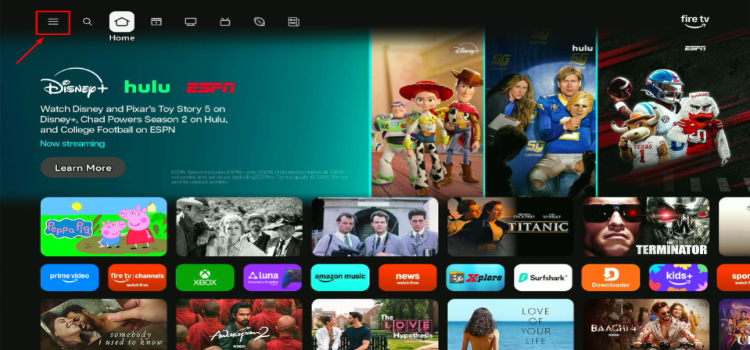
Step 2: Click Settings.
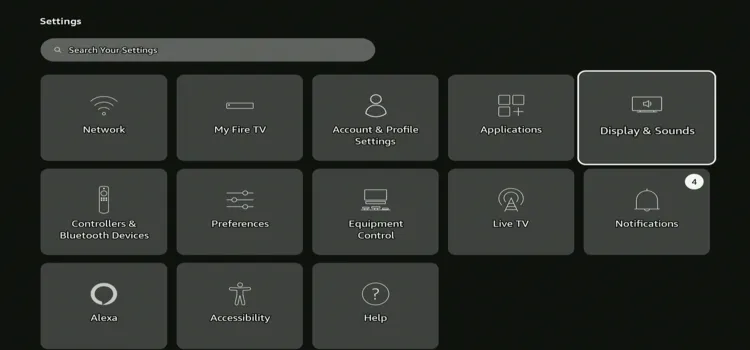
Step 3: Click on Display & Sounds.
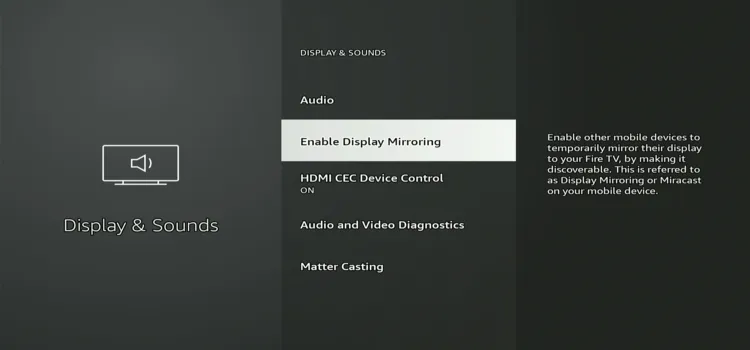
Step 4: Click ‘Enable Display Mirroring’.
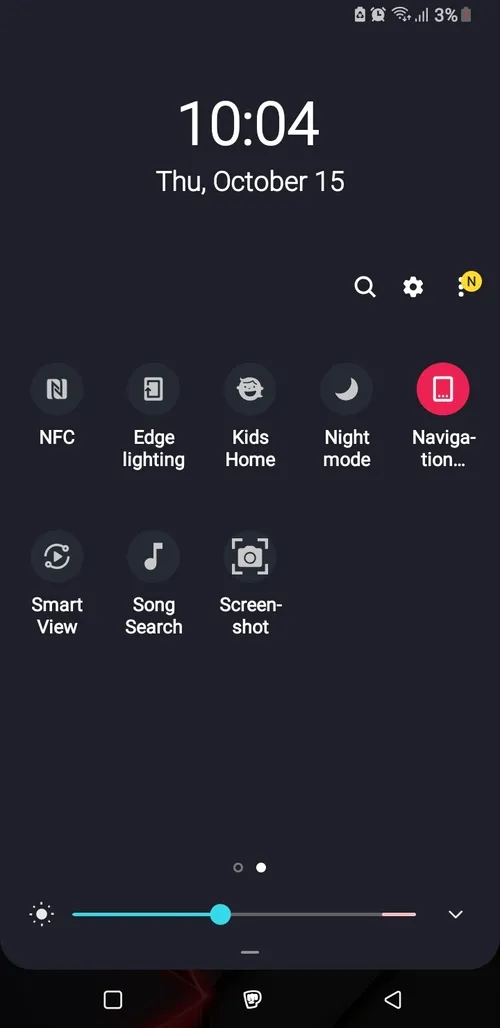
Step 5: Swipe down the notification panel and tap Smart View. If you can’t find it, look for the Screen Mirroring option in your phone’s settings.
Step 6: Click on your available device.
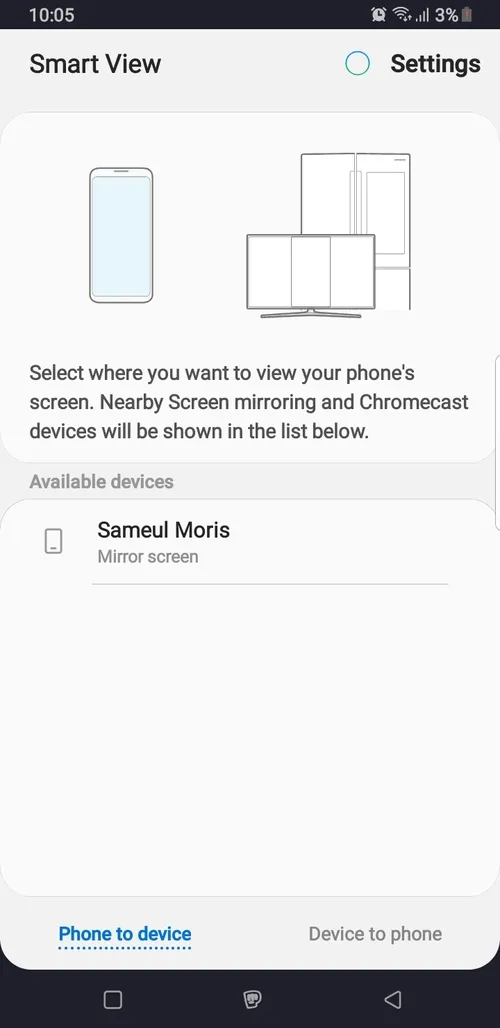
Step 7: Your IPTV has been cast successfully to your smart TV!
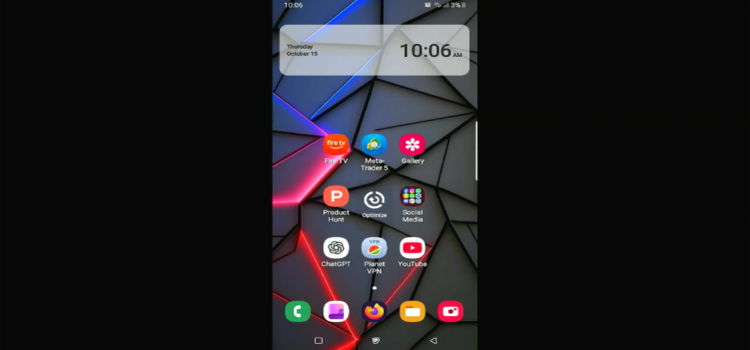
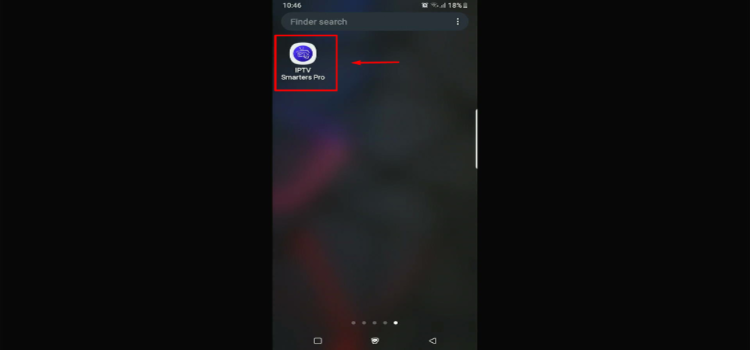
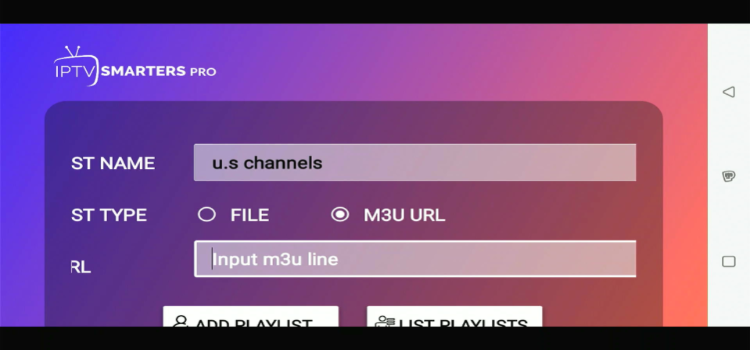
Step 8: Launch IPTV Player on your phone. I use IPTV Smarters Pro.
Step 9: Click M3U Playlist.
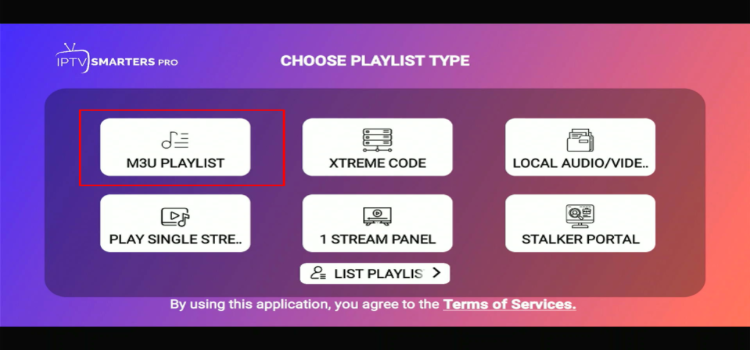
Step 10: Enter the M3U URL.
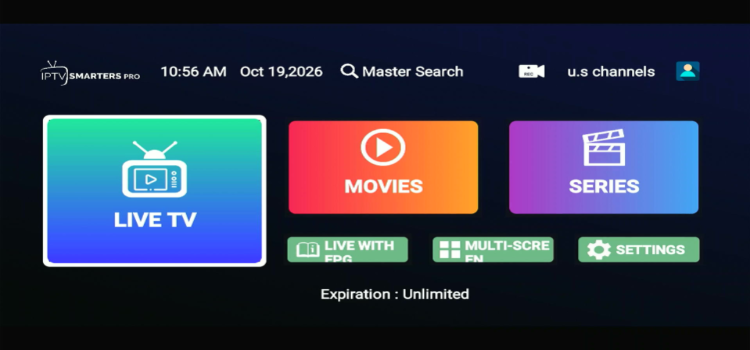
Step 10: Click on Live TV.
Step 11: Select a desired channel of your choice.
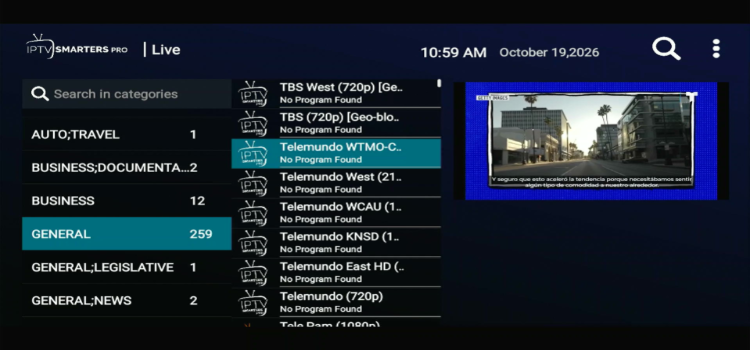
Step 12: Enjoy Streaming!

How to Cast IPTV from an Android Phone to Google TV/Smart TV
Step 1: Make sure your smartphone and smart TV are connected to the same Wi-Fi. (If your smartphone is connected to mobile data, screen mirroring may not work).
Step 2: On your Google TV, go to Settings.
Step 3: Click System.
Step 4: Open Cast.
Step 5: Click ‘Always’.
Step 6: On your Android phone, swipe down the notification panel and tap Smart View or Cast.
Step 7: Select Google TV from the list.
Step 8: Your IPTV has been cast successfully to your smart TV!
Step 9: Enjoy Streaming!
🛠️ How to Troubleshoot IPTV Casting Problems?
IPTV casting can sometimes run into issues like buffering, black screens, missing devices, or audio problems. The following troubleshooting tips can help you identify and fix these common problems.
| Casting Problem | Recommended Fix |
|---|---|
| TV not appearing | Connect both devices to the same Wi-Fi network and restart them. |
| Cast icon missing | Check whether your IPTV app supports Google Cast. |
| Black screen | Try another stream or method. Protected content may prevent mirroring. |
| No sound | Check volume and audio output. In Chrome, try casting the browser tab. |
| IPTV buffering | Improve Wi-Fi strength, reduce network congestion, and check your IPTV source. |
| Casting disconnects | Restart your router and devices, then reconnect. |
| VPN blocks casting | Enable local network access or adjust compatible VPN split-tunneling settings. |
🔒 Should You Use a VPN When Casting IPTV?
You don’t need a VPN to cast IPTV, but using one is highly recommended to protect your online privacy and keep your streaming activity private. I recommend Surfshark for strong encryption, privacy features, and device compatibility. It bypasses ISP throttling and regional restrictions.
However, a VPN may interfere with Chromecast. If your TV isn’t detected, enable local network access or configure split tunneling in your VPN settings.
❓ FAQs
1. Why is my IPTV Not Casting to my TV?
Your IPTV app may not support casting, or your phone and TV may be connected to different Wi-Fi networks. Check compatibility and restart both devices.
2. Can I cast IPTV without Chromecast?
Yes, you can cast IPTV without a separate Chromecast device if your Smart TV has built-in Google Cast or supports a compatible screen-mirroring method.
3. Do I need a VPN to cast IPTV?
No, a VPN isn’t required for IPTV casting. However, it can improve your streaming privacy and help access region-restricted content where permitted.
4. Can I cast IPTV without installing an app on my TV?
Yes, you can cast IPTV directly from your Android phone using a cast-enabled IPTV player or Google Home screen mirroring, without installing an IPTV app on your TV.
🎯 Final Thoughts
Casting IPTV from an Android phone to a TV is an easy way to enjoy live sports, movies, and TV shows on a bigger screen. Screen mirroring works with compatible devices, while Google Cast is another option for supported IPTV players.
If you experience buffering, black screens, or connection issues, then check your Wi-Fi connection, IPTV player compatibility, and streaming source. For regular IPTV streaming, installing an IPTV player directly on your Smart TV may provide a smoother and more reliable experience.
A verified VPN like Surfshark can help protect your privacy while casting IPTV by encrypting your internet traffic and masking your IP address. However, it may affect device discovery or streaming performance, so check your VPN settings if casting issues occur.

