

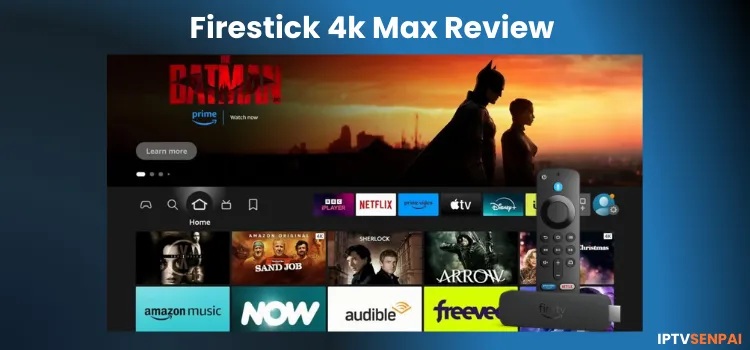
The Fire TV Stick 4K Max remains Amazon’s best-value streaming device at $59.99, offering faster performance, 16GB storage, and Wi-Fi 6E for smooth IPTV streaming. However, Onn Google TV devices have now become the preferred choice for many IPTV users.
Recommended VPN for IPTV - Surfshark
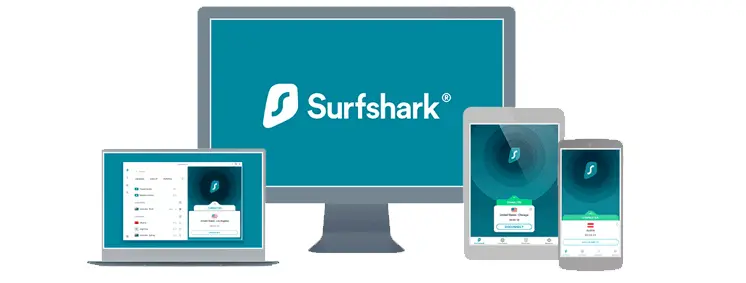
Using IPTV without a VPN can put you at Big Risk! Your ISP, government and even IPTV providers can monitor your activity, throttle your speed, or block access altogether.
Plus, without encryption, your data is exposed to hackers and third parties. Take back your privacy with Surfshark!
Features:
✅ SAVE 87% + GET 3 EXTRA MONTHS FREE! ($0.06/day)
✅ Kill Switch Feature to protect you if VPN drops
✅ Lightweight app ensuring smooth performance on All IPTV Boxes
✅ Unlimited simultaneous connections (install on all household devices)
✅ 30-day risk-free money-back guarantee
✅ Strict no-logs policy, Secure & Untraceable
Optimize Your FireStick for IPTV [Full Video Tutorial]
FireStick 4K Max Specs
- Supports 4K Ultra HD, Dolby Vision, HDR10+, and Dolby Atmos for stunning visuals and audio.
- Bluetooth 5.2 + BLE
- 2.0 GHz quad-core processor.
- Includes Wi-Fi 6E (Wi-Fi 6E router needed).
- Voice support via Alexa Voice Remot
- Free Fire TV Mobile app on Android and iOS.
- 16GB storage.
What’s in the FireStick 4K Max Box?
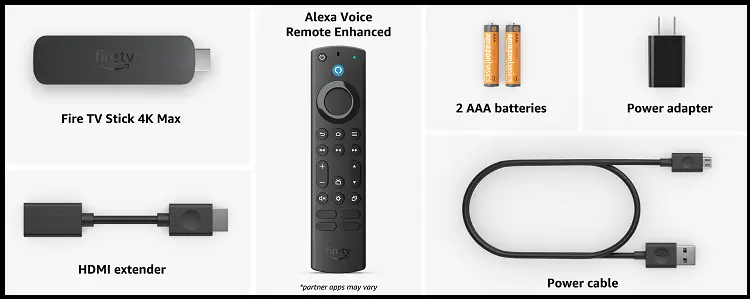
- Fire TV Stick 4K Max
- Alexa Voice Remote Enhanced with 4 dedicated App buttons (Partner apps may vary)
- USB cable and power adapter
- HDMI extender cable
- 2 AAA batteries
- Quick Start Guide
Fire TV Stick 4K Max Pros and Cons for IPTV
Here’s a quick rundown of the pros and cons of the FireStick 4K Max to help you find out if it’s the ideal device to get the best IPTV streaming experience.
| Pros | Cons |
|---|---|
| 16GB Storage | Micro-USB power port |
| Access to thousands of streaming apps | Amazon-centric home screen |
| Mobile app support | Ads and sponsored content |
| Wi-Fi 6E connectivity | Wi-Fi 6E router required |
| Access to thousands of streaming apps | No built-in Ethernet port |
| Supports APK sideloading | Some apps may have compatibility issues |
| Compact plug-and-play design | USB expansion requires OTG adapter |
| USB storage expansion support | Some apps getting blocked |
| Quad-core processor and 2GB RAM |
Buy the New Fire TV Stick 4K Max!
What Do You Need for IPTV Streaming on Fire TV Stick 4K Max?
Here’s everything you’ll need to set up and enjoy IPTV streaming on your Fire TV Stick 4K Max:
- Fire TV Stick 4K Max (with all the accessories and remote)
- TV with HDMI Slot
- Amazon Account
- IPTV Player App
- IPTV Subscription (Z2U, Alibaba, Made in China)
- Internet Connection
- VPN (Surfshark VPN)
How to Stream IPTV on Fire TV Stick 4K Max
Streaming IPTV on the Fire TV Stick 4K Max gives you access to live TV, movies, and sports. Follow these steps to set up and start watching IPTV on your Fire TV Stick.
1. Set up Your Fire TV Stick 4K Max
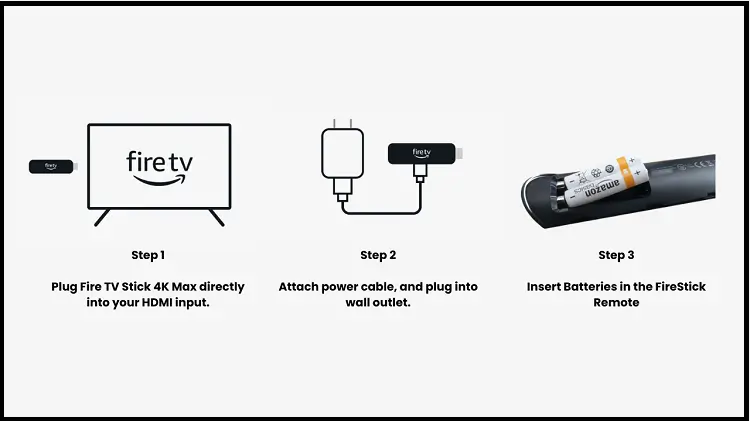
Step 1: Plug the Fire TV Stick 4K Max into your TV’s HDMI port.
Step 2: Connect it to a power outlet with the help of a power cable and adaptor.
Step 3: Insert the batteries into the remote
2. Set up Your Amazon Account on Your Fire TV Stick.
Step 1: Once plugged in, press the source button on your TV and select the HDMI input where your FireStick is connected.
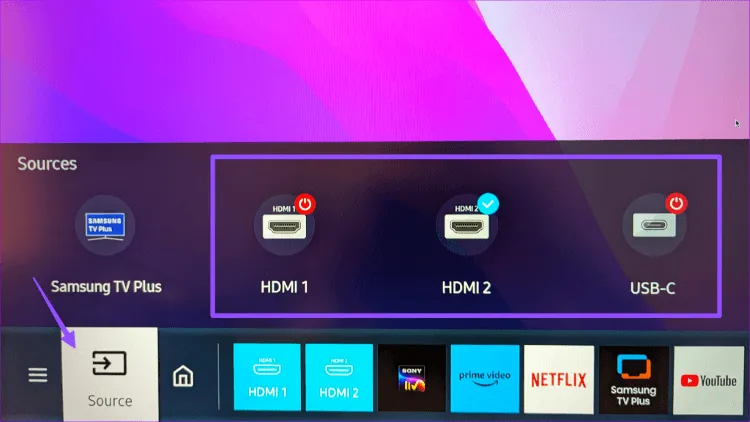
Step 2: The Amazon logo will appear on the screen. Once it disappears, press the Home button on your FireStick remote.
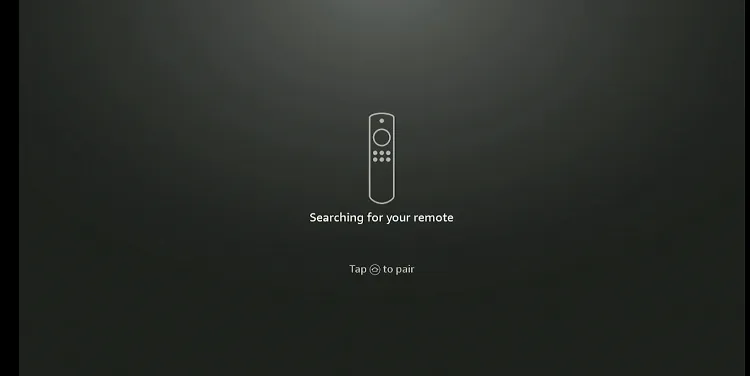
Step 3: Press the Play/Pause button to proceed.
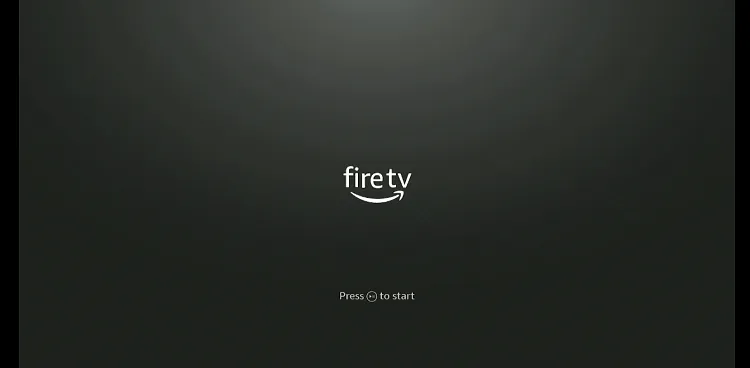
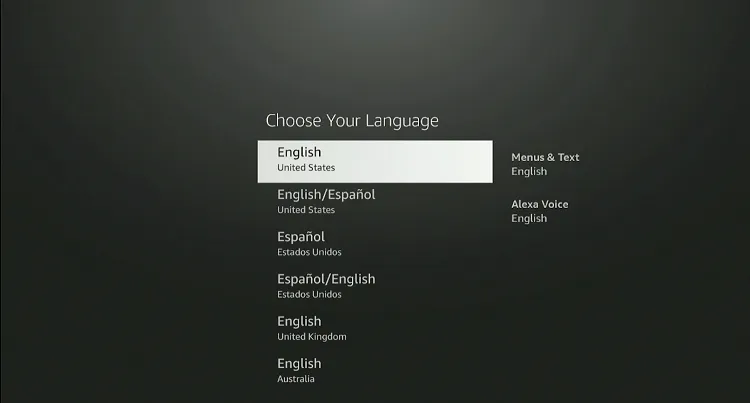
Step 4: Select your preferred language from the list of options.
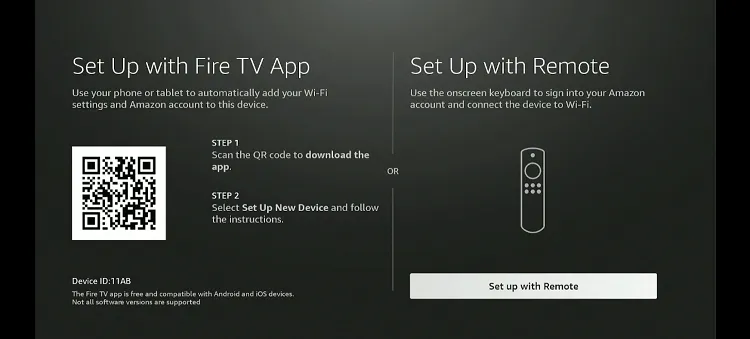
Step 5: Click on Set up with Remote to continue.
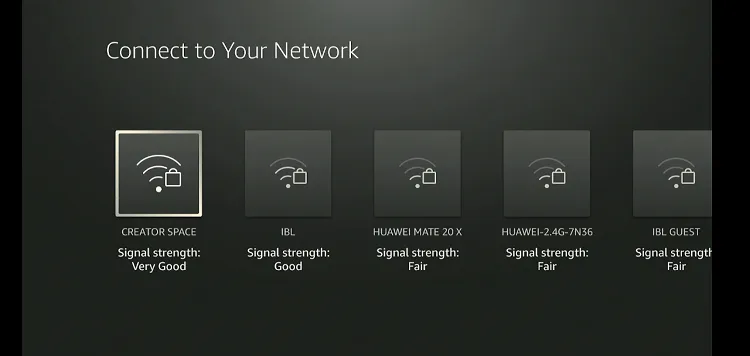
Step 6: Choose your Wi-Fi connection from the list.
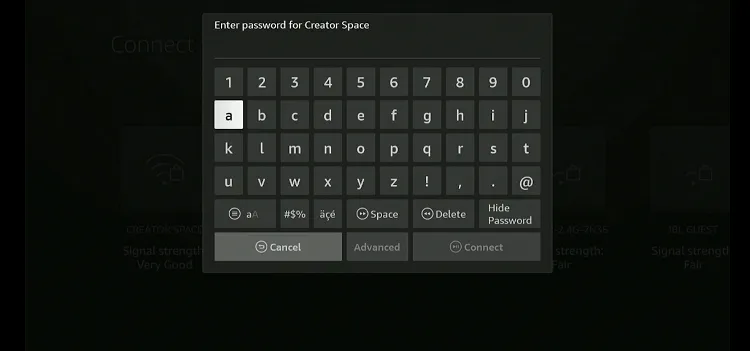
Step 7: Enter the password for your Wi-Fi network.
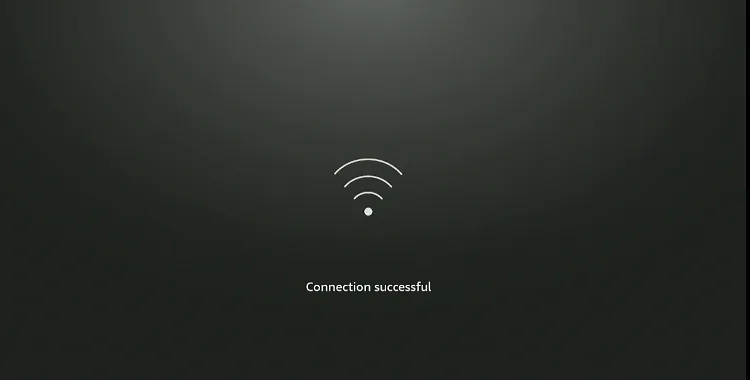
Step 8: Wait for the FireStick to connect to the internet.
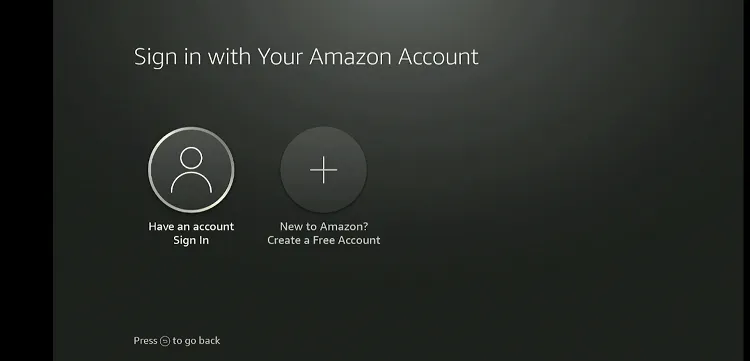
Step 9: If you have an Amazon account, click on Have an Account? Sign In.
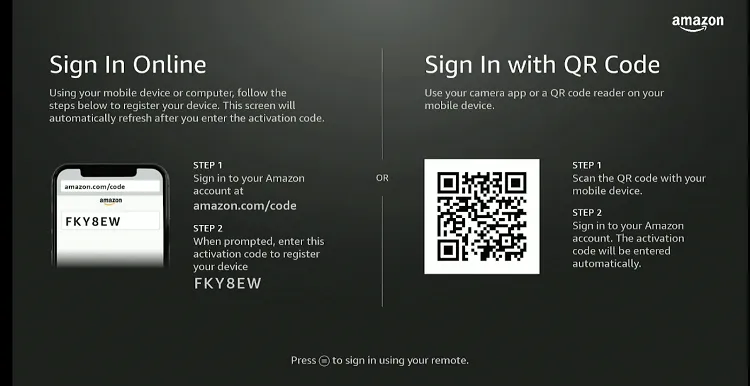
Step 10: Press the Menu button on your FireStick remote.
Step 11: Enter your Amazon account email ID and press Next.
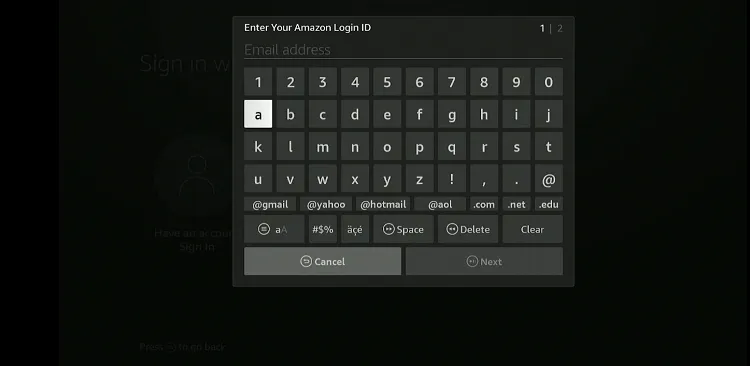
Step 12: Enter your password and press Next to sign in.
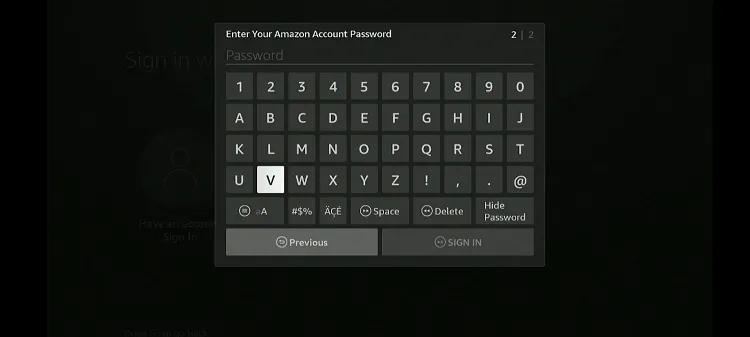
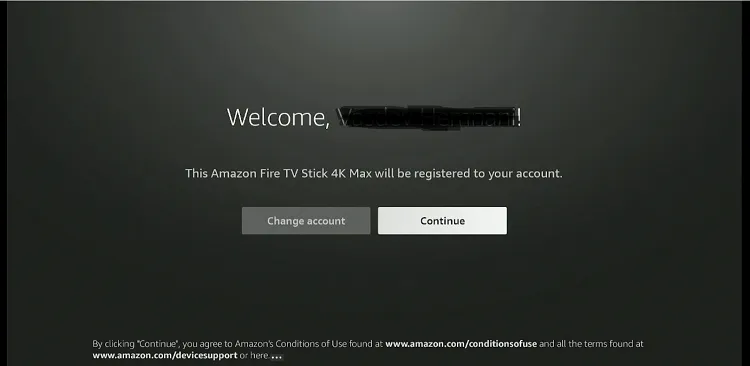
Step 13: Select Continue to proceed.
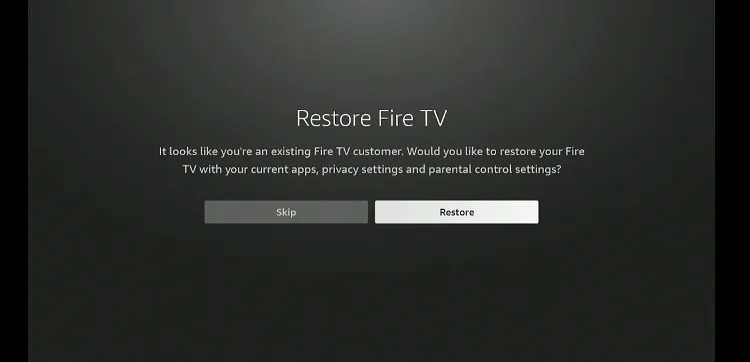
Step 14: Skip the optional setup by selecting Skip.
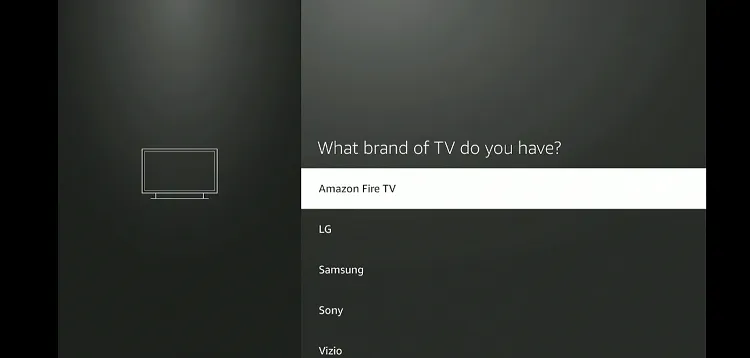
Step 15: Choose Amazon Fire TV from the list of devices
Step 16: Click Next.
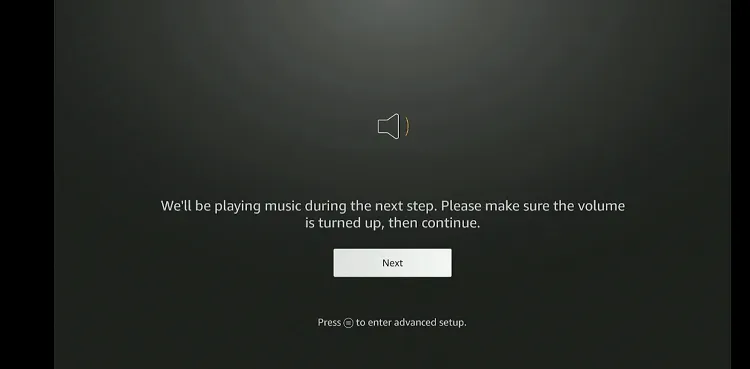
Step 17: Press the ‘Volume keys’ on the FireStick remote.
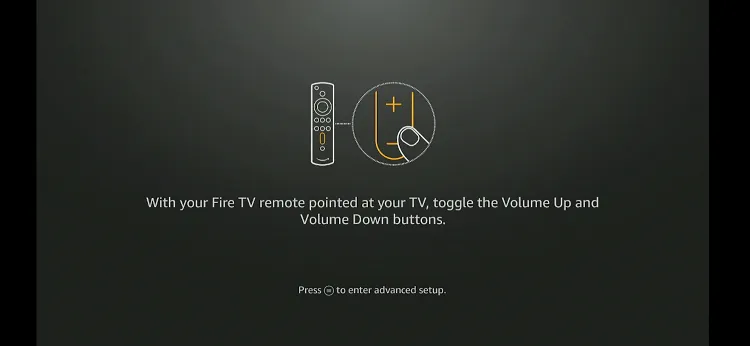
Step 18: Press Yes if you can hear the audio.

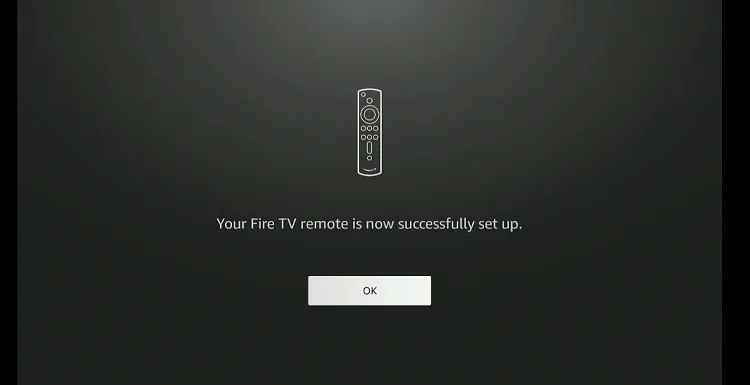
Step 19: Click OK to confirm.
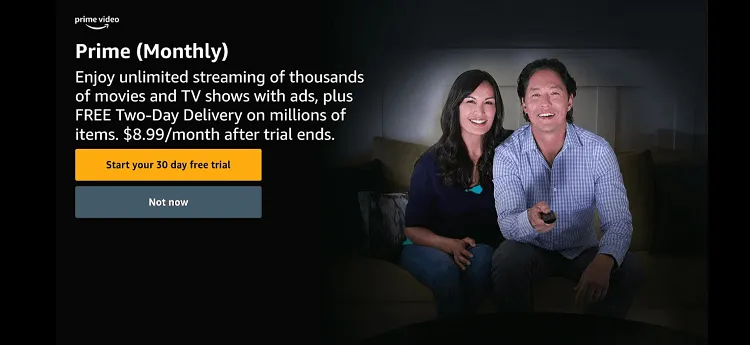
Step 20: Choose Not Now to skip additional offers or promotions.
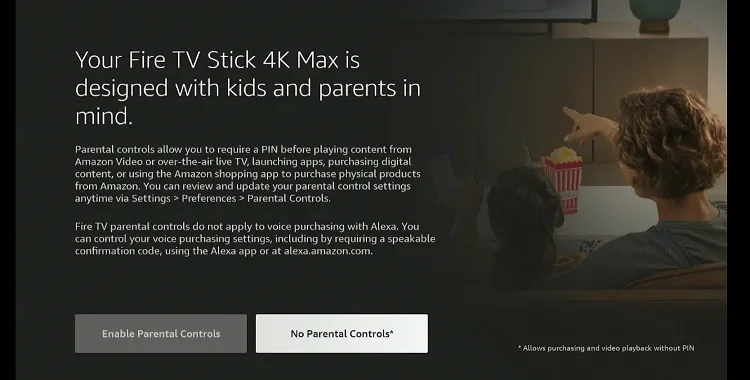
Step 21: If you don’t want Parental Controls, select No Parental Controls.
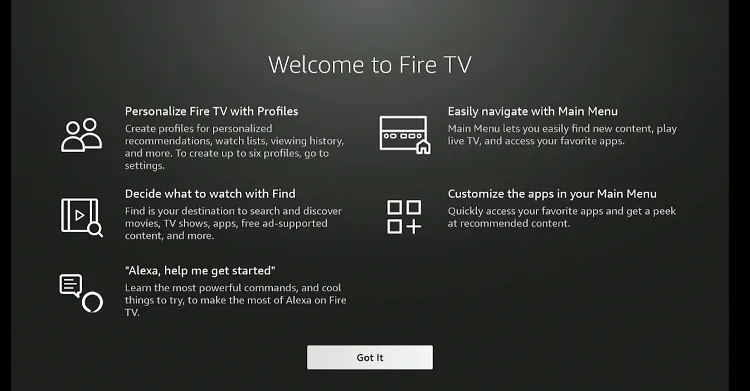
Step 22: Click Got It to finish the setup process.
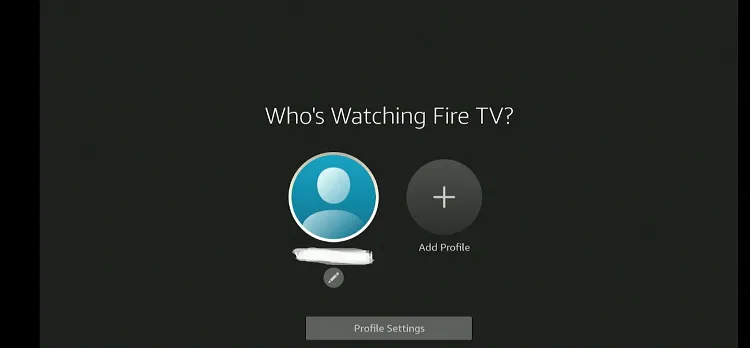
Step 23: Choose the profile.
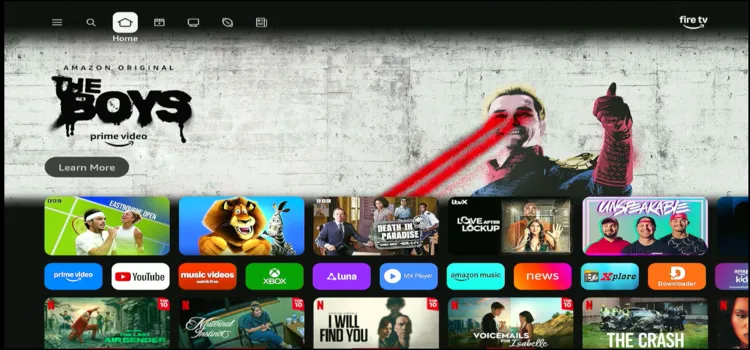
Step 24: Congratulations! Your FireStick setup is complete and ready to use.
3. Jailbreak Your FireStick
Now that your Amazon account is set up on your Fire TV Stick, you can directly install apps available on the Amazon App Store.
However, if the IPTV app you need isn’t available, you’ll have to jailbreak your FireStick to sideload third-party apps. Follow the steps to jailbreak your Stick.
Step 25: Choose the Settings Icon.
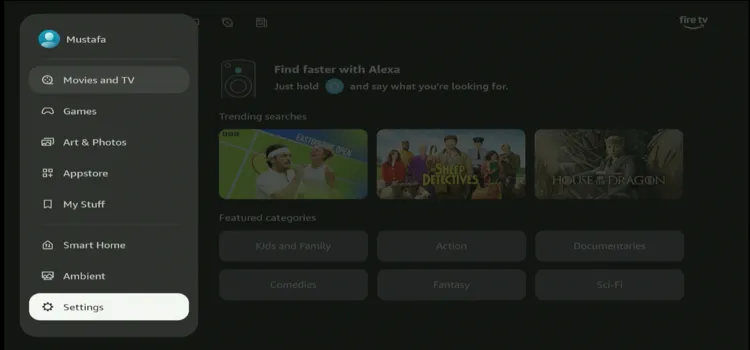
Step 26: Choose My Fire TV.
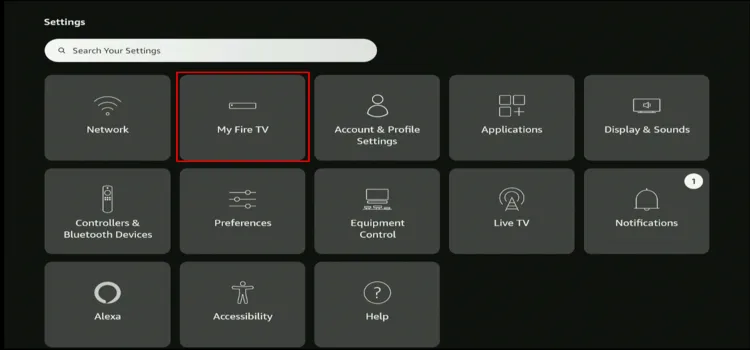
Step 27: Choose About.
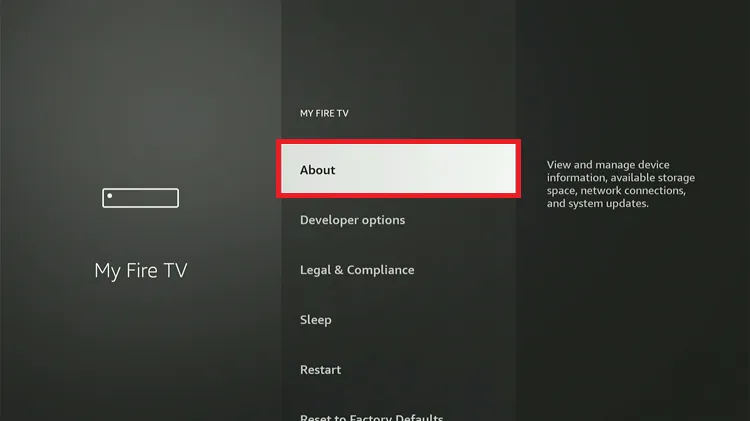
Step 28: Click on the Fire TV Stick option 7 times
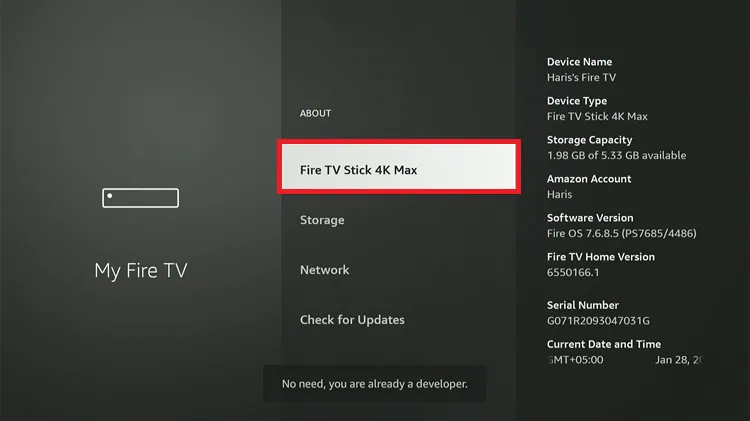
Step 29: Now ‘Developer Options’ will appear in the menu, click on it.
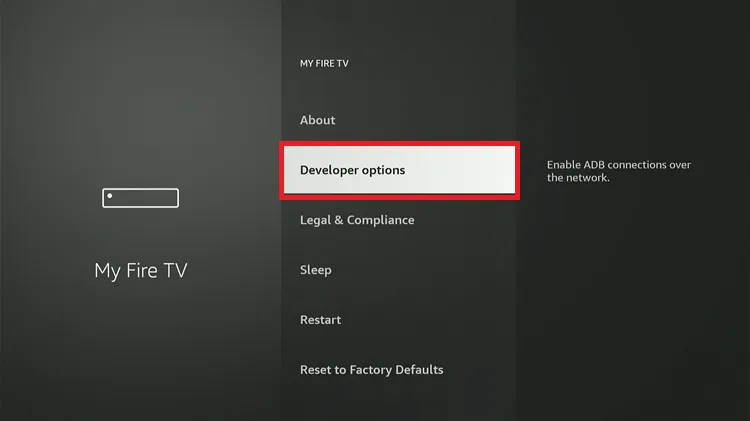
Step 30: Choose Apps from Unknown Sources to turn it ON
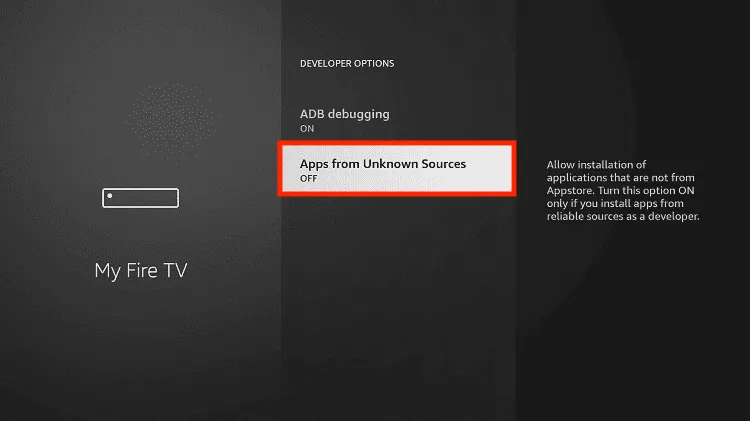
Step 31: Click Turn On
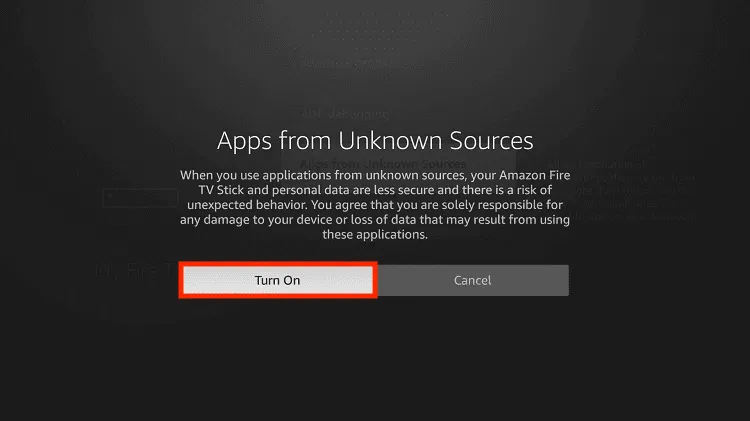
Install the Downloader App to Sideload the Apps.
Step 32: Click on the Find Icon on the Home screen.
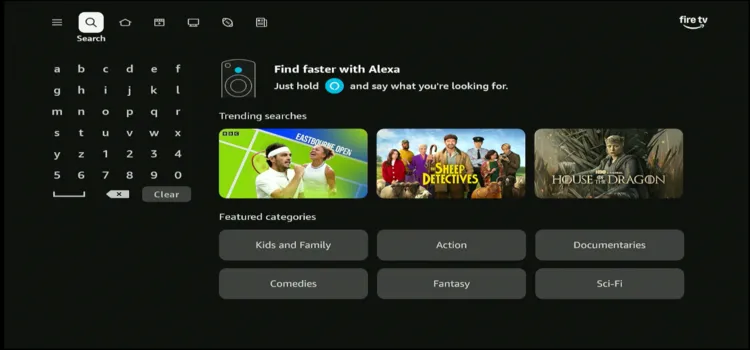
Step 33: Search for the Downloader App.
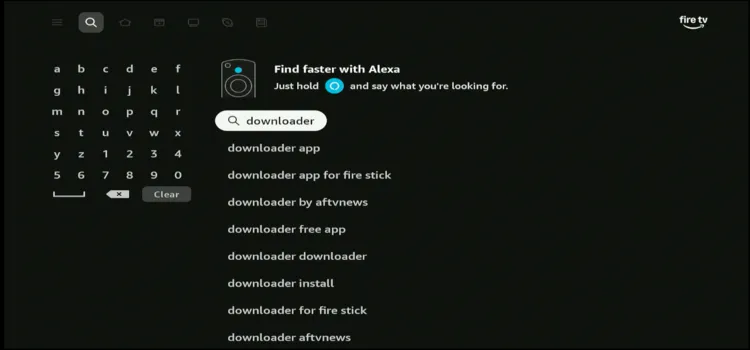
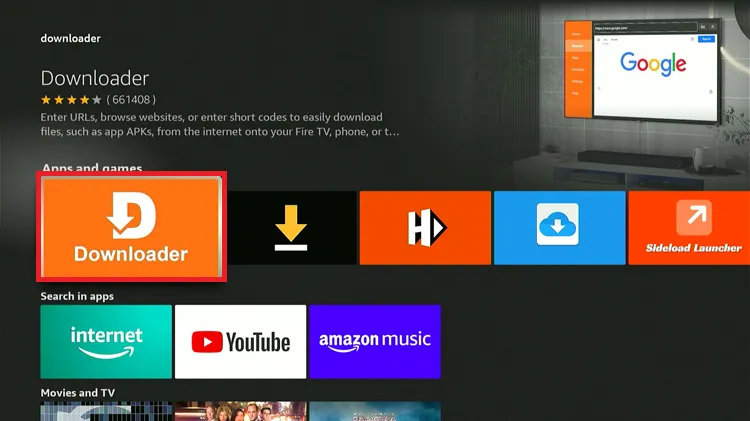
Step 34: Click on the Downloader App.
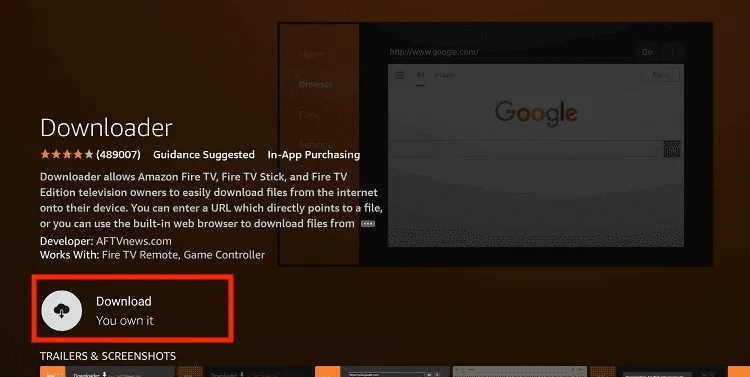
Step 35: Click Download.
Step 36: Click Open.
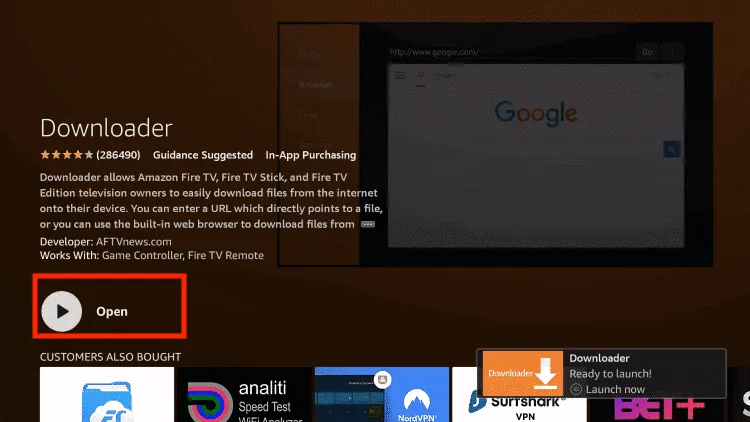
Step 37: You have successfully installed the Downloader App.
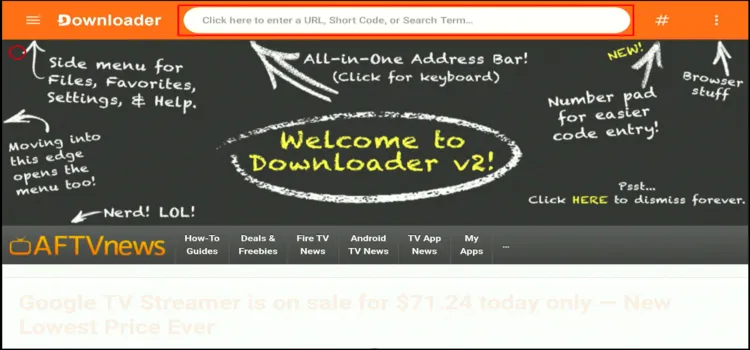
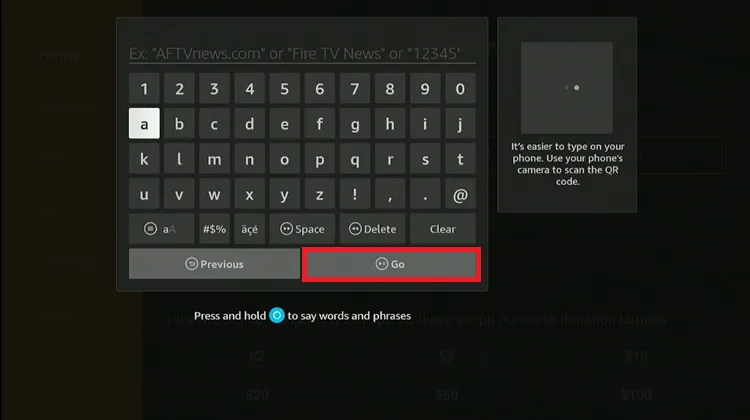
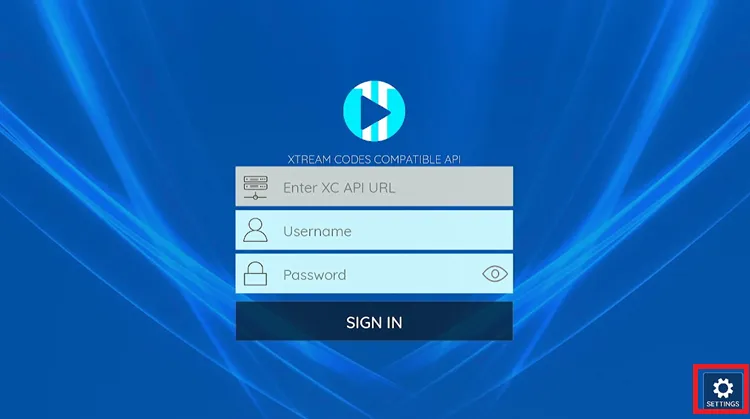
Step 38: Open the Downloader app and enter the XCIPTV Downloader Code 5546232 in the search bar OR enter this URL bit.ly/43pEVWO and click Go..
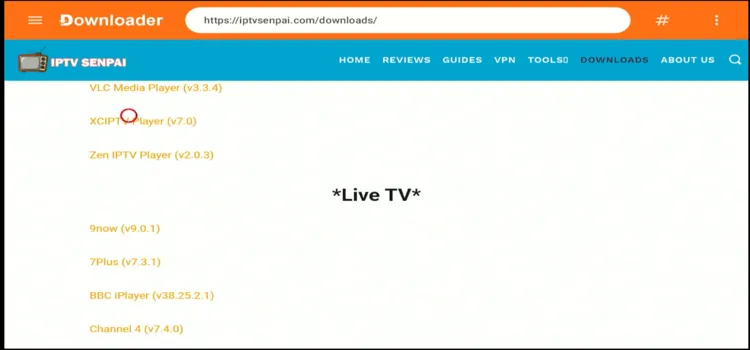
Step 39: Scroll down to the IPTV Players section, find the XCIPTV app, and tap on it to proceed.
[Note: You can find many other IPTV players as well. Click on any and install it on your Fire TV Stick.]
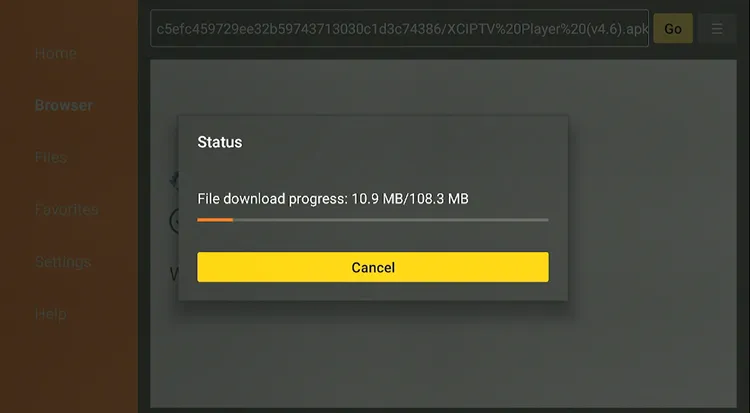
Step 40: Wait for the APK file to download.
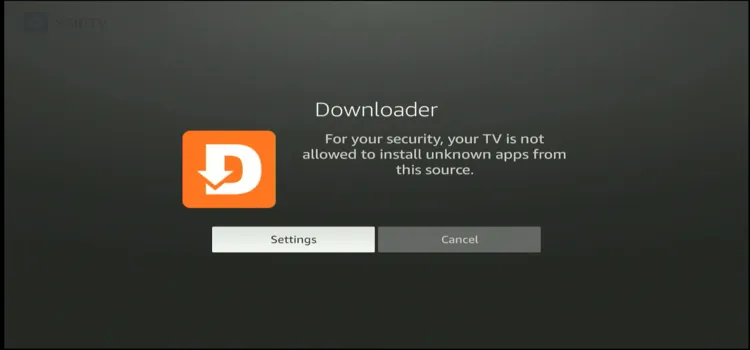
Step 41: Click Settings
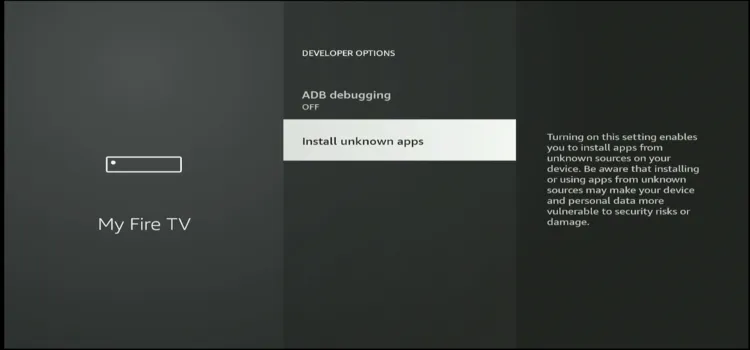
Step 42: Click Install Unknown Apps
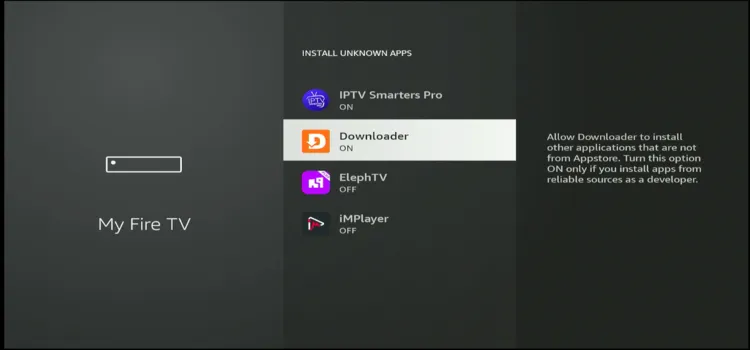
Step 43: Tap Downloader to ‘ON’
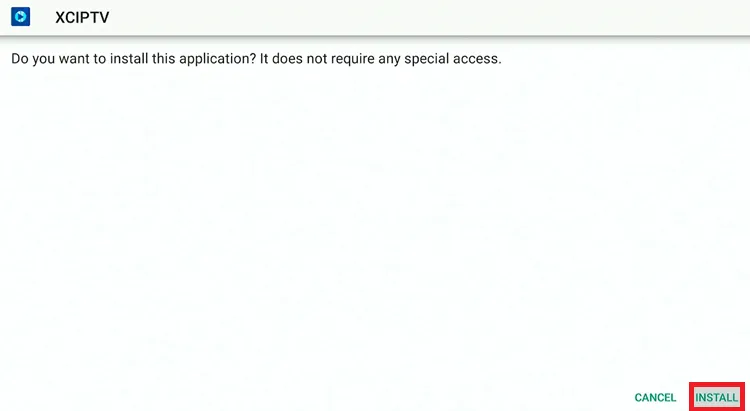
Step 44: Click “Install” on the prompt.
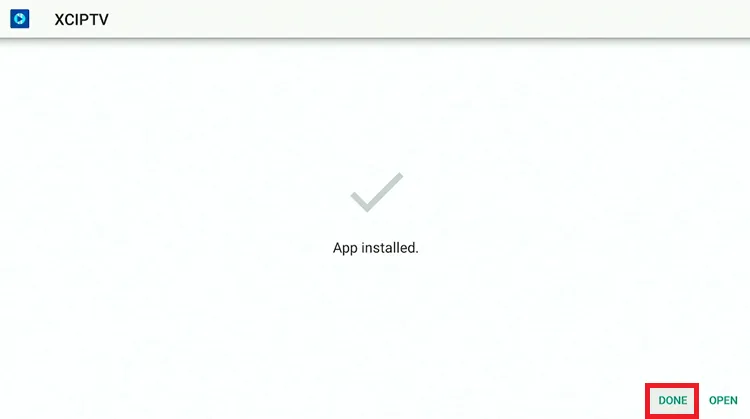
Step 45: Once installation is complete, select “Done”
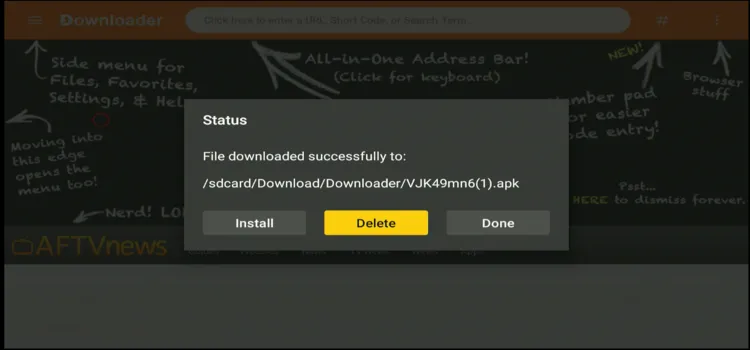
Step 46: Click Delete to delete the installation file to free up storage space.
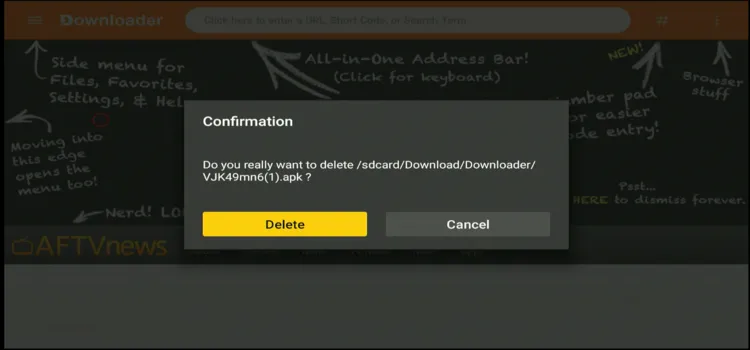
Step 47: Click Delete Again.
Step 48: Long-press the Home Button and scroll Apps.
Step 49: Choose XCIPTV Player.
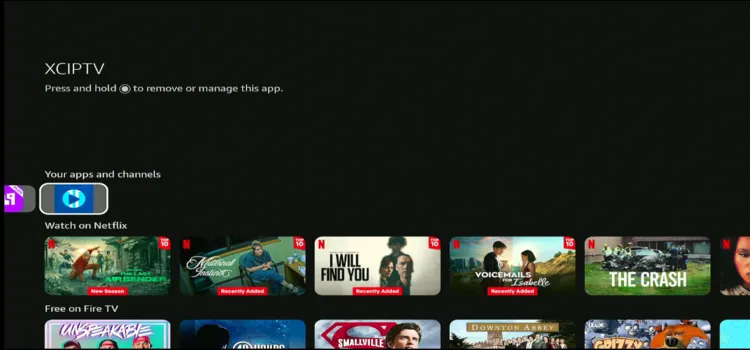
Step 50: XCIPTV Player will be launched.

Step 51: Enter the credentials provided by your IPTV provider and start streaming.
9 Reasons Why FireStick 4K Max is the Best for IPTV Streaming!
If you’re looking for the best streaming device for IPTV, the FireStick 4K Max stands out as the ultimate choice. Here are nine reasons why FireStick 4K Max is the best device for IPTV streaming.
1. Solid 4K Ultra HD Quality!

The FireStick 4K Max delivers stunning 4K Ultra HD resolution with support for Dolby Vision, HDR10+, and HLG. This means IPTV streams look sharper, colors pop, and every detail stands out.
2. Sideloading the Apps
FireStick allows sideloading apps, letting you install IPTV apps that aren’t available on the Amazon App Store, as Amazon has been blocking apps. To do this, you need the Downloader app, which enables the installation of third-party APK files.
3. 16 GB Storage (The Most in All Fire TV Sticks)
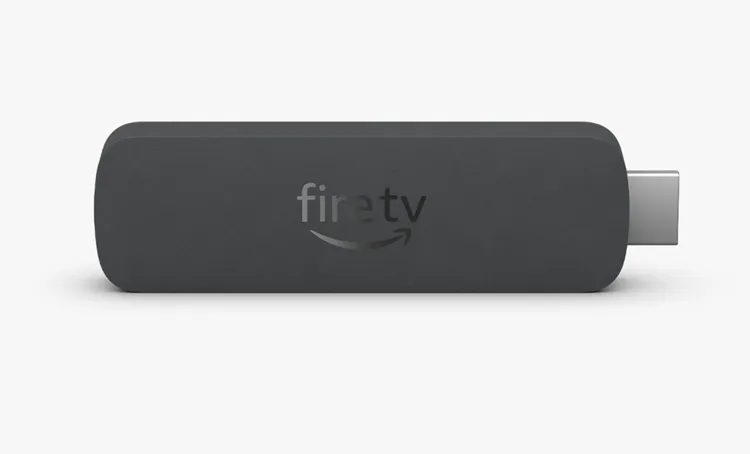
Unlike other Fire TV models that come with only 8 GB of storage, the FireStick 4K Max doubles that to 16 GB.
This extra space is great for IPTV users who install multiple IPTV apps, and EPG guides, and save their downloads.
4. Immersive Audio with Dolby Atmos
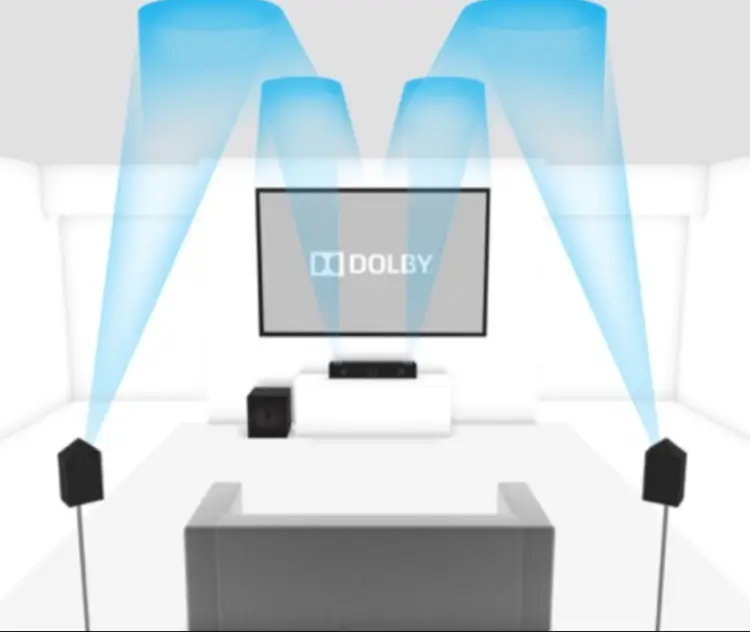
If you use IPTV for live sports, PPV, or movies, the FireStick 4K Max supports Dolby Atmos, Dolby Digital Plus, and 7.1 surround sound.
This enhances audio quality, making your streaming experience cinematic and immersive when paired with a soundbar or home theater system.
5. You Can Use your Mobile as a FireStick Remote.
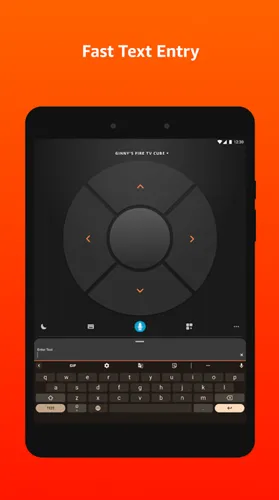
The FireStick 4K Max supports the official Amazon Fire TV Remote App that lets you use your smartphone as a remote, making it easier to search for channels, enter long URLs, and navigate menus quickly.
It’s a real ‘time saver app’ available on the Google Play Store and Apple App Store.
6. Wifi 6E
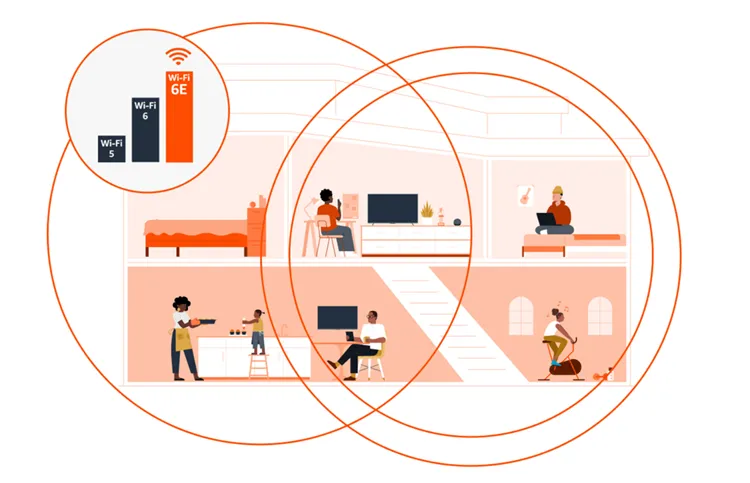
The Fire TV Stick 4K Max (New Version 2023) is the first Fire TV Stick to support Wi-Fi 6E, adding a 6GHz band for faster speeds and lower latency.
This is particularly useful when multiple devices are connected to your home network To fully benefit, you’ll need a Wi-Fi 6E router; otherwise, it defaults to Wi-Fi 6 or 5GHz.
If you stream IPTV in 4K, live sports, or PPV events, and have multiple devices at home upgrading to a Wi-Fi 6E router will provide the best, lag-free experience.
7. Ethernet Adapter

For IPTV enthusiasts seeking a stable connection, the Fire TV Stick 4K Max supports Ethernet adapters.
Connecting an adapter like the Amazon Ethernet Adapter allows you to enjoy a wired connection, reducing buffering during live streams.
8. External Storage

As an IPTV user, I know the struggle of juggling multiple apps for live TV, movies, and EPG data. With the FireStick 4K Max, storage is no longer an issue.
You can easily expand it using a USB OTG cable and an external drive that will let you install more IPTV apps like TiviMate and Smarters Pro. You can even store recordings and extra EPG data without worry.
9. Voice Control with Alexa for Hands-Free Navigation

You can launch IPTV apps, open live TV channels, and search for content using Alexa voice commands. Just press the Alexa button on the FireStick remote and say, “Open TiviMate” or “Launch Hulu”
However, one downside is that it does not work within the sideloaded apps.
How Much Does FireStick 4K Max Cost?
The Amazon Fire TV Stick 4K Max (2nd Gen) is officially priced at:
- $59.99 (USD) regular retail price.
- In the UK/EU, it typically sits around £59.99/€69.99 depending on region.
- During sales (like Prime Day), it often drops to the $35–$45 range.
Buy the New Fire TV Stick 4K Max!
Quick Comparison of Fire TV Devices
Here’s a quick and simple breakdown of Fire TV streaming devices, highlighting the key differences:
All specs verified · Updated June 2026
| Best Value FireStick 4K Max 2023 · $59.99 |
FireStick 4K Select 2024 · $39.99 |
Fire TV Cube 2022 · $139.99 |
|
|---|---|---|---|
| Chip | MediaTek MT8696T2.0 GHz quad-core | MediaTek MT8695Z1.7 GHz quad-core | MediaTek MT86952.2 GHz hexa-core |
| RAM | 2 GB | 2 GB | 2 GB |
| Storage | 16 GB | 8 GB | 16 GB |
| Wi-Fi | Wi-Fi 6E | Wi-Fi 6 | Wi-Fi 6E |
| Ethernet | Adapter onlyMicro USB OTG | No | Built-in1 Gbps |
| Dolby Vision | Yes | Yes | Yes |
| Dolby Atmos | Yes | Yes | Yes |
| OS | Fire OS 8 | Fire OS 8 (Vega) | Fire OS 8 |
| Sideloading | Restricted (Free Apps) | Blocked | Restricted (Free Apps) |
| IPTV Verdict | Best Value Fire TV | Avoid for IPTV | Best Performance |
Do you need a VPN with Fire TV Stick 4K Max?
If you’re streaming through verified services like Netflix, Prime Video, or Hulu and they are available in your region, everything is legal and secure and you don’t need a VPN.
However, if you’re using unofficial IPTV services, then a VPN is recommended. Many IPTV providers operate in a legal gray area, and streaming through them without protection could expose your IP address and browsing activity.
VPNs like Surfshark work great on Fire TV, ensuring smooth, no-buffering streaming and access to geo-restricted content.
How Do Customers Rate Amazon Fire TV 4K Max?
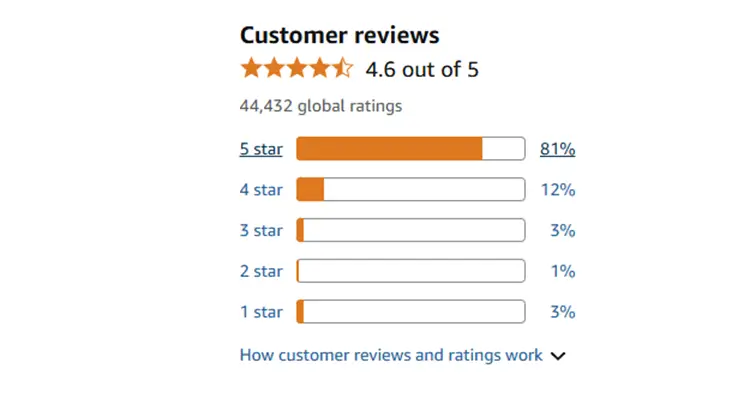
A solid 4.6/5
The Amazon Fire TV Stick 4K Max has an impressive 4.6 out of 5-star rating on Amazon, with over 44,000 global reviews. Around 80% of users give it 5 stars, praising its speed, storage, and streaming quality.
Users highlight its fast, reliable streaming and smooth 4K playback, more storage, and no connectivity issues.
Some users find the interface cluttered, inability to disable the screensaver, etc. Still, the Fire TV Stick 4K Max is praised for its performance and user-friendly features, making it a top streaming choice.
FireTV 4K Max Alternates
- onn. 4K Android TV Box
- Nvidea Sheild TV
- MiTV Device
- Android Phone
- iPhone
FAQs
1. Are there alternatives to the Downloader app for sideloading IPTV apps?
Yes, alternatives like ES File Explorer can be used for sideloading apps. However, some features may require a premium subscription.
2. Can I record IPTV content on my FireStick?
Yes, you can record IPTV on FireStick, but it depends on the IPTV app and service. Some apps like TiviMate and IPTV Smarters Pro support recording, but you may need premium access and extra storage.
3. How can I improve IPTV streaming quality on my FireStick?
4. Can I use multiple IPTV services on one FireStick?
Yes, you can install multiple IPTV apps or use an app that supports multiple playlists to access various IPTV services on a single FireStick.
5. How do I update IPTV apps on FireStick?
For apps installed from the Amazon App Store, updates occur automatically. For sideloaded apps, you’ll need to download the latest APK version and install it manually using the Downloader app.
Is Fire TV 4K Max Worth Buying?
The Fire TV Stick 4K Max hits the sweet spot for price, performance, and features at $59.99 — extra storage, faster performance, and Wi‑Fi 6E make it excellent for IPTV compared with other sticks. It still performs well on Wi‑Fi 5/6.
For casual 4K streaming, the Fire TV Stick 4K ($49.99) is a budget alternative; the Fire TV Cube ($139.99) adds hands‑free Alexa and device control. Full Wi‑Fi 6E benefits require a compatible router; wired use needs Amazon’s Ethernet Adapter, and Alexa search won’t work inside third‑party IPTV apps.

