

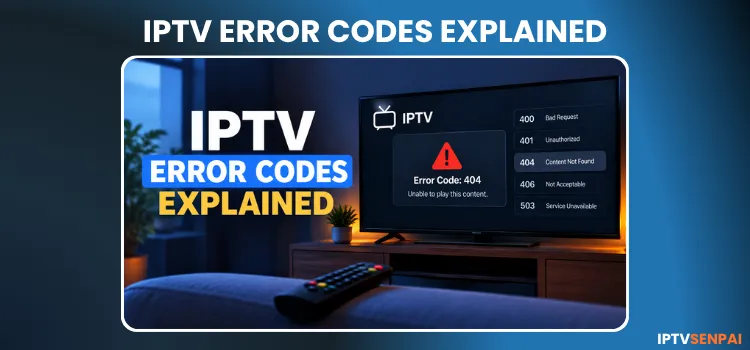
When streaming through IPTV players like TiviMate Player, IPTV Smarters Pro, OTT Navigator, etc, a sudden playback error can ruin your viewing experience.
These numbers (400, 401, 404, 503, etc.) are standard HTTP status codes. They tell your player exactly why the provider refused to stream the video.
Before deleting your playlist or reinstalling your player, check the error code.
Some problems can be resolved through your app or connection settings, while others require your IPTV provider to fix them.
This guide covers common IPTV error codes, their possible causes, and how to fix IPTV errors. I will also explain when a VPN may help, when it won’t, and when to contact your provider.
⚡ Quick Answer
Check the exact error code before changing any settings. Codes like 401 and 403 usually mean a login or access problem you can fix yourself. Codes like 500, 502, and 503 mean the provider’s server is down — a VPN won’t help with those.
Quick Overview
Here’s a quick overview of common IPTV error codes and what they mean. Tap any code to jump straight to its fix:
| Error Code | Category | What it Means |
|---|---|---|
| 400 – Bad Request | Client Error | The app sent corrupted data or a malformed URL. |
| 401 – Unauthorized | Authentication | The server rejected your login details. |
| 403 – Forbidden | Access Control | Your login worked, but access is blocked. |
| 404 – Not Found | Stream Resource | The specific stream URL does not exist. |
| 408 – Request Timeout | Network | Your connection is too slow to reach the server. |
| 429 – Too Many Requests | Rate Limiting | You hit the server with too many rapid requests. |
| 500 – Server Error | Infrastructure | The provider’s backend server crashed. |
| 502 – Bad Gateway | Infrastructure | A proxy/relay server got an invalid response from the source. |
| 503 – Service Unavailable | Infrastructure | The server is overloaded or under maintenance. |
Common IPTV Error Codes & How to Fix Them
Below are some of the common IPTV error codes. Here’s what it means and how to fix them.
⚠️ 1. Error 400 (Bad Request) – Broken Links
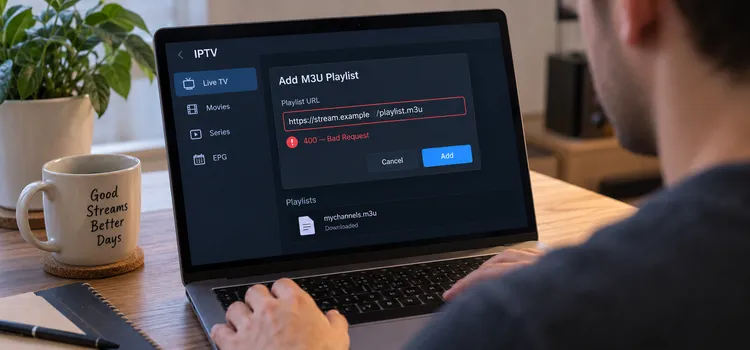
An Error 400 means your player sent a request that the server simply could not understand.
The communication channel is open, but the app is speaking gibberish.
Why It Happens:
- You accidentally added an invisible space or illegal character (like an extra
/) to your portal URL. - The IPTV app’s temporary cache has become corrupted, scrambling the data it sends.
- Your app version is drastically outdated and incompatible with modern Xtream Codes API structures.
Solutions:
- Audit server URL: Check the server URL in your IPTV app. Ensure it starts precisely with
http://orhttps://as dictated by your provider, with no spaces at the end. - Clear App Cache: Go to your Firestick or Android TV settings, find your IPTV app, and select Clear Cache to wipe out corrupted temporary files.
🔒 2. Error 401 (Unauthorized) – Login Rejections
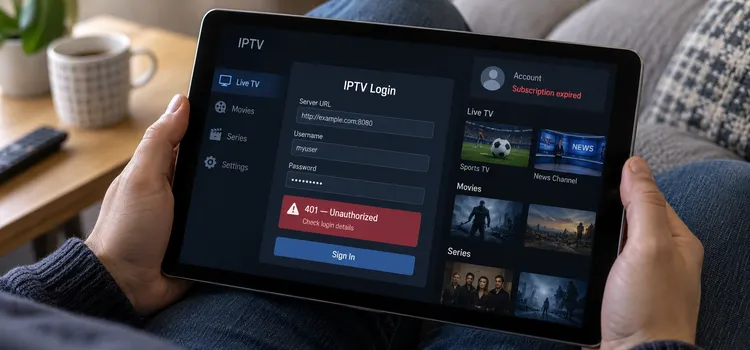
An Error 401 is an IPTV unauthorized error.
It means the server is refusing to connect because login credentials are missing, incorrect, or expired.
Why It Happens:
- You made a typing mistake when entering your Xtream Codes or M3U.
- Your IPTV subscription has expired.
- You are trying to watch on two devices at once, but your plan only allows one connection.
- Your streaming device’s system clock is out of sync, which breaks token-based logins.
Solutions:
- Copy-Paste login details: Copy credentials directly from your provider’s welcome email rather than typing them manually to avoid invisible spaces or capitalization errors.
- Check your device limits: Make sure nobody else in the house is streaming on a phone or second TV using the same account.
- Sync your device clock: Go to your Firestick or Android TV settings and set the date and time to ‘Automatic’ or ‘Network Provided’.
- Verify your account status: Before changing any app settings, log into your provider’s billing dashboard or contact their support to ensure your subscription hasn’t accidentally expired or been flagged for a rule violation.
🚫 3. Error 403 (Forbidden) – Blocked Access
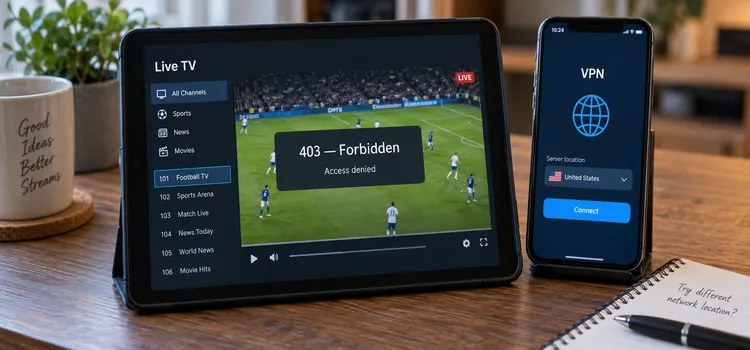
An Error 403, also known as an IPTV forbidden error, occurs when the server understands your request but refuses to grant access.
This often happens because of permission restrictions, security rules, or network blocks.
Why It Happens:
- Your Internet Service Provider (ISP) is actively blocking the IPTV server.
- The channel is geo-restricted to a specific country.
- Your IPTV provider is blocking your current VPN server to prevent account sharing.
- Your player’s ‘User-Agent’ is being flagged by the provider’s security system.
Solutions:
- Toggle a Premium VPN: Turning on a VPN will instantly mask IP address and bypass network-level blocks. If an active VPN triggers a 403 error, switch to a different server location.
- Change your User-Agent: In IPTV players like TiviMate, go to Settings and change the default ‘User-Agent’ string to a standard browser string (e.g.,
VLC/3.0.0orMozilla/5.0).
🔗 4. Error 404 (Not Found) – Broken Stream Links
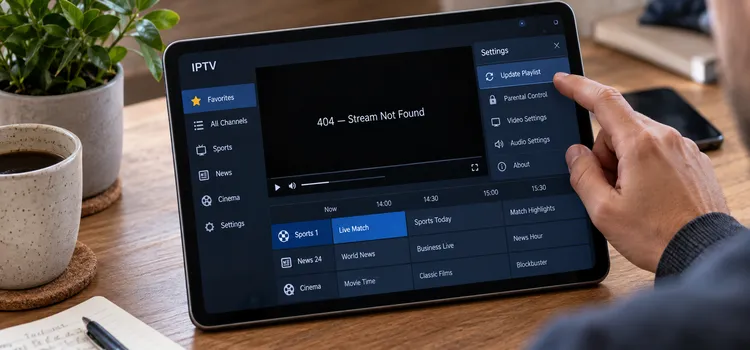
An Error 404 is often described as IPTV Playlist Not Found.
It happens when your player reached the server, but the requested channel, movie, or playlist file is missing — it may have been removed, moved, or linked incorrectly.
Why It Happens:
- The provider updated their channel lineup, and your saved app favorites point to a dead link.
- You are trying to watch a Catch-Up/VOD program that has passed the 3-7 day storage limit and was deleted.
- You paused a live TV stream for too long, and the specific video segment expired.
Solutions:
- Perform a full Playlist Update: Go to your app settings and click Update Playlist. Do not just “Update EPG” (which only updates the TV guide text) — you need the app to pull the freshest stream URLs from the server.
- Search for replaced channels: If an old favorite channel gives a 404 error, search the main channel directory, as IPTV providers frequently rename, re-index, or reassign live streams to updated server paths.
🐢 5. Error 408 (Request Timeout) – Slow Connections
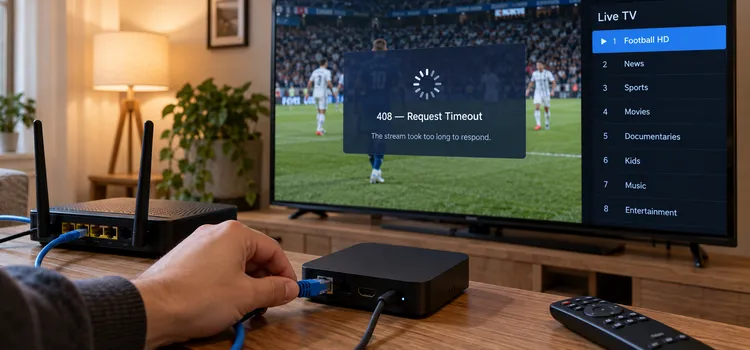
An Error 408 means your app tried to connect to the stream, but the server gave up waiting because your network took too long to send its request.
Why It Happens:
- High latency or severe packet loss on your home Wi-Fi network.
- Your ISP is heavily throttling your IPTV traffic during peak hours.
- The device you are using is too far from your Wi-Fi router.
Solutions:
- Use an Ethernet connection: Switch from Wi-Fi to an Ethernet cable for a more stable connection. If that isn’t possible, reboot your router to clear network congestion.
- Test your VPN: An overloaded VPN server may cause an error 408. Temporarily disconnect your VPN or switch to a nearby server, then retry.
⏱️ 6. Error 429 (Too Many Requests) – Rate Limit Bans
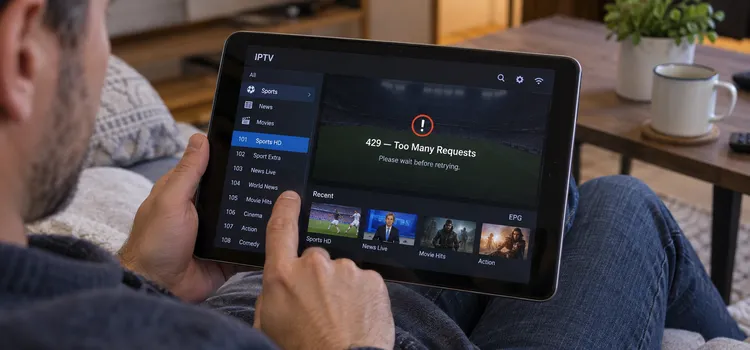
An Error 429 is a temporary timeout.
The server is protecting itself because your IP address is sending too many commands in a short period.
Why It Happens:
- You are rapidly channel surfing (pressing next/previous channel repeatedly without letting the video load).
- You are spamming the ‘reload’ or ‘reconnect’ button on a broken stream.
- Multiple devices on your network are trying to download massive EPG (TV Guide) files simultaneously.
Solutions:
- Pause before retrying: Stop pressing buttons. Return to the main menu and wait 3-5 minutes for the server’s rate-limit timer to expire, then try loading a channel once.
- Adjust EPG Update Frequency: In your IPTV app settings, change the TV guide update interval from ‘Every time the app opens’ to ‘Once a day’, if available.
🖥️ 7. Error 500 (Internal Server Error) – Provider Crash
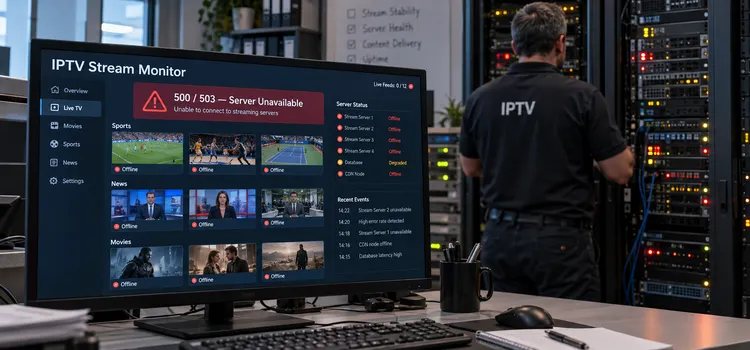
An Error 500 means the provider’s server has encountered an unexpected hardware or software crash.
There is absolutely nothing wrong with your device, internet, or app settings.
Why It Happens:
- A massive viewer surge during a high-profile live sports event crashed the server.
- The provider is undergoing unscheduled backend database maintenance.
- A misconfigured update on the provider’s side broke a core service.
Solutions:
- Wait for it: The best IPTV error fix for a temporary server outage is to wait 15–30 minutes before trying again. Avoid factory resetting your Firestick or clearing app data — resetting your local device will not fix a remote server crash.
- Check community groups: Look at your provider’s Discord or Telegram support groups to see if an outage has been officially announced.
- Use a backup portal: If your provider gave you a secondary backup URL in your welcome email, update your app settings and use that server instead.
🔀 8. Error 502 (Bad Gateway) – Proxy/Relay Failure
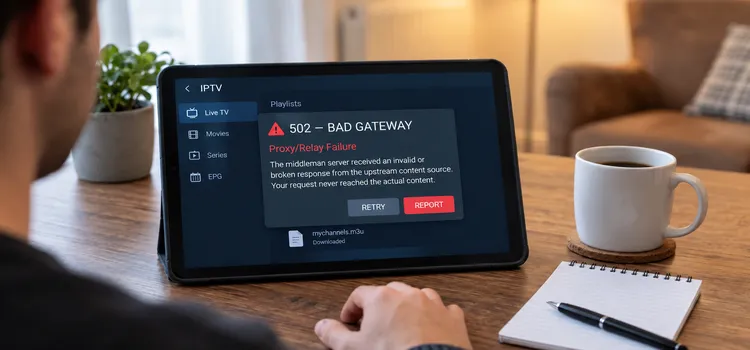
Most IPTV providers route traffic through a proxy or load balancer before it reaches their actual streaming servers — both for performance and to absorb DDoS attacks.
An Error 502 means that middleman server got an invalid or broken response from whatever’s behind it. Your request never reached the actual content — it failed one step earlier.
Why It Happens:
- The provider’s origin server (the one actually hosting the stream) is overloaded or temporarily offline.
- A CDN or anti-DDoS proxy the provider relies on is having its own outage.
- The provider is mid-migration between servers, and DNS hasn’t fully propagated.
Solutions:
- Treat it like a 503: This is almost always a provider-side infrastructure issue, not something fixable in your app settings. Wait 15–30 minutes and retry.
- Check if it’s isolated to one channel: If only specific channels 502 while others play fine, the fault is likely with that channel’s individual upstream source, not your account or the whole service.
- Report it with a timestamp: If it persists for hours, note the exact time it started when contacting support — it helps them correlate it with their own server logs.
🛠️ 9. Error 503 (Service Unavailable) – Overload or Maintenance
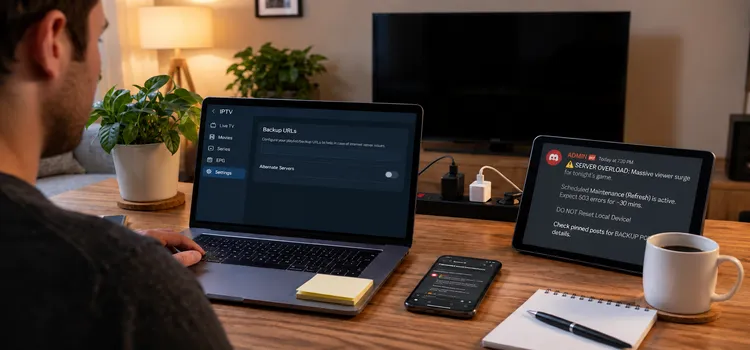
An Error 503 means the server is up and reachable, but is refusing to serve requests right now — either it’s overloaded with traffic or intentionally offline for maintenance.
Like a 500 or 502, there is nothing wrong with your device, internet, or app settings.
Why It Happens:
- A massive viewer surge during a high-profile live sports event overwhelmed capacity.
- The provider is undergoing scheduled backend maintenance.
Solutions:
- Wait for it: Wait 15–30 minutes before trying again. Avoid factory resetting your Firestick or clearing app data — resetting your local device will not fix a remote server crash.
- Check community groups: Look at your provider’s Discord or Telegram support groups to see if an outage has been officially announced.
- Use a backup portal: If your provider gave you a secondary backup URL in your welcome email, update your app settings and use that server instead.
Tip: If a channel works on another device using the same Wi-Fi and login, try clearing the affected IPTV app’s cache and updating it. Avoid Clear Data unless you’re ready to restore your playlists and log in again.
Will a VPN Actually Fix Your IPTV Error?
A Virtual Private Network (VPN) is a powerful tool for IPTV, but it is not a magic cure for every error code.
A VPN Will Help If:
- You are getting a 403 Forbidden or 408 Request Timeout error because your ISP is throttling your speed or blocking the provider’s domain.
- You are trying to access a region-locked live sports stream.
A VPN Will Not Help If:
- You have a 401 Unauthorized error because your password is wrong.
- You have a 404 Not Found error because the provider deleted the movie.
- You have a 500, 502, or 503 Server Error because the provider’s infrastructure is down — a VPN can’t fix a server that isn’t running.
How to Prevent Most IPTV Errors
A few consistent habits go a long way toward avoiding these errors in the first place:
- Keep your player app updated. Outdated versions are more likely to send malformed requests or mishandle modern API responses.
- Don’t share your login across more devices than your plan allows. This is one of the most common causes of intermittent 401 errors.
- Update your playlist regularly instead of relying on stale saved favorites. Providers reshuffle channel URLs often.
- Use a wired connection where possible. Ethernet all but eliminates 408 timeout errors caused by weak Wi-Fi signal.
- Avoid rapid channel-surfing or repeatedly mashing reload. That’s exactly what triggers 429 rate-limit errors.
- Keep your provider’s backup/alternate server URL saved somewhere. You won’t be stuck when their primary server has an outage.
When to Contact Your IPTV Provider?
If the error persists after trying the fixes above, contact your IPTV provider or open a support ticket.
Explain whether the issue affects one channel, several channels, or the entire playlist.
Provide your IPTV provider with the exact error code (e.g., HTTP 401), app and device names (e.g., TiviMate on Nvidia Shield), and the troubleshooting steps you have already tried.
These details can help your provider identify the problem faster.
Security Note: Never post your full M3U link, username, or password in public forums, Reddit threads, or Discord chats.
FAQs
Why does my IPTV keep showing error codes?
IPTV error codes can indicate incorrect login details, broken stream links, access restrictions, or server problems. Check the exact code before changing settings or reinstalling your player.
Can a VPN fix IPTV errors?
A VPN may help with some network or location restrictions, but it cannot fix incorrect passwords, deleted streams, or provider outages. If errors occur while using a VPN, try another server or disconnect temporarily.
What’s the difference between a 502 and a 503 error?
Both mean the problem is on the provider’s end, not yours. A 503 means their server is reachable but too overloaded to respond. A 502 means a proxy in front of their server got a broken response instead. Either way, the fix is the same: wait and retry.
Will increasing my player’s buffer size stop these errors?
No. Adjusting the buffer size only helps with playback stuttering and freezing. It cannot fix rejected passwords, dead links, timeouts, or server crashes.
Why does only one IPTV channel show an error?
That channel’s stream may be unavailable, moved, or removed. Update your playlist and test other channels before contacting your provider.
Will clearing the cache delete my IPTV playlist?
Clearing the cache usually preserves your playlists and login details. Clearing app data can remove them, so keep your credentials available before choosing that option.
Final Verdict
IPTV error codes help narrow down what went wrong. Check your login details, playlist URL, and connection before reinstalling your player.
If only one app fails, clearing its cache and updating it may resolve the issue.
Frequent errors across multiple channels may point to broken stream links or problems with your provider’s servers.
If support cannot resolve these recurring issues, consider switching to a more reliable service.
A VPN may help with certain network restrictions, but it cannot fix incorrect passwords, missing streams, or provider outages.
My recommendation is to identify the cause first, then apply the relevant fix instead of changing settings at random.

